Use the club calendar
Read the day at a glance, manage sessions and work with floor plans.
Club calendar is the calendar of the reservation categories you work in, such as group classes, private lessons or pool loungers. It lets you see who is booked, follow the places left in each session, mark attendance, manage a session and find a free spot on a floor plan. Your administrator chooses which categories appear here.
1. Read the week or the day
Open Club calendar in the left menu and select a category in the strip at the top.
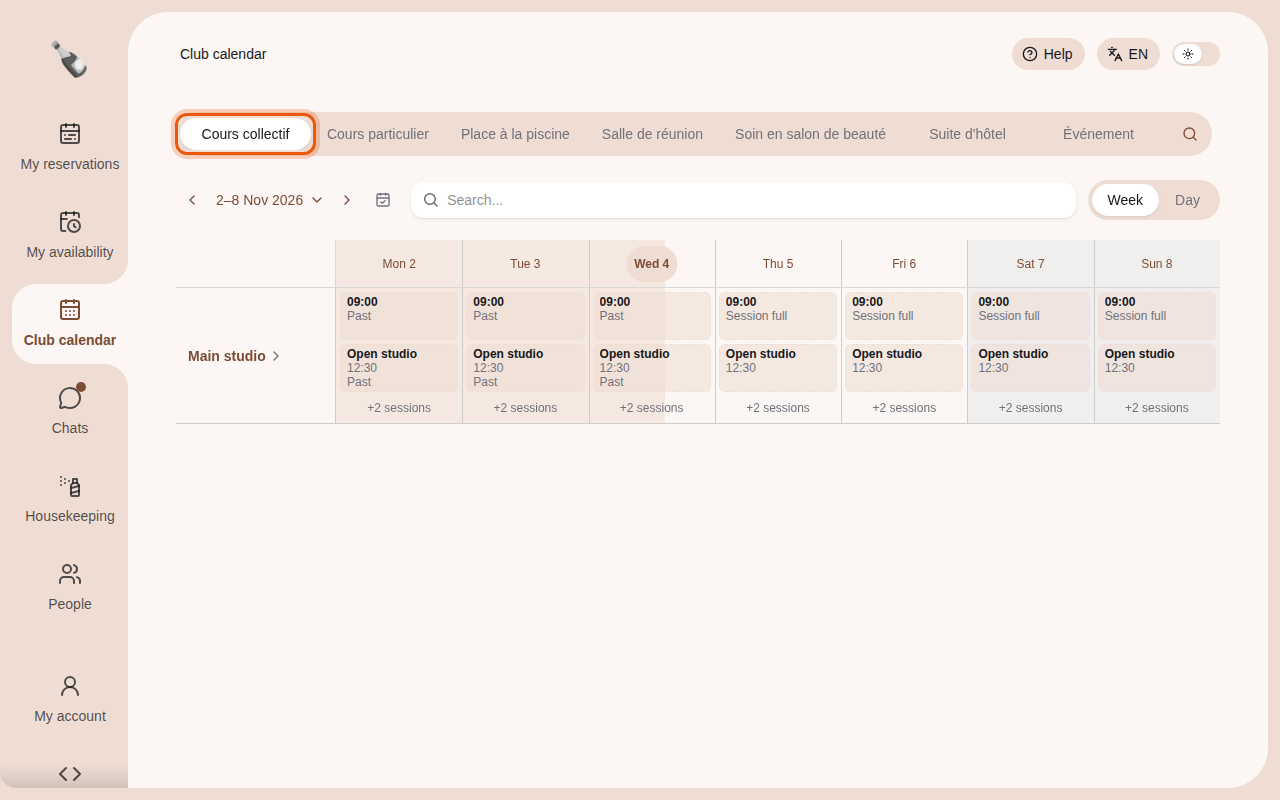
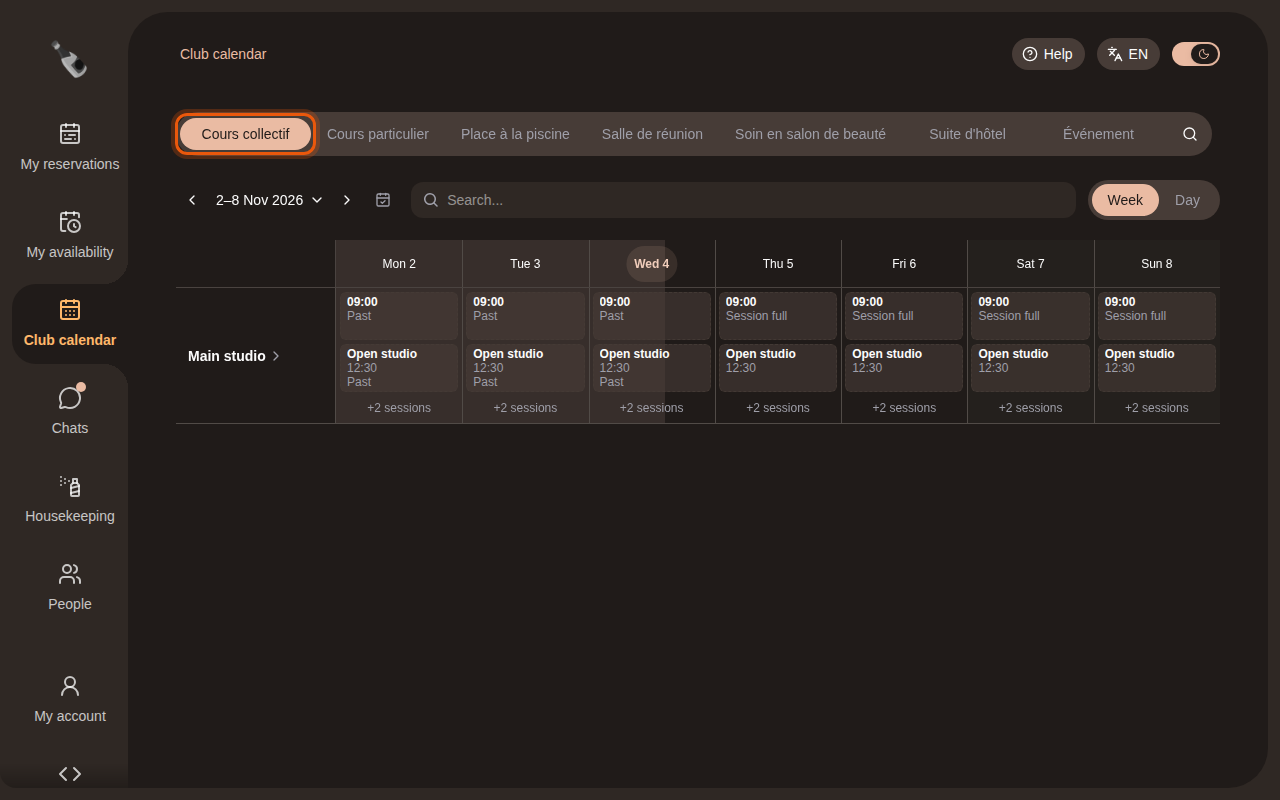
A week of the example group classes Cours collectif in the Main studio, with the daily Open studio. The control to use is outlined in orange.
- Week shows seven days side by side. Day shows the hours of a single day. Select a day name in the header to open that day.
- The arrows move to the previous or next period, and the calendar icon brings you back to today.
- Search... finds a booking by name.
- In group classes, each block is a session. It shows its start time and Session full, the number of places left, or Past once it is over. A session with its own name, such as Open studio, shows that name. In Week, each day shows its first two sessions as cards. When a day has more, select a link such as +2 sessions to open that day and see them all.
Bookings work like in the Reservations section: select one to open it, or hover over a free time and select + to add one if your role allows it. See Handle reservations.
2. Follow a session and mark attendance
Select a session to open its panel. Booked places shows how full it is when the session has a limit, and Participants lists who is coming and how many places each person booked.
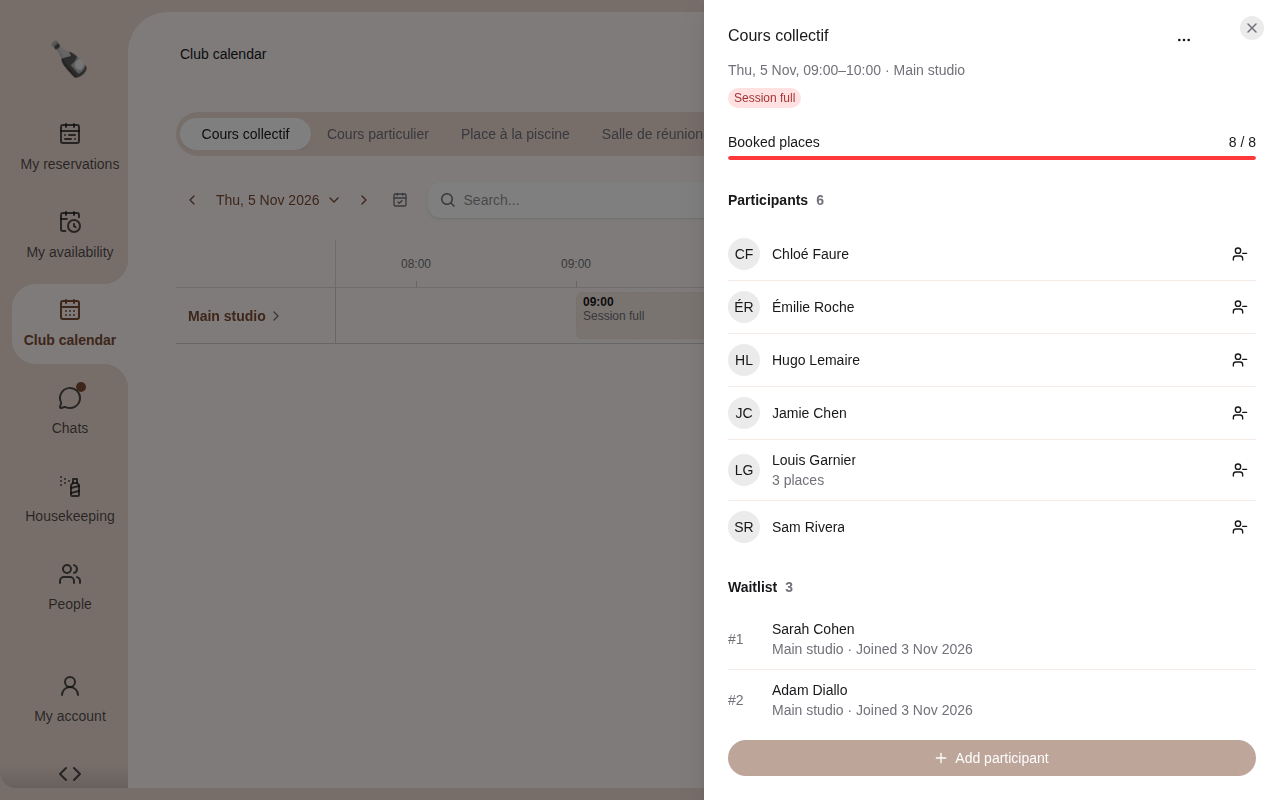
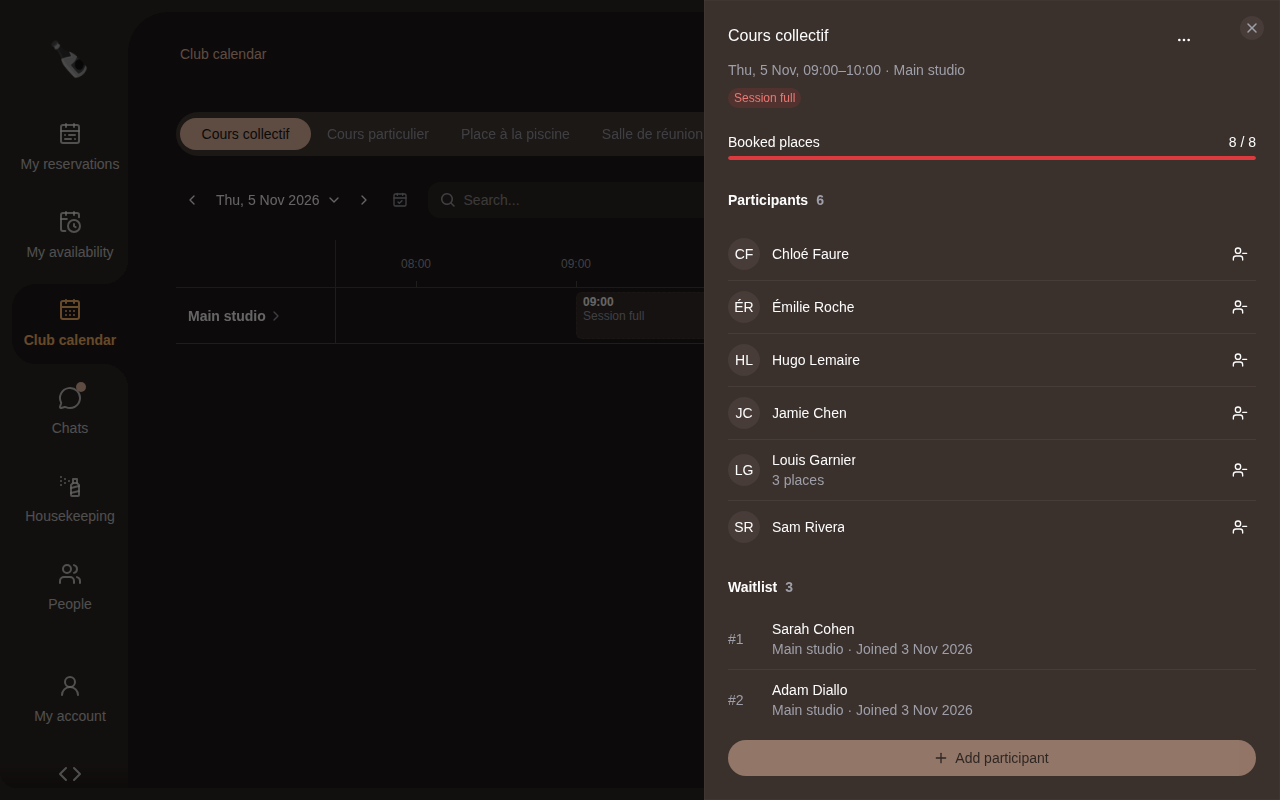
The example 9:00 Cours collectif, full with six participants and three members waiting.
- From the day of the session, mark each participant Present, Late or Absent. Late and Absent open once the session starts. Mark remaining present marks everyone you have not marked yet in one go.
- Add participant books a member into the session while places remain, until the session starts. It needs the Create and change reservations permission, and marking attendance needs Validate attendance and tickets.
- The icon at the end of a participant's line removes them from the session. Their reservation is canceled and any payment is refunded, so a confirmation window asks first. This icon needs the Create and change reservations permission. When the cancellation deadline has passed, the window offers Refund the price: leave it unticked to keep the price and return only the deposit.
- When members are waiting for a place, Waitlist lists them in order, with the date they joined. A place that frees up goes to them automatically, in that order.
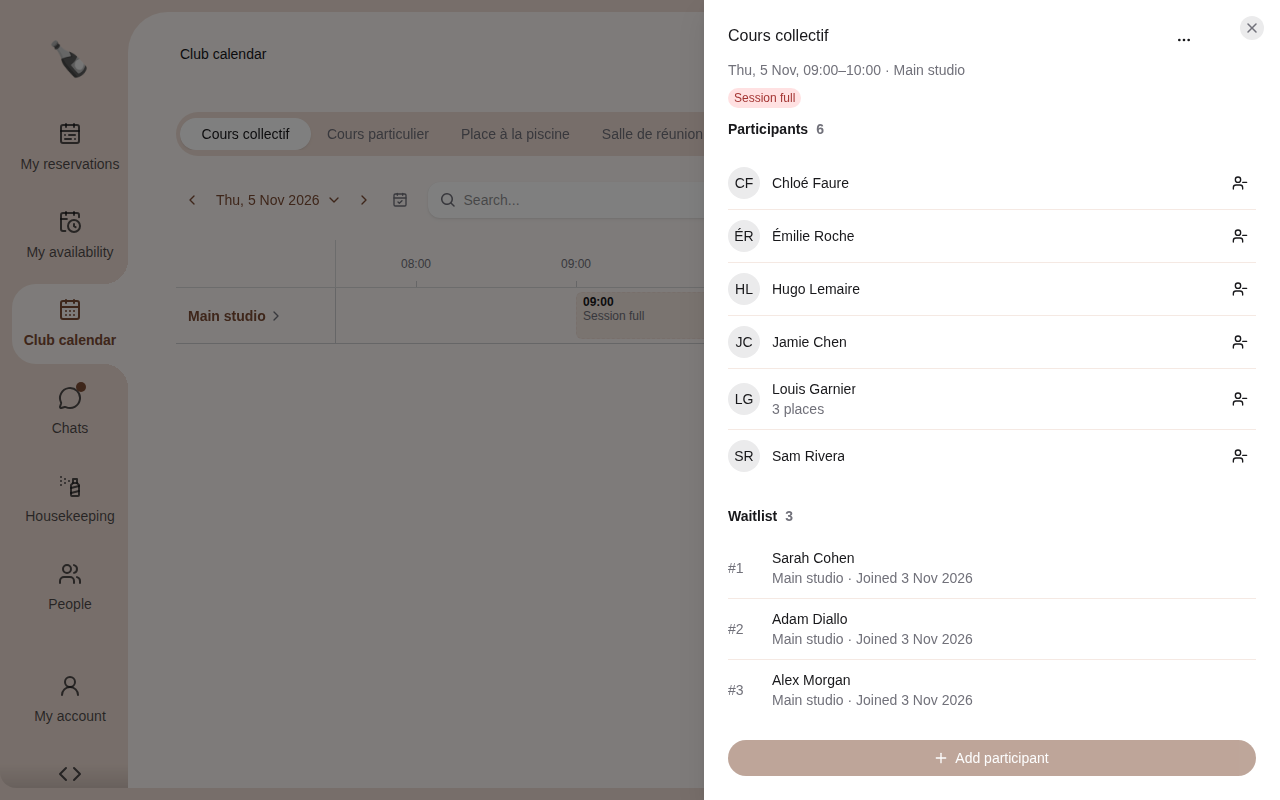
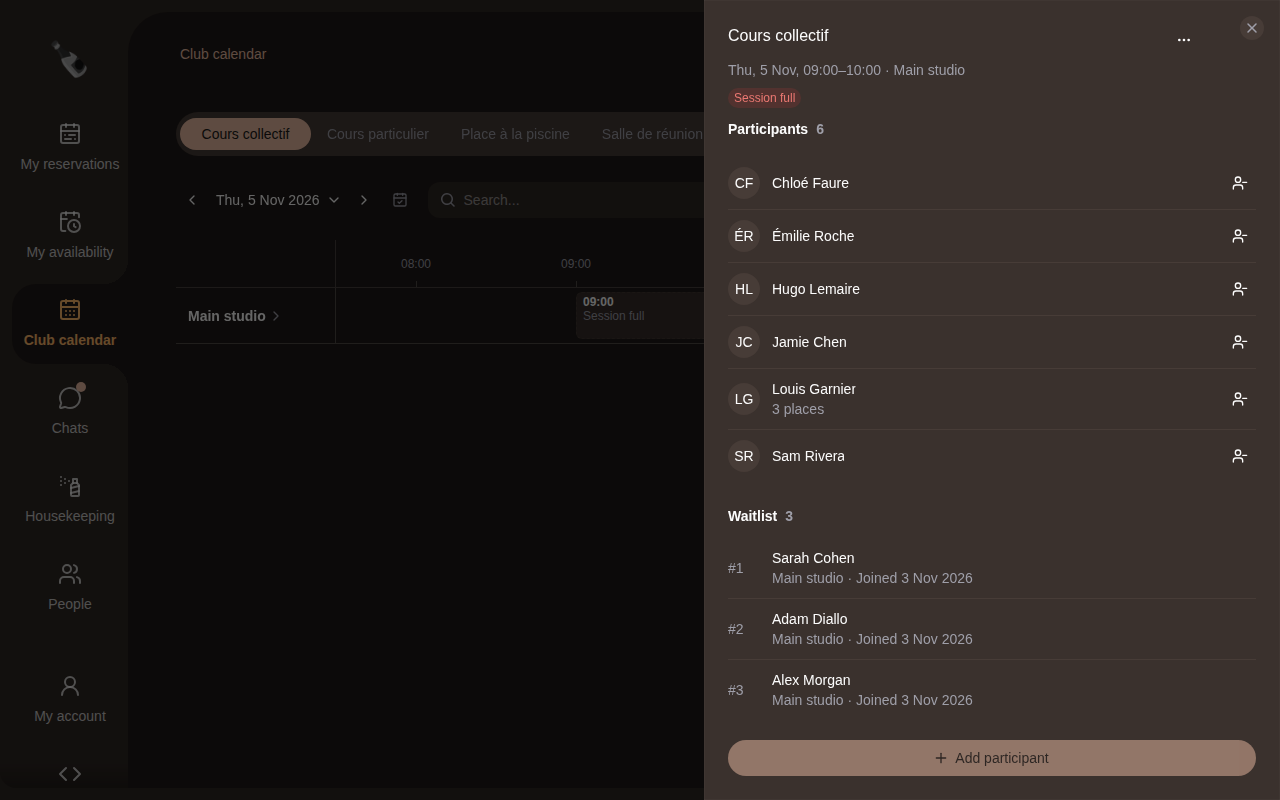
Labels under the session's title show In progress or Past, Session full, and Open access for sessions people attend without booking, such as the example Open studio. Open access sessions have no Booked places meter and no participant list.
Checking tickets
When members get a QR code ticket for the category, Tickets above the calendar checks it, and Mark present records their arrival. See Check guests in and out.
3. Change, export or cancel a session
Select the ⋯ button next to the session's title to open Session actions. The choices depend on the session and on your role.
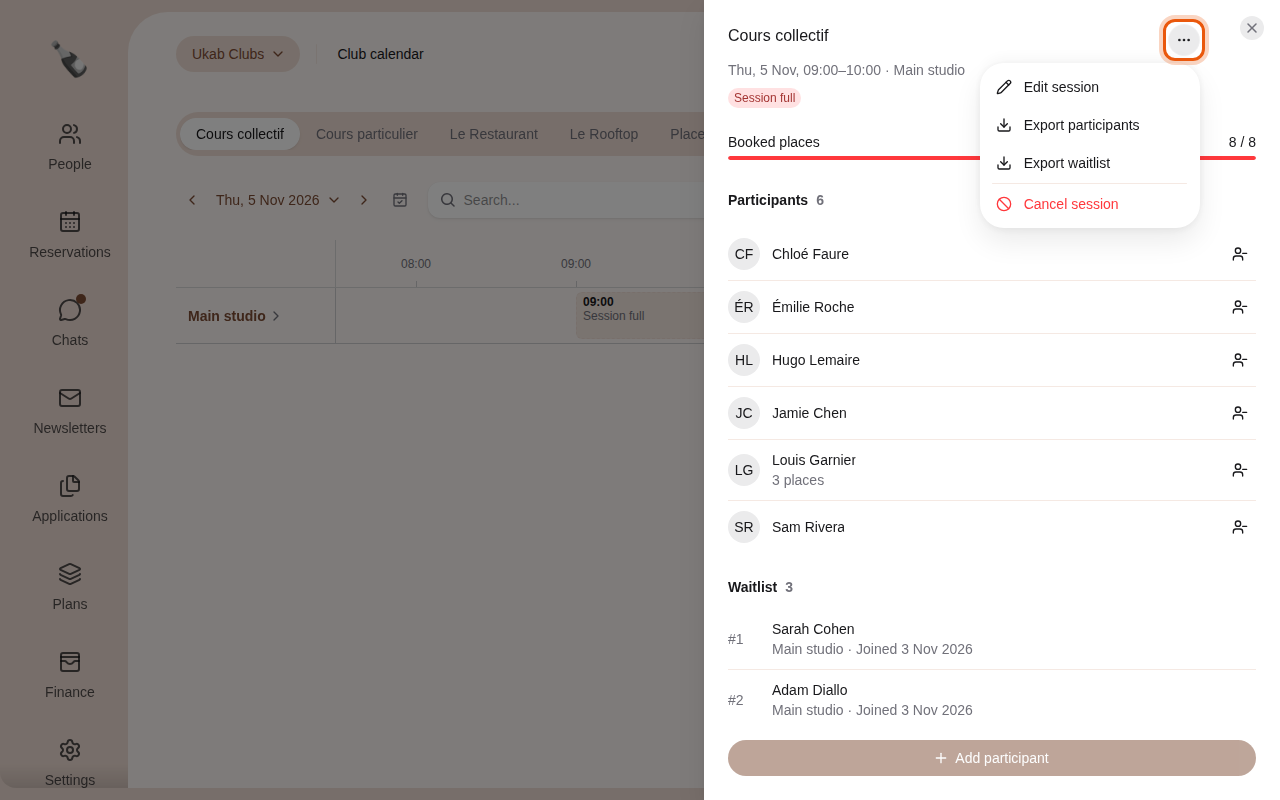
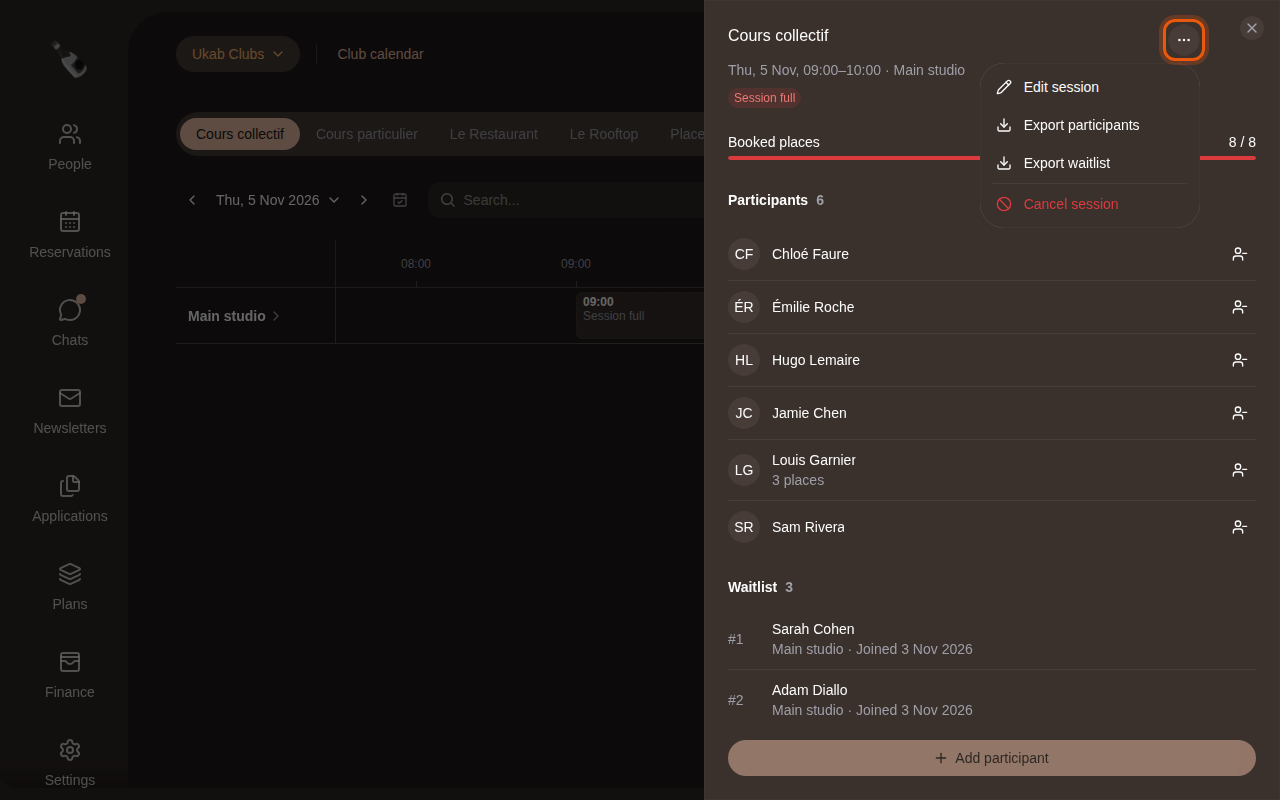
The actions of the example full Cours collectif session, seen by an administrator.
- Edit session changes the session's details, such as its time, Location or Member limit (optional). It appears before the session starts, for staff who manage the category. See Sessions, guest lists and blocked periods.
- Export participants, when the session has participants, downloads a spreadsheet file (CSV) with each participant, their reservation status, attendance and number of places.
- Export waitlist, when people are waiting for a place, downloads them as a CSV file too.
- Cancel session cancels it for everyone before it starts. It needs the Create and change reservations permission. A window asks Cancel this session?: members are notified and paid reservations are refunded. Select Cancel session to confirm, or Keep session to leave it.
4. Use the floor plan
Some categories, such as pool loungers, have a floor plan. It appears under the calendar, below Floor plan. When a category has several plans, select a plan's name above the drawing to switch.
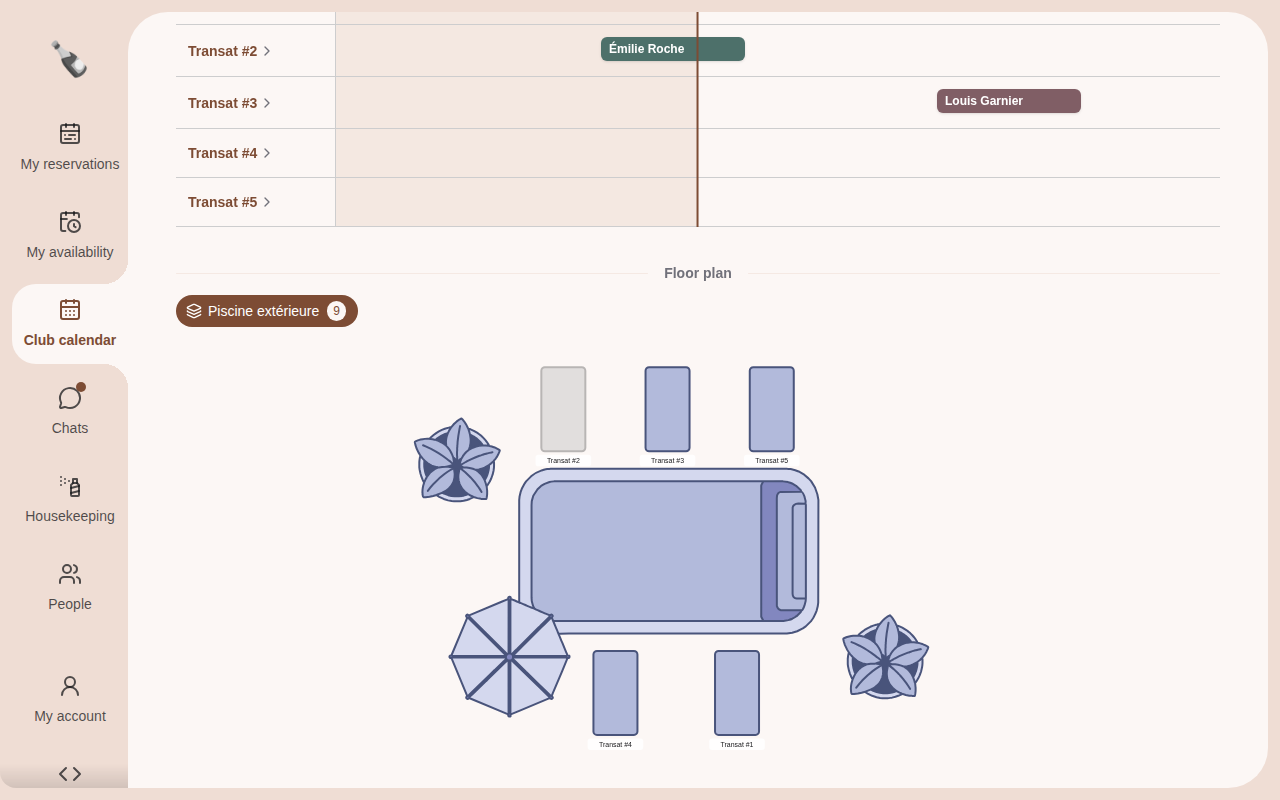
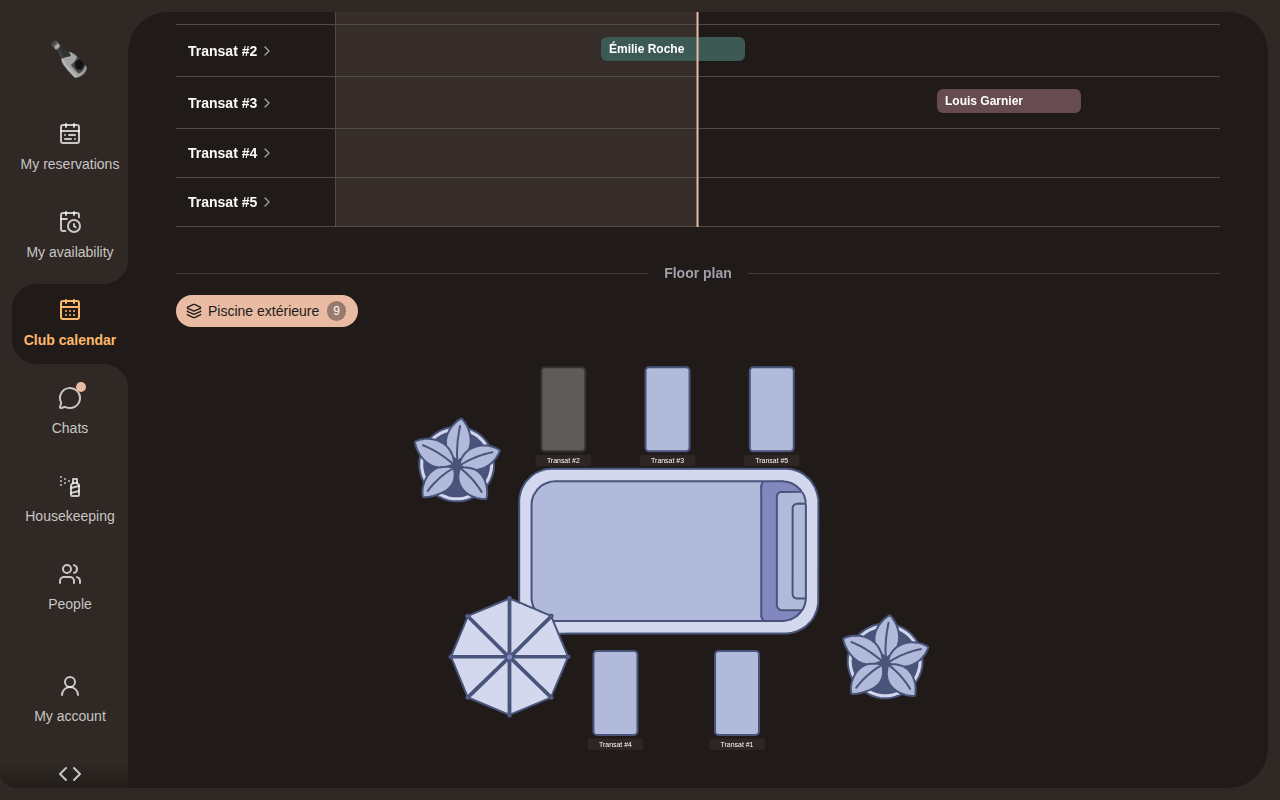
The plan shows each place at the time marked by the vertical line in the calendar. Drag that line to another time to update the plan. Places that are reserved or unavailable at that time appear grayed out. Select a free place to open the reservation form for that place and time, if your role allows you to add bookings.
Drawing or changing the plan
Staff who manage the category can select Edit floor plan to arrange the layout. The AI tools for your floor plan guide explains how to import an existing plan and create new objects.