Handle reservations
See, find, create, move and cancel reservations in the calendar.
The Reservations section shows every booking of your club in a calendar, one reservation category at a time. A reservation category groups what members can book, such as a restaurant, a meeting room or group classes. Each bookable item inside a category, such as a table or a room, is called a resource. This page shows how to read the calendar, find a booking, add one, change its time and cancel it.
Other tasks on reservations have their own pages:
- People, products and customer sheets on a booking: invite someone, mark attendance, add extras and keep a customer sheet.
- Propose a time for a request: answer the requests of categories such as private lessons.
- Blocked periods, sessions and waitlists: close a resource for a while and see who is waiting for a place.
1. Pick a category and a period
Open Reservations in the left menu. The strip at the top lists the categories of your club. Select one to show its calendar. When the list is long, use the arrows at each end of the strip, or select the magnifying glass and type part of a category name.
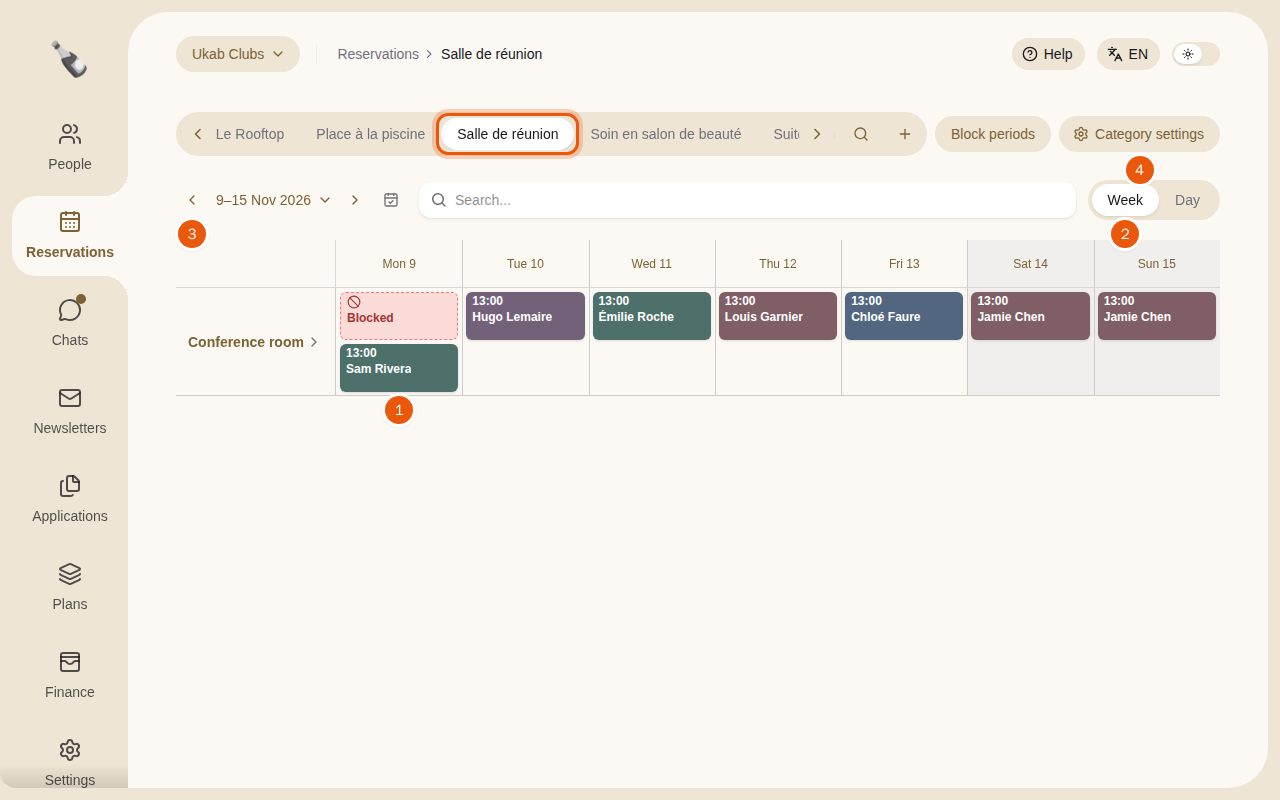
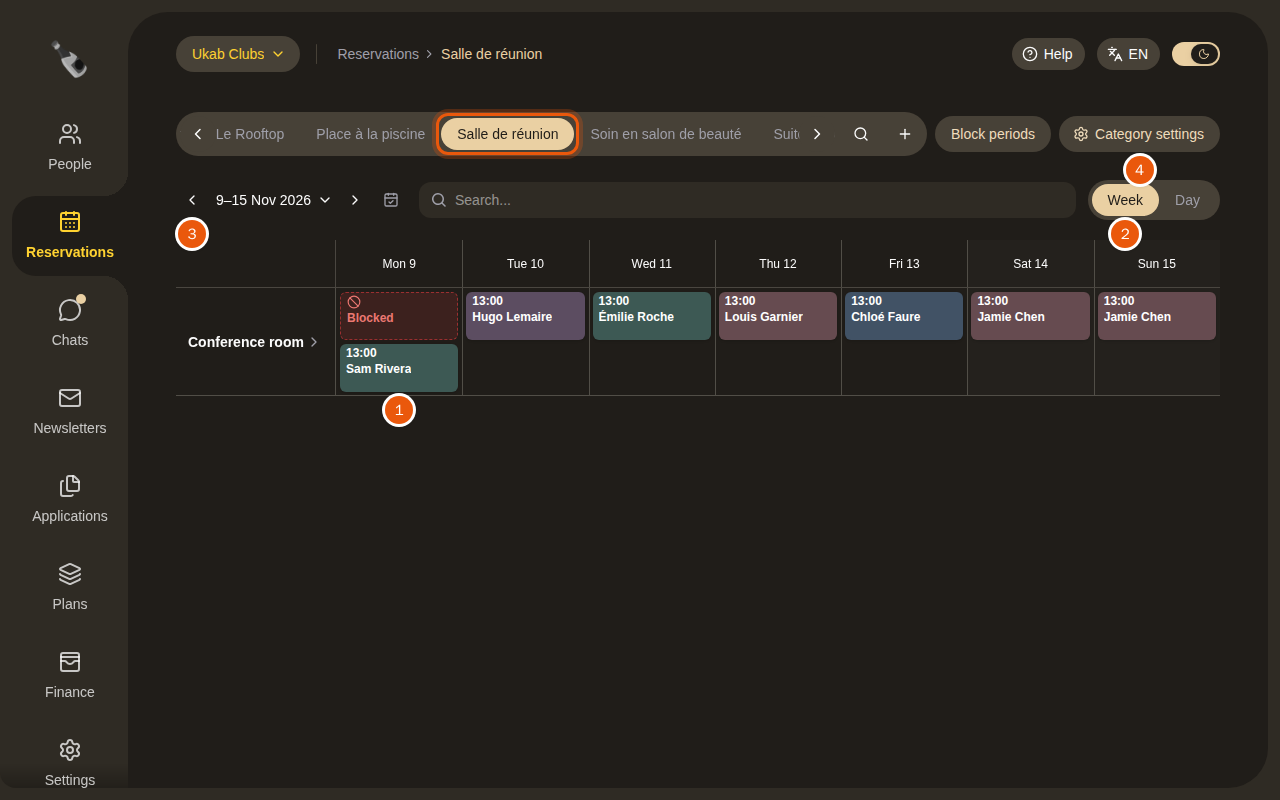
A week of the example meeting room Salle de réunion at Ukab Clubs. The control to use is outlined in orange, and the numbers match the list below.
- Each row is a resource, here the Conference room. Each colored block is a booking with its start time and the customer's name. A red block marked Blocked is a period when nobody can book.
- Week and Day switch between a whole week and a single day with hours. In Week, each day shows its first two bookings as cards, and a link such as +1 reservation opens the day when it has more. Bookings over several days, such as hotel stays, span their days instead. Categories with a floor plan show the week as a time line. Select a day name in the header to open that day directly.
- The arrows on each side of the dates move to the previous or next period. Select the dates to pick a day in a calendar, and the calendar icon to come back to today.
- The buttons on the right depend on the category and on your role. Category settings changes how the category works, and your administrator sets it up. See Set up reservation categories. Block periods, Manage sessions and Waitlist are explained in Blocked periods, sessions and waitlists. Tickets checks members' QR code tickets at the door. See Check guests in and out.
Requests awaiting a time
For private lessons, a member can ask for a session without choosing a time. These requests appear above the calendar under Requests awaiting a time. Select Open to read the request and propose a time. See Propose a time for a request.
2. Find a booking
Type a name in Search... above the calendar. The list under the field shows each matching booking with its date and time. Select one to open it.
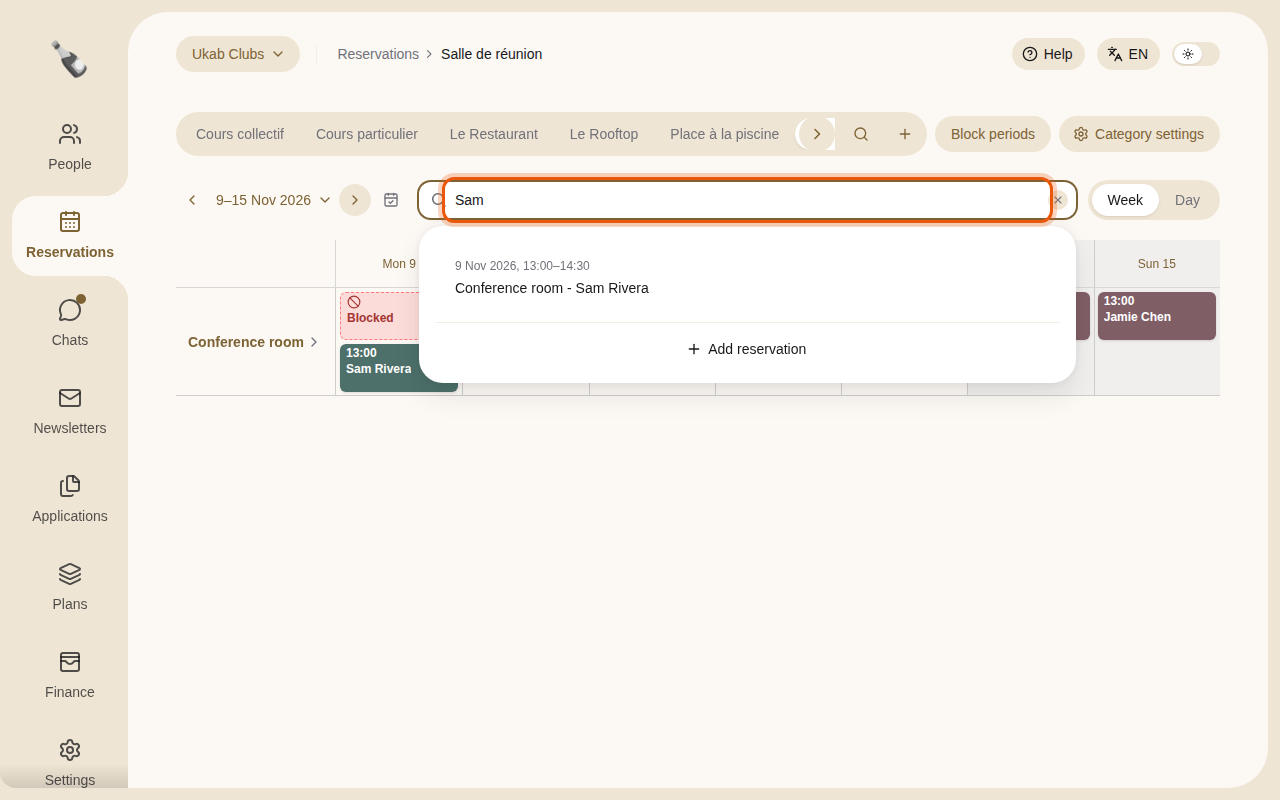
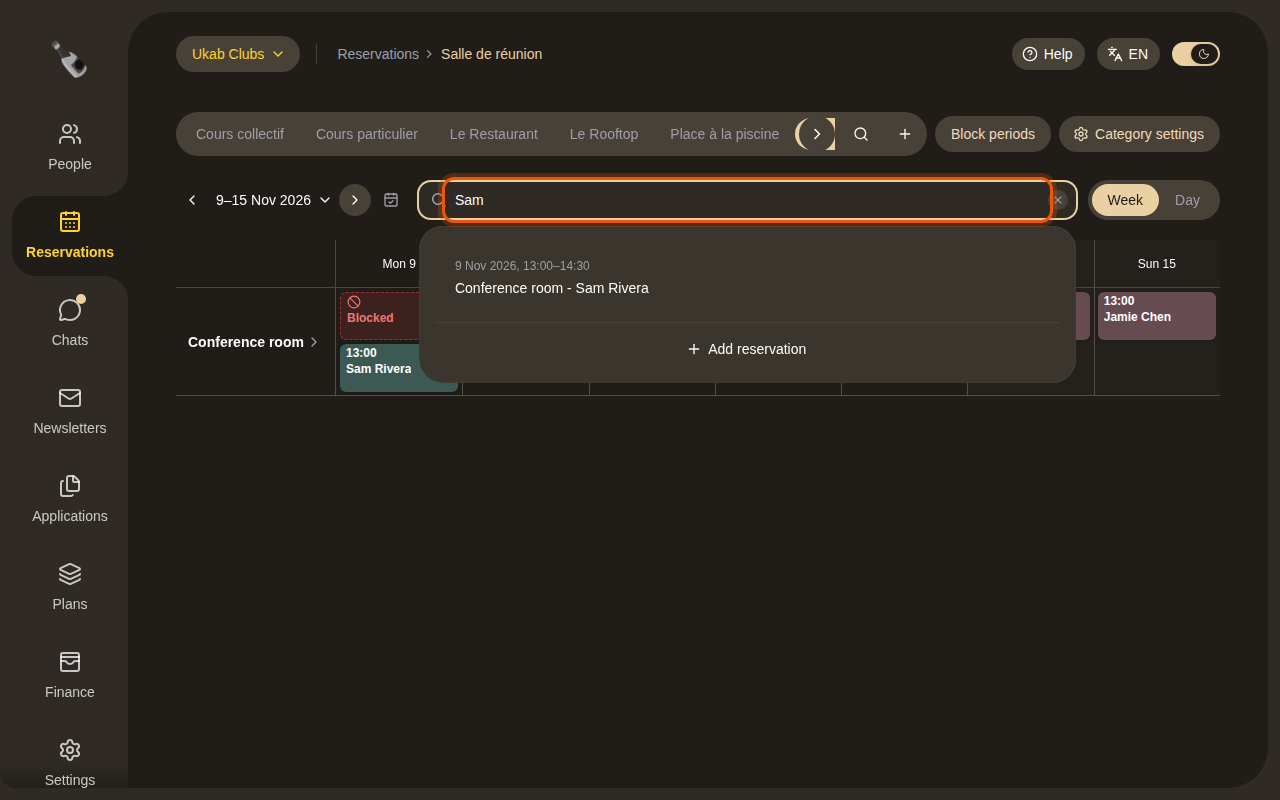
Searching the example Salle de réunion calendar for a member's first name.
3. Add a reservation
Hover over a free time in the calendar and select the + that appears. The Add reservation form opens with the resource and time you picked. You can also select Add reservation at the bottom of the search list: the form then opens on the day shown at 9:00, or in a minute when that day is today and 9:00 has passed, so check the resource and the time.
Adding a reservation needs the Create and change reservations permission.
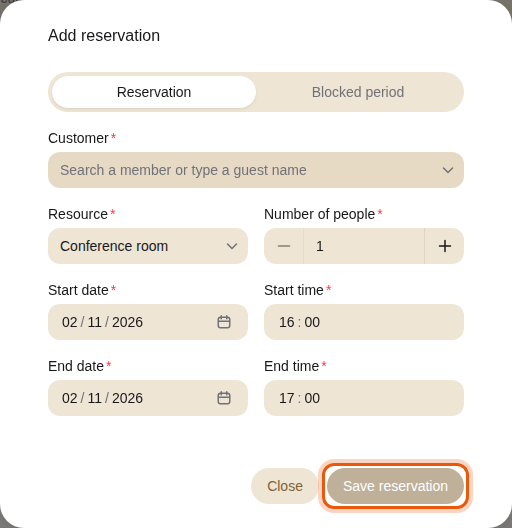
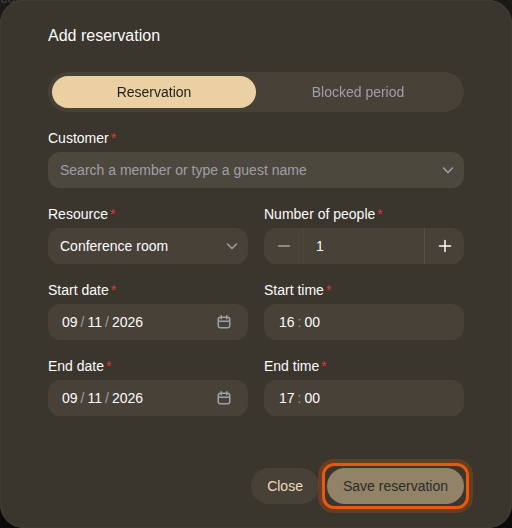
The form for a booking of the example Conference room, from 16:00 to 17:00.
- In Customer, start typing a member's name and pick them in the list, or type the name of a guest who is not a member.
- Check the Resource and the Number of people.
- Adjust the Start date, Start time, End date and End time.
- Select Save reservation. The booking appears in the calendar.
A booking with a price or a deposit stays Booked · payment due until the customer pays from their account. Champagne cannot record a payment taken at the desk.
When the resource offers extras, such as drinks, the form also lists them under Products. See Add extras to a booking.
The Blocked period tab at the top of the form closes a resource for a while. See Block a period.
4. Open, move or cancel a reservation
Select a booking in the calendar to open its page. It shows the status, the start and end, where the booking came from, the people on it, their attendance and the history of changes. Back to followed by the category name returns to the calendar. When the booking belongs to a person in People, Open person opens their page; Back to Reservation brings you back.
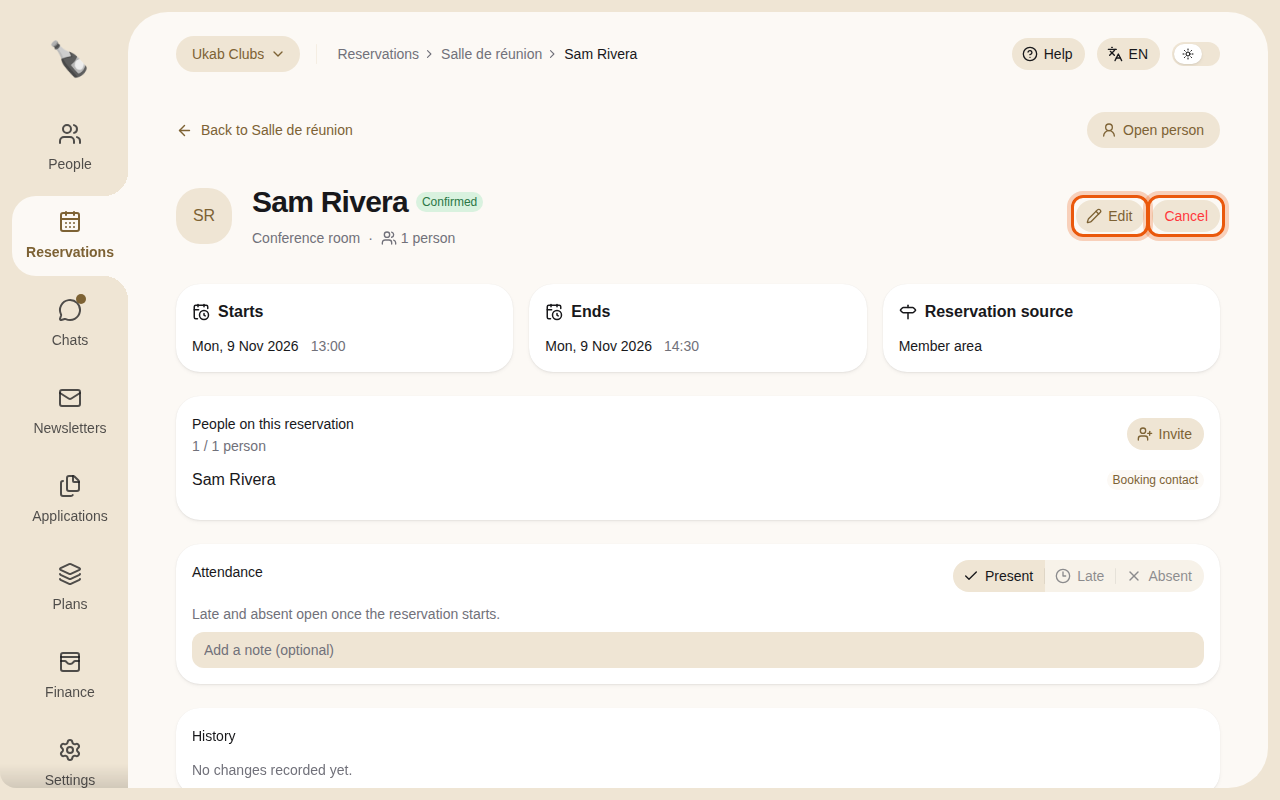
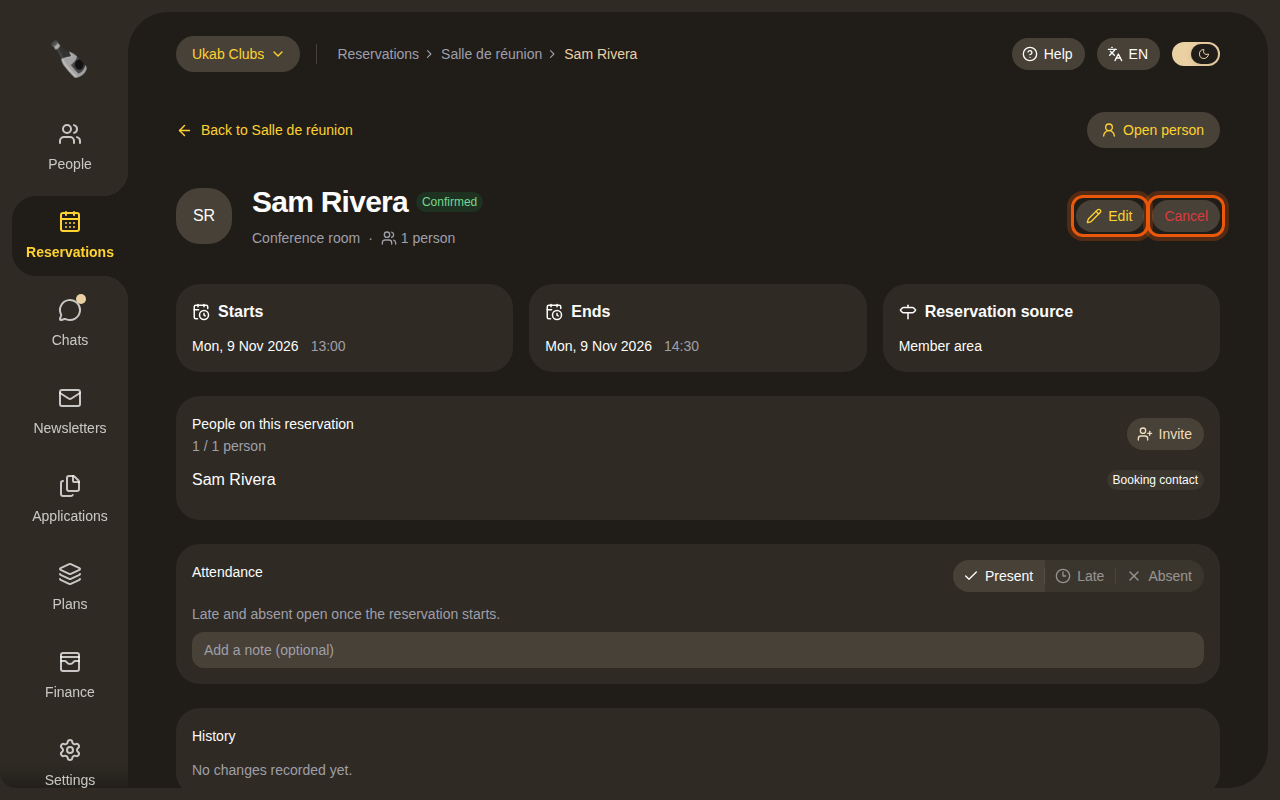
Edit and Cancel need the Create and change reservations permission. When your role lacks the permission, the buttons do not appear.
To move a booking, select Edit. Change the Resource, the Number of people or the dates and times, then select Save reservation. If the new time or place changes the price of a confirmed booking, the difference is taken from or given back to the customer's credit balance, even when they paid by card. When their balance is too low for a higher price, the change is refused and they must top up first. A booking made for a typed name, or still waiting for payment, only changes its price.
To cancel a booking, select Cancel. A window sums up the booking. Select Cancel reservation to confirm, or Keep reservation to leave it as it is.
Refunds
When a paid booking is canceled, the customer is refunded automatically. If the cancellation deadline has passed, the window offers Refund the price followed by the price: leave it unticked to keep the price and return only the deposit.
The buttons at the top of the page depend on the status.
| Status | What you can do |
|---|---|
| Pending | Confirm accepts the booking. Book appears instead when the customer still has to pay. Cancel refuses it. |
| Booked · payment due | Cancel. The booking becomes Confirmed once the customer pays. |
| Confirmed | Cancel. |
| Completed | Nothing. The booking can no longer be changed. |
| Canceled | Nothing. The booking can no longer be changed. |
Each button opens a window that sums up the booking and asks you to confirm.
The rest of the reservation page lists the people on the booking, their attendance and the extras charged. See People, products and customer sheets on a booking.