Messages
Write to your club, read its replies and start a new conversation.
Your member area includes a private chat with your club's team. Use it for any question about the club, such as a locker, parking or an event. Questions about a specific lesson go in that booking's conversation: see Lessons with a coach.
1. Open your messages
In your member area, select the Inbox icon next to Sign out. The Inbox opens on Messages. The number on Messages shows how many conversations have a reply you have not read yet. Select the arrow next to Inbox to go back to your account.
Each conversation shows its subject, the last message and when it was sent. Your own messages start with You:, and the club's start with the name of the person who wrote. A dot next to the subject marks a conversation with an unread reply.
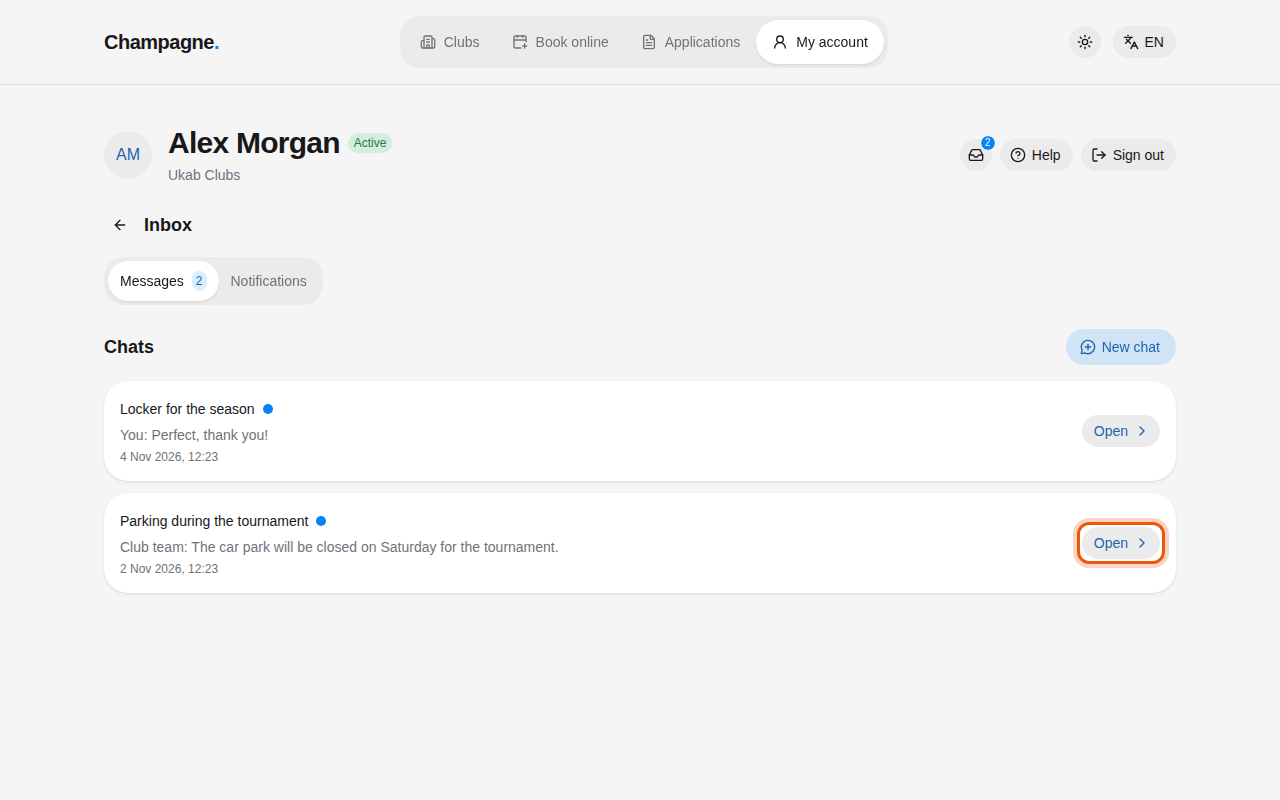
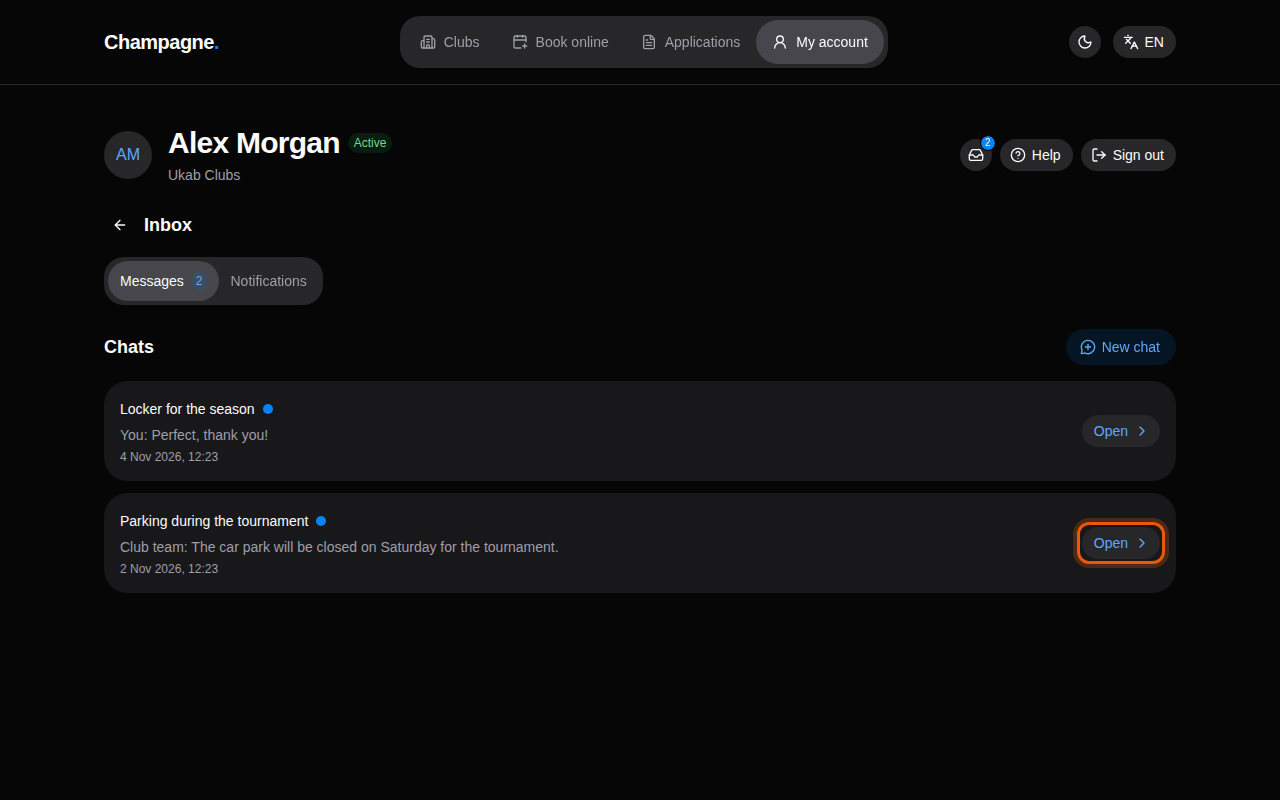
The conversations of the example member Alex Morgan with Ukab Clubs. The control to use is outlined in orange.
2. Read and answer a conversation
Select Open on a conversation. The club's messages sit on the left with the sender's name, yours on the right, each with its date and time. Opening the conversation marks it as read.
- Type your answer in the Write a message… box at the bottom.
- Select the send arrow, or press Enter. Press Shift + Enter to start a new line without sending.
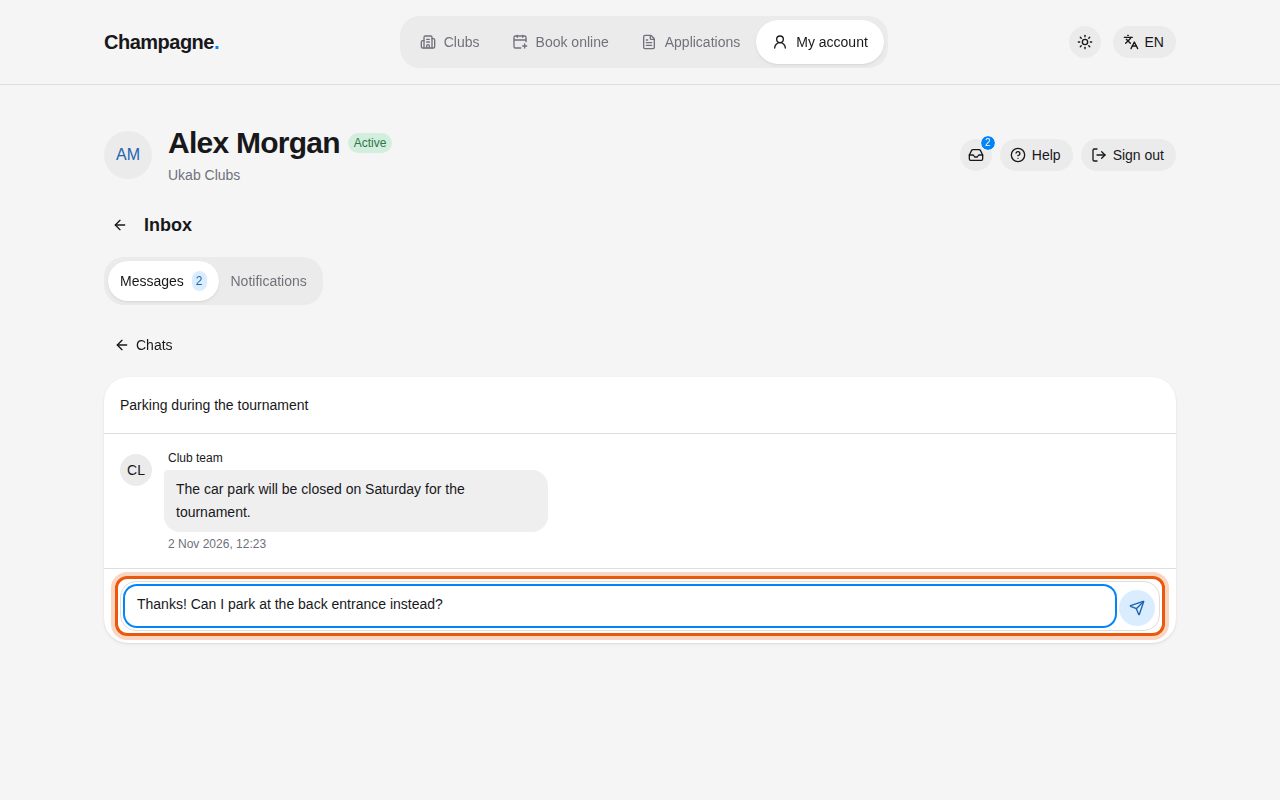
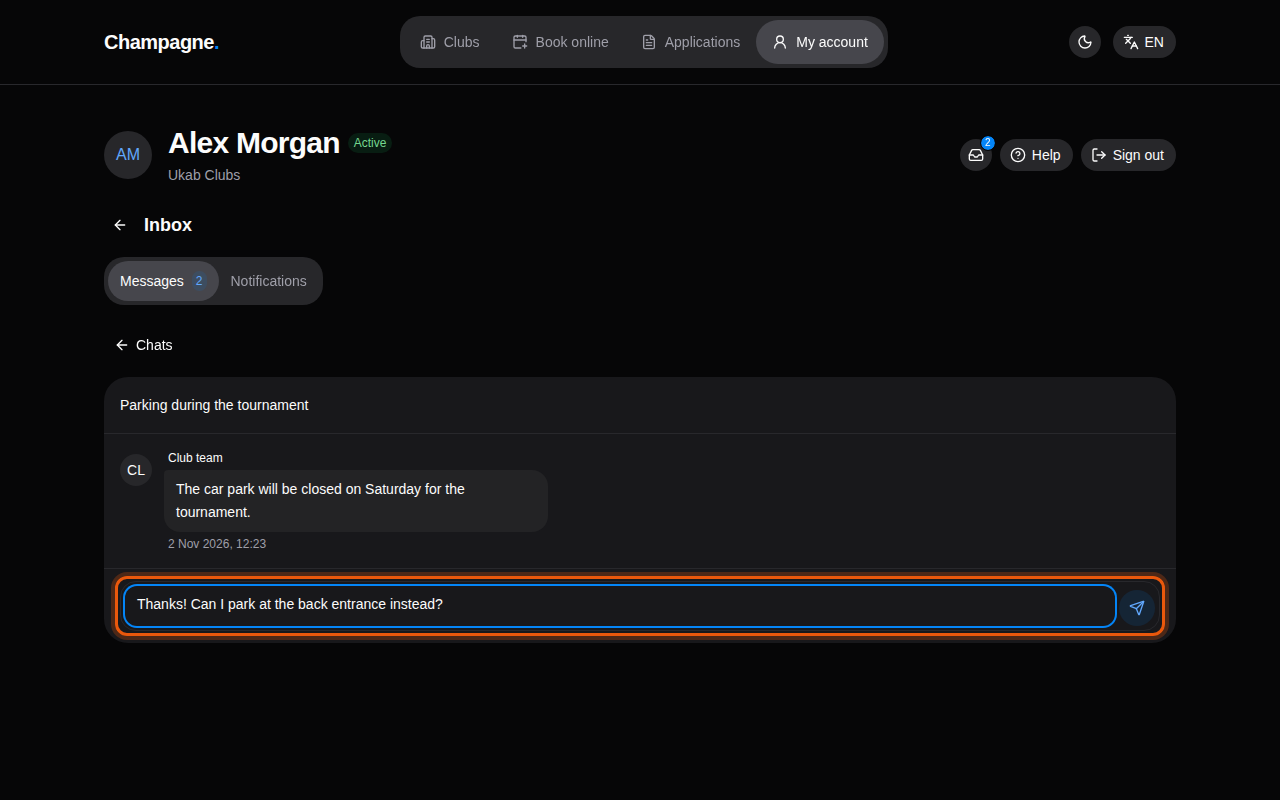
A reply being written in the example conversation Parking during the tournament.
Select Chats above the conversation to go back to the list.
3. Start a new conversation
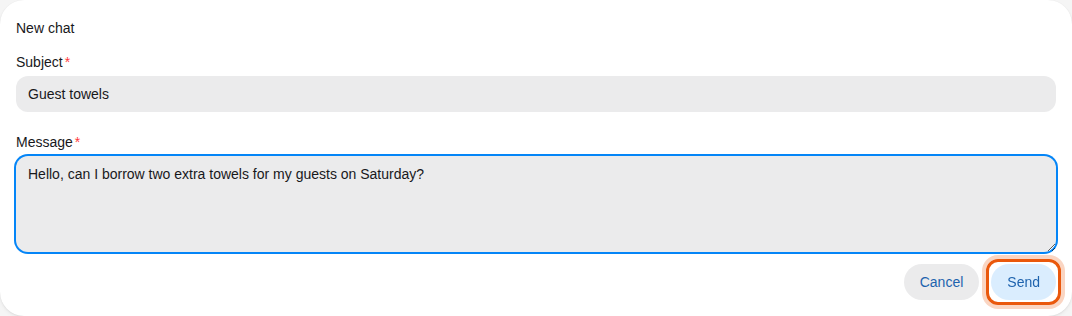
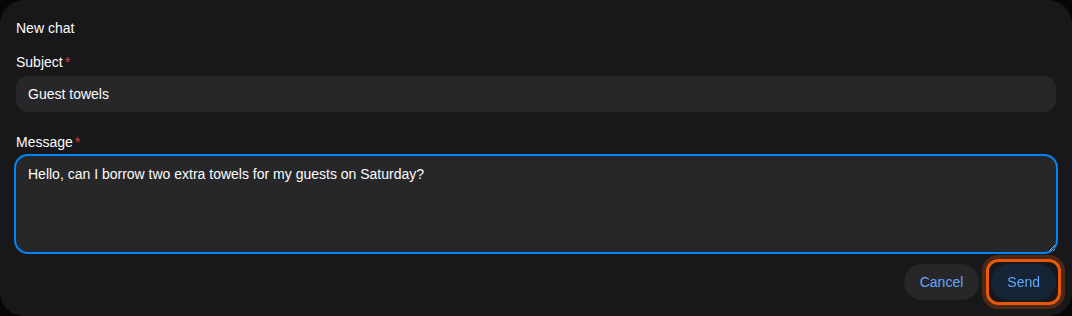
- On Messages, select New chat.
- Enter a Subject that sums up your question.
- Write your Message.
- Select Send. The new conversation opens, and the club's team sees it in their inbox.
Select Cancel to close the form without sending.
Replies from the club
The club answers from its back office, as described in Answer messages. Replies from a team account without a name are signed Club team. Depending on your notification settings, you also get an alert or an email when a reply arrives.