Run the platform
Create spaces and clubs for new customers, choose their owner, turn modules off and suspend a club.
This page is for the people who run Champagne itself, not for club staff. A platform admin creates a space for each customer, adds its clubs, chooses its owner and decides which modules each club uses. The role gives no access to the clubs' members, bookings or invoices.
1. Open the Platform section
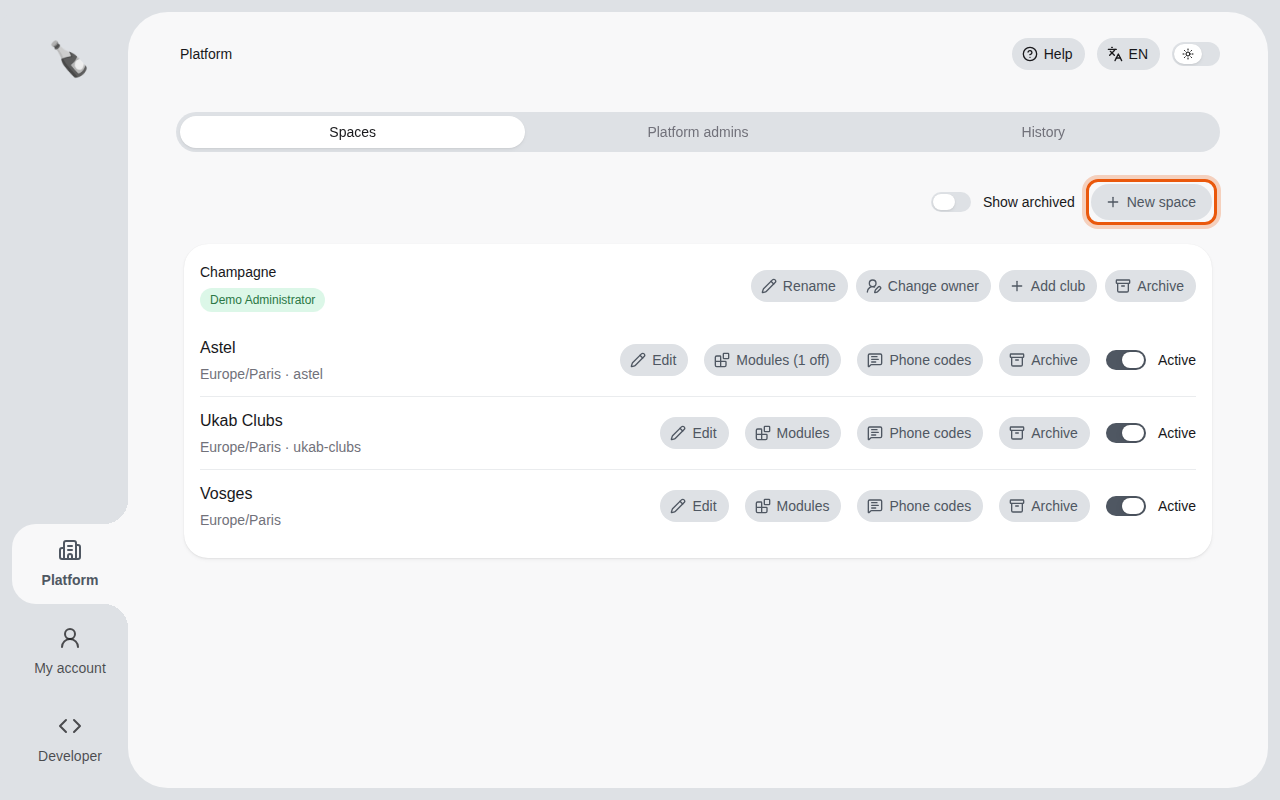
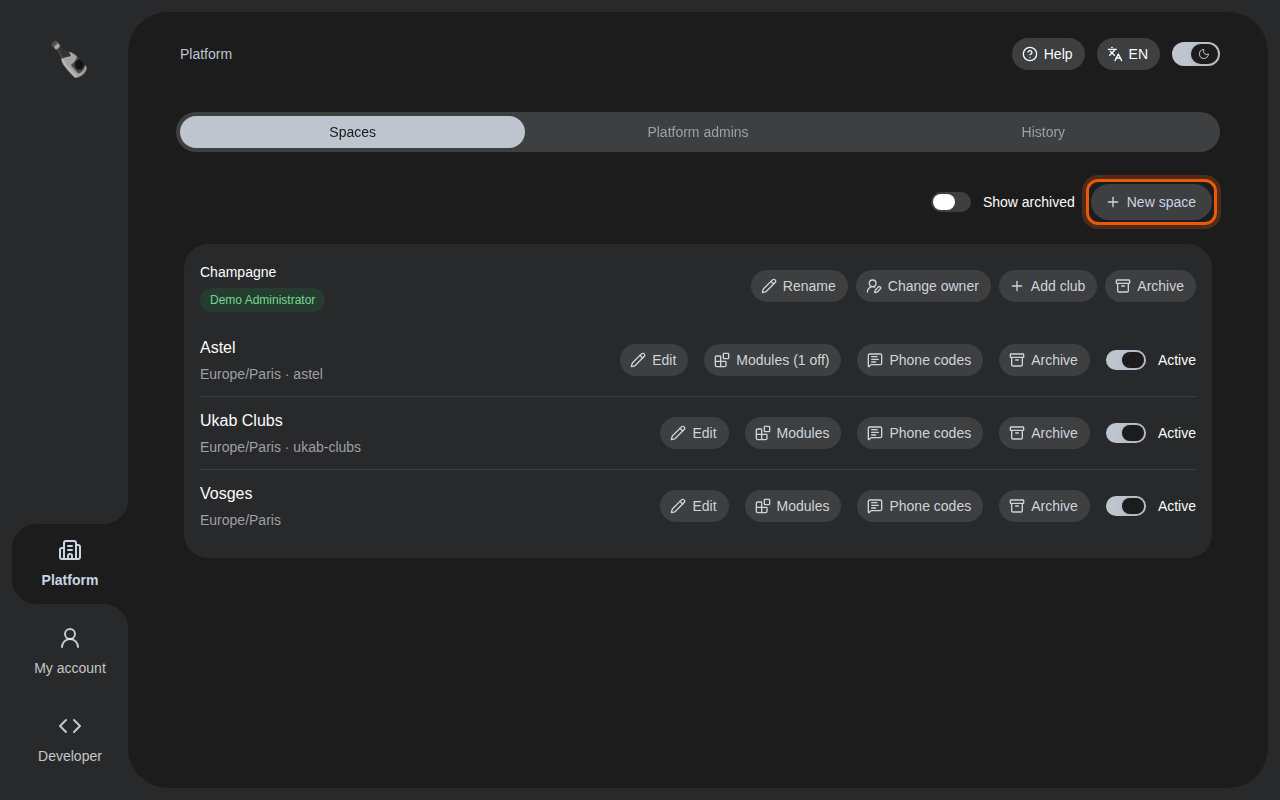
In the left menu, select Platform. Each card is a space: its owner, then its clubs with their timezone and hosted address.
2. Create a space for a new customer
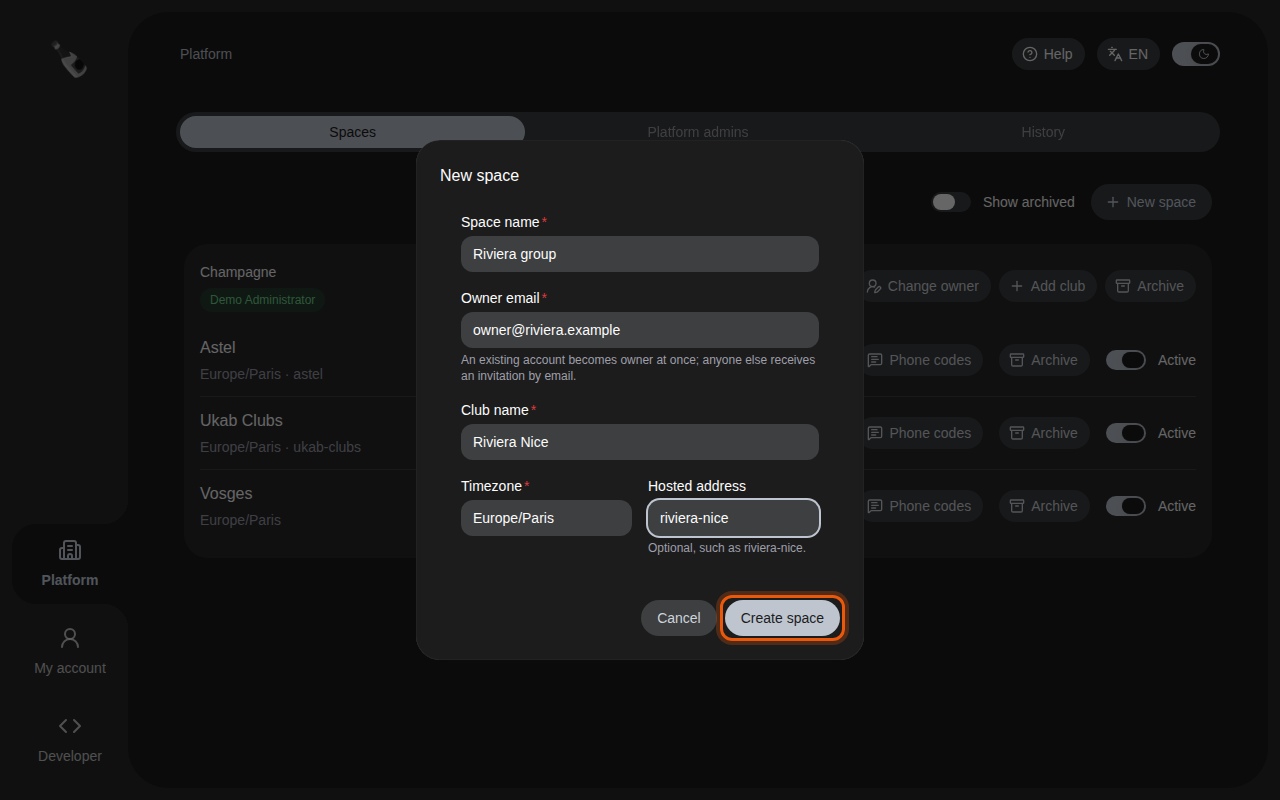
Select New space.
- Enter the Space name, usually the customer's company.
- Enter the Owner email.
- Describe the first club: Club name, Timezone and, if it takes applications online, its Hosted address.
- Select Create space.
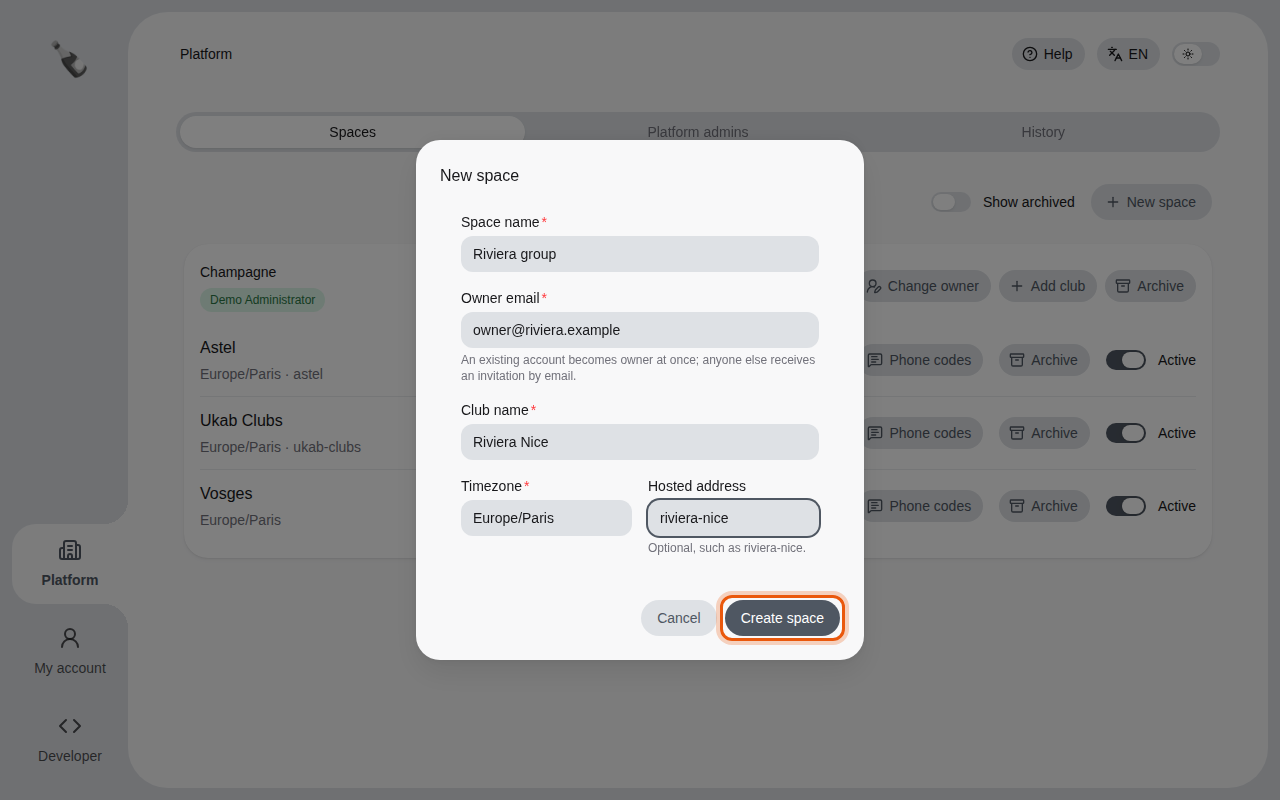
If the email already has a Champagne account, that person becomes owner at once. Anyone else receives an invitation by email, valid for 7 days. Until they accept, the card shows the pending invitation and the date it expires; select Resend invitation to send a new one, or Cancel invitation to withdraw it.
The owner is admin of every club in the space and invites the rest of the team from the Team section, as described in Invite your team.
3. Add a club, edit or change the owner
- Add club adds another club to the space. Its owner becomes admin of it.
- Rename on a space changes its name. Edit on a club's row changes its name, timezone and hosted address.
- Each space needs its own name, and so does each club within a space. A club name always starts with an uppercase letter.
- Change owner hands the space over to another email. The current owner stays owner until the new one accepts. Remove the access of … is checked by default: the previous owner then loses access to every club of the space when the new owner takes over. Uncheck it to keep them as admin, for example a partner who stays in the business.
4. Turn modules off for a club
Select Modules on a club's row. Every module is on for a new club. Turn off the ones the customer does not use, then select Save.
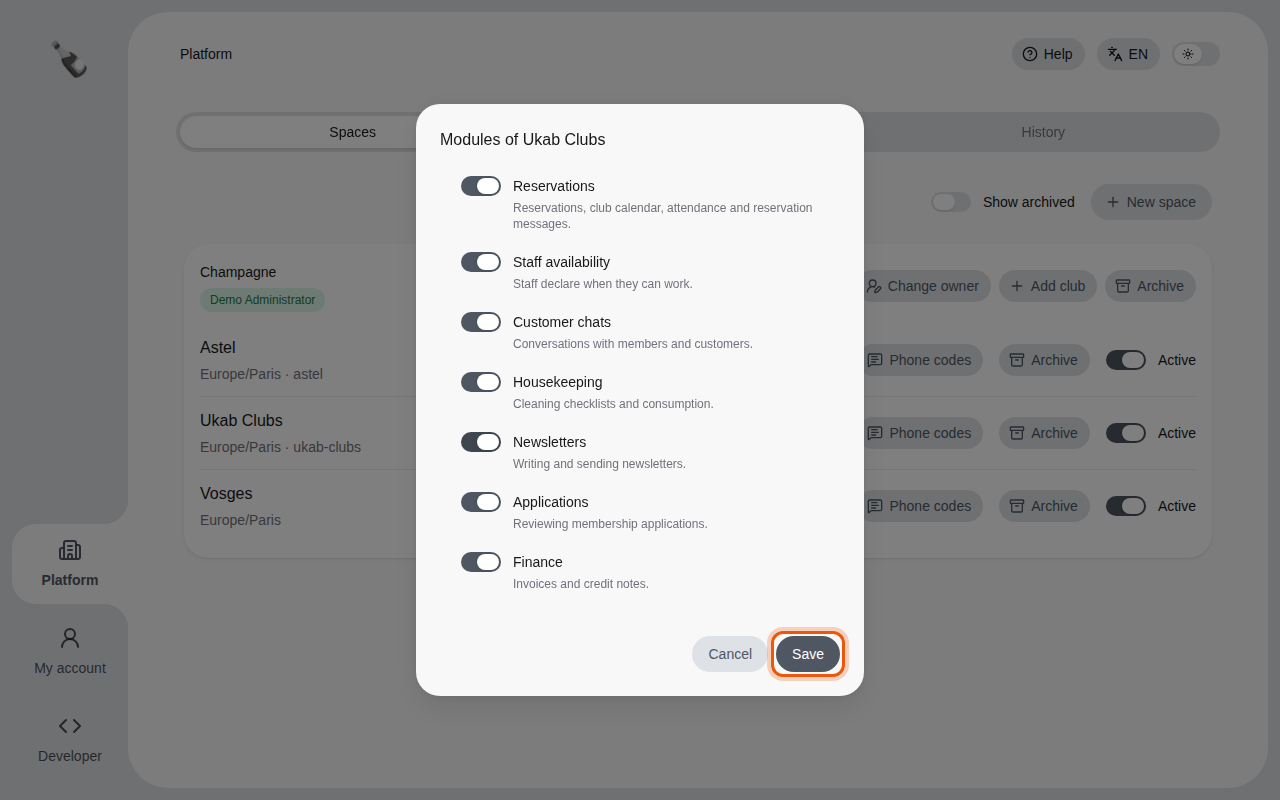
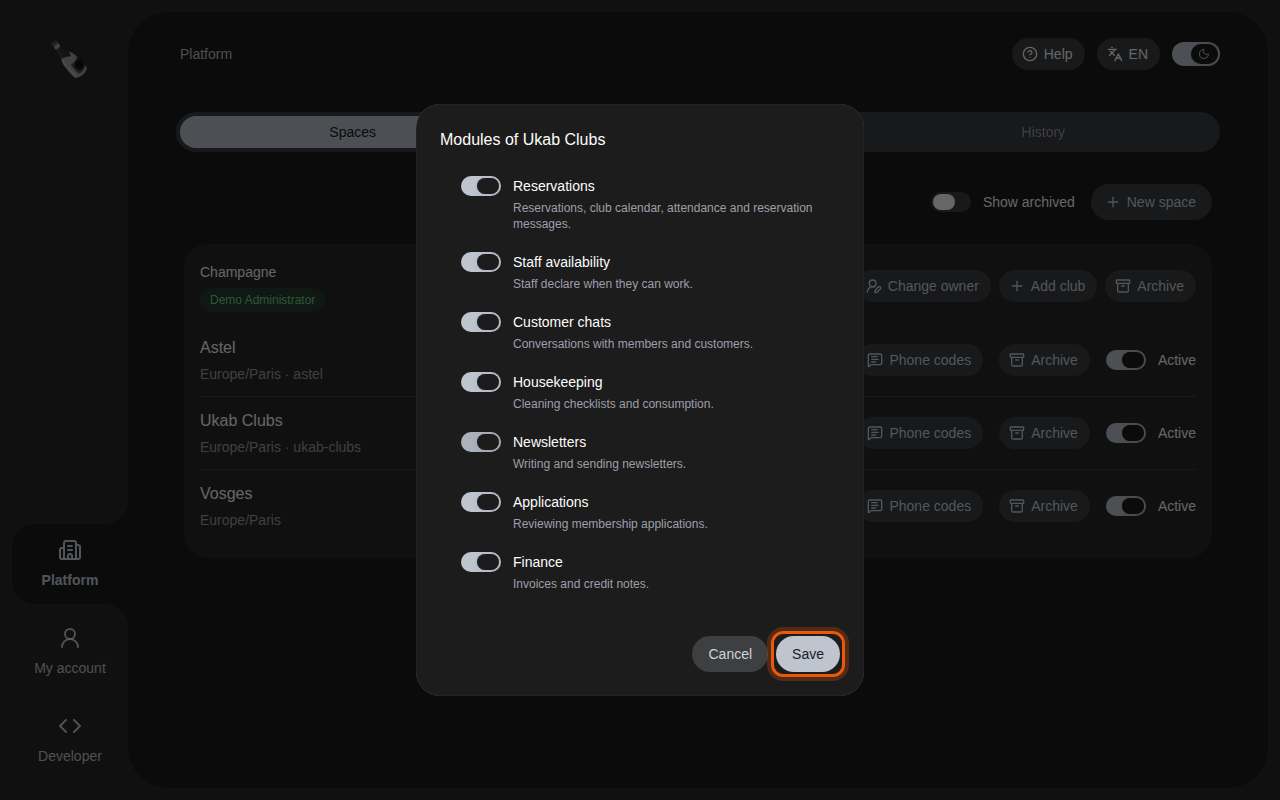
A module turned off disappears from the back office of that club for everyone, club admins included, and its actions are refused. The button then counts the modules turned off, for example Modules (2 off).
Finance is the only module that also changes the member area. Turn it off for a club that charges nothing:
- Members no longer see credits, top-ups, plan choice, payment or prices. Paid onboarding steps are skipped, including in applications already in progress.
- Staff no longer see prices, deposits, paid products or credit settings, and cannot add plan steps to an onboarding.
- Champagne refuses every new charge for the club: checkout, top-ups, credit spending, deposits and refunds.
Existing invoices, credit balances and paid memberships are kept as they are. Turning Finance back on shows them again.
5. Suspend a club
Turn off the Active switch of a club, then confirm with Suspend club.
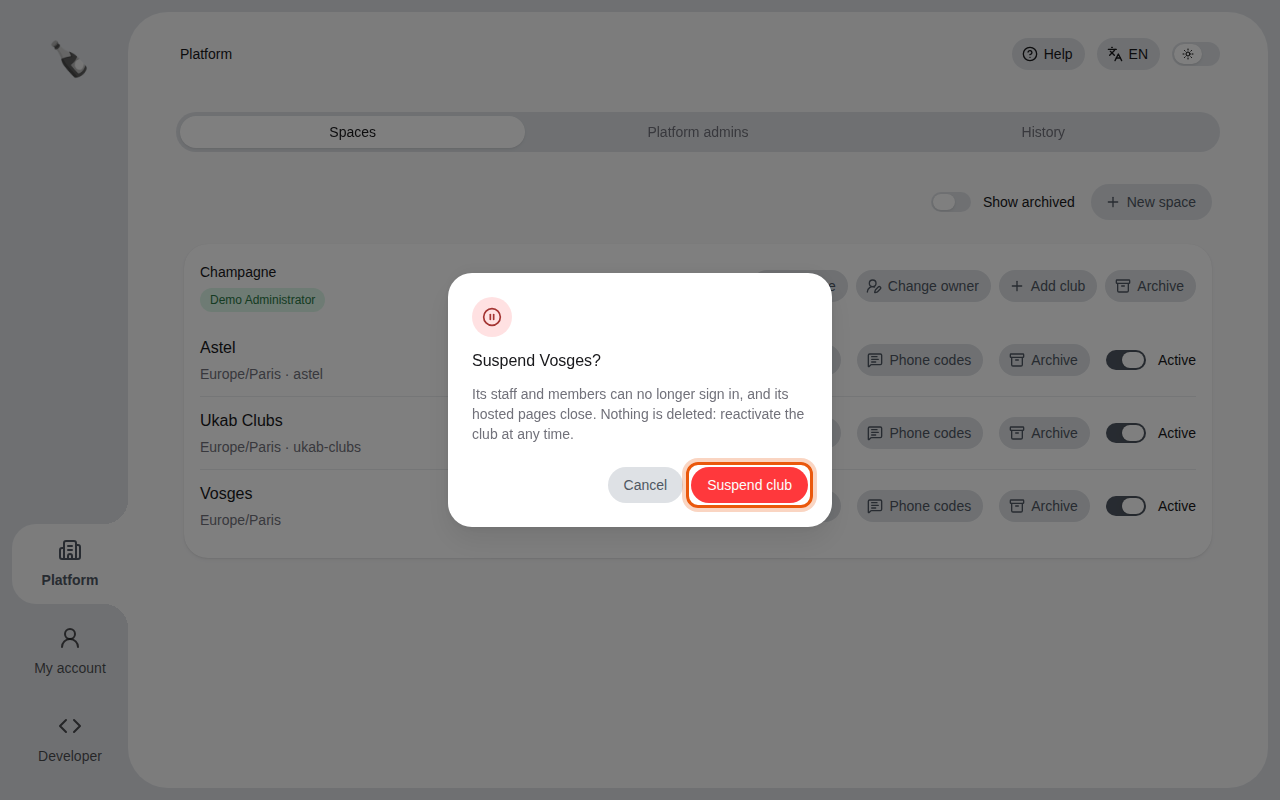
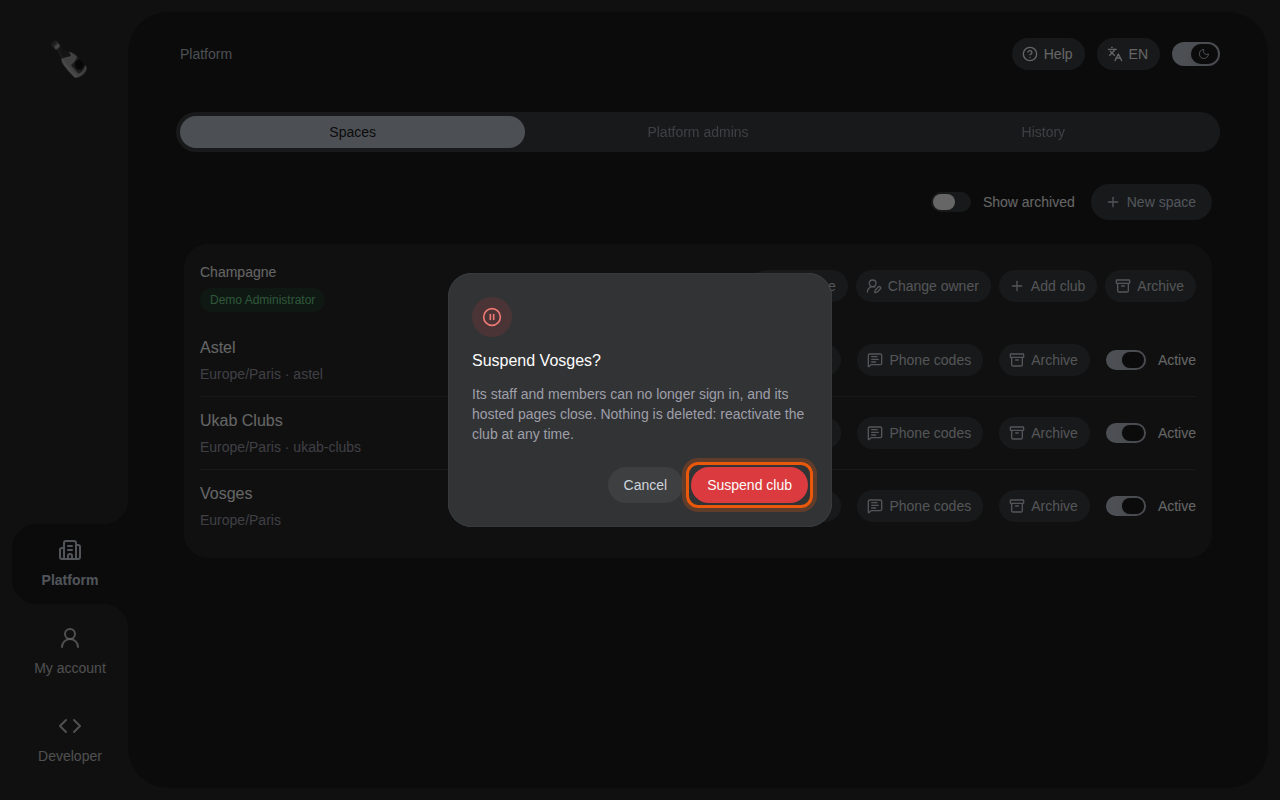
A suspended club keeps all its data, but its staff and members can no longer sign in to it and its public pages close: hosted site, online booking, membership applications and offers. Its staff see that the club is suspended instead of the club, and members see it on the sign-in page. Turn the switch back on to reactivate it: everything works again at once.
6. Archive a club or a space
When a customer leaves, or never finished setting up, select Archive on the club's row or on the space, then confirm. An archived club is closed like a suspended one and leaves the list; archiving a space archives all its clubs. Nothing is deleted.
Turn on Show archived at the top of the page to see them again, then select Restore. Restoring a space puts each club back as it was before: an active club reopens, a suspended club stays suspended and a club archived on its own stays archived. A club of an archived space can only come back with its space.
7. Manage the platform admins
Open the Platform admins tab at the top of the Platform section. It lists everyone with the role.
- To add someone, enter their Email and select Add platform admin. If they already have a Champagne account, they get the role at once. Otherwise also enter their Name: they receive an email to choose their password, valid for 7 days.
- To take the role away, select Remove role on their row and confirm. Their account and any club access stay. You cannot remove yourself, so there is always at least one admin.
Tools such as Terraform create and manage clubs with a platform token instead of an account. Open the API tokens tab, select Create a token, enter its Name, choose its Access and, if you want one, an Expiration date (optional), and select Create. Copy the token at once: it is shown a single time. A platform token manages clubs and reads no club data. To cut a tool off for a while, open the ⋯ menu on the row of its token and select Block; Unblock gives the access back. To cut it off for good, select Delete and confirm.
8. Check what changed
The History tab lists every change made from the Platform section, newest first: who made it, when, on which space, club or admin, and the values before and after. Club staff never see these entries.