People, products and customer sheets on a booking
Invite someone to a booking, mark attendance, add extras and keep a customer sheet.
The page of a reservation gathers what you need to know about the customer: the people on the booking, whether they came, the extras they ordered and, for some categories, their customer sheet. This page shows how to work with each of them. To open a reservation, see Handle reservations.
Invite and Remove need the Create and change reservations permission. Attendance marks need Validate attendance and tickets. When your role lacks a permission, the matching buttons do not appear.
1. Work with the people on a booking
People on this reservation lists the Booking contact and the people they invited, with the count of people against the places booked. Each invited person is marked Invited, Accepted or Declined. Account linked means the email belongs to a member of your club.
- To invite someone, select Invite, enter their Email and select Send invitation. The person receives an email to accept or decline. When your club lets guests use a temporary account, choose its Access duration: 12, 24 or 48 hours. The temporary account starts when the guest accepts.
- To take someone off the booking, select Remove on their line.
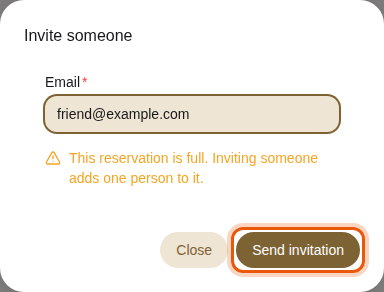
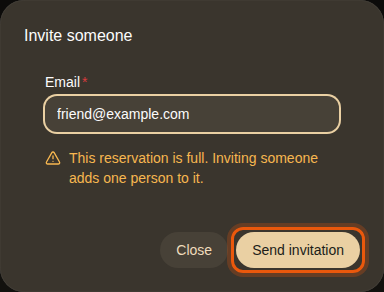
Inviting a friend to the example booking of Alex Morgan on Transat #4, which is already full. The control to use is outlined in orange.
When every place is taken, the window warns you that the invitation adds one person to the booking.
2. Mark attendance
Attendance records whether the customer came. Select Present, Late or Absent. Late and Absent open once the reservation starts. Type in Add a note (optional) before you select a mark to save a note with it. The last mark shows who recorded it and when.
The marks add up in the Attendance card of the member's profile. See Check attendance.
Absent can change a member's status
Absent counts as a no-show. When your club has no-show sanctions, enough no-shows warn, suspend, block or ban the member at once, and the member is told. Check the mark before you save it. See Set the reservation rules.
3. Add extras to a booking
When the resource offers extras, such as drinks, the Add reservation form lists them under Products on the right. Use + and − to set the quantity of each one. Product total shows what they cost. Extras marked Staff only are hidden from members.
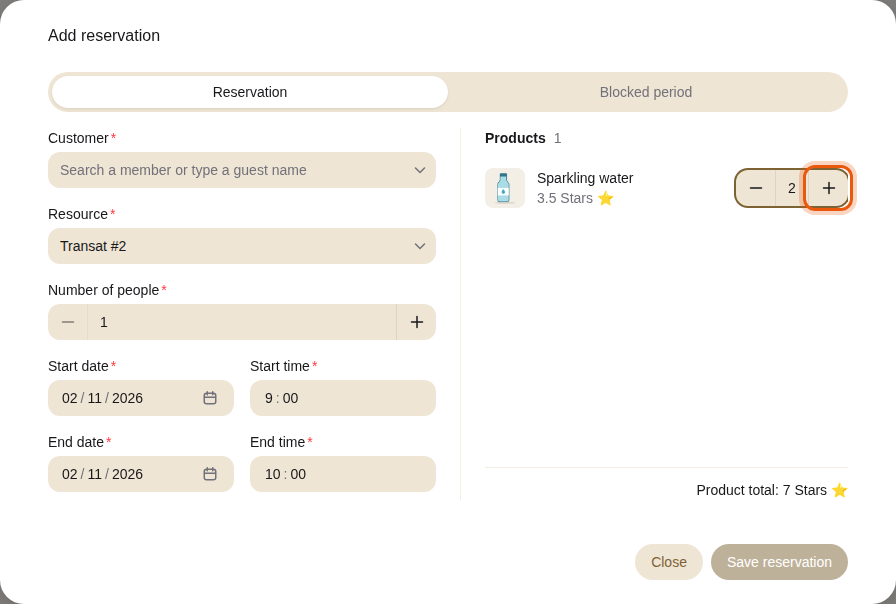
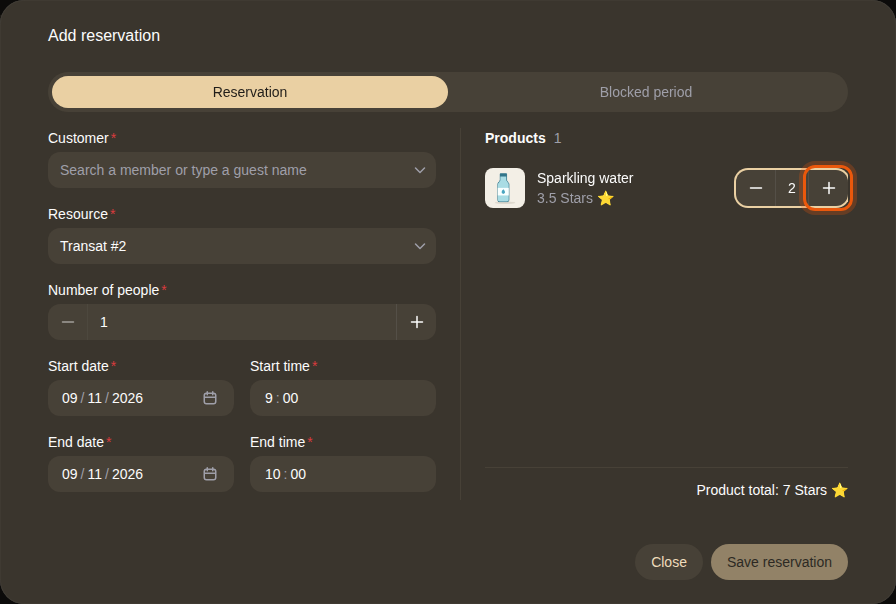
Two bottles of the example Sparkling water added to a pool lounger booking.
Product charges appears on the reservation page when extras were added to the booking, such as minibar drinks charged from Housekeeping. Each line shows the product, the quantity and the amount.


The extras charged during the example stay of Jamie Chen in the Garden suite.
4. Keep a customer sheet
Some reservation categories, such as beauty treatments, keep a customer sheet. Your administrator switches this on per category. The Customer sheet card then appears on each reservation in that category and in the Activity tab of the profile of each person who booked in it, with one tab per category when there are several.
The sheet shows:
- Contraindications, highlighted in red when filled in, such as an allergy.
- Preferences and a Note.
- Visits: the number of past visits and the latest ones, with their date, time, resource and attendance. Select Show all to see up to ten, and select a visit to open the reservation.
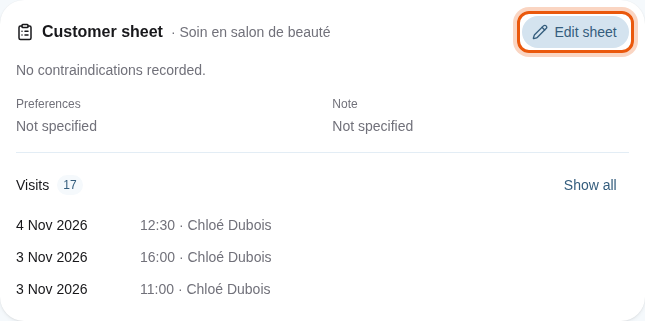
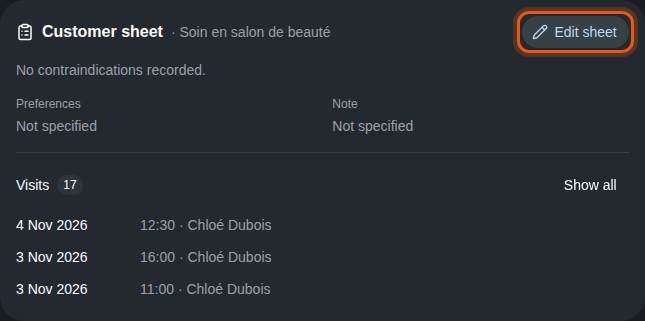
The customer sheet of the example member Zoé Lefèvre, with her past beauty treatments.
To fill it in:
- Select Edit sheet.
- Enter the Preferences, Contraindications and Note.
- Select Save sheet.
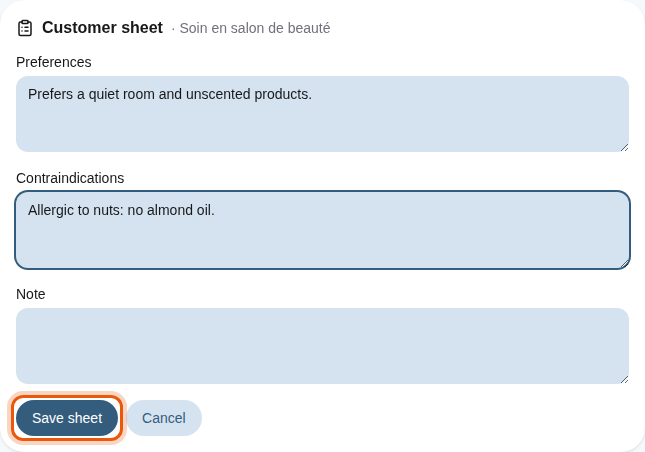
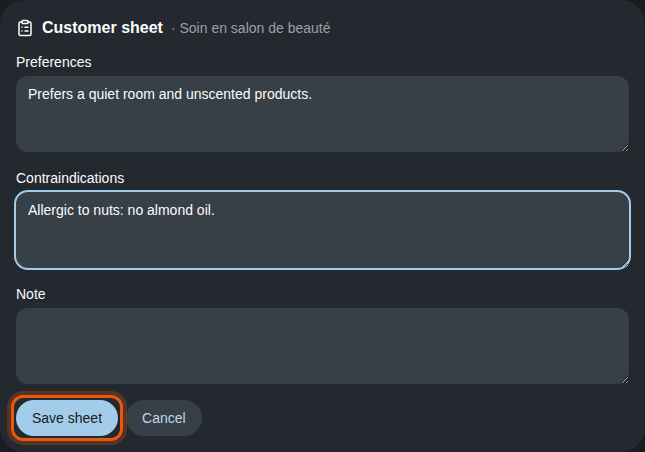
The sheet is the same on the profile and on each of the person's reservations in that category. Team members who are not administrators can edit it when they are assigned to the resource of one of the person's reservations, until one day after that reservation ends.