Invite your team
Give a colleague access to the back office and choose what they can see and do.
Each person on your team signs in with their own staff account. You create it by sending an invitation from the Team section. You choose which clubs they work for and what they are allowed to do there.
1. Open the Team section
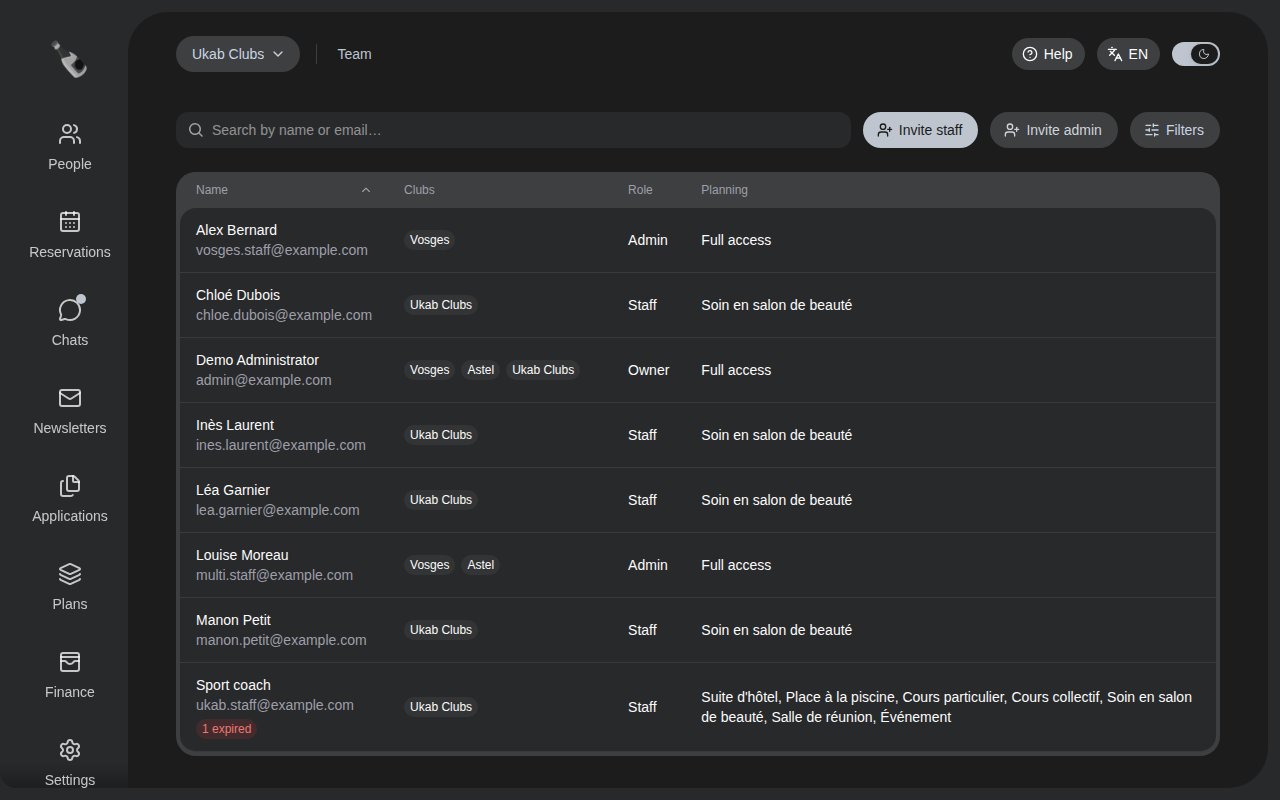
In the left menu, select Team. The list shows everyone with access to your clubs: their Clubs, their Role and the Planning categories they can see.
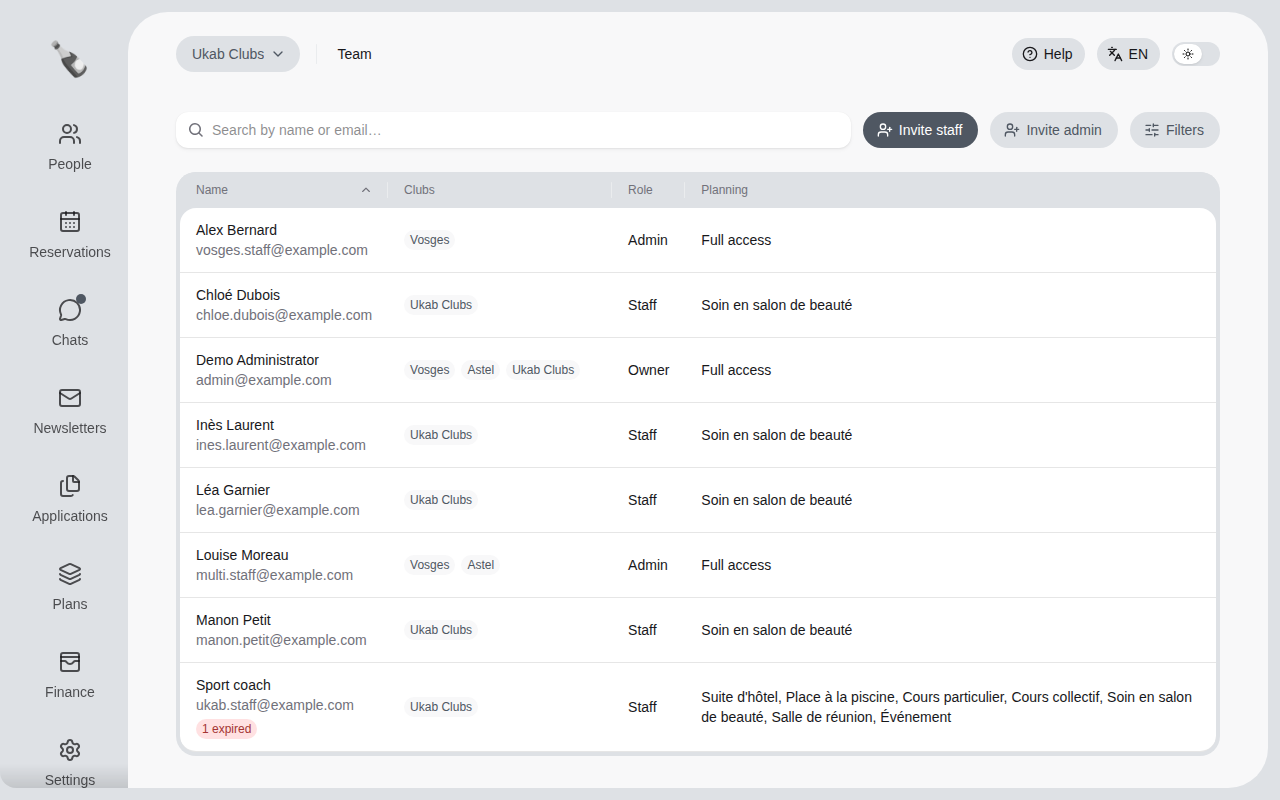
There are three roles:
| Role | What they can do |
|---|---|
| Owner | The account that owns your clubs. Full access. |
| Admin | Everything, in the clubs they are assigned to. |
| Staff | Only the tasks you tick for them, in the clubs they are assigned to. |
2. Invite a staff member
Select Invite staff.
- Enter their Email.
- In Club access, tick each club they work for.
- For each club, tick what they may do. Permissions are grouped by topic: Members and applications, Daily operations, Finance and Club configuration.
- In Accessible planning categories, tick the activities whose planning they should see, such as private lessons for a coach.
- Select Send invitation.
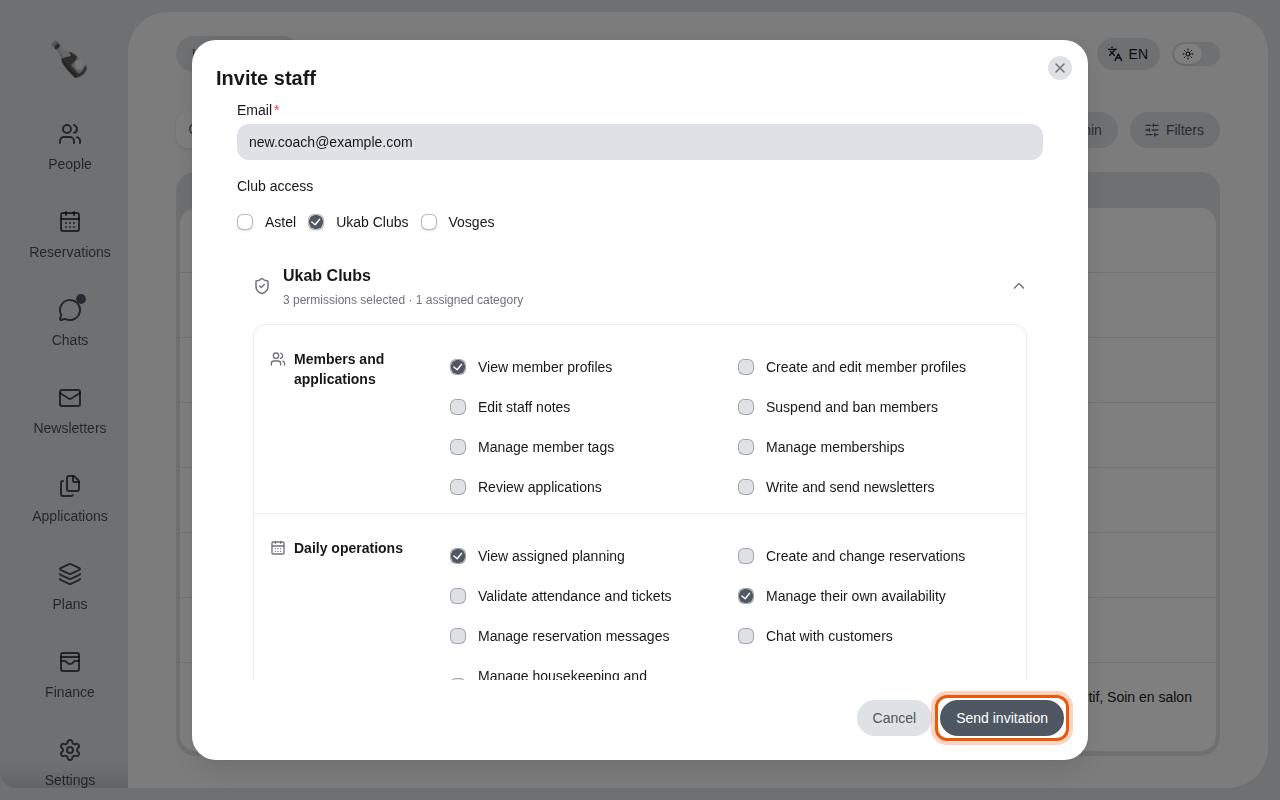
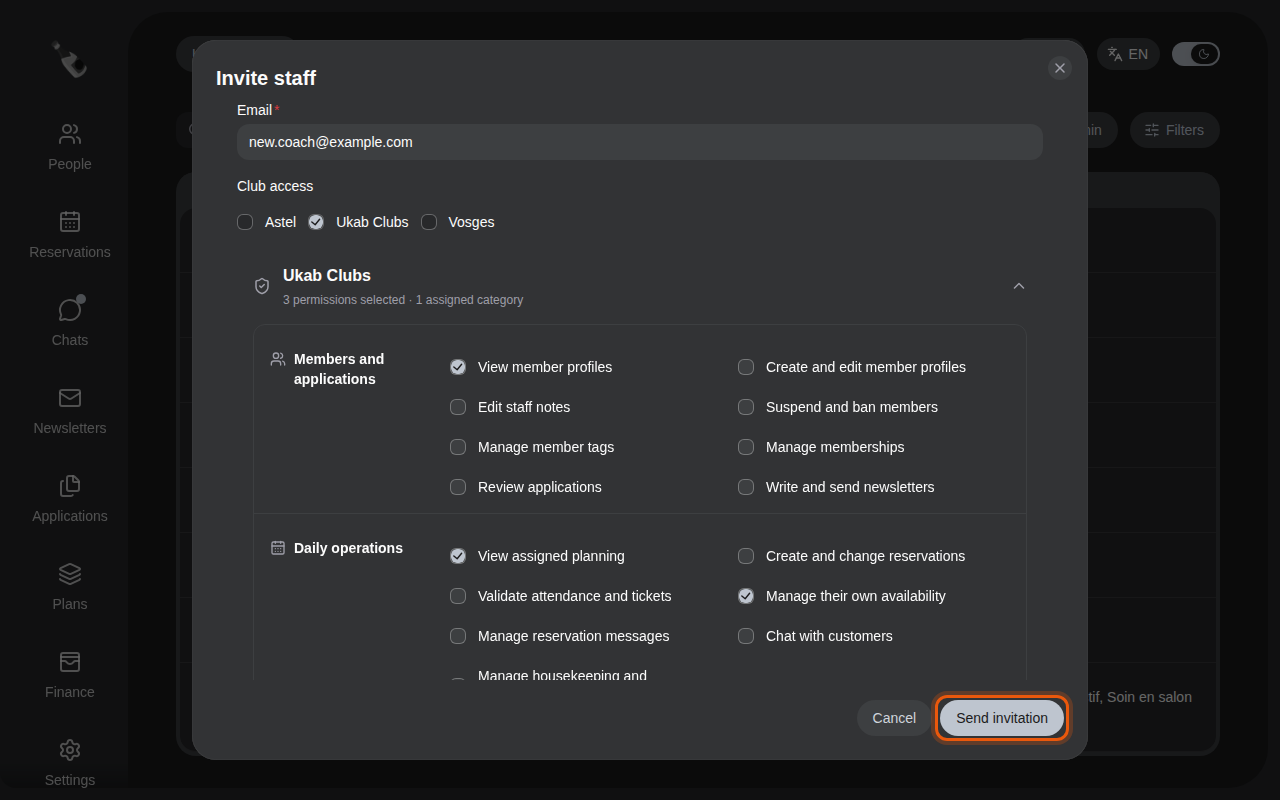
Inviting an example coach who can view member profiles, see their planning and set their own availability.
Start small
Give only the permissions the person needs today. You can add more at any time by opening their line in Team, and changes apply as soon as you save. Who sees what lists what each permission shows.
To give someone full access, select Invite admin instead and tick their clubs.
3. What your colleague receives
Your colleague receives an email with an invitation link. The link opens a Join the back office page where they enter their name, choose a password and select Accept invitation. They can then sign in.
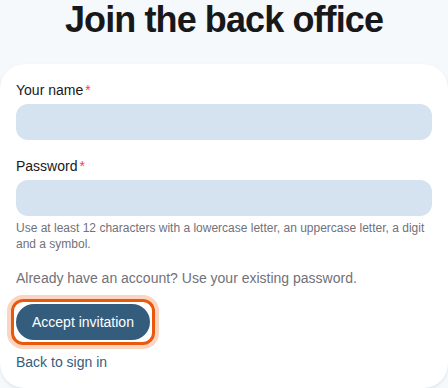
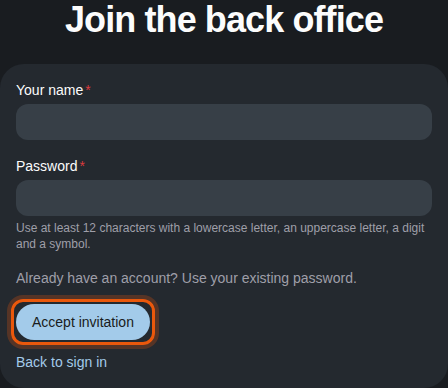
Until they accept, their line in Team shows Invitation pending. To withdraw an invitation, select the envelope icon with a cross next to that label: its tooltip reads Cancel invitation. An invitation that was never accepted eventually shows Invitation expired: send a new one.
To change a colleague's access later, add their professional documents or remove them from your team, see Manage your team.