Send newsletters
Write a newsletter, choose who receives it, preview it and send it to members.
The Newsletters section lets you write an email once and send it to all your members or to a group of them. This page shows how to write a newsletter, check how it looks, choose its recipients and send it.
1. Open the Newsletters section
In the left menu, select Newsletters. The list shows each newsletter with its subject, when it was last edited or sent, and its status.
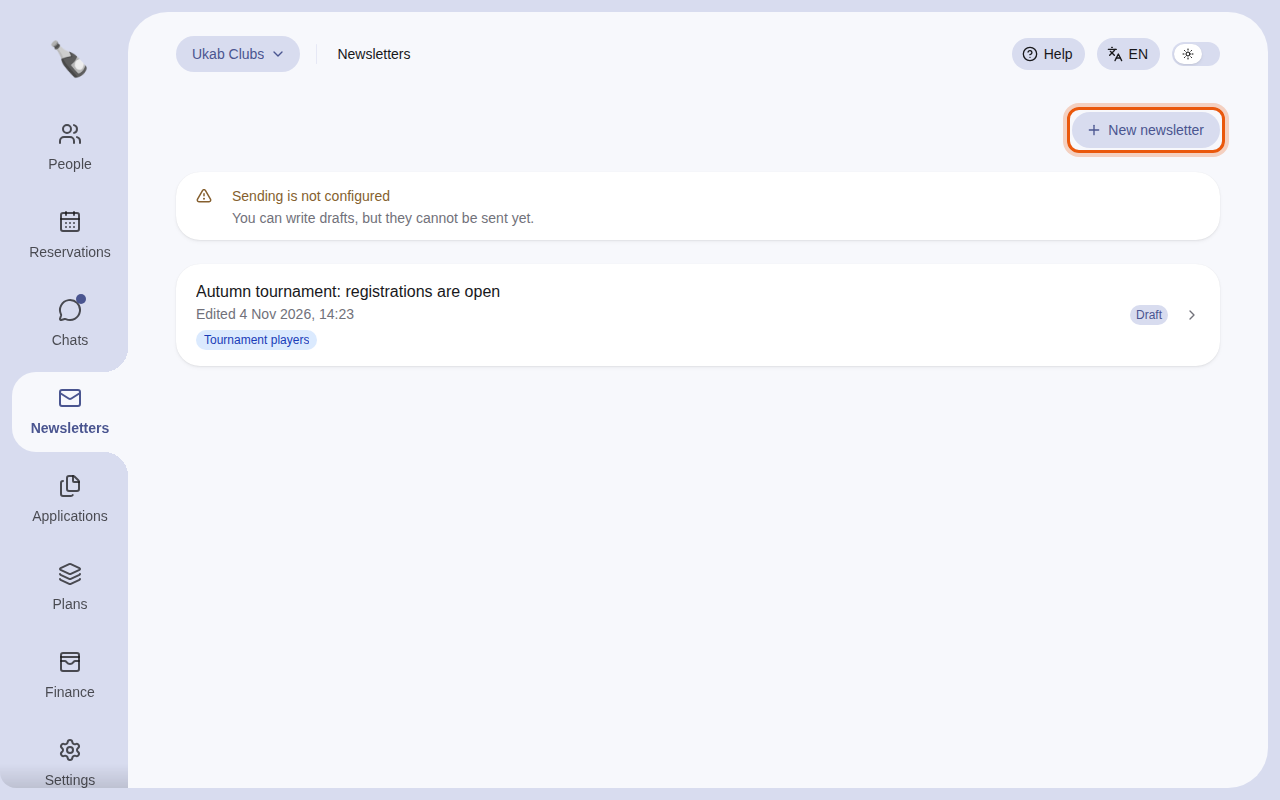
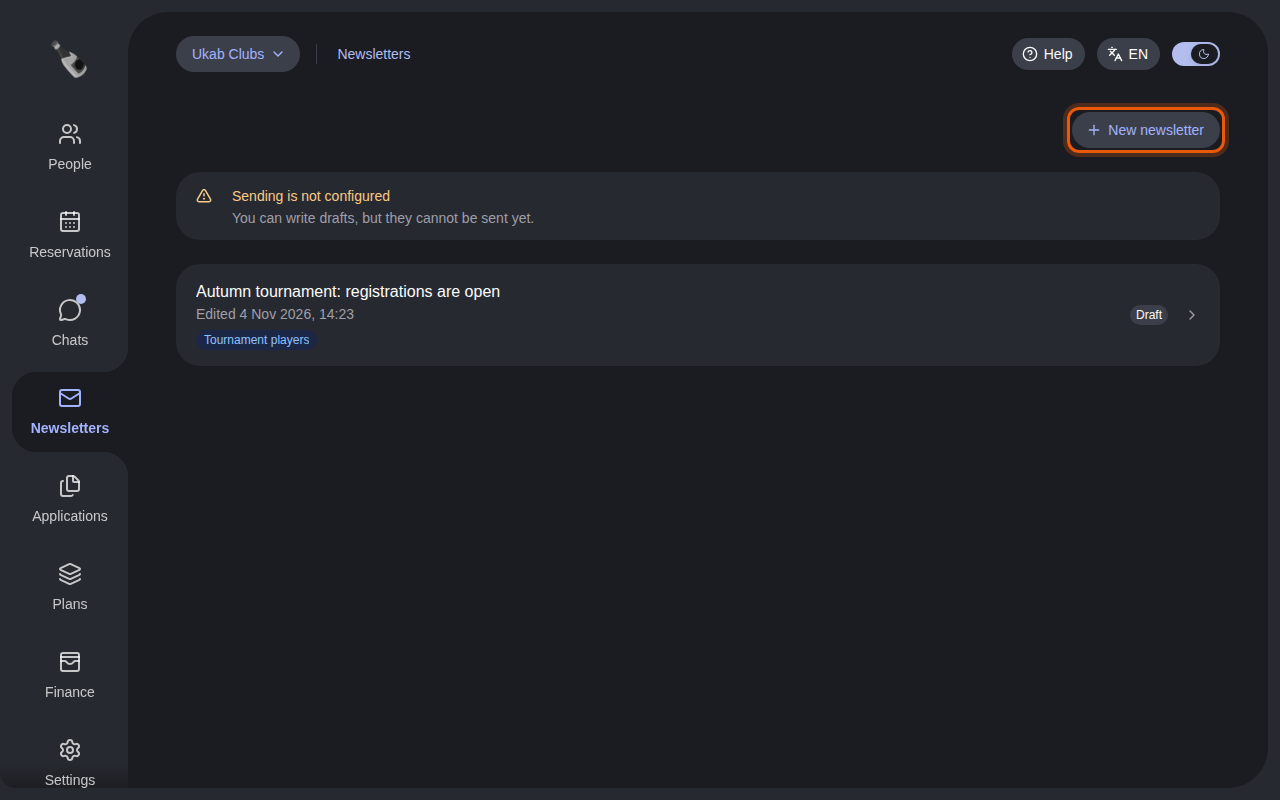
The Newsletters section of the example club Ukab Clubs, with one draft for the tournament players. New newsletter, outlined in orange, starts a new draft.
Below the subject, each line shows the tags it is sent to. A newsletter for all members has no tag.
| Status | What it means |
|---|---|
| Draft | The newsletter is being written. Only your team can see it. |
| Sending | The emails are on their way. |
| Sent | Sending is over. The newsletter can no longer change. |
| Failed | Sending stopped. Open the newsletter to see why. |
Notices about sending
A notice at the top of the list and of each newsletter tells you when sending needs attention:
| Notice | What it means and what to do |
|---|---|
| Sending is not configured | Email sending is not switched on for your Champagne installation yet. You can still write drafts. Contact your Champagne provider. |
| Set up a sending domain | Your club has no sending address yet. A club administrator sets one up: select Open newsletter settings. |
| The sending domain is not verified yet | The sending address is waiting for its verification. Select Open newsletter settings to check it. See Club settings. |
| Test environment | This installation is for testing. Newsletters only go to the addresses listed in the notice, or Newsletters are not delivered to anyone. Members outside the list receive nothing. |
When no notice shows, sending is ready.
2. Write a newsletter
Select New newsletter. Champagne creates a draft and opens it. To continue a draft, select it in the list. The form sits on the left and the Email preview on the right.
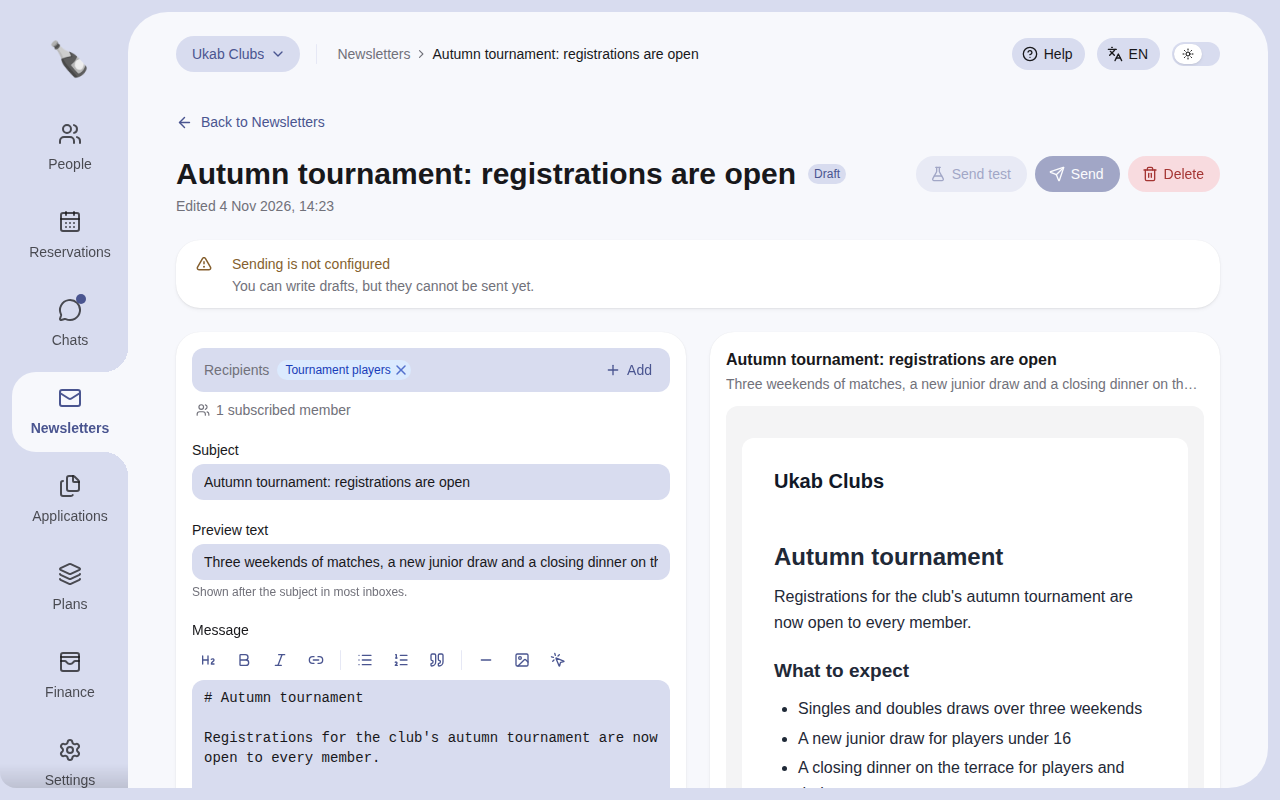
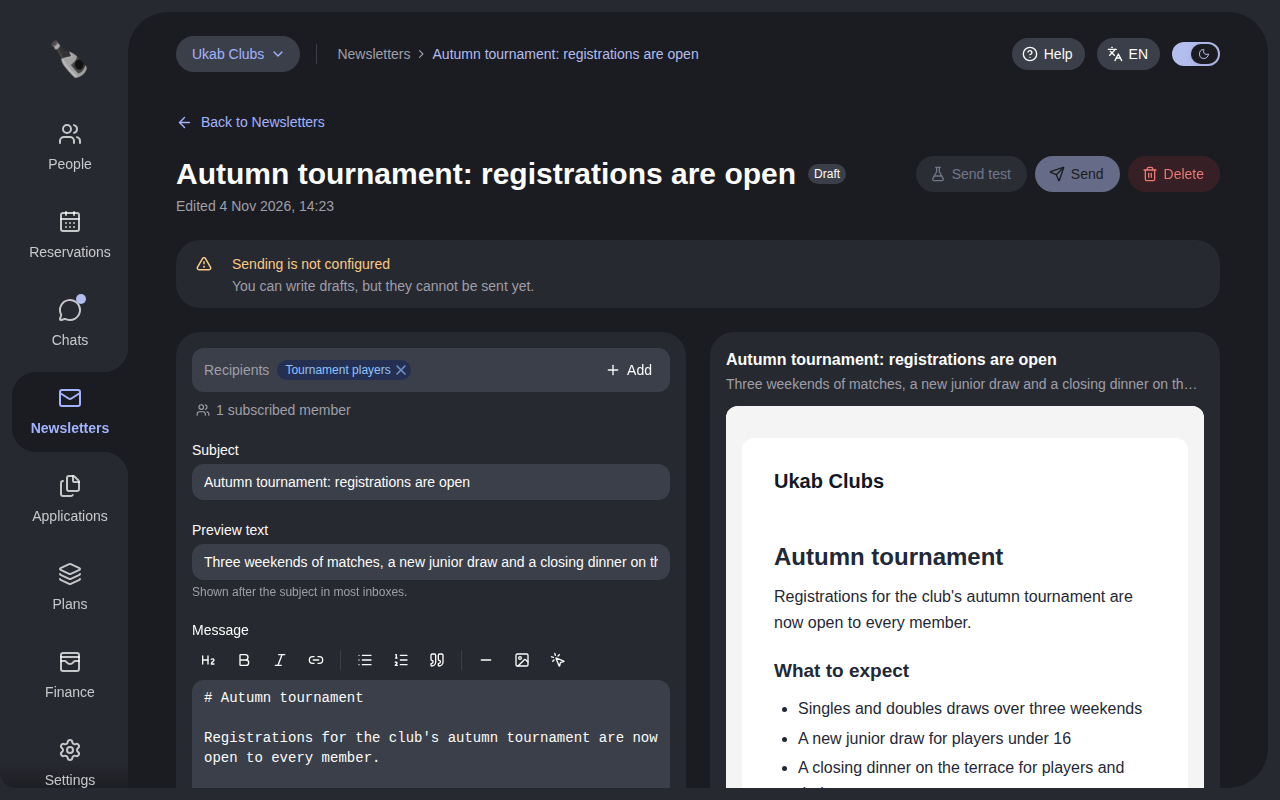
The example draft announcing the autumn tournament, with its email preview.
- Enter the Subject, the title members see in their inbox.
- Enter a Preview text: the short line most inboxes show after the subject.
- Write the Message. Use the buttons above the box to add a Heading, Bold or Italic text, a Link, a Bulleted list or Numbered list, a Quote, a Divider, an Image or a Button.
- Select Save at the bottom of the form.
The preview updates as you type and shows the email as members will receive it, with your club's name at the top.
3. Choose the recipients
By default, Recipients is set to All members. To write to a group only, select Choose tags and tick one or more tags. The newsletter then goes to members who have at least one of these tags. Select Add to pick more tags, or select the cross on a tag in the field to widen the audience again.
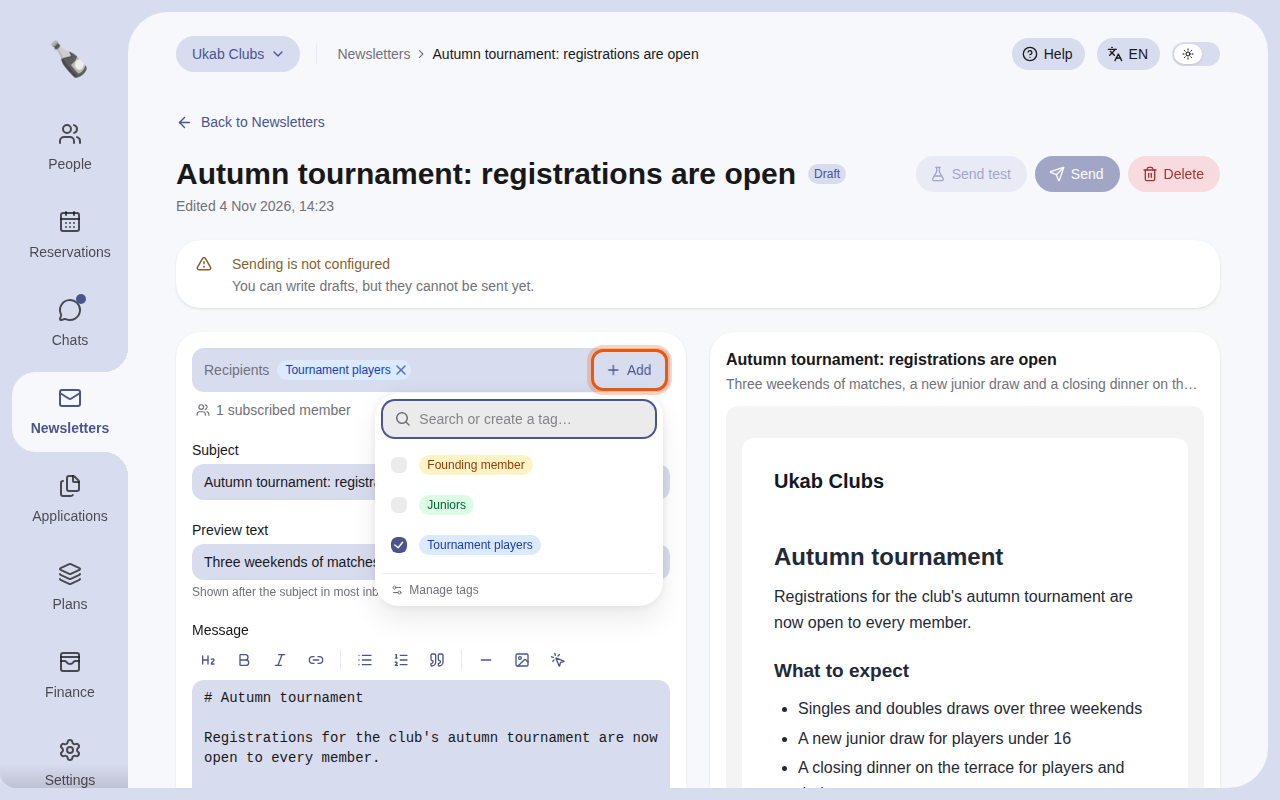
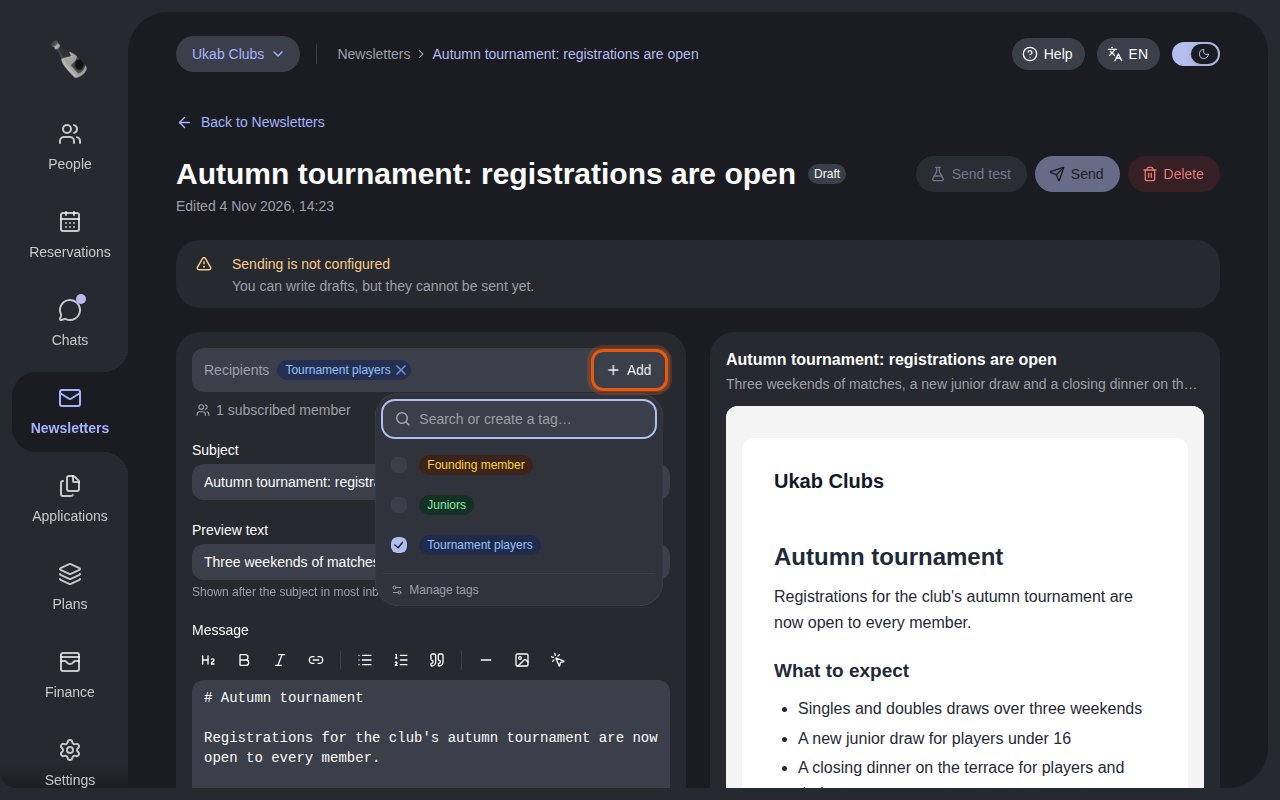
Choosing the tags of the example tournament newsletter. The control to use is outlined in orange.
The line below the field counts the members who will receive it, for example 3 subscribed members. Only members with a current membership receive newsletters. Members who unsubscribed, and Banned or Disabled accounts, are left out. Suspended members still receive them.
Tags
Tags are labels you put on member profiles in People, such as "Juniors" or "Tournament players". To create one from here, type its name in Search or create a tag… and select Create: the tag is added to your club and to this newsletter. See Tags, notes and notifications.
4. Test and send
When sending is set up and the draft has a subject and a message:
- Select Send test to receive the newsletter yourself first. Tick up to five addresses of your club's team, select Send test and check the email in your mailbox.
- Select Send. A window asks you to confirm the number of recipients, for example Send to 3 recipients?.
- Select Send in that window. Unsaved changes are saved first.
Check before you send
Once sent, a newsletter cannot be edited or recalled.
After sending, open the newsletter to follow its delivery: how many emails were Delivered, Bounced back, Unsubscribed or Marked as spam. Not sent counts the emails that could not leave.
If sending stops, the newsletter shows Failed and a Sending failed notice with the reason. You can then correct it and select Send again.
To remove a draft you no longer need, open it and select Delete. The Delete this draft? window says the draft will be permanently deleted. Select Delete draft to confirm, or Cancel to keep it.
5. When a colleague edits the same draft
If someone else saves the draft while you have unsaved changes, a This newsletter changed window opens:
- Reload shows their version. Your unsaved changes are lost.
- Keep editing keeps your text. When you save, it replaces their version.
When you have no unsaved changes, the draft updates on its own.