Sessions, guest lists and blocked periods
Schedule the sessions of a group class or an event, keep some for a guest list, and close periods for maintenance.
In a category booked by session, such as a group class or an event, members join the sessions you schedule. This page shows how to schedule sessions, keep some for chosen members, and close a category or a resource for a while. To create the category and choose how members book, see Set up reservation categories.
1. See the sessions of a category
In the left menu, select Reservations and select the category in the strip. Then select Manage sessions at the top of the calendar. A warning icon on the button means no session is scheduled yet.
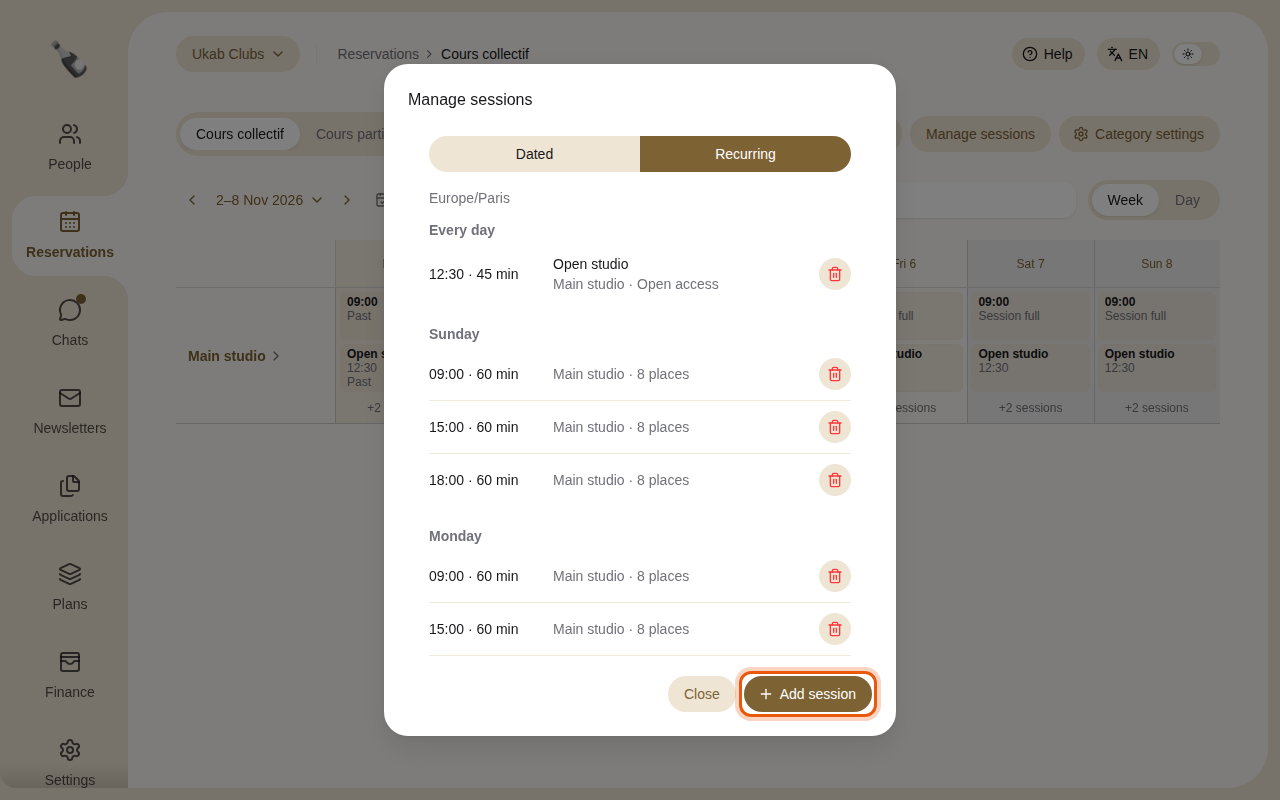
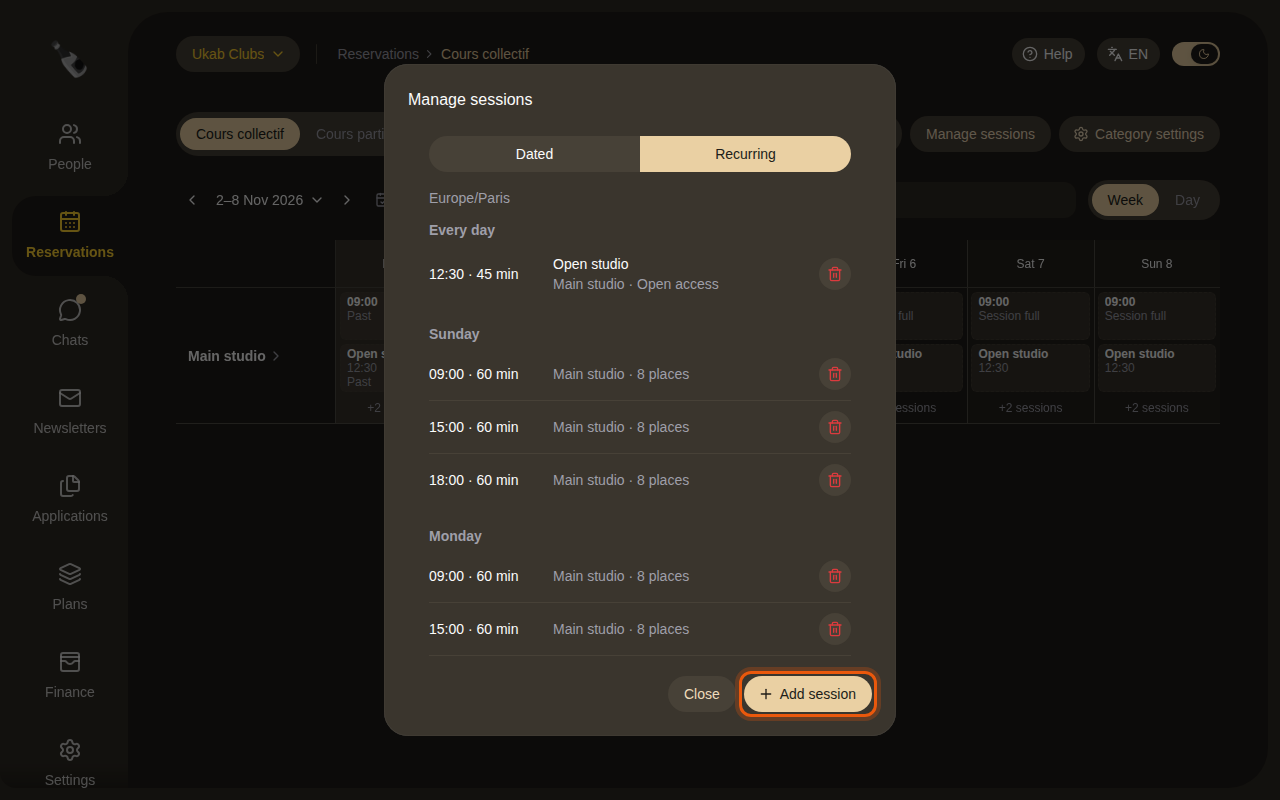
The sessions of the example class Cours collectif, with the daily Open studio that members attend without booking. The control to use is outlined in orange.
- Recurring lists the sessions that repeat every week or every day. Each line shows the location, then the number of places, No member limit or Open access, and Guest list when the session is kept for some people.
- Dated lists the one-off sessions. Select Show past sessions to see earlier ones. Select the pencil on a dated session to change it.
- Select the bin on a session to delete it, then confirm with Delete.
2. Add a session
Select Add session.
- Under When, choose One-off, Every week or Every day, then the Day or the Start date, the Start time and the End time. A session can end after midnight: the window then shows Ends the next day.
- Under Details, type a Session title (optional) and choose the Location, the resource where it takes place.
- Under Access, choose the Booking:
- Reservation required: members book a place. Set a Member limit (optional) to cap the number of places.
- Open access: members come without booking. The session still shows in their planning.
- Choose Who can book: Every member, or Guest list to keep the session for some people. With a guest list, add Membership plans, People, or both.
- Select Add session.
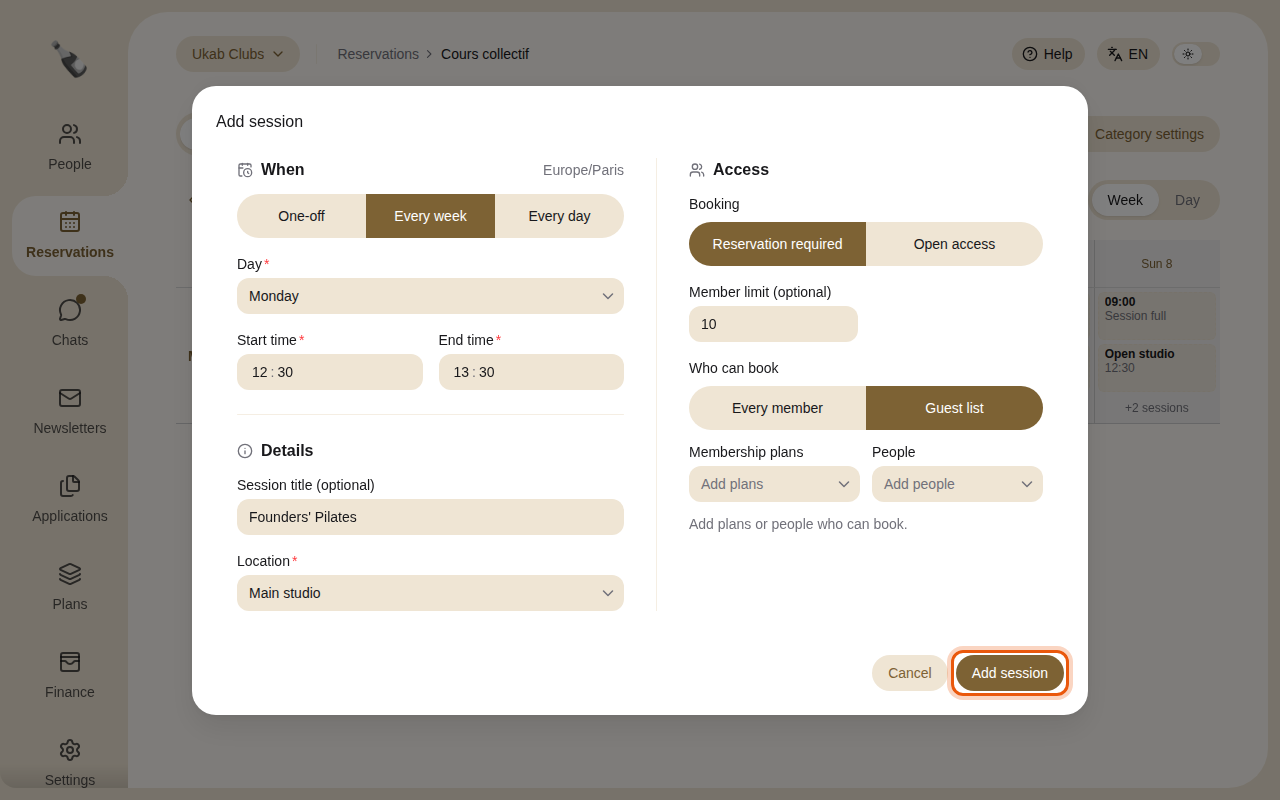
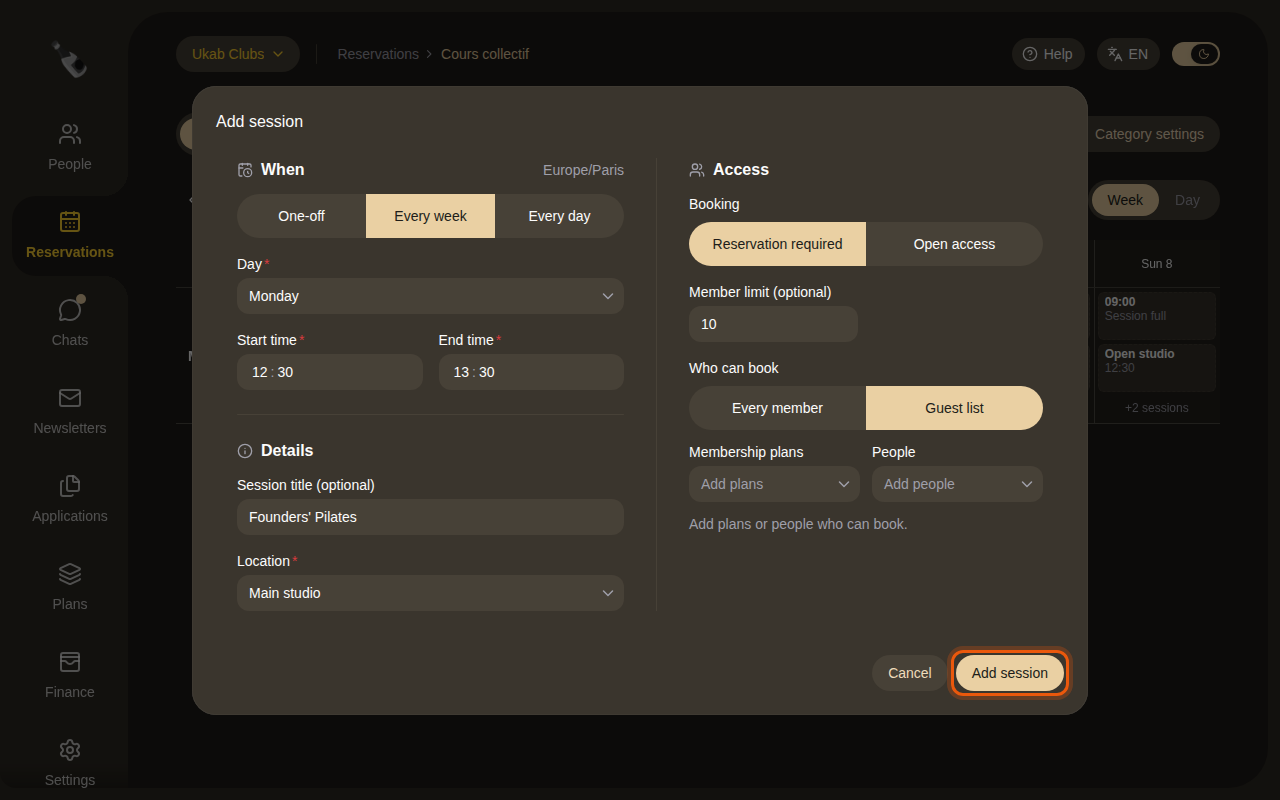
An example weekly class kept for a guest list. Add the plans or people who can book before saving.
3. Keep a dated session for a guest list
To keep a dated session for some members, open it with its pencil on the Dated tab, choose Guest list under Who can book and add the plans or people. The window shows This change applies only to this session. Select Save changes.
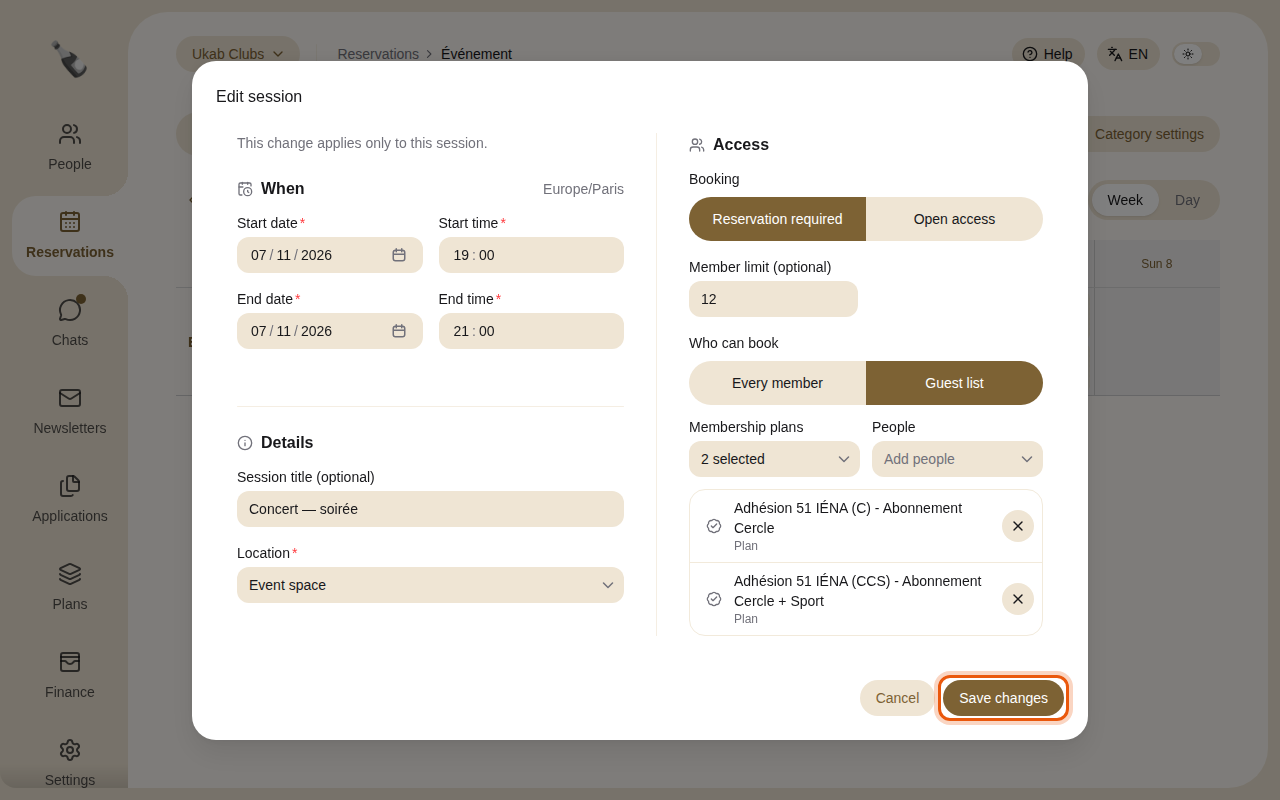
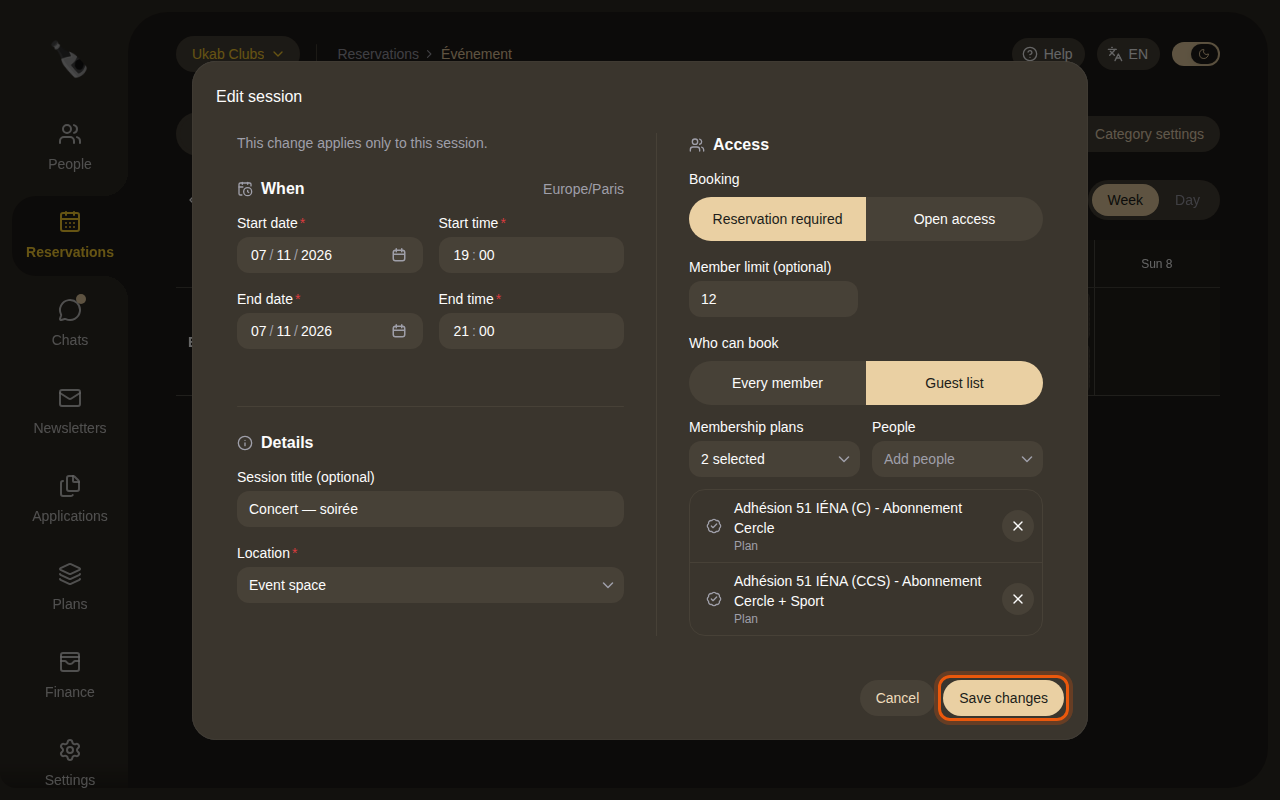
The example evening concert of Événement is kept for two Cercle membership plans.
Your team follows each session's participants, waitlist and attendance from the Club calendar. See Use the club calendar.
4. Close periods and follow waitlists
- Block periods, at the top of the calendar in categories without sessions, closes all resources or one of them for a while, for example for maintenance. Nobody can book a blocked period.
- Waitlist appears in categories booked by party size. It lists who is waiting for a place in the next 30 days.
Both are explained in Blocked periods, sessions and waitlists.