Propose a time for a request
Answer a member's request for a private lesson by proposing a time.
In some categories, such as private lessons, members send a request and the club suggests the time. This page shows how to find these requests, propose a time and change or withdraw your proposal.
1. Find the requests
The requests appear above the calendar of their category in Reservations, under Requests awaiting a time. Select Open to read one. Coaches also find them in My reservations and in Club calendar. See Your reservations and availability.
A request shows Pending and a Reservation request card on its page. Members can write to you in the Conversation below. See Answer messages.
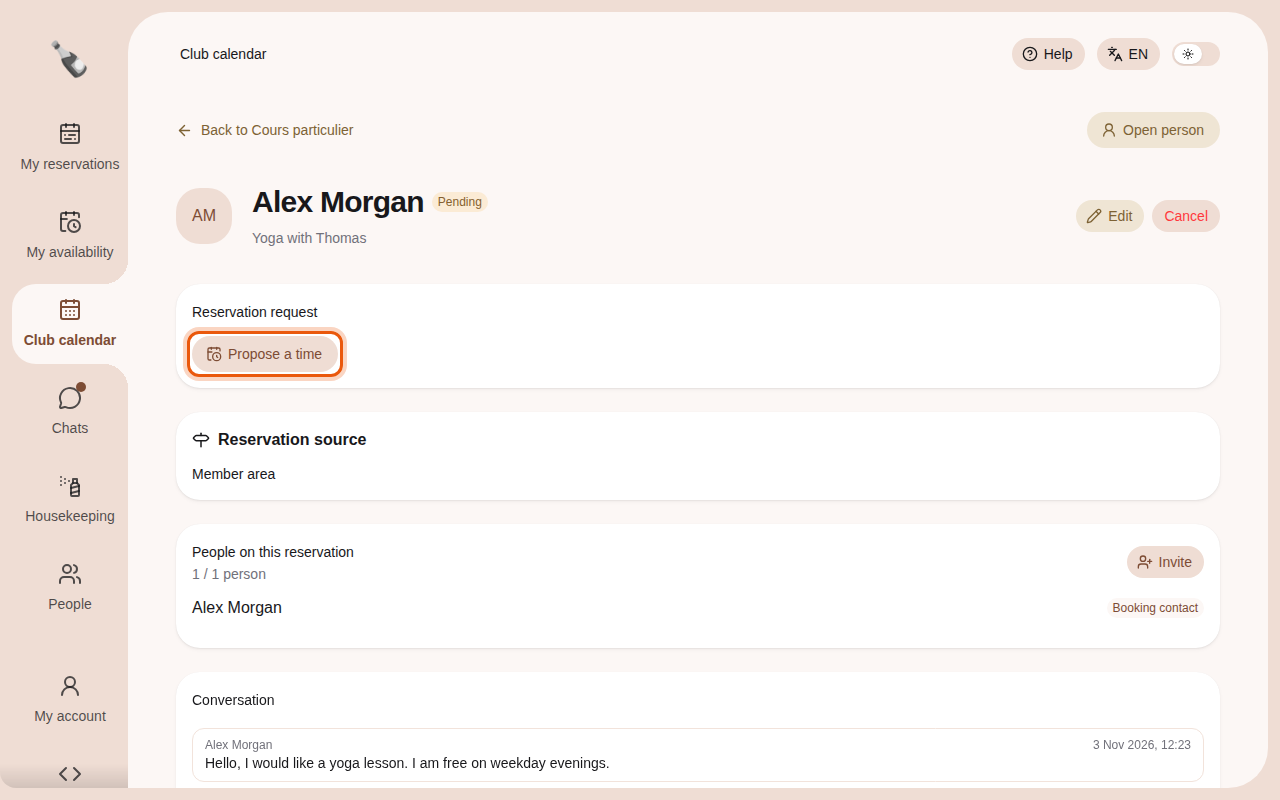
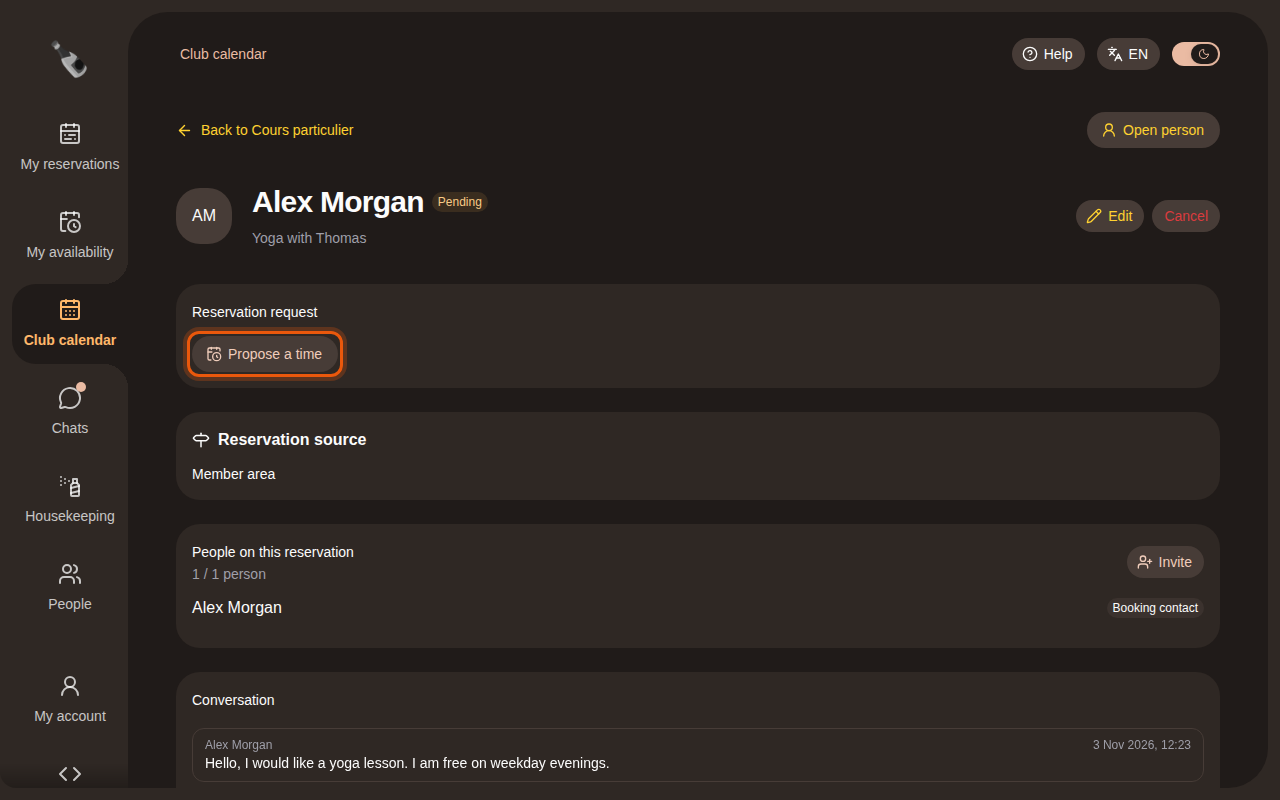
The example request Yoga with Thomas, seen by the coach account Sport coach. The control to use is outlined in orange.
2. Propose a time
- Select Propose a time.
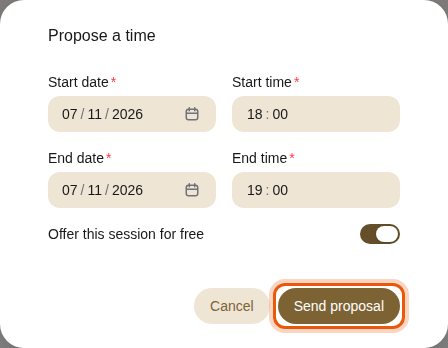
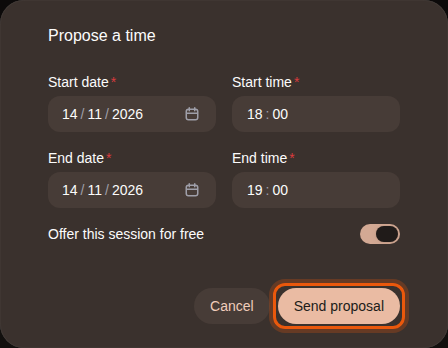
- Enter the Start date, Start time, End date and End time. When you change the start, the end moves with it to keep the same length.
- Turn on Offer this session for free to waive the price. The option appears when the session has a price.
- Select Send proposal. The member sees the proposed time on their reservation and can accept it.
3. Change or withdraw a proposal
Once sent, the card shows the proposed time and the Total, marked Free session when you waived the price. Confirmed on acceptance. means the booking is confirmed as soon as the member accepts. Payment due after acceptance. means the member pays after accepting.


- Change proposal sends a new time in place of the previous one.
- Withdraw proposal appears when you propose a new time for a booking that already has one. It takes the proposal back, and the booking keeps its current time.
While a request waits for a time, Cancel is the only status button. In these categories, Edit is only available while the request is Pending.