Payments
Connect your club to Stripe so members can pay online, and set up your club's credits.
Members pay your club online by card through Stripe, an online payment service. The money goes to your club's Stripe account, called a merchant in Champagne. Once your club is connected to a merchant, members can pay their membership, top up their credits and pay their invoices from their account.
You set this up in Settings, on the Payments tab.
1. Check your club's merchant
In the left menu, select Settings, then the Payments tab. The Stripe merchant card shows Configured when your club is connected, and Not configured otherwise.
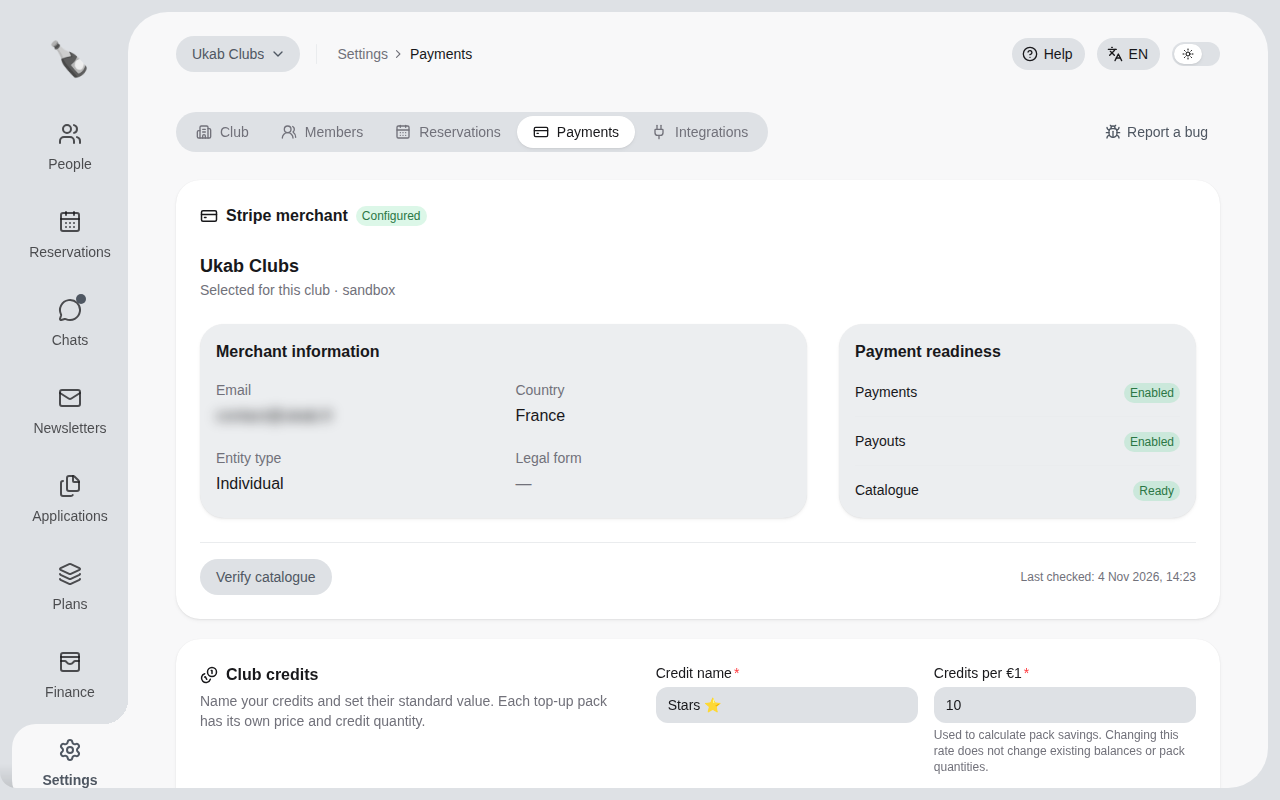
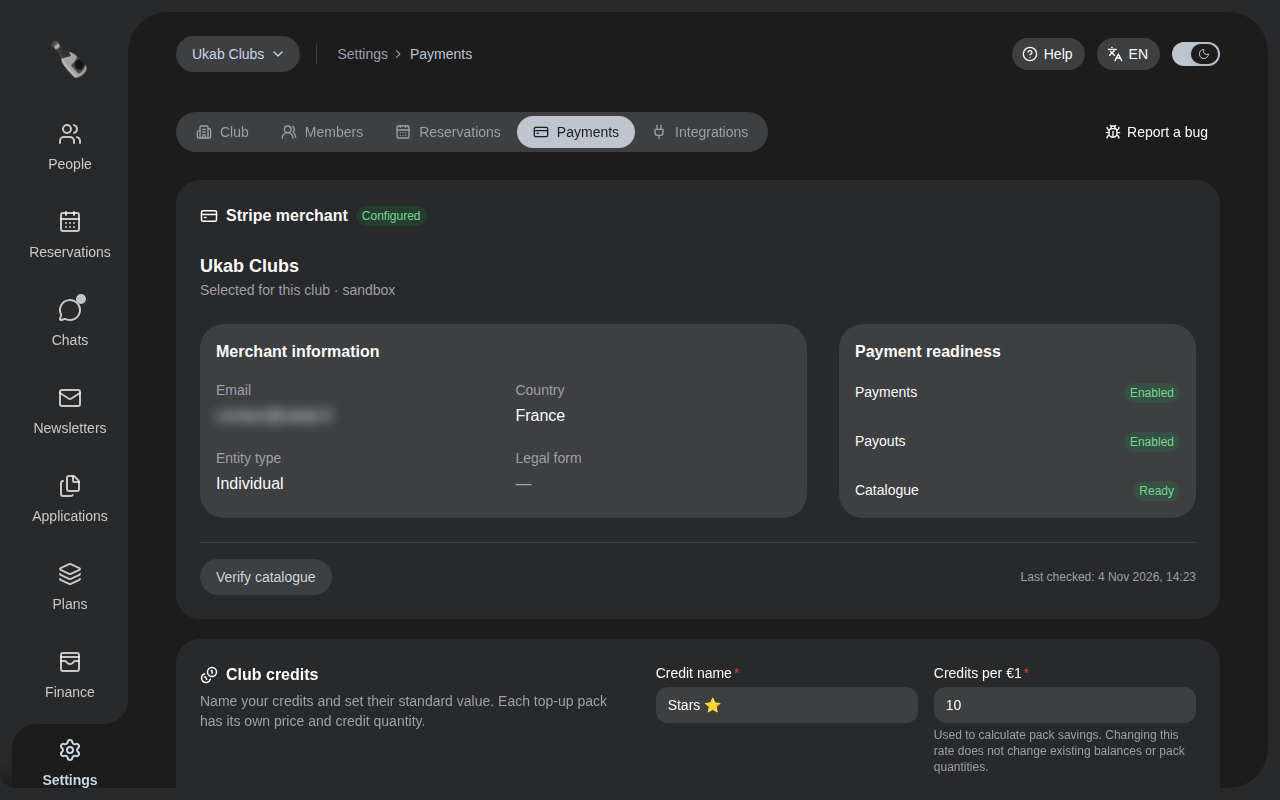
The example merchant of Ukab Clubs, ready to take payments. Its email is blurred.
Payment readiness tells you what works today:
| Line | Ready when it shows | Meaning |
|---|---|---|
| Payments | Enabled | Stripe accepts card payments for your club. |
| Payouts | Enabled | Stripe can transfer the money collected to your bank account. |
| Catalogue | Ready | Your plans are prepared on Stripe, so members can buy them. |
When a line is not ready, it shows Not enabled for Payments and Payouts, or To prepare for Catalogue. Section 2 explains what to do.
The status updates on its own while the page is open. Last checked shows when it was last refreshed. Other messages can appear on the card:
| Message | Meaning |
|---|---|
| Checking for updates… | Champagne is asking Stripe for the latest status. |
| Automatic updates interrupted | Champagne could not get the latest status. The card shows the last known one. Reload the page to try again. |
| Not checked yet | Shown after Last checked when Champagne has not received a status from Stripe yet. |
| Updating merchant… | A change you asked for, such as Prepare catalogue, is in progress. Wait for it to finish. |
2. Connect a club to Stripe
If the card shows Not configured, you have two options.
- Use an existing merchant. Merchants you already created for your other clubs are listed with their details. Select Use this merchant on the right one: both clubs then collect payments on the same Stripe account.
- Create a new merchant. Select Create a merchant and fill in the form.
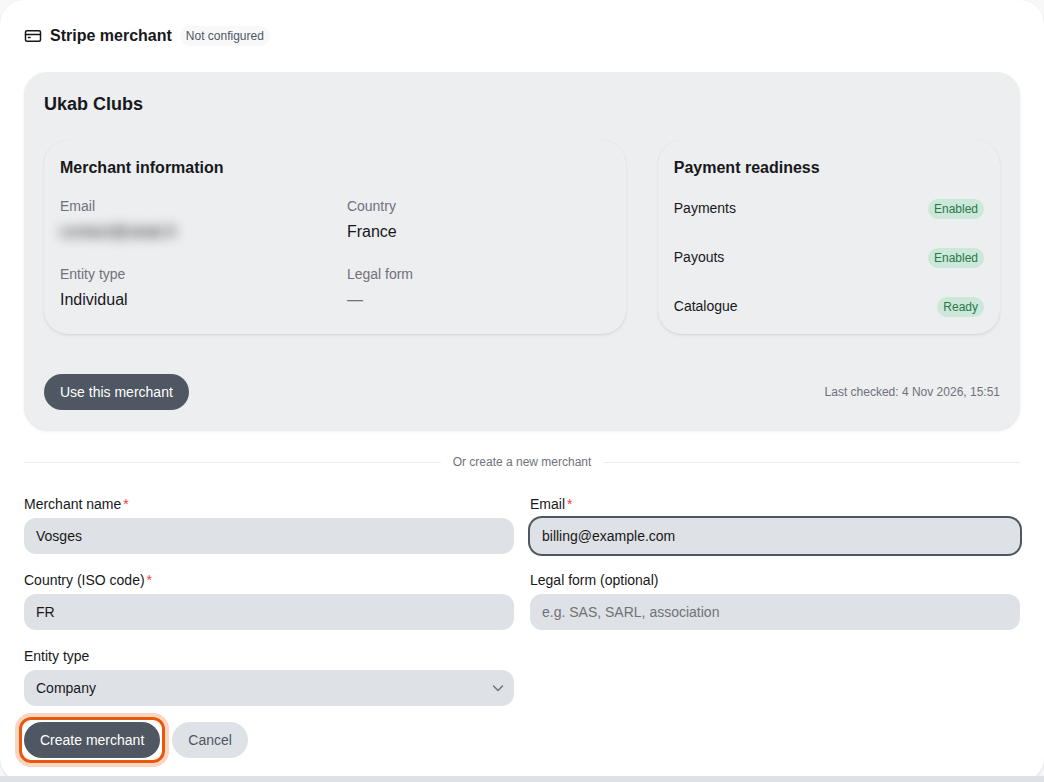
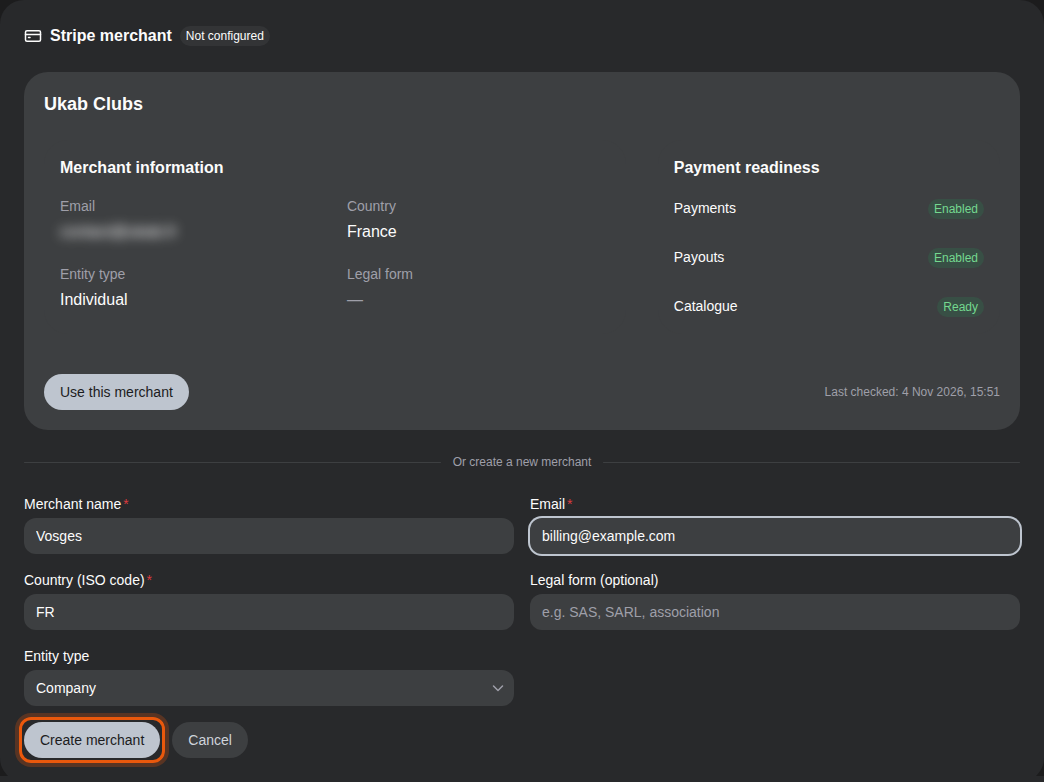
Connecting the example club Vosges: reuse the Ukab Clubs merchant or create a new one. The control to use is outlined in orange.
To create a merchant:
- Enter the Merchant name, usually your club or company name, and a contact Email.
- Enter the Country (ISO code), the two-letter code of your country, such as FR for France.
- Optionally enter the Legal form, such as SAS, SARL or association.
- Choose the Entity type: Company, Individual, Non Profit or Government Entity.
- Select Create merchant.
The new merchant then shows Configuration to complete. Select Complete Stripe activation: Stripe opens in a new tab and asks for your company details and bank account. Once you finish there, come back to Champagne. The card updates by itself.
Pop-ups blocked?
If Stripe does not open, allow pop-ups for Champagne in your browser and select Complete Stripe activation again.
When Catalogue shows To prepare, select Prepare catalogue to publish your plans on Stripe. Later, Verify catalogue checks that they are still in place.
3. Name your club's credits
Credits are a currency of your own that members buy in packs and spend on bookings. The Club credits card on the same tab sets them up.
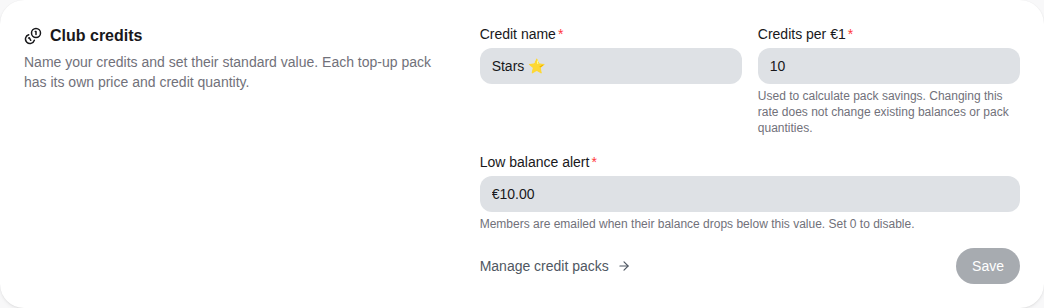
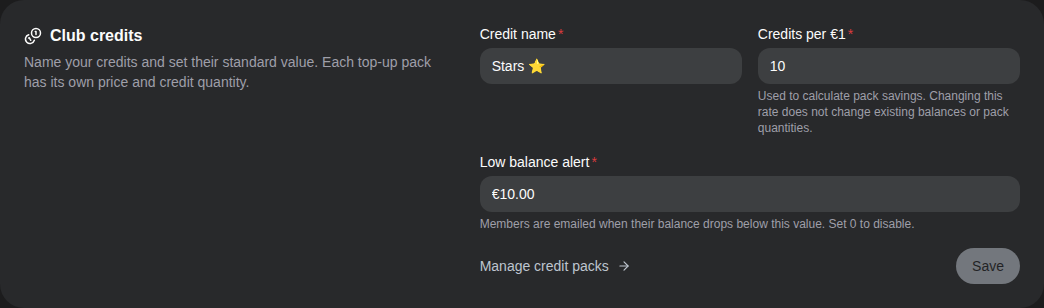
- Enter the Credit name members will see, for example "Stars".
- In Credits per €1, set the standard value of a credit. It is used to show how much members save with each pack. Changing it does not change existing balances or packs.
- In Low balance alert, enter the amount under which members are emailed. Enter 0 to turn the alert off.
- Select Save.
To create the packs members buy, select Manage credit packs. See Plans and pricing.
4. What members pay online
Once your merchant is ready, members pay by card on a secure Stripe page:
| What | Where members pay it |
|---|---|
| Membership | When they choose a plan, and then at each renewal. See Your membership. |
| Credit packs | With Top up for … in their credits. |
| Invoices | With Pay on Stripe in their invoices. See Billing. |
| Non-member bookings | By card, for categories open to non-members. |
Members pay their bookings with credits when a resource has a price in credits. Prices and deposits of each resource are set in its own settings: see Resources, prices and products. To follow what was paid, see Sales and invoices.