Plans and pricing
Create membership plans, credit packs and add-ons, and change a plan's price.
The Plans section lists everything your club sells online: memberships, credit packs and add-ons. Members pay for memberships and credit packs by card through Stripe, the online payment service connected to your club, and for add-ons with their credits.
Connect Stripe first
If your club has no Stripe account yet, the page shows Connect a Stripe merchant before adding plans and Add plan stays greyed out. Select Open payment settings, then follow Payments.
1. See your plans
In the left menu, select Plans. Each line shows the plan's name and description (the credits included, for a credit pack), its Type, its Amount and its Interval. Select a column title to sort the list. A club without plans shows No plans yet. If the list shows Plans unavailable, your plans could not be loaded: reload the page.
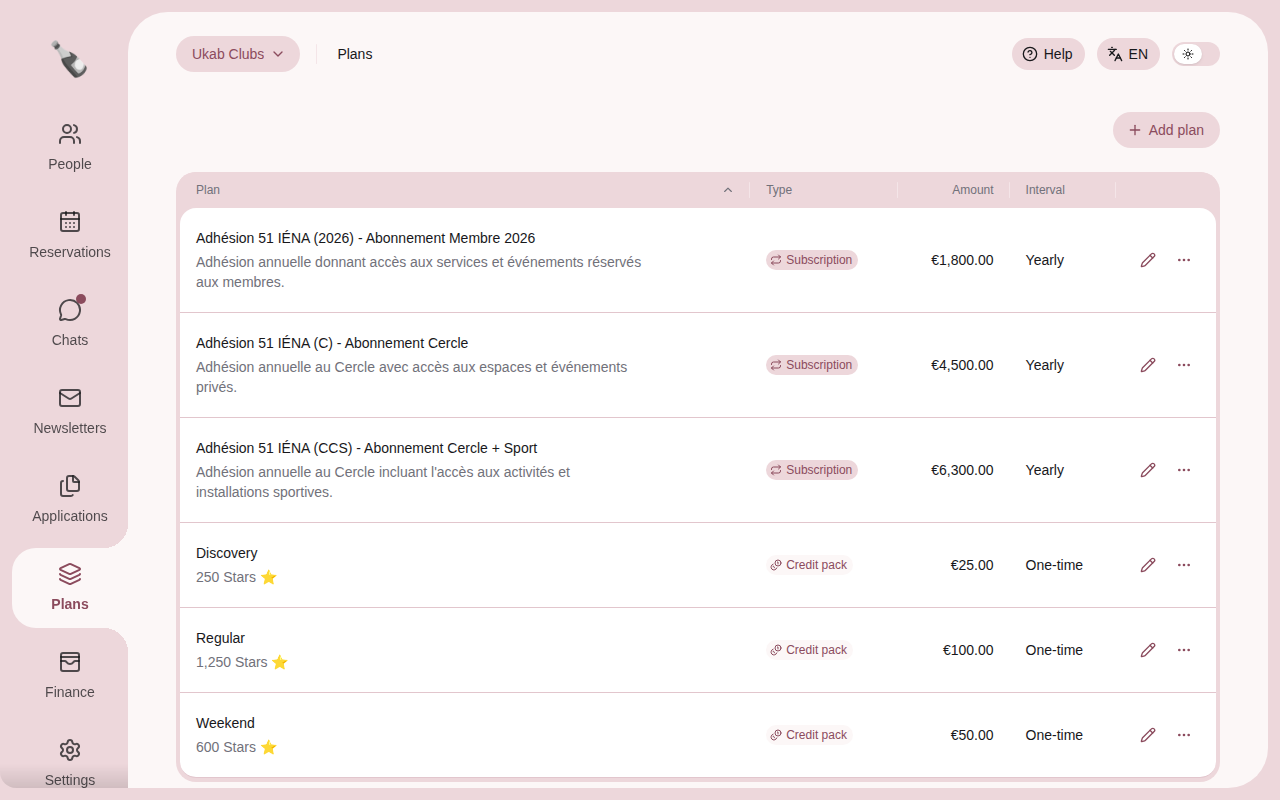
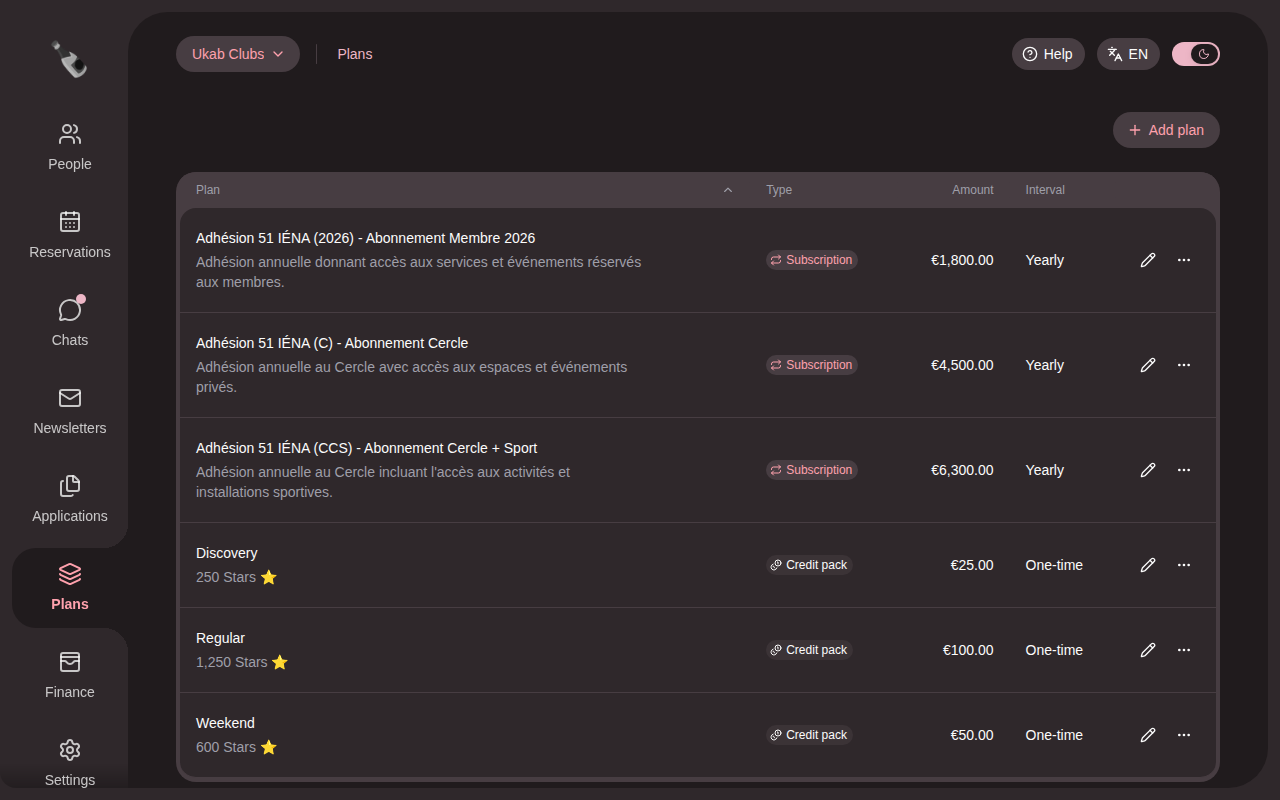
The example plans of Ukab Clubs: three yearly memberships and three credit packs.
There are three types of plan:
| Type | What the member buys | Price |
|---|---|---|
| Subscription | A membership that renews every month or every year. | An amount in money. |
| Credit pack | A one-time top-up of club credits, used for bookings. | An amount in euros. |
| Add-on | A one-time extra the member pays for with their credits. | A number of credits. |
Credits are your club's own currency. You choose their name, such as Stars, and their value under Club credits in Payments.
2. Add a plan
Select Add plan.
- Type a Name.
- Choose the Type. The price fields of that type appear below.
- If you like, type a Description. Members see both the name and the description.
- Fill in the price:
- Subscription: the Amount, its Currency and the Billing interval, Monthly or Yearly.
- Credit pack: the Amount (EUR) and the number of Credits included.
- Add-on: the price in credits, for example Price in Stars ⭐.
- Select Create plan.
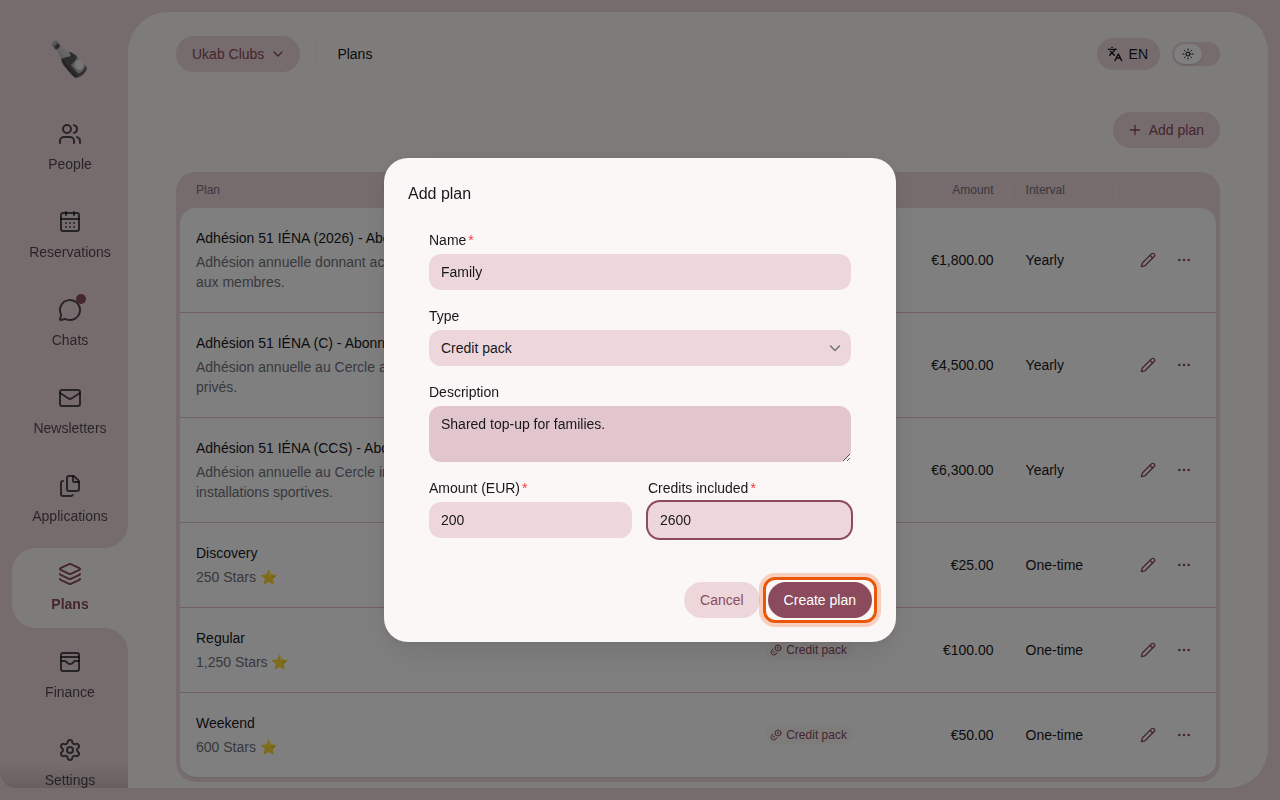
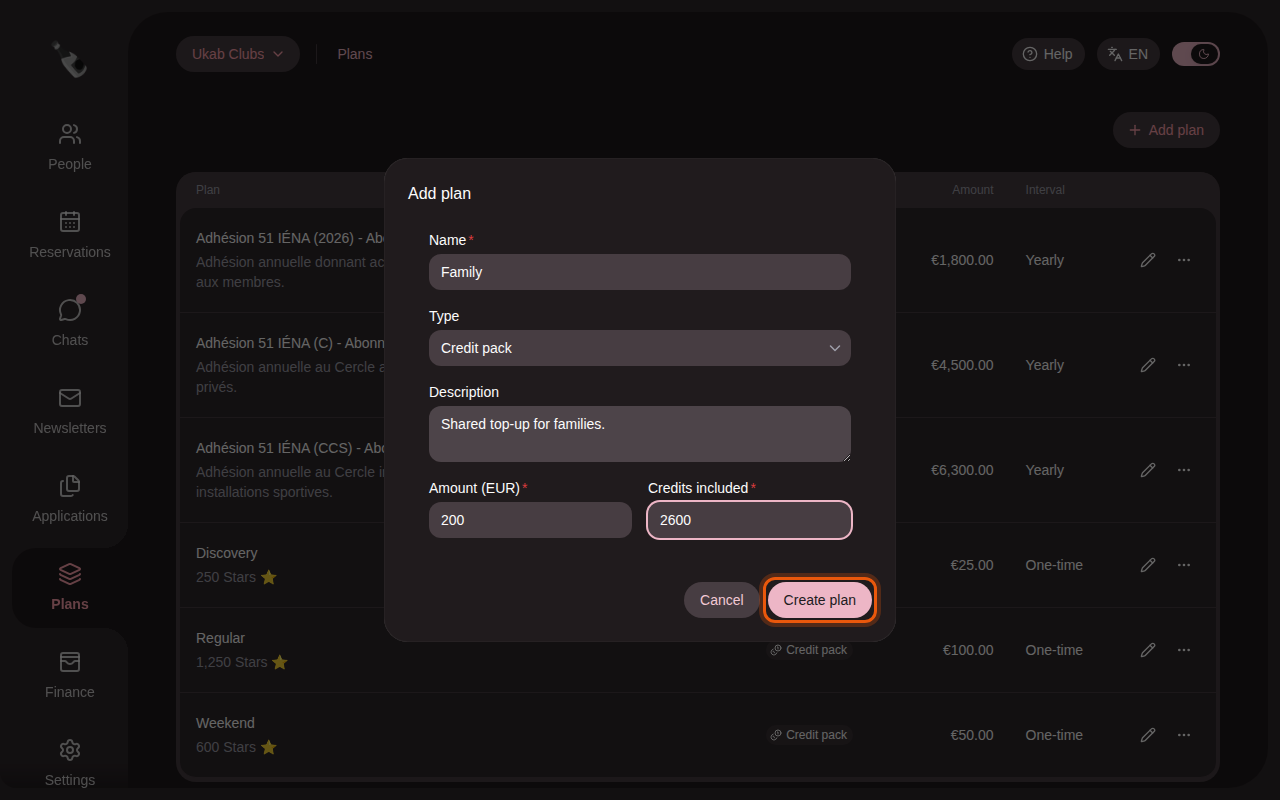
Preparing an example credit pack, Family, with 2,600 credits for €200. The control to use is outlined in orange.
The type, currency and billing interval are fixed once the plan exists. To change them, create a new plan.
3. Edit a plan
Select the pencil on a plan's line, change it, then select Save.
- For a Credit pack or an Add-on, you can change the name, the description and the price.
- For a Subscription, you can change the name and the description. The window reminds you: To change the price, split the plan.
4. Change the price of a membership
Changing a membership's price is called a split. Select … on the plan's line, then Split. Only a subscription that was never split offers it.
- Current subscribers: the members on this plan stay on it. Set the Price they will pay. If you change it, they are notified at once and pay the new price from their next payment, or in one month if that payment is sooner.
- New subscribers: type a New plan name, a Description and the Price. This new plan replaces the old one in your application forms and at checkout from today.
Select Split plan to confirm.
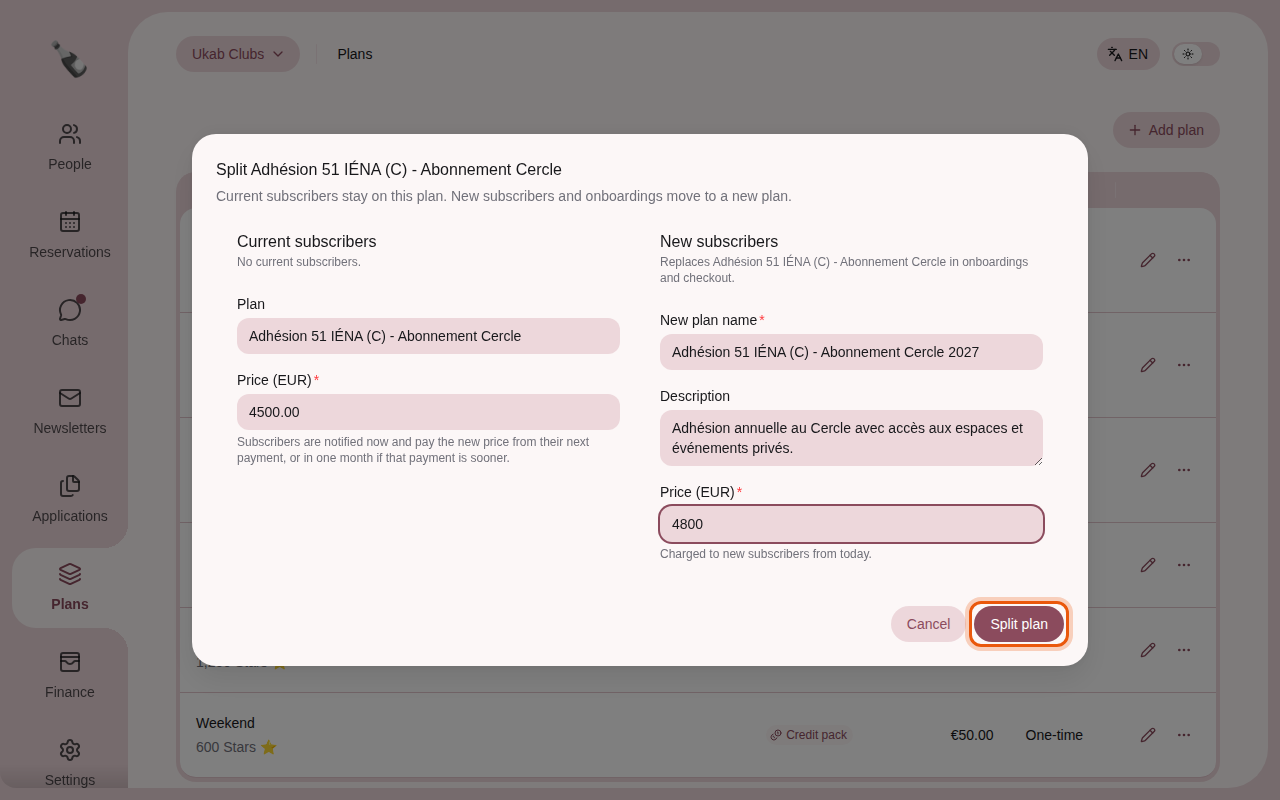
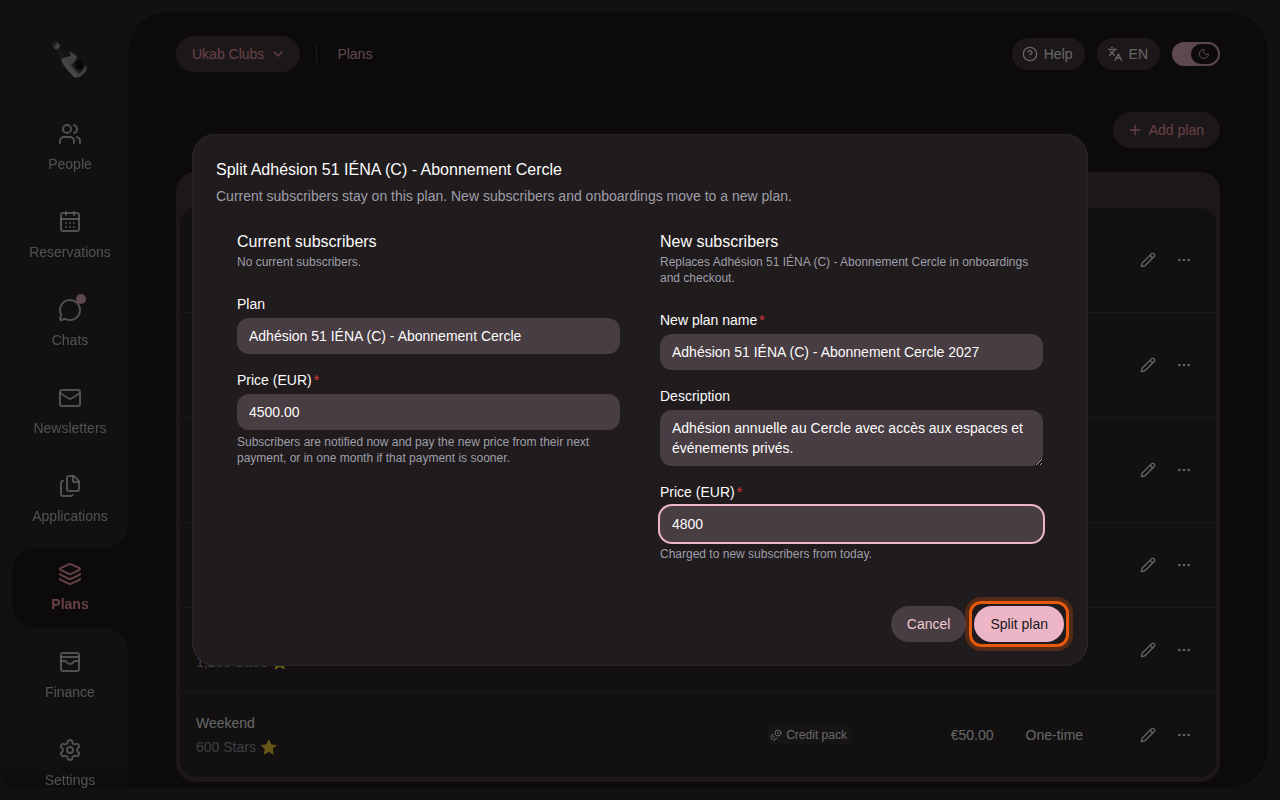
Raising the example Abonnement Cercle membership to €4,800 for new members while current members keep €4,500.
After a split, the old plan's line shows Current subscribers only. Replaced by … with the name of the new plan.
Keep current members' price
To raise the price for newcomers only, leave the Price under Current subscribers unchanged.
5. Delete a plan
Select … on the plan's line, then Delete, and confirm with Delete plan. Members can no longer buy it. Existing memberships keep the details of the plan they paid for.
What members see
Members choose a membership and buy credit packs and add-ons from My account. See Your membership and Your credits. To offer a membership while people apply to join, add a Plan selection block to your application forms.