Your team's profiles and documents
Keep the profile members see and the professional documents of each colleague up to date.
Each colleague's staff file in Team holds the profile members see and their professional documents, such as a coach's professional card or diplomas. Select a colleague in Team to open their file: the Profile tab opens first. To find a colleague, see Manage your team.
1. Edit the profile members see
- Biography shows the name, photo and text members see when they talk to this colleague, for example a coach. Select Edit to change them, or View member profile to see the profile as members do.
- Qualifications and documents holds their professional card, diplomas and other supporting documents.
2. Add a document
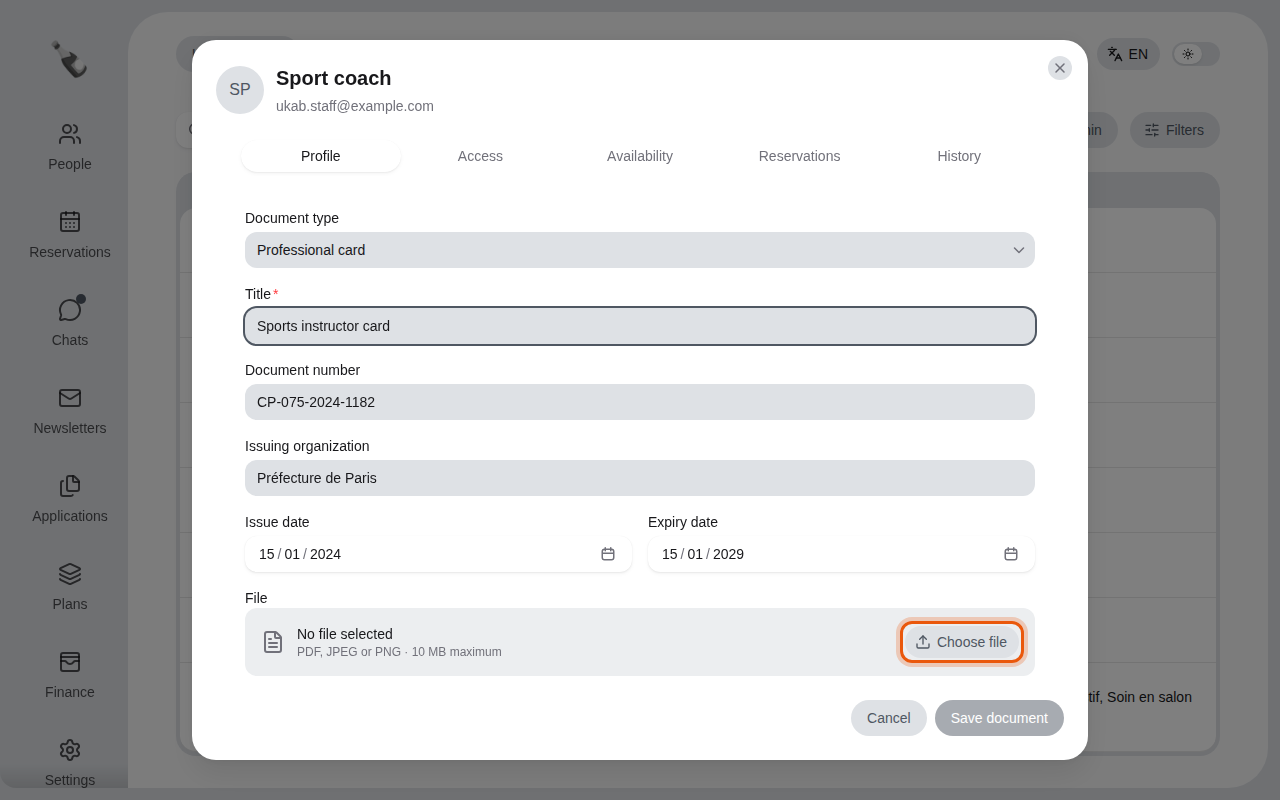
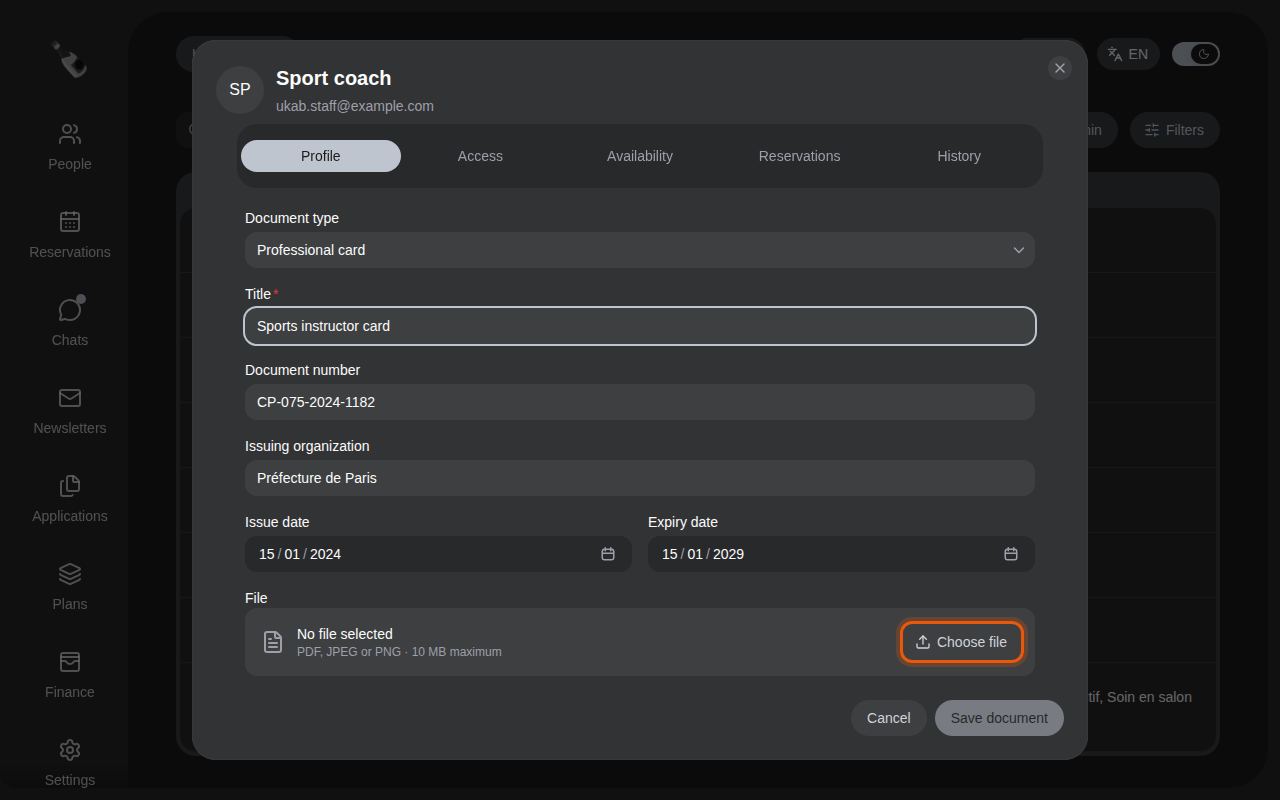
To add a document:
- Select Add document.
- Choose the Document type: Professional card, Diploma or Other document.
- Type a Title, and if you have them, the Document number and the Issuing organization.
- Enter the Issue date and the Expiry date. The expiry date must be on or after the issue date.
- Select Choose file and pick the scan: a PDF, JPEG or PNG file of 10 MB at most.
- Select Save document.
3. Follow expiry dates
Each document shows how long it stays valid: Not expired, then from 30 days before its expiry date a countdown such as Expires in 20 days, Expires tomorrow or Expires today, and finally Expired. Documents are grouped by type, with the number of documents next to each type.
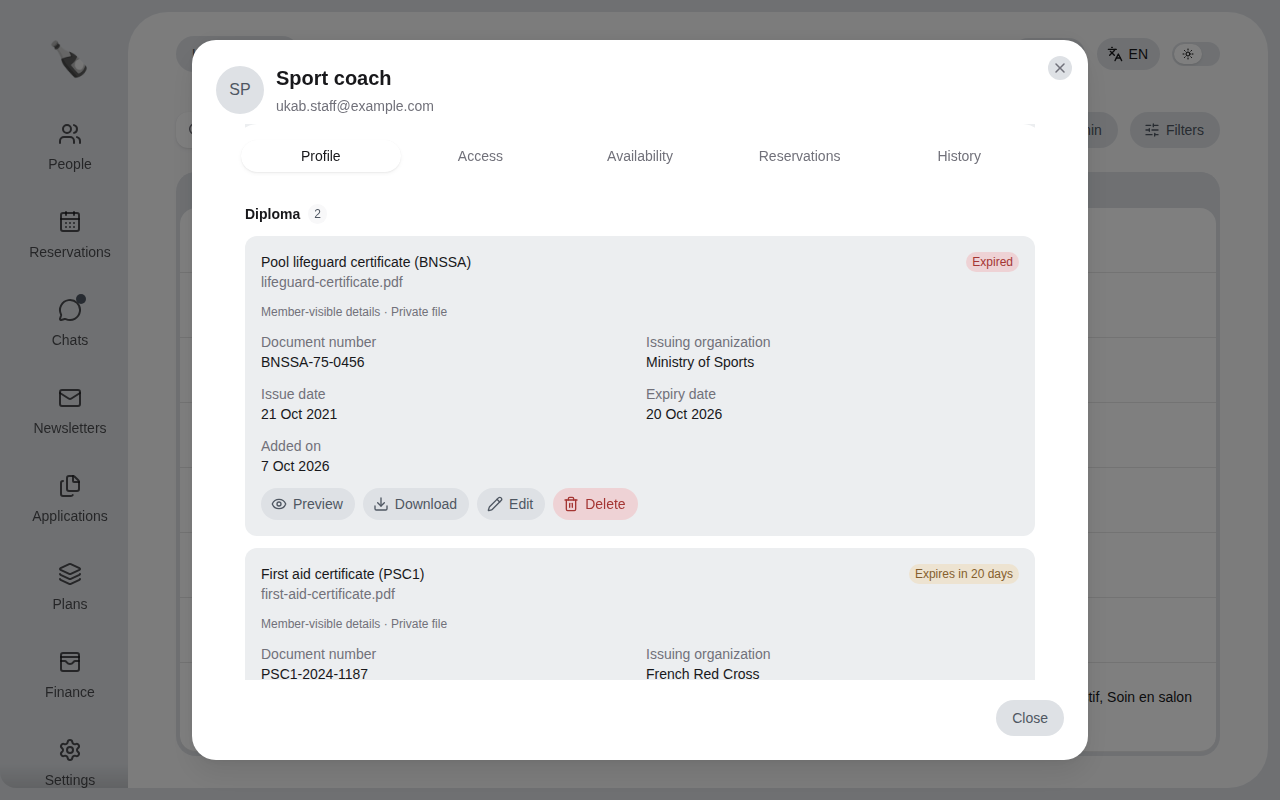
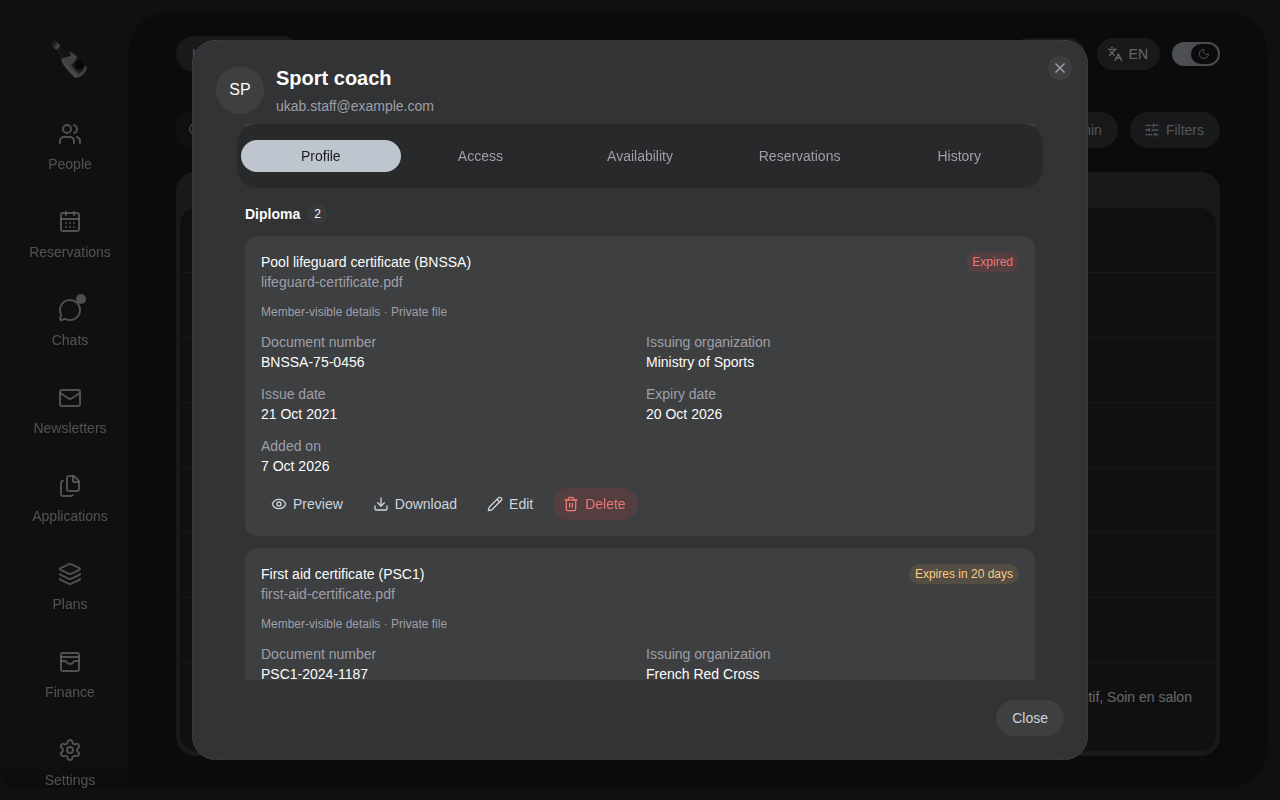
The example coach's diplomas: one expired certificate and one that expires in 20 days.
| Document type | Who sees it |
|---|---|
| Professional card, Diploma | Member-visible details · Private file: members see the type, title, issuing organization and dates under Qualifications on this colleague's profile. The file stays private. |
| Other document | Internal document: only your team sees it. |
On a document, select Preview or Download to open the file, Edit to change its details or Replace file, and Delete to remove it. Deleting asks you to confirm with Delete document.
Stay ahead of expiry dates
Use the Expires within 30 days filter regularly to renew professional cards before they expire.