Review applications
Read an application, then accept or reject it.
When someone wants to join your club, they fill in your online application form. The Applications section lists these applications so your team can read each one and accept or reject it.
To change the questions of the form itself, see Application forms.
1. See the applications
In the left menu, select Applications. The list shows each Applicant, the date the application was Submitted and its Status.
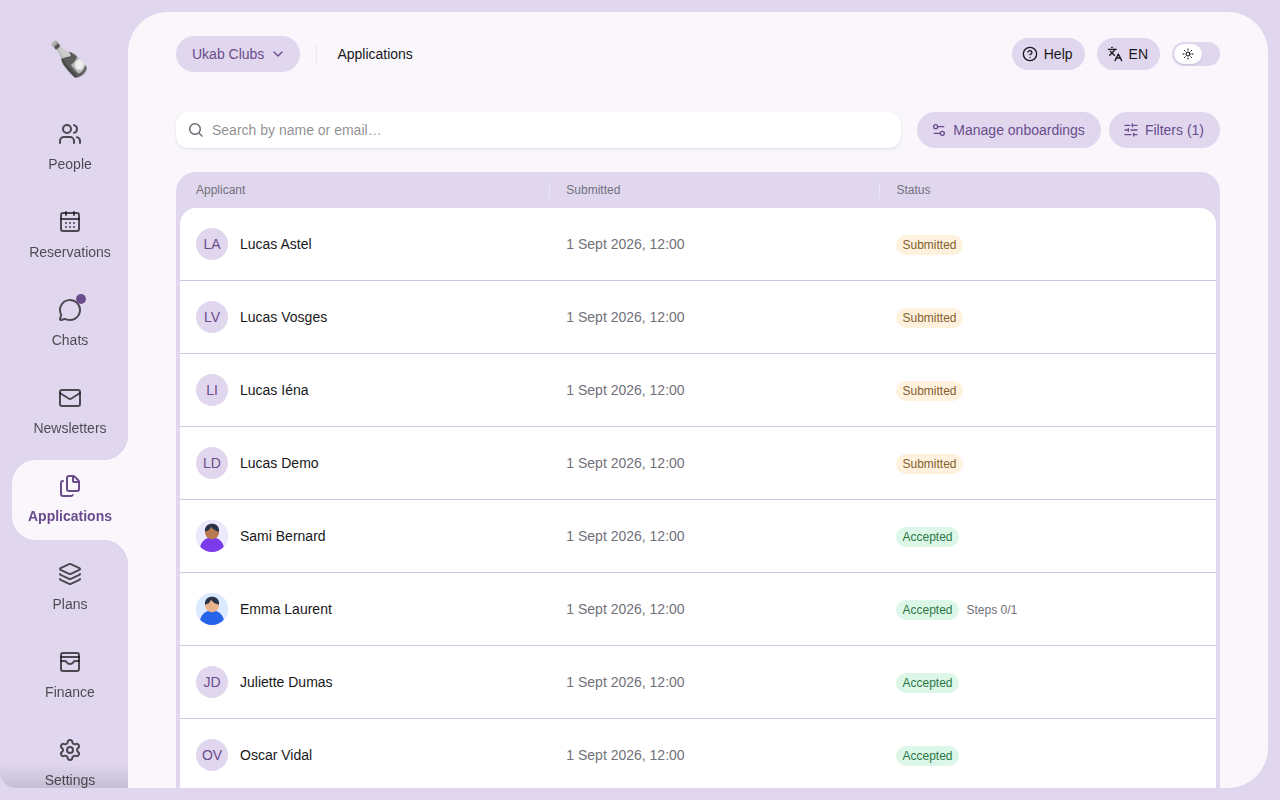
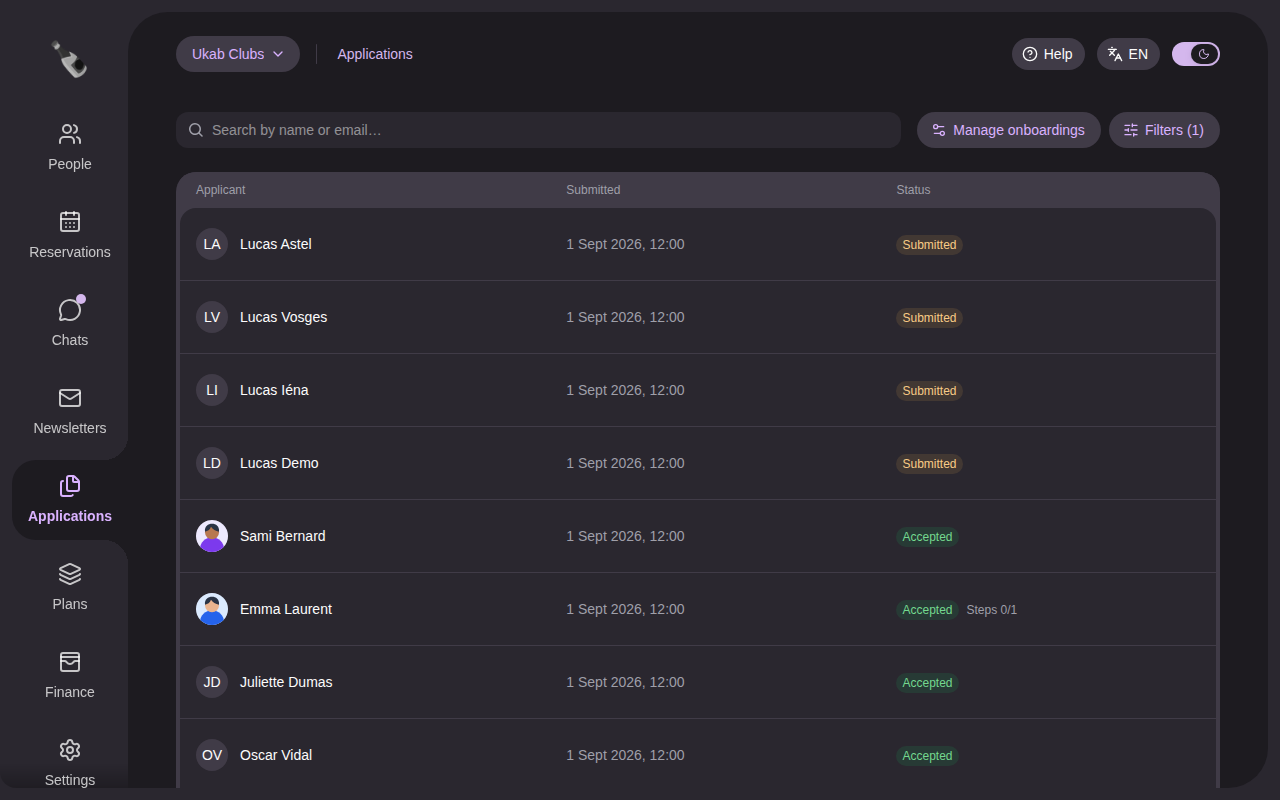
| Status | Meaning |
|---|---|
| Draft | The applicant started the form and has not sent it yet. Its date shows Not submitted. |
| Submitted | The applicant sent the form. It is waiting for a decision. |
| Under review | Also waiting for a decision. The list shows it as Submitted and the filters count it with them. |
| Accepted | Your team accepted the application. |
| Rejected | Your team rejected the application. |
A draft whose applicant has not given a name yet is titled Application in progress.
An accepted application may also show Steps, such as Steps 0/1. These are the steps the new member still has to complete after approval, for example paying their plan.
By default, the list shows Submitted and Accepted applications. Select Filters to choose other statuses or a submission date range, then select Apply filters. Type a name or email address in Search by name or email… to find one applicant. When nothing matches, select Clear search and filters.
2. Read an application
Select an applicant in the list. The page shows their name and status, the Onboarding revision (the version of the form they filled in) and the submission date, then:
- Sponsors, when your form asks for sponsor codes: the members whose code the applicant used, with a link to their profile, or No sponsor code has been redeemed yet.
- Rejection reason, for a rejected application with a reason.
- Submitted information: each question of your form with the applicant's answer. A question left empty shows No answer when it was optional and the application was sent, and Not completed otherwise. The chip next to the title counts the answered questions. Built-in questions carry their name in the onboarding editor, such as Applicant name, Applicant address, Plan selection, Sponsorship and Verified email. When your form asks for them before approval, the identity check result and the booked visit also appear here, and the identity actions below work the same way.
- After approval: the steps the applicant completes once accepted, if your form has any. Each step shows Waiting for approval before the decision, Not completed after it, then the answer and its date, or Payment confirmed for a payment. An identity step also shows what Stripe checked: Document, Selfie, Date of birth with the age check, and Name. While the step is the applicant's current one, select Allow a new attempt to let them try again, for example after Under the minimum age or The name does not match the application, or Mark as verified to complete it yourself. Champagne first asks Mark the identity as verified?, since Stripe did not confirm every check.
- Status history: when the application was started, submitted and decided. Select a change to see who made it, with the reason if any: a team member, System for automatic changes, Applicant · identity not authenticated for the applicant, or Staff · identity not available when no name is recorded for the team member who made the change.
- Email history: each email sent to the applicant, such as the Acceptance or Rejection email or a Finalization reminder, with its state: Sending, Accepted by provider, Failed or Uncertain. Accepted by provider means the email left Champagne; it does not confirm it reached the inbox.
- Text message history, when your form verifies the applicant's phone, before or after approval: each code texted to them, marked Text sent, Text delivered or Text not delivered.
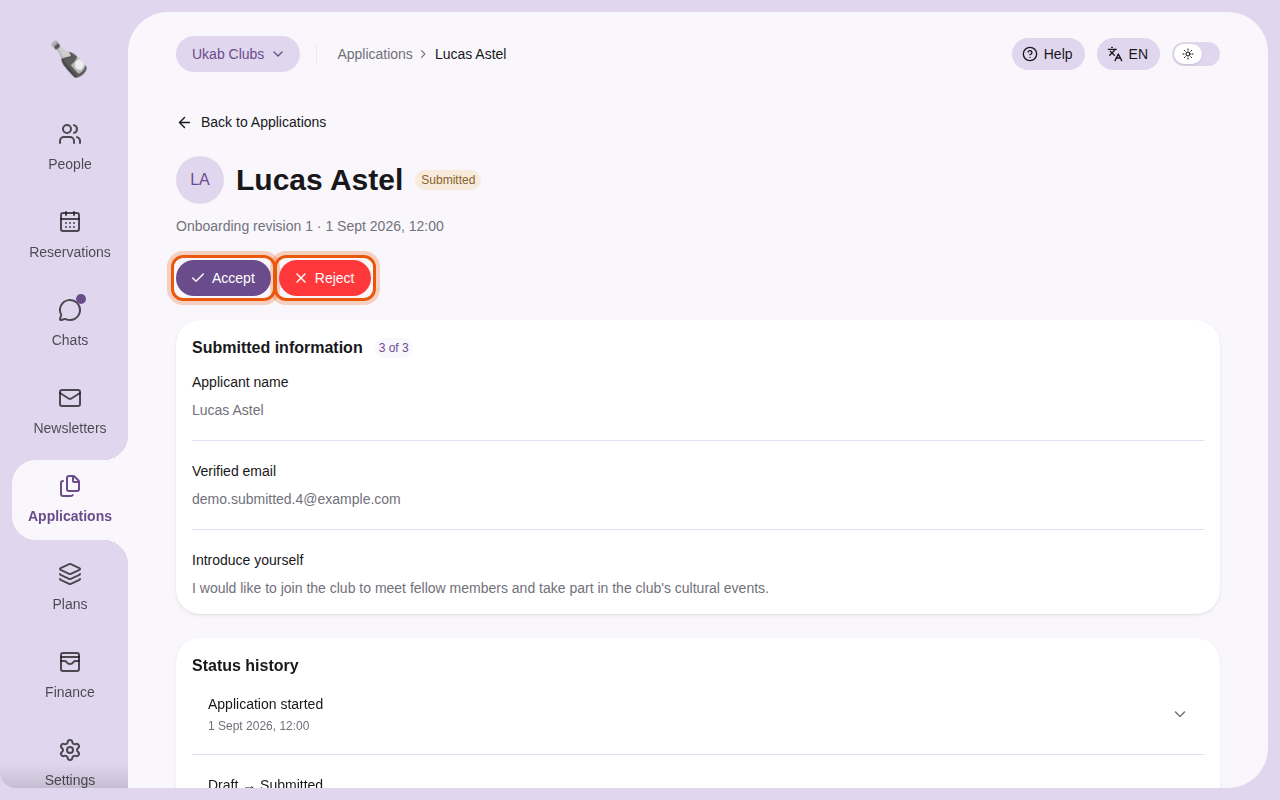
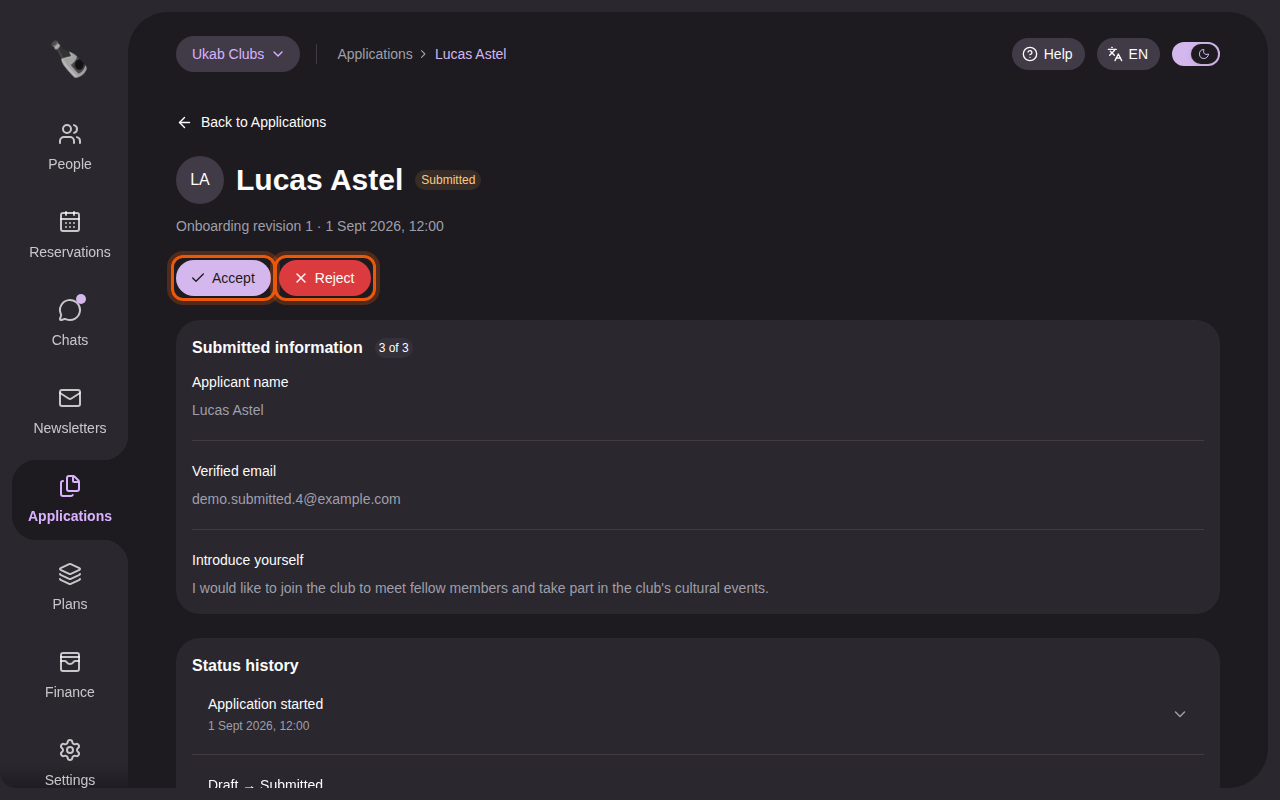
The application of the example applicant Lucas Astel. The controls to use are outlined in orange.
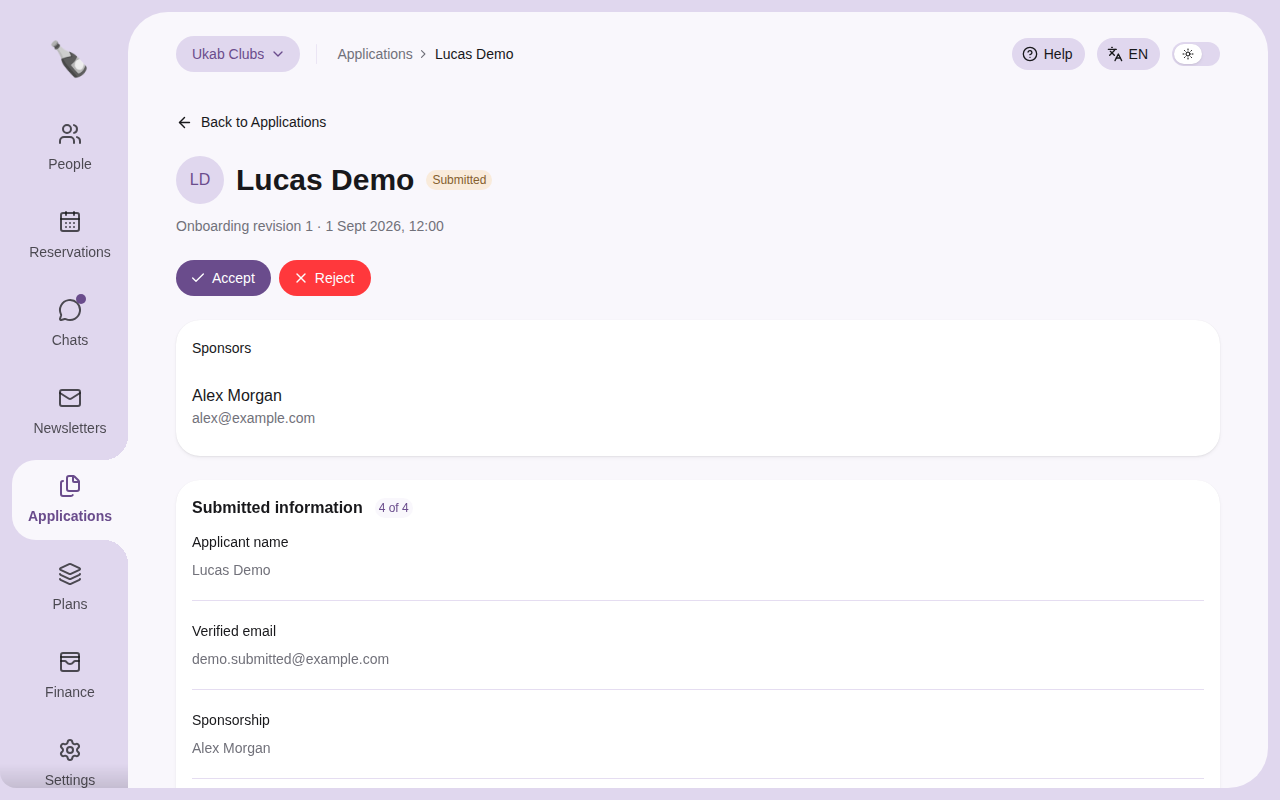
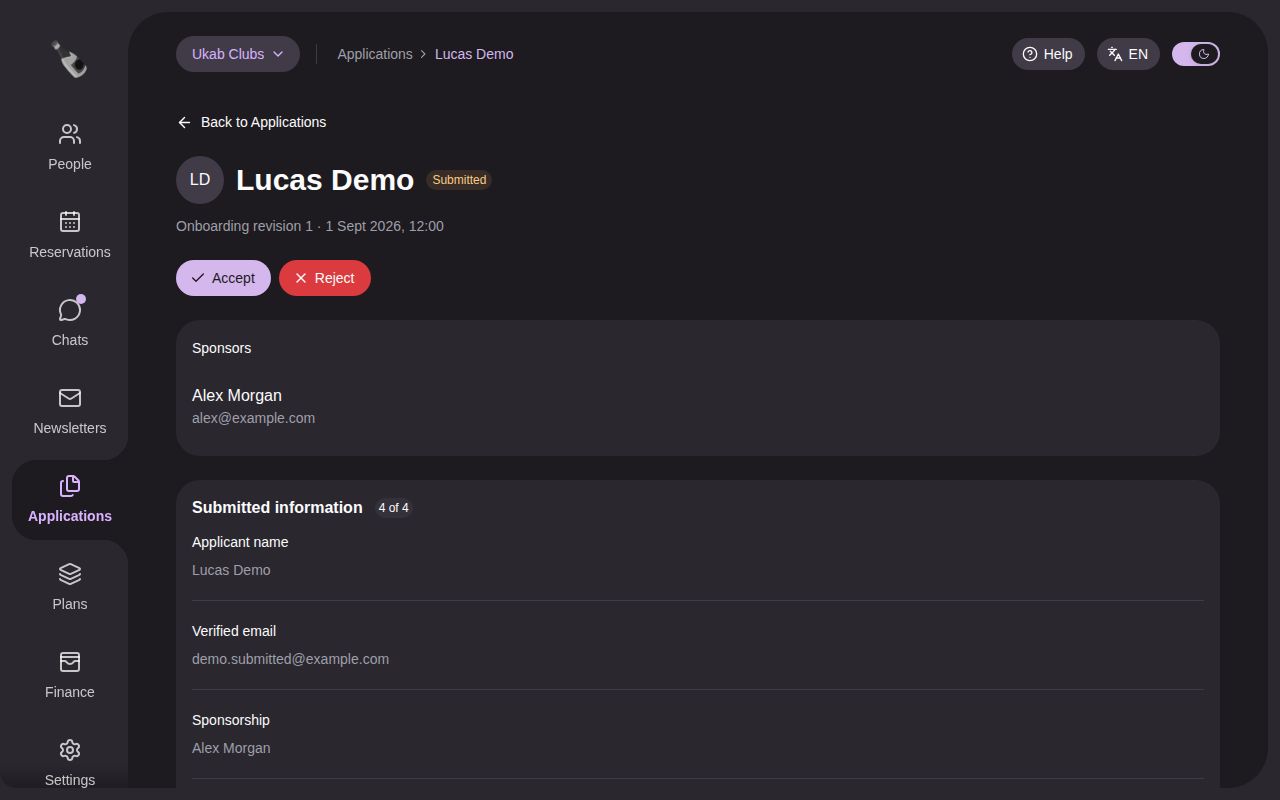
The example applicant Lucas Demo, who used the sponsor code of Alex Morgan.
3. Accept or reject
Select Accept or Reject. A confirmation window opens. Once an application is linked to a person in People, both buttons disappear and Open person takes their place at the top of the page. An application that is not linked yet shows only the decision it does not have: Reject on an accepted one, Accept on a rejected one.
- Accept: select Confirm acceptance. Champagne creates the person's profile and sends them an email to continue their registration. A visit they booked while applying is moved to their profile. An Open person button then takes you to their profile in People.
- Reject: you may type a Reason (optional), then select Confirm rejection. The applicant receives an email that includes your reason. A visit they booked while applying is canceled.
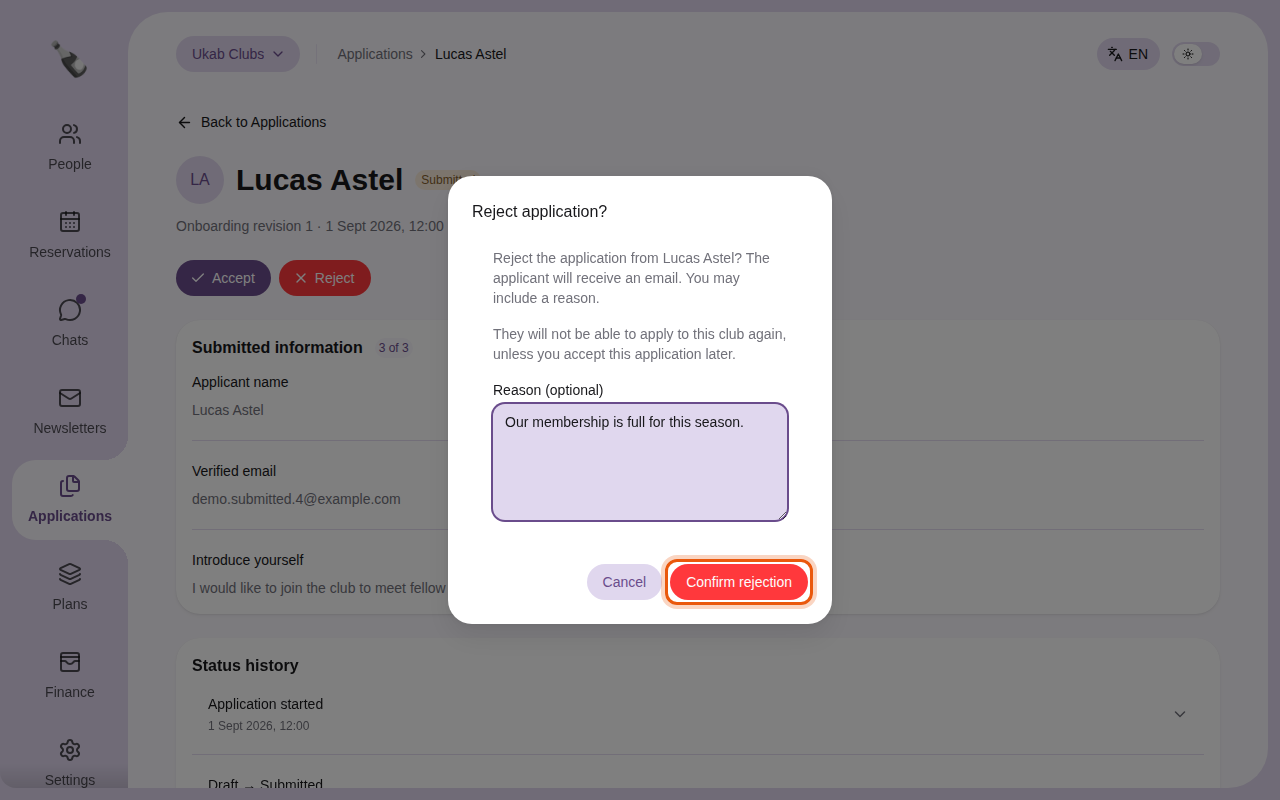
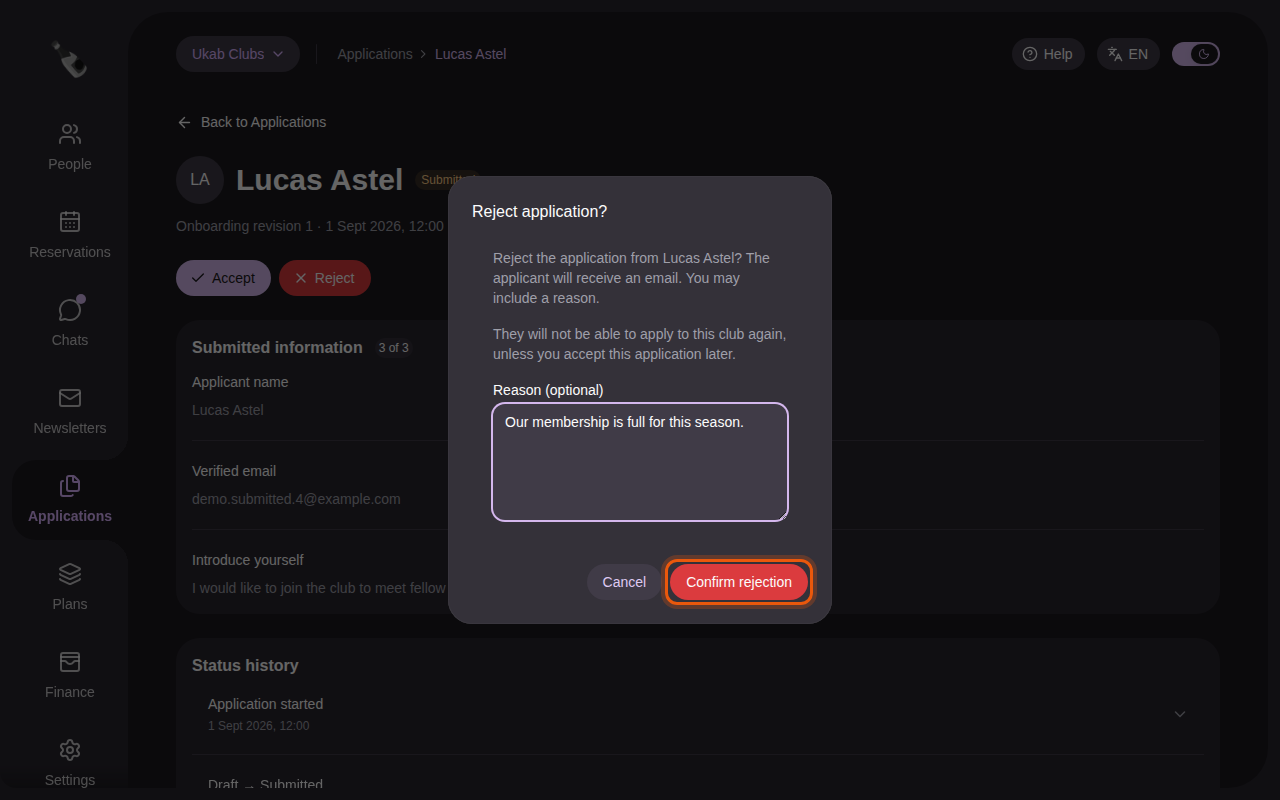
Before you reject
A rejected applicant who tries to apply again is asked to contact your club first. If you change your mind, open the application and select Accept.