Your member area
Find your way around your member area, check in at the club and update your profile.
Your member area gathers everything about your membership: your bookings, your billing, your invitations and your messages with the club. Sign in to the member app and select My account to open it. This page walks through what you see first and where each section leads.
1. Read the header
The top of the page shows your name, your account status and your club. Active means you can use the club and book. Other statuses are explained in When your account is limited. Three buttons sit on the right:
- the Inbox icon opens your messages and notifications. A number on it counts the unread conversations and notifications,
- Help opens the page of this guide that explains the screen you are on,
- Sign out closes your session on this device.
Below the header, four tabs lead to the sections of your member area: Overview, Reservations, Billing and Invitations.
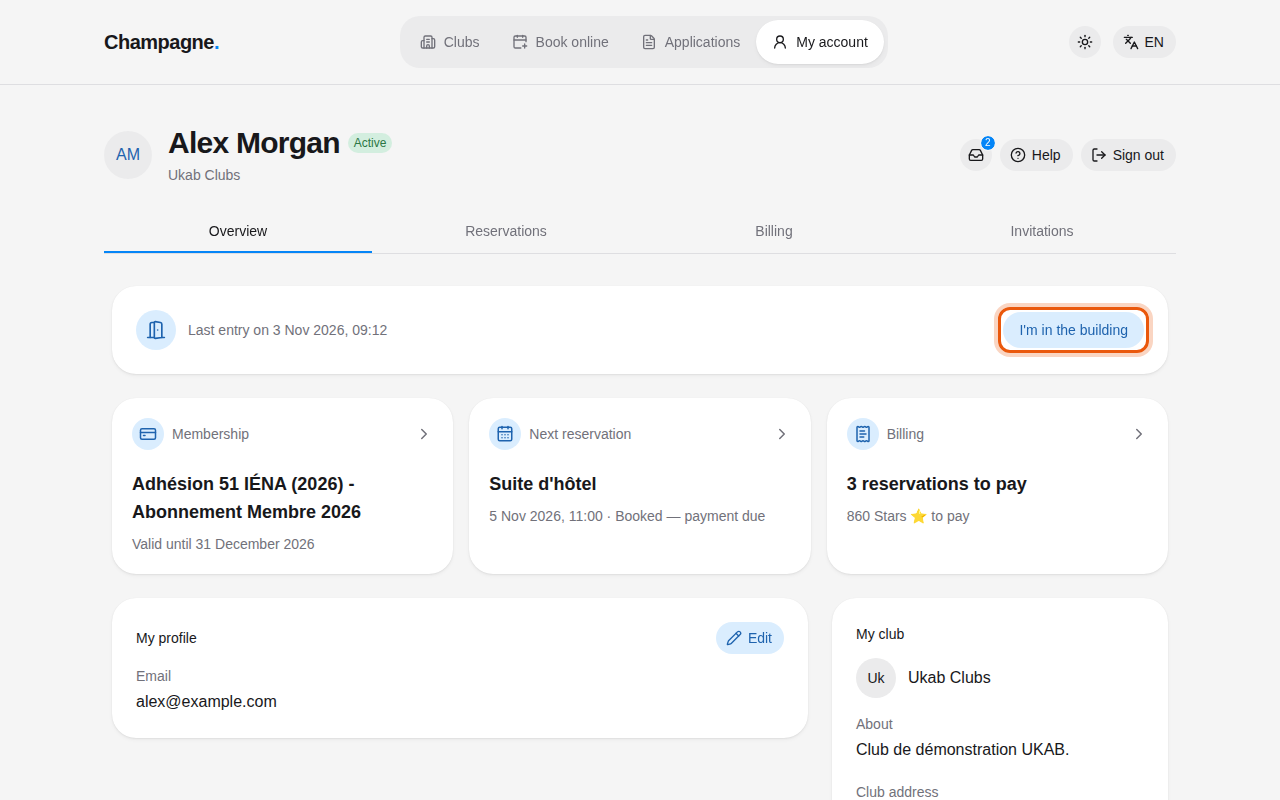
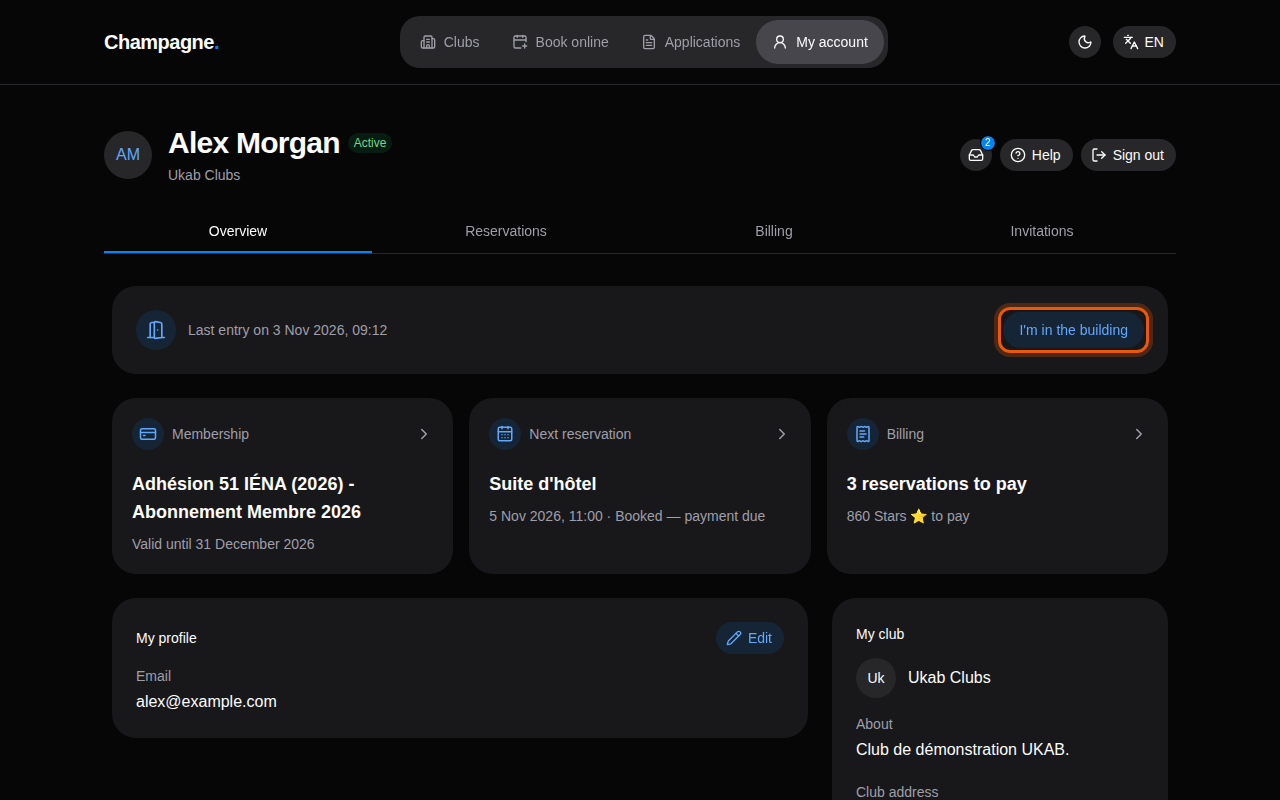
The Overview tab of the example member Alex Morgan at Ukab Clubs. The control to use is outlined in orange.
2. Check in when you arrive
The first card of the Overview tab records your visits. When you reach the club, select I'm in the building. The card then shows the time of your last entry, for example Last entry today at followed by the time, or Last entry on followed by the date of an earlier visit. Before your first visit it reads No entry recorded yet.
3. See your account at a glance
Three cards summarize your account. Select a card to open the matching page.
| Card | What it shows | Opens |
|---|---|---|
| Membership | Your plan or Valid membership, with its end date, or No membership yet | Your membership page |
| Next reservation | Your next booking with its date and status, or Nothing booked | That booking's detail page |
| Billing | The invoices due, else the reservations to pay, or All paid | Your invoices or reservations |
The Billing card counts the invoices due first. When you owe no invoice but some bookings are Booked — payment due, it shows 1 reservation to pay or the number of reservations, with their total under it, for example … Stars to pay. Selecting the card then opens your reservations so you can pay them.
Further down, My club shows your club's description and address.
The I'm in the building card and the Next reservation card only appear while you can book: they are hidden when your account is suspended, banned or disabled. Guest accounts see Next reservation without the Membership and Billing cards.
4. Update your profile
The My profile card shows the details your club has on file. To change them:
- Select Edit.
- Update your first and last name, Phone, Date of birth, Gender or address.
- Select Save changes, or Cancel to leave everything as it was.
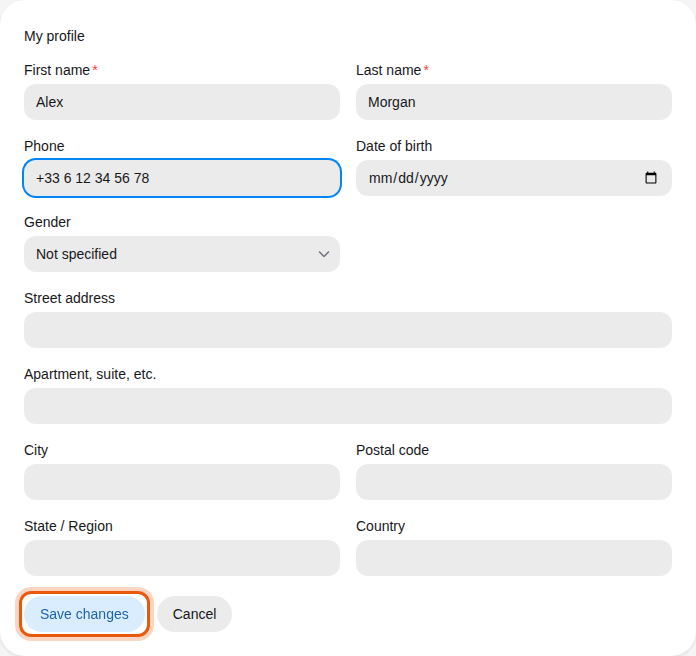
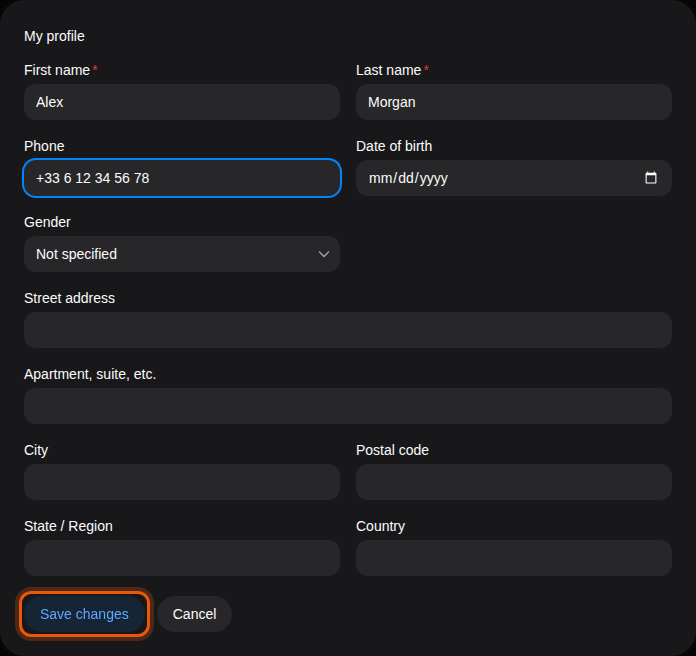
Once you start an address, its main fields become required. To remove an address, empty all its fields.
5. Find the other sections
Some tabs group several pages. Select a page name at the top of the tab to switch.
| Tab or button | Pages | Guide |
|---|---|---|
| Reservations | Your bookings and the club schedule | Book a reservation, Your reservations |
| Billing | Membership, Credits, Invoices | Your membership, Your credits, Billing |
| Invitations | Club guests, Sponsorship | Guests and sponsorship |
| Inbox icon | Messages, Notifications | Messages, Notifications |
Missing a tab?
The Reservations and Invitations tabs appear while your account is active. Guest accounts only see the pages that apply to their visit. Contact your club if a section you expect is missing.
When your club limits your account, or a page asks for a valid membership, see When your account is limited.