Complete and sign your application
Fill in your application, sign it and send it to the club.
Your application is a form in several steps, set up by the club. You answer one step at a time, review your answers and send them. The club then accepts or rejects your application. Once accepted, you may still have a few steps to finish, such as paying your plan.
To start an application, see Find a club and apply.
1. Fill in each step
The top of the form shows where you are, for example Step 2 of 3. Answer the step, then select Continue. Your answer is saved and the next step opens. Select Back to return to the previous step.
To jump to a step you already answered, select Steps and pick it in the list. Steps you have not reached yet are greyed out.
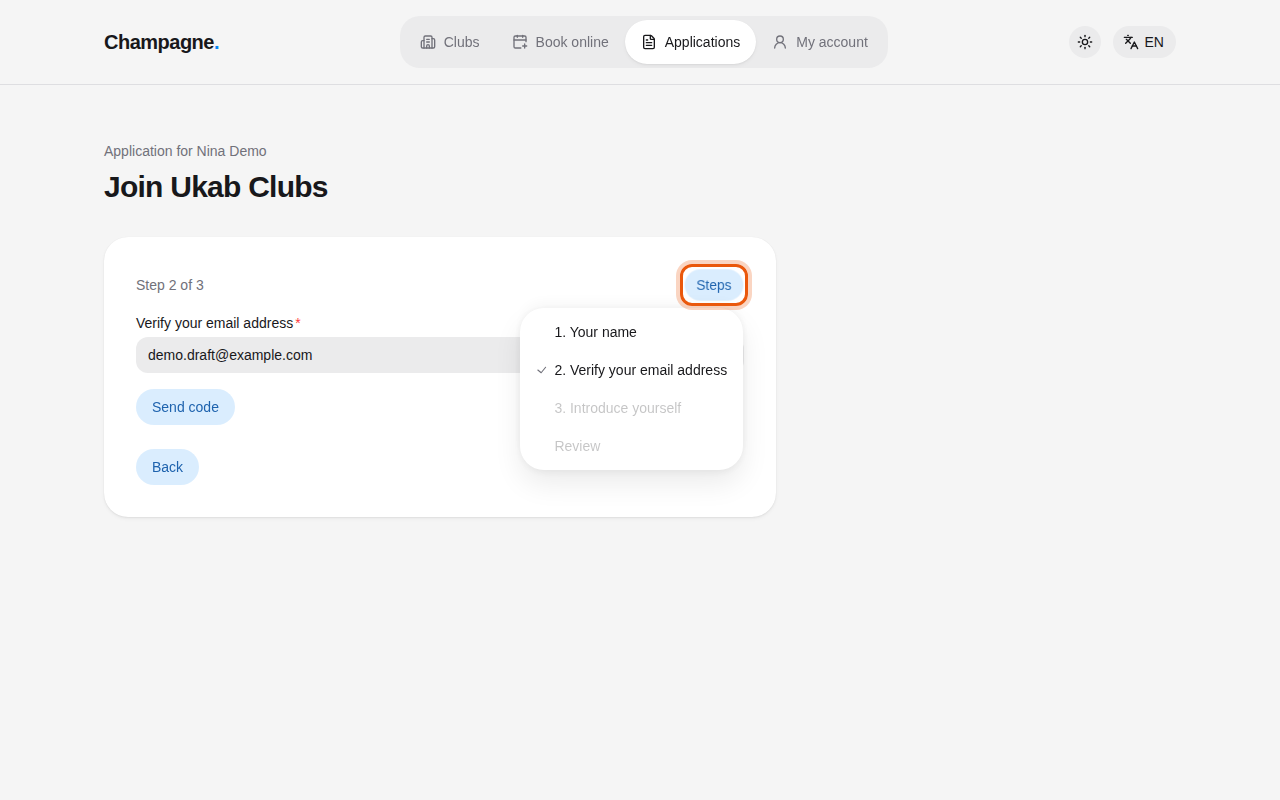
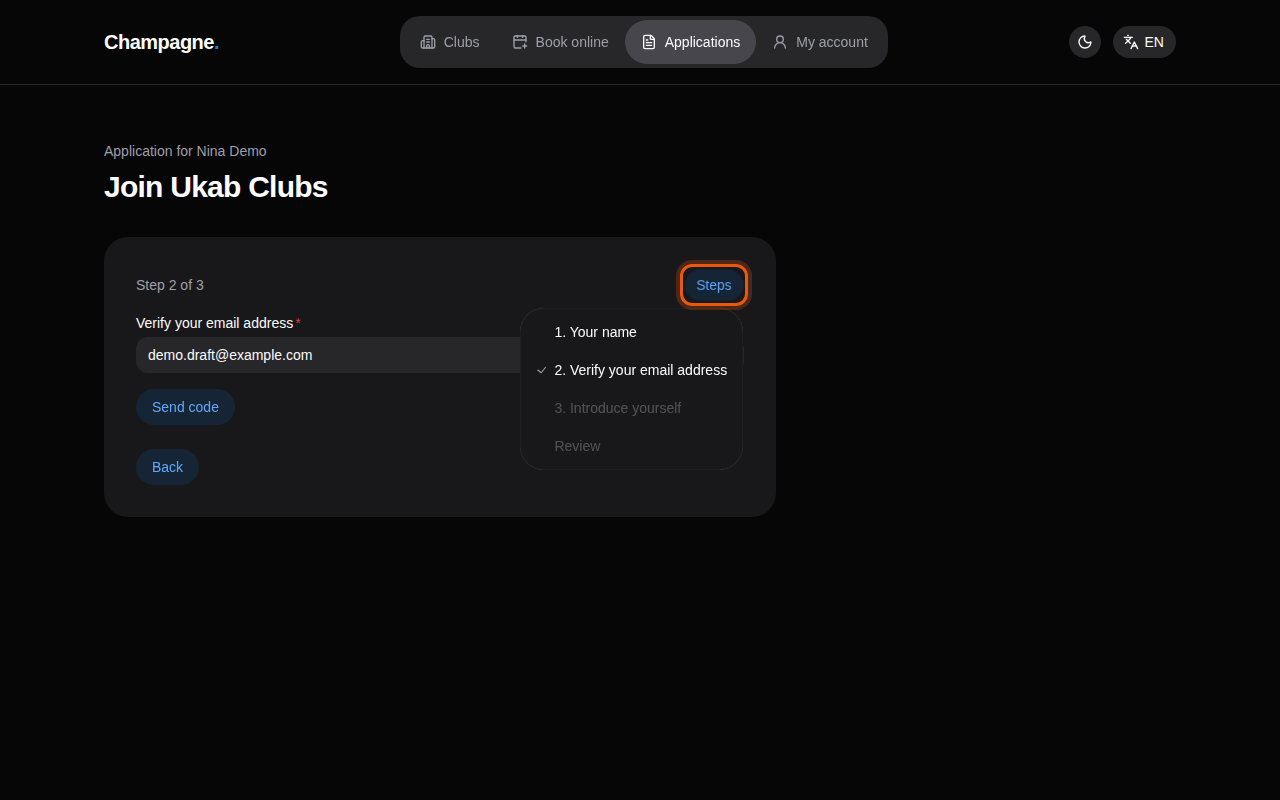
The application of the example applicant Nina Demo, with the Steps menu open. The control to use is outlined in orange.
Some steps need a little more:
- Verify your email address: type your email and select Send code. Type the code you receive in Six-digit verification code, then select Continue. Resend code sends a new one after a short wait, and Change email lets you fix the address. If you already have an account or an application with this address, a message offers a button to go there, such as Go to my account or Finish my application. Once verified, the step shows your Verified email: select Edit email to change it with a new code, then Save email.
- Sponsors: ask members of the club for their sponsor codes and type them in Sponsor code 1, Sponsor code 2 and so on.
- Plan: pick the plan you want. Each plan shows its price.
- Address, phone, identity and visit: some clubs ask for them in the application rather than after approval. They work as described in Finish the steps after approval. Once your identity is verified, your name can no longer be changed here, nor can your identity or visit steps once completed.
2. Sign a document
When the club asks you to sign a document, such as its rules, the step shows the document name and a Download document link so you can read it first.
- Select Continue to Yousign. Yousign is the online signature service the club uses.
- Sign in the Yousign window. Depending on the club, it opens inside the page under Sign with Yousign or in Yousign's own site.
- Once signed, you return to your application automatically.
If the signature window stays blank, select Open Yousign in a new tab. After signing there, come back and select Check signature. While Yousign confirms it, the page shows Confirming your signature…. If the signature page says Signature link unavailable, select Back to application and continue to Yousign again.
Answers locked after signing
Once you start the signature, your earlier answers can no longer be changed. Check them before you select Continue to Yousign.
3. Review and send
On the last step, select Review application. The Review your application page lists every answer. Select Edit next to an answer to change it. When everything is right, select Submit application.
Your application now shows Awaiting a decision. You have nothing more to do until the club answers.


To check on your application later, use Find my application as described in Find a club and apply. The club's side of this review is described in Review applications.
Once the club has decided, see After the club's decision.