Your account
Change your name, photo, biography and password, check your qualifications, or sign out.
The My account page shows the staff profile you use in the back office. From there you can change your name, photo and biography, change your password and sign out.
1. Open your account
In the left menu, select My account. The page shows your name, your email address, your Biography and your Qualifications when you have some.
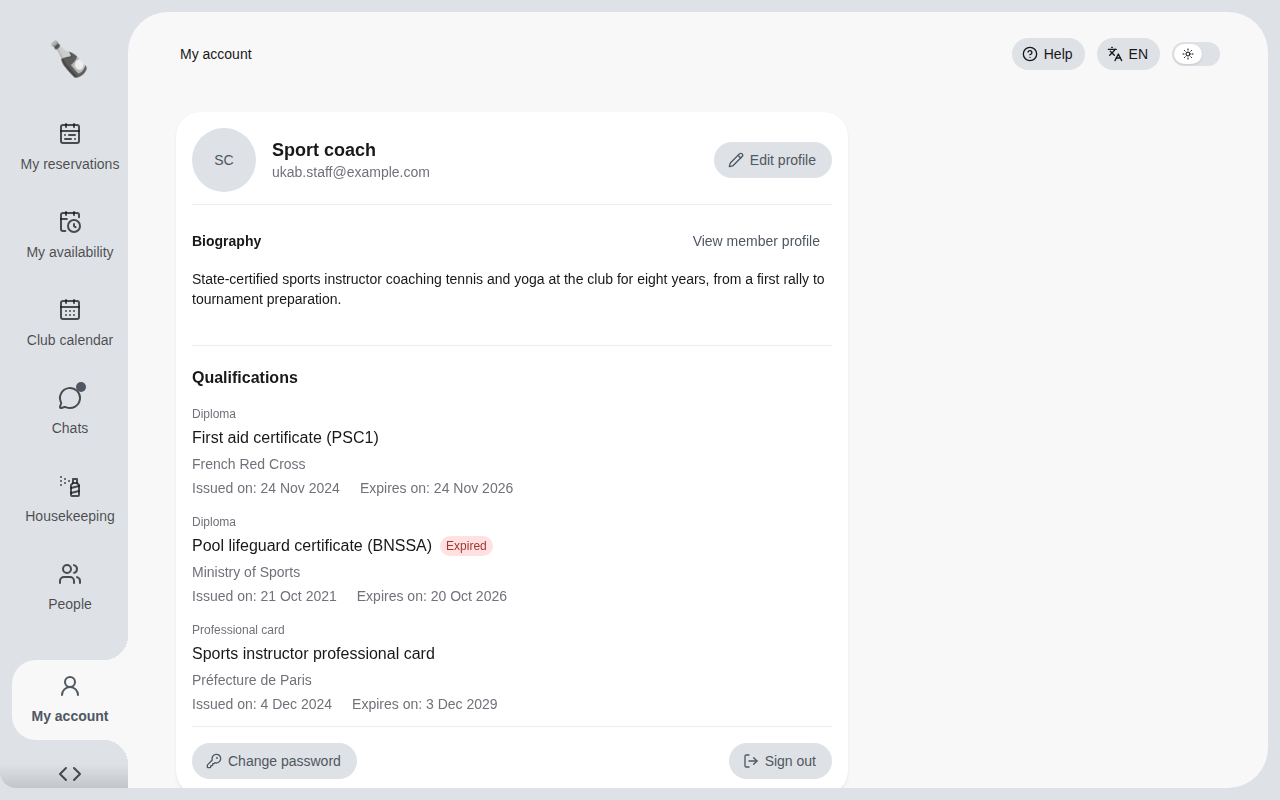
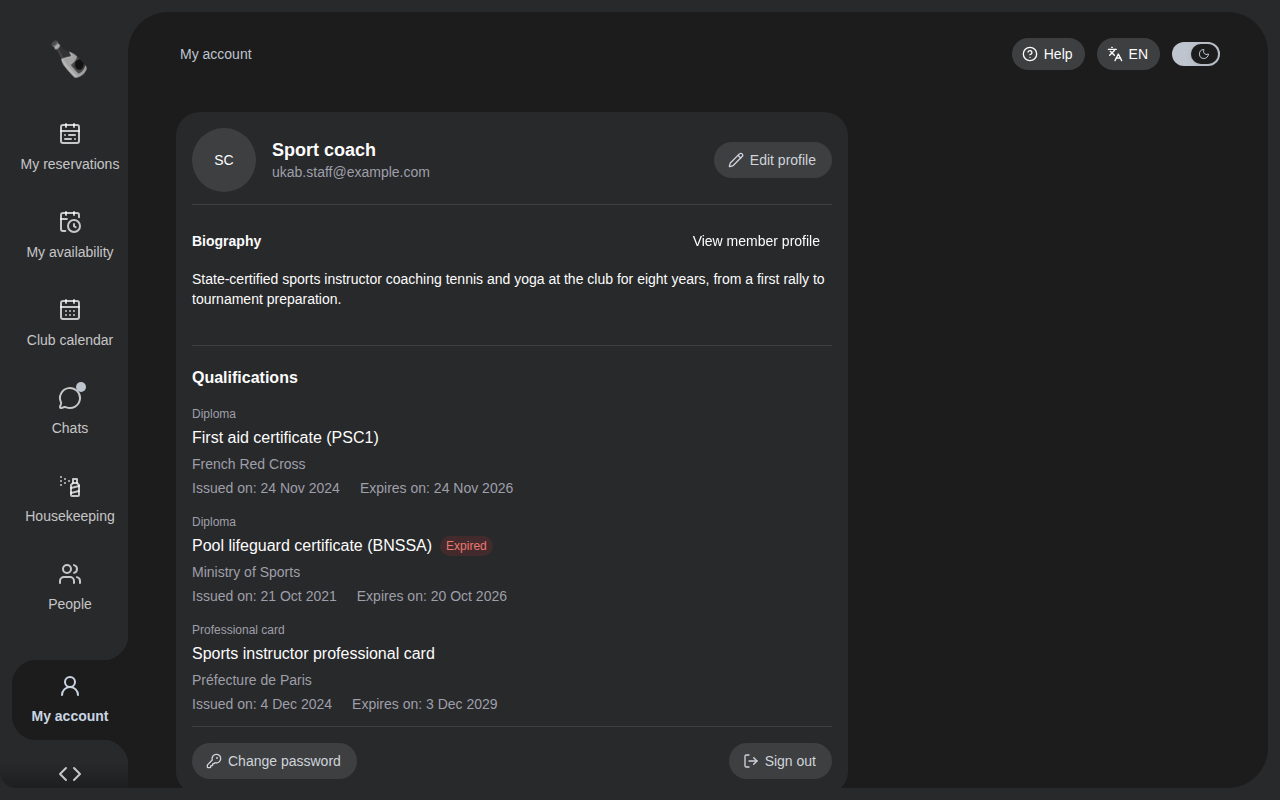
The account of the example coach Sport coach, with two diplomas and a professional card.
2. Edit your profile
Members see your name, photo and biography when you chat with them. Select Edit profile to change them.
- Select the photo circle to add a photo, or to replace or remove the current one. You can then adjust the framing and select Apply crop.
- Change your Name if needed.
- Write a few words about yourself in Biography.
- Open the Preview tab to see your profile as members see it.
- Select Save changes.
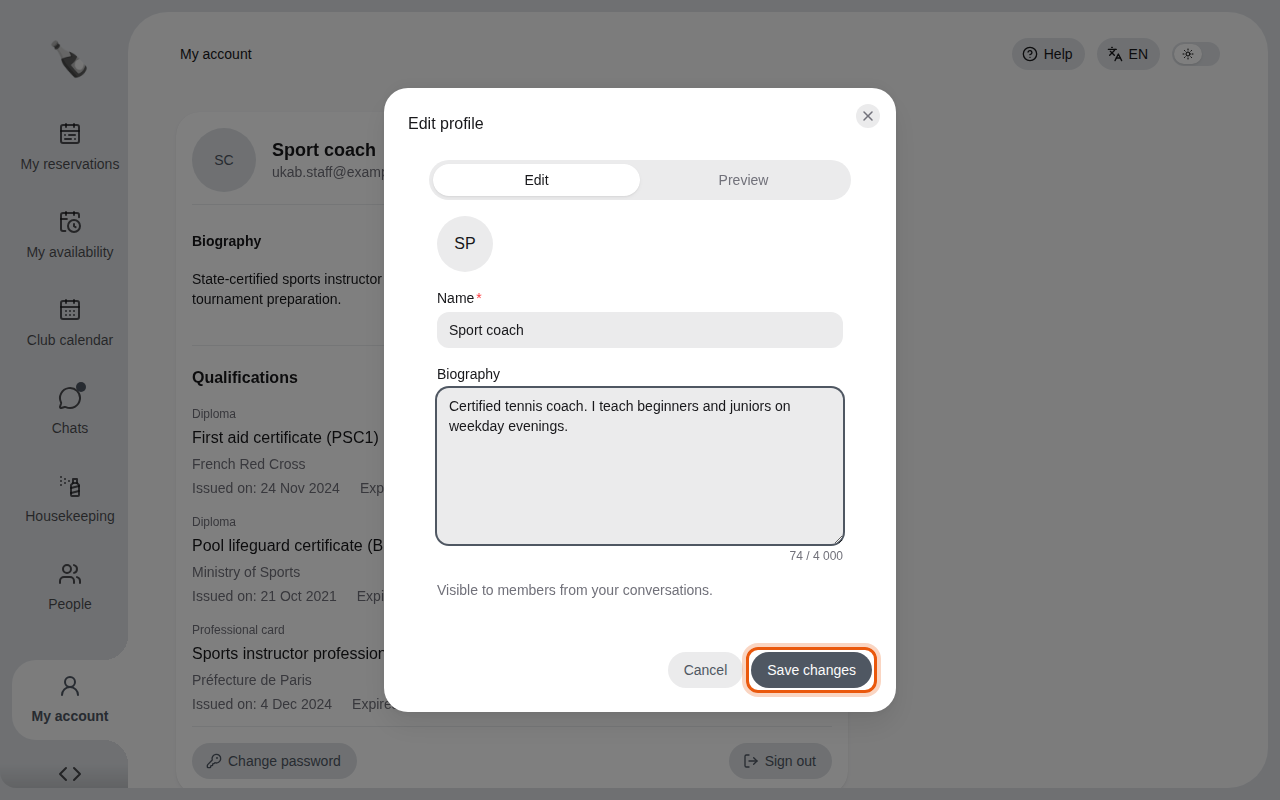
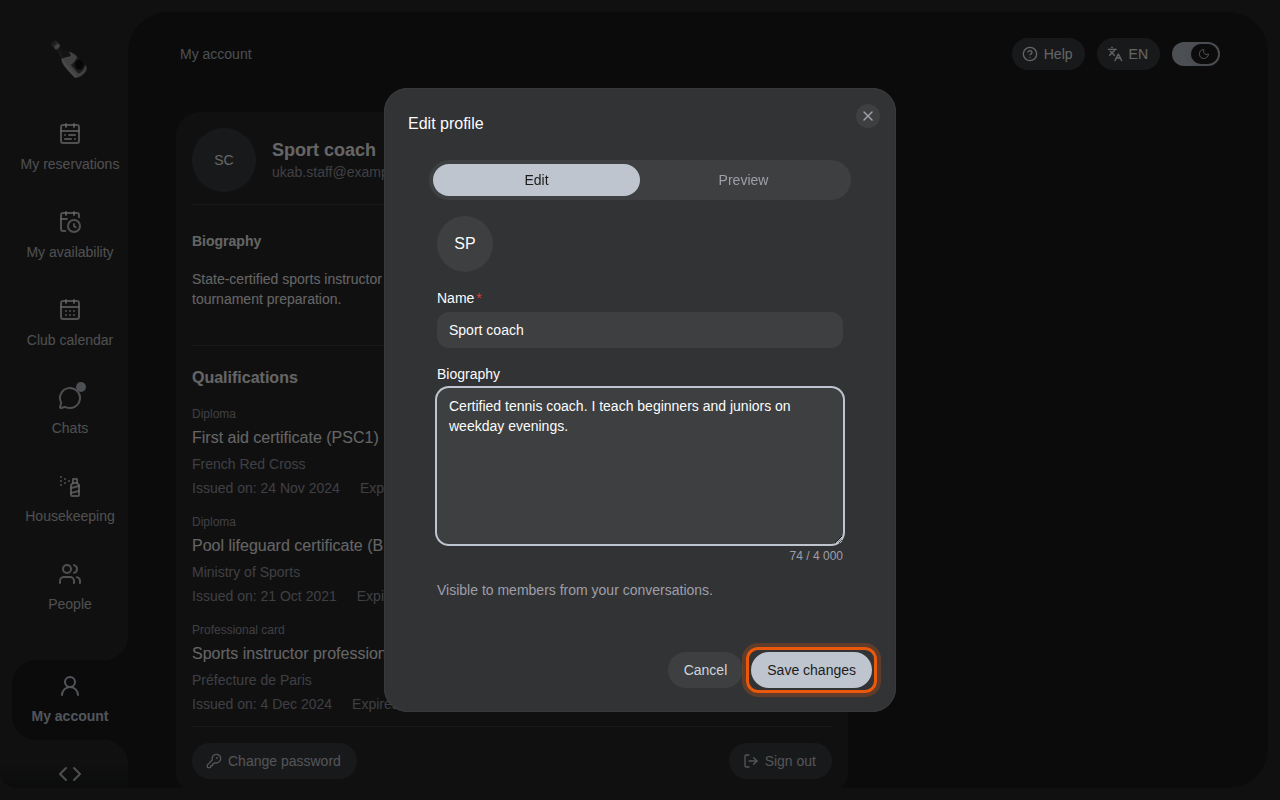
Adding an example biography to the Sport coach profile. The control to use is outlined in orange.
To check your profile later without editing it, select View member profile.
Qualifications
When your administrator records a diploma or a professional card in Team, it appears under Qualifications on your account and in the profile members see. Each one shows its type (Diploma or Professional card), its title, the issuing organization, and the Issued on and Expires on dates when known. An expired one shows Expired. Members do not see the document number or the file, and other kinds of documents do not appear.
To add or update a qualification, ask your administrator. See Manage your team.
3. Change your password
Select Change password, enter your Current password, then your New password and repeat it in Confirm password. A password needs at least 12 characters with a lowercase letter, an uppercase letter, a digit and a symbol. Select Save changes.
Sign in again
After you change your password, Champagne signs you out. Sign in again with your new password.
If you forgot your current password, sign out and select Forgot password? on the sign-in page.
4. Change language or sign out
The language and dark mode switches sit at the top right of every page. See Sign in and find your way.
To leave the back office, select Sign out at the bottom of your account card.