Blocked periods, sessions and waitlists
Close a resource for a while, find the sessions of a group class and check the waitlist.
The buttons at the top right of the calendar in Reservations close a resource for a while, list the sessions of a group class and show who is waiting for a place. The buttons you see depend on the category and on your role. To read the calendar, see Handle reservations.
1. Block a period
A blocked period closes a resource for a while, for example during maintenance. Nobody can book it.
Block periods opens Manage blocked periods. Choose what it Applies to: All resources or one of them. Enter the start and end, the Reason (optional), then select Block period. The period appears in red in the calendar.
You can also open the Blocked period tab at the top of the Add reservation form. Fill in the dates and an optional reason, then select Block period. This tab is only shown if your role lets you change the category.
2. Reopen a blocked period
To reopen a blocked period, select its red Blocked block in the calendar. The window shows the dates and the reason. Select Remove block to make the period bookable again.
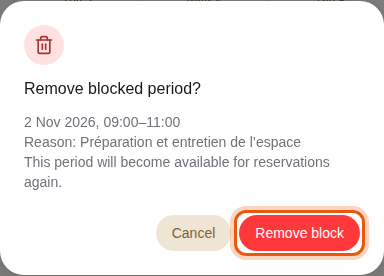
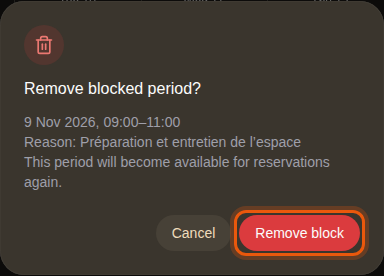
A blocked period of the example meeting room Salle de réunion. The control to use is outlined in orange.
3. Find the sessions of a group class
Manage sessions replaces Block periods in group-class categories. It lists the Dated and Recurring sessions members can book, and Add session creates one. A warning icon next to the button means the category has no sessions yet. Your administrator usually sets the sessions up. See Sessions, guest lists and blocked periods.
4. Check the waitlist
Waitlist appears in categories where members pick a time and a number of people. It lists who is waiting for a place in the next 30 days, with the date and time they want, the number of people and their position in the queue. When nobody is waiting, it shows Nobody is waiting in the next 30 days.
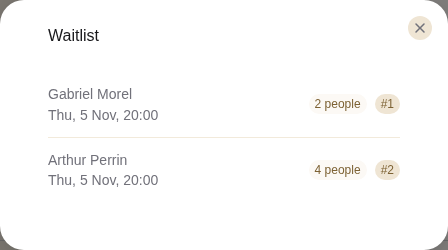
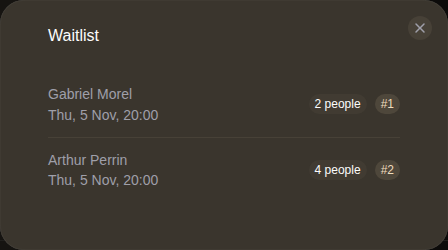
When a place frees up, for example after a cancellation, Champagne books it within a minute for the people waiting, in queue order, with any payment due. The place does not stay free for someone at the desk.
For group classes, the waitlist of each session appears in its panel in Club calendar. See Use the club calendar.