Resources, prices and products
List what can be booked in a category, set each resource's rules and prices, and sell products with it.
Each thing that can be booked in a reservation category, such as a table, a suite or a coach, is a resource. This page shows how to add resources to a category, set their rules and prices, and sell products with them, such as a minibar in a suite. To create the category itself, see Set up reservation categories.
1. List the resources of a category
In the left menu, select Reservations, select the category in the strip, then Category settings. Open the Resources tab.
- Rename a resource in its field.
- Add one with Add resource.
- Remove one with its bin. A resource that already has reservations shows a padlock: you can rename it, but not delete it.
In a category with a floor plan, resources are added and removed on the plan instead: see Floor plan editor. Select Save to apply your changes.
2. Set a resource's rules
Select the settings button next to a resource to open its own settings. The Resource tab holds its rules and prices.
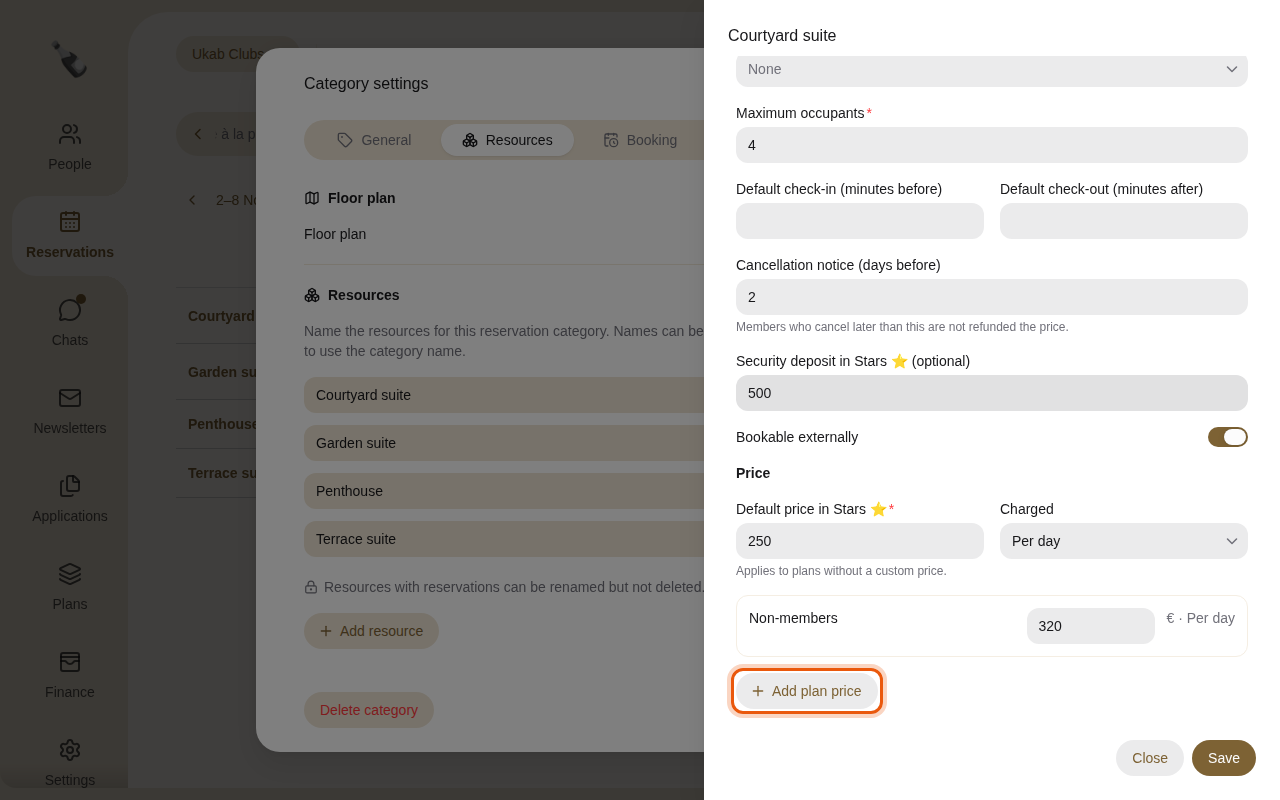
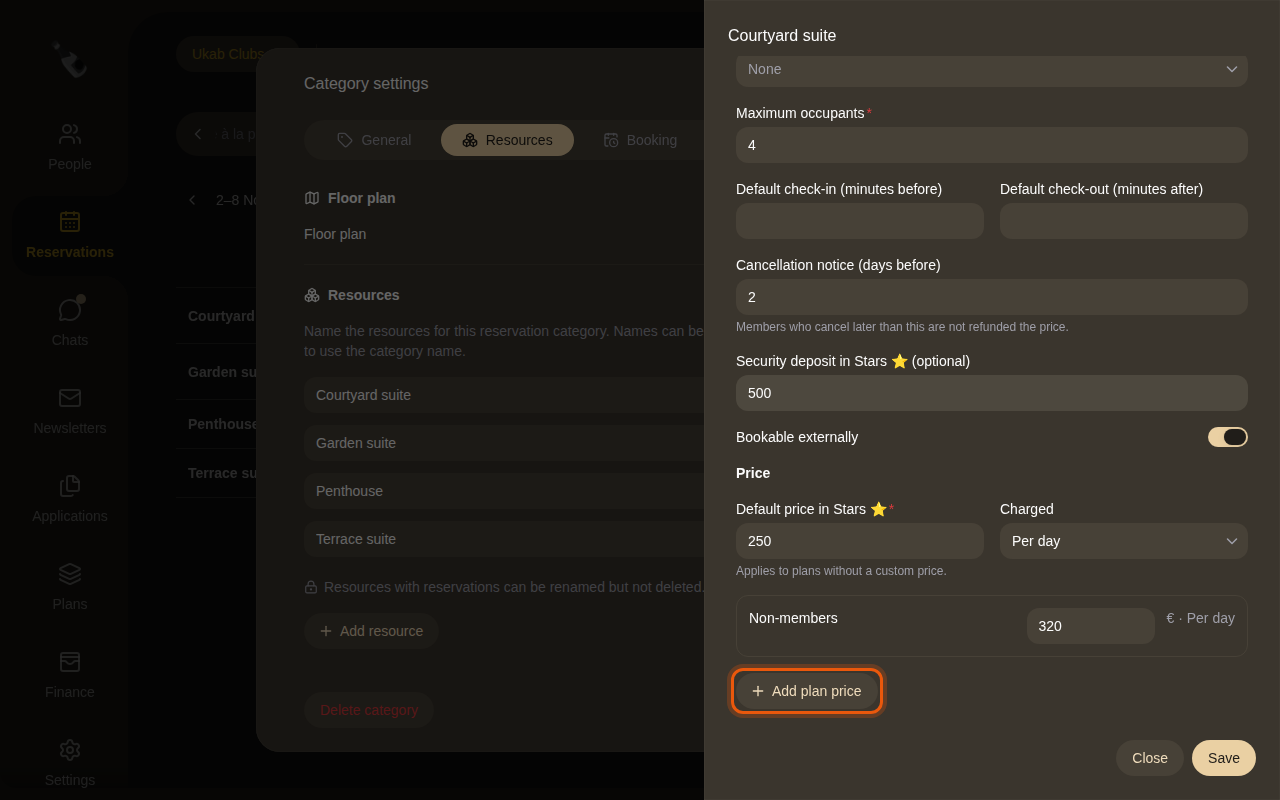
The example Courtyard suite costs 250 Stars a day, or €320 for non-members, with a 500-Star deposit and 2 days' cancellation notice. The control to use is outlined in orange.
| Setting | What it does |
|---|---|
| Staff | The team members linked to this resource, such as the coach who gives these lessons. |
| Security deposit in … (optional) | An amount in credits held for each booking and refunded afterwards. See Club settings. |
| Maximum occupants | How many people the resource holds, from 1 to 51. |
| Default check-in (minutes before) | New reservations get a check-in time this many minutes before their start. |
| Default check-out (minutes after) | New reservations get a check-out time this many minutes after their end. |
| Cancellation notice (days before) | Members who cancel later than this are not refunded the price. |
3. Set its prices
- Enter the price in your club's credits in Default price in …, for example Default price in Stars ⭐. It applies to plans without a custom price.
- In Charged, choose Per hour, Per day, Per night or One-off.
- To give a membership plan its own price, select Add plan price, choose the plan and enter its price. Remove it with its bin.
- If the category is open to non-members, turn on Bookable externally and enter the price in euros in the Non-members line. Non-members pay it by card.
- Select Save.
To create your plans and name your credits, see Plans and pricing and Payments.
4. Sell products with a resource
The Products tab of a resource lists what can be added to a booking, such as a bottle of champagne in a suite.
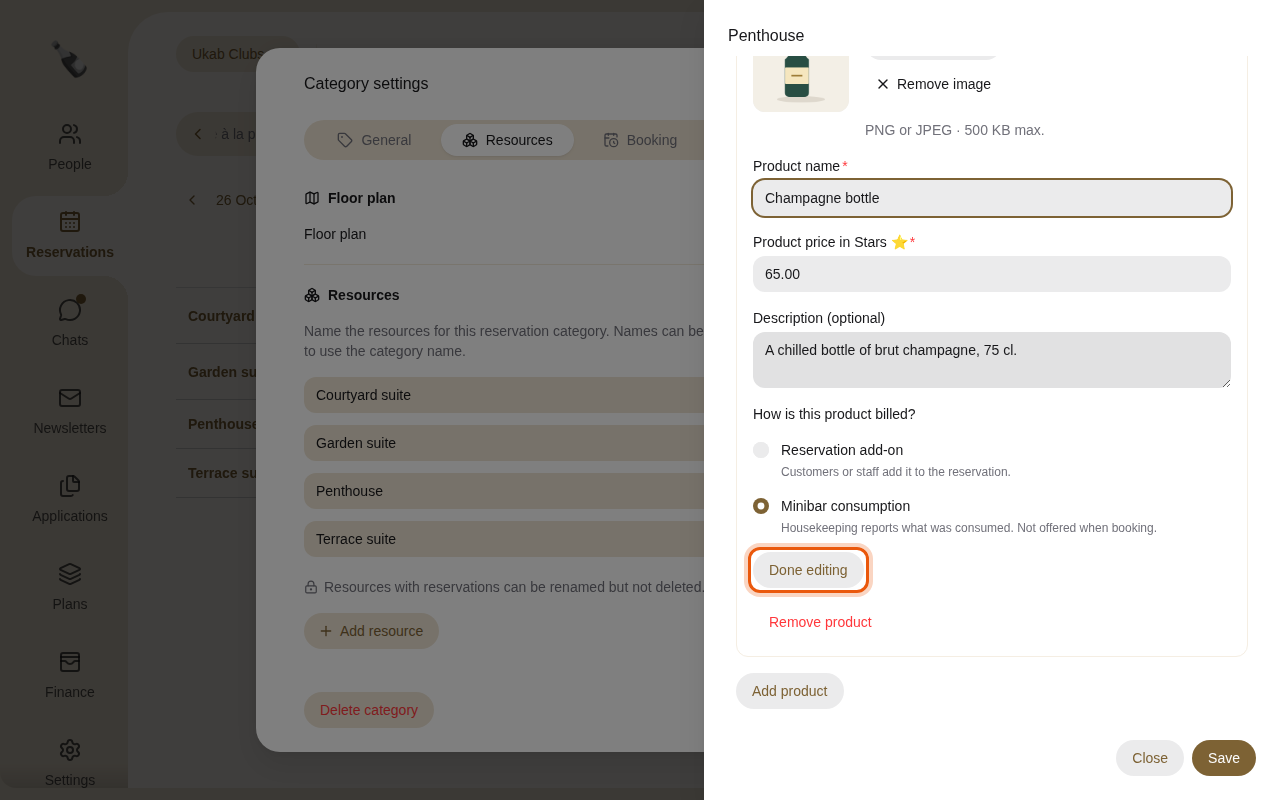
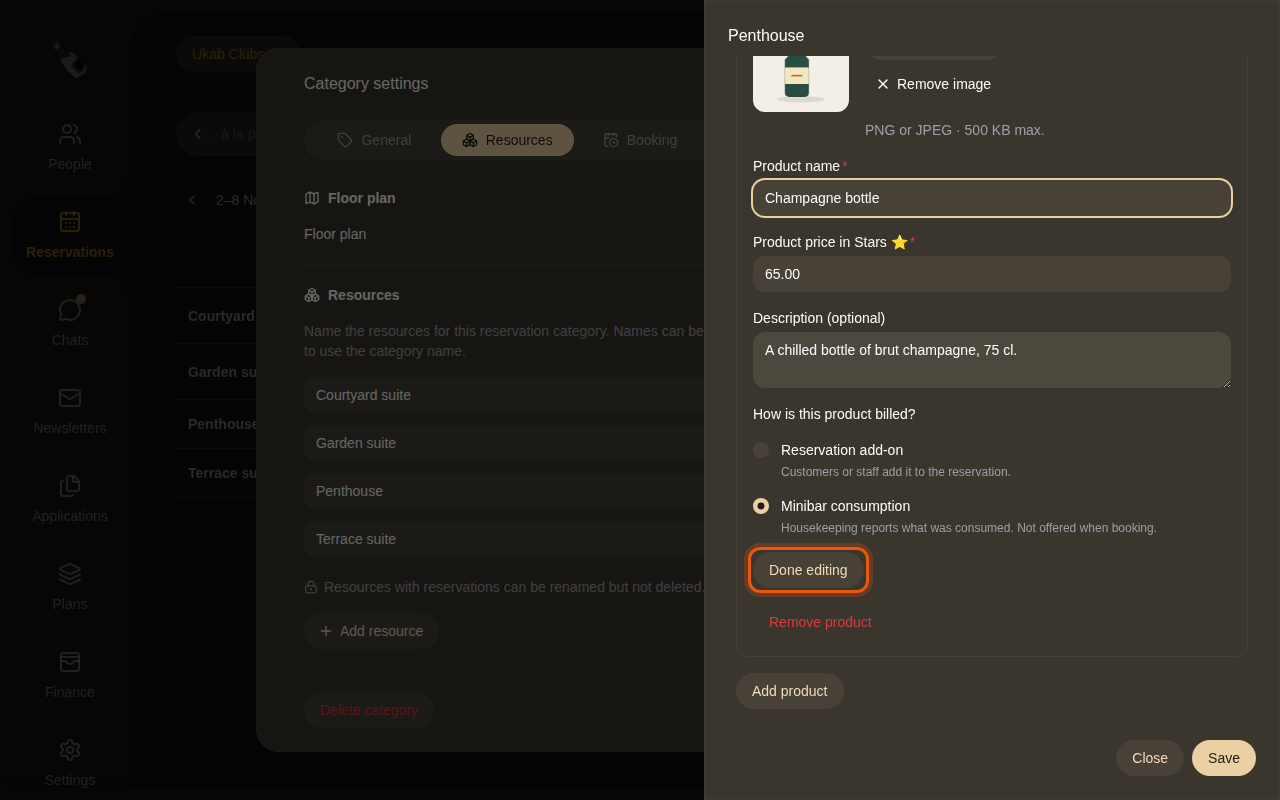
- Select Add product, or Edit on an existing one.
- Select Upload image and pick a PNG or JPEG picture of 500 KB at most. The image is required.
- Type the Product name, its Product price in credits and, if you like, a Description (optional).
- Under How is this product billed?, choose:
- Reservation add-on: customers or staff add it to the reservation.
- Minibar consumption: housekeeping reports what was consumed. It is not offered when booking.
- Select Done editing, then Save.
To take a product off the list, open it and select Remove product. With housekeeping turned on, the resource also has Checklist, State, Consumption and History tabs. See Housekeeping.