Sign in, activate your account and reset your password
Sign in to your member area, set your password the first time and recover access.
You sign in to your member area with your email address and a password you choose. You set that password once, when your account is created, and you can replace it at any time from the sign-in page.
1. Sign in
Select My account in the top navigation of the member app. When you are signed out, the Welcome back page opens.
- In Club, choose your club. The page remembers the last club you signed in to.
- Type your Email and your Password. Select the eye icon to show or hide the password.
- Select Sign in. Your member area opens.
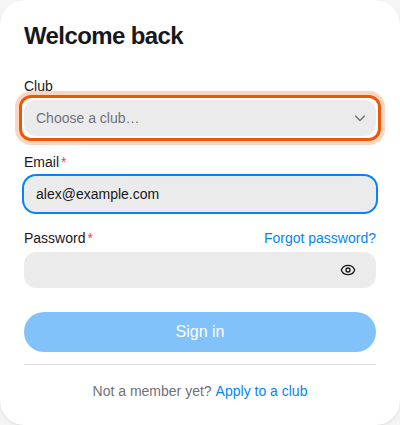
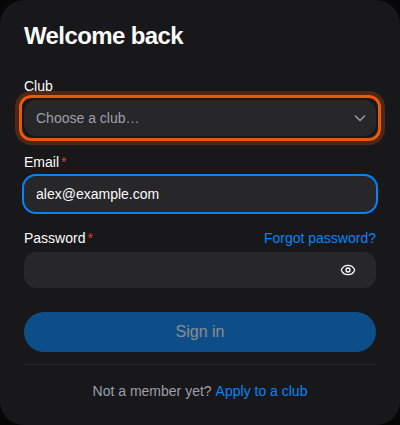
The sign-in form with the example member's email, before choosing the club. The field to use is outlined in orange.
Sign in becomes available once the club, the email and the password are filled in. Not a member yet? Select Apply to a club to find a club and apply: see Find a club and apply.
When your session expires, or your club signs you out, the page shows Your session has ended. Please sign in again. Sign in again to continue.
2. Set your first password
How you set your first password depends on how you joined the club.
| How you joined | Where you choose your password |
|---|---|
| You applied online and the club accepted you | On your application, once every step after approval is done. |
| The club created your account | From the activation link in the email the club sent you. |
After an accepted application
When your application is complete, it shows Choose your password. Type your password in New password and again in Confirm password, then select Save password and open my account. Your member area opens straight away. To get back to your application, see Complete and sign your application.
On the club's own application website, the button reads Save password and sign in. It opens the sign-in page of the member app for your club: sign in with your email and the password you just chose.
From an activation email
When the club adds you itself, you receive an email titled "Activate your … account", with the club's name in place of the dots. Open its link within 7 days.
- Type your password in Password and again in Confirm password.
- Select Activate my account.
- When the page shows that your account is activated, select Back to sign in and sign in with your email and new password.
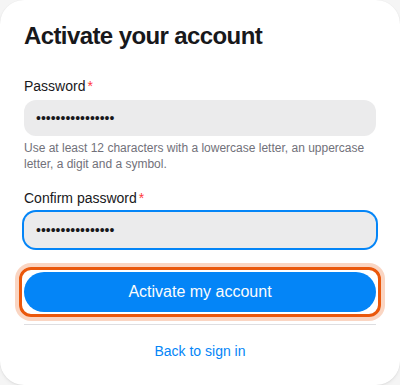
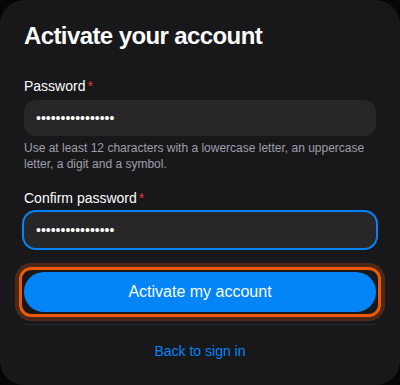
If the page says Incomplete activation link, open the full link from the email again. If the link no longer works, select Request a new link to set your password with a reset link, or ask the club to send you a new activation email.
Password rule
Use at least 12 characters, with a lowercase letter, an uppercase letter, a digit and a symbol. The form tells you when the password is too weak or when the two passwords do not match.
3. Forgot your password
- On the sign-in page, select Forgot password?.
- Check the Club and type your Email.
- Select Send reset link.
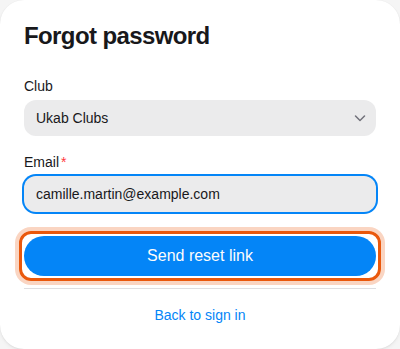
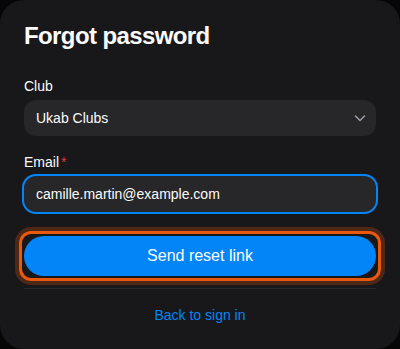
The page then confirms that you will receive a reset link if an account matches. For your security, it shows the same message whether or not the address has an account. The email, titled "Reset your Champagne password", has a link that works for 30 minutes.
4. Choose a new password
Open the link in the email. The Choose a new password page opens.
- Type your password in New password and again in Confirm password.
- Select Save password.
- When the page confirms the change, select Back to sign in and sign in with your new password.
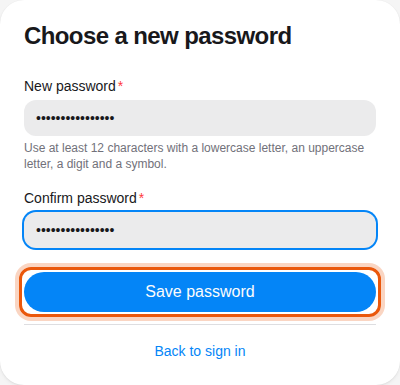
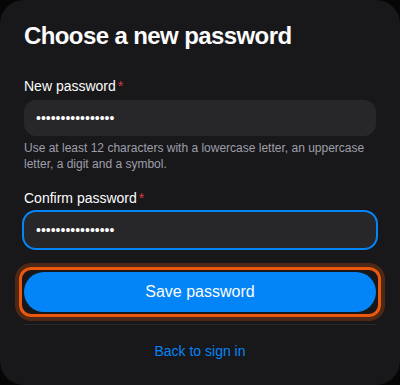
If the page says Incomplete reset link, open the full link from the email again, or select Request a new link to start over. If the link has expired, ask for a new one from Forgot password?.