Housekeeping
Follow and complete cleaning and preparation tasks.
Housekeeping helps the team keep rooms ready between stays. For each room you can tick the cleaning checklist, report its state, charge what the guest used and look back at what was logged. The section appears when your role includes housekeeping and one of your club's reservation categories, such as hotel suites, uses housekeeping.
1. See which rooms need attention
Open Housekeeping in the left menu. Rooms are grouped by reservation category. Each card shows the room's last reported state and how many checklist items are still to do.
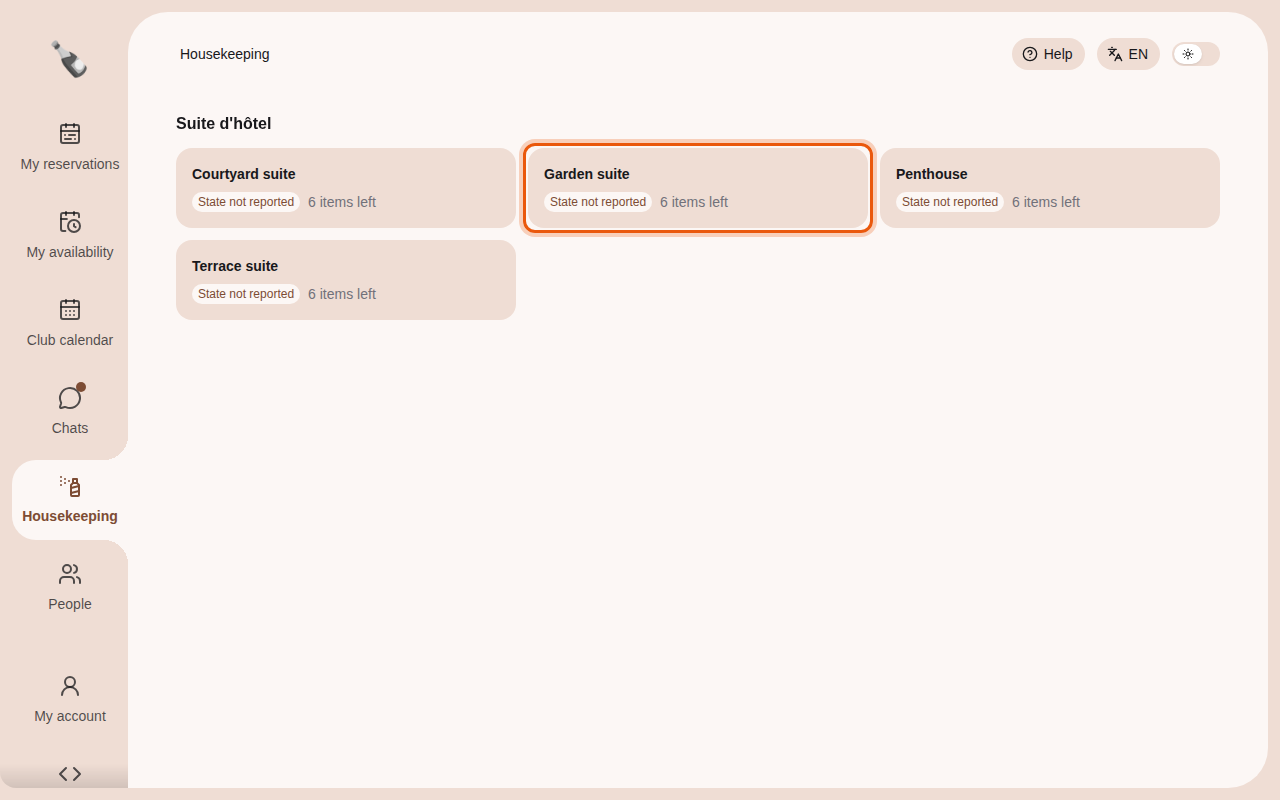
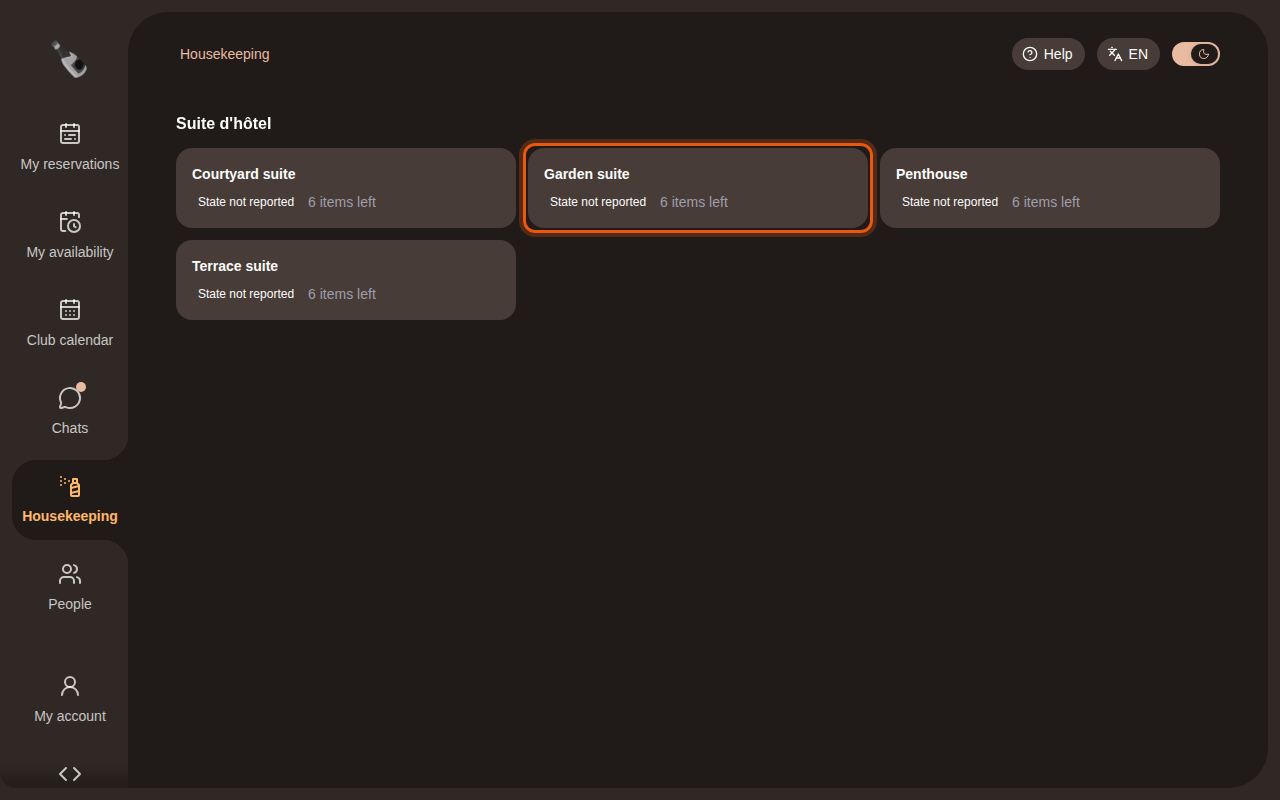
The four example hotel suites of the Suite d'hôtel category. The control to use is outlined in orange.
State not reported means nobody has logged the room's state yet. Select a card to open the room's panel.
2. Tick the checklist
The Checklist tab groups tasks under Every day and After each reservation. The counter next to each group shows how many tasks are done. Tick a task when it is done: it is saved right away and crossed out. The information icon next to a ticked task shows who ticked it and when.
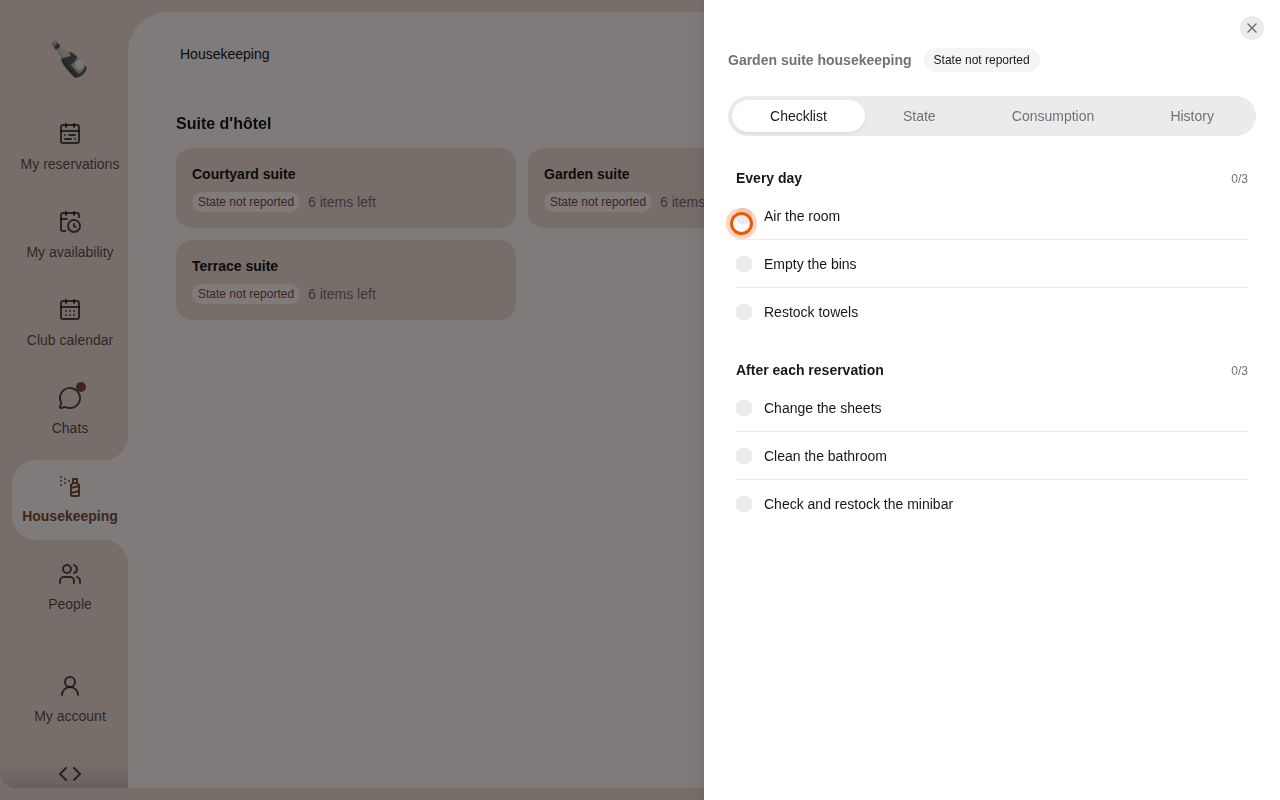
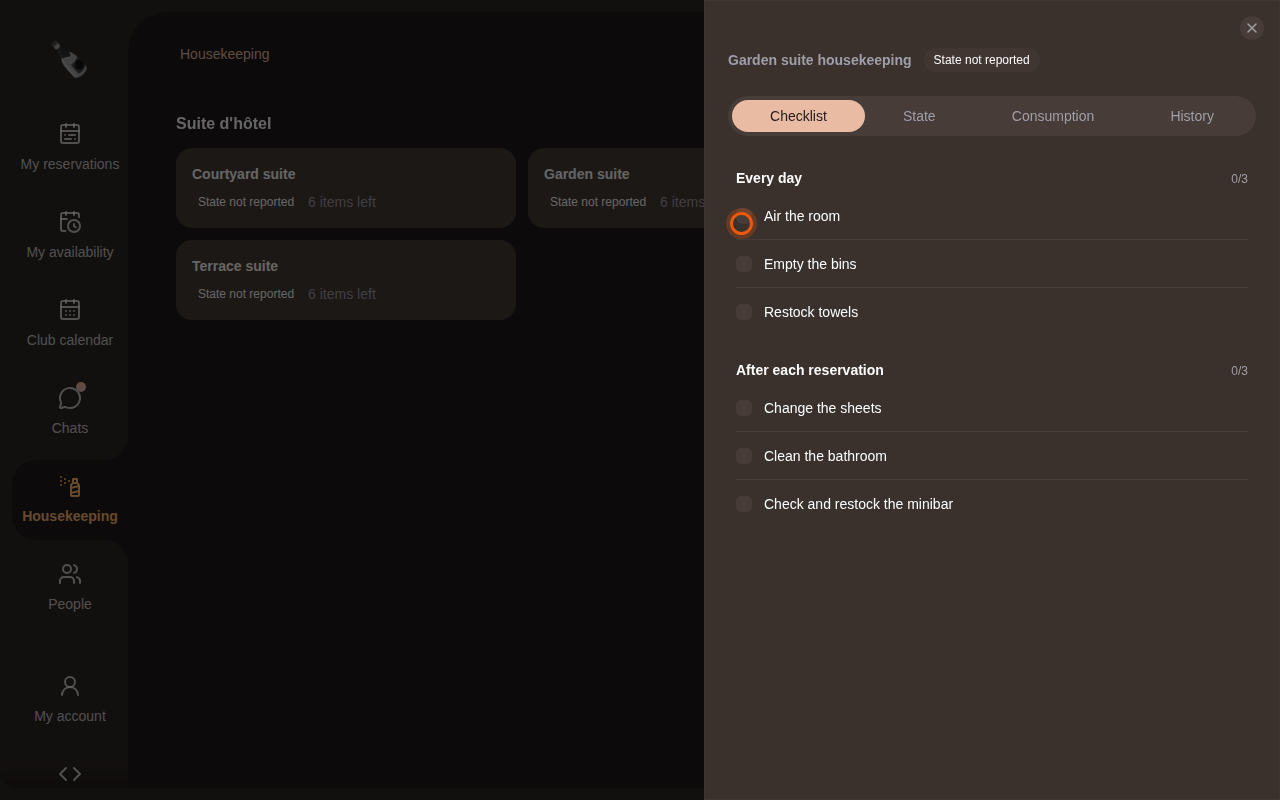
Changing the tasks
Staff who configure reservation resources edit the checklist from the room's settings. See Set up the checklist.
3. Report the room's state
Open the State tab and select the state that matches the room: Clean, Needs cleaning, Needs maintenance or Out of service. Your choice is saved as soon as you select it, and the room's card shows it.
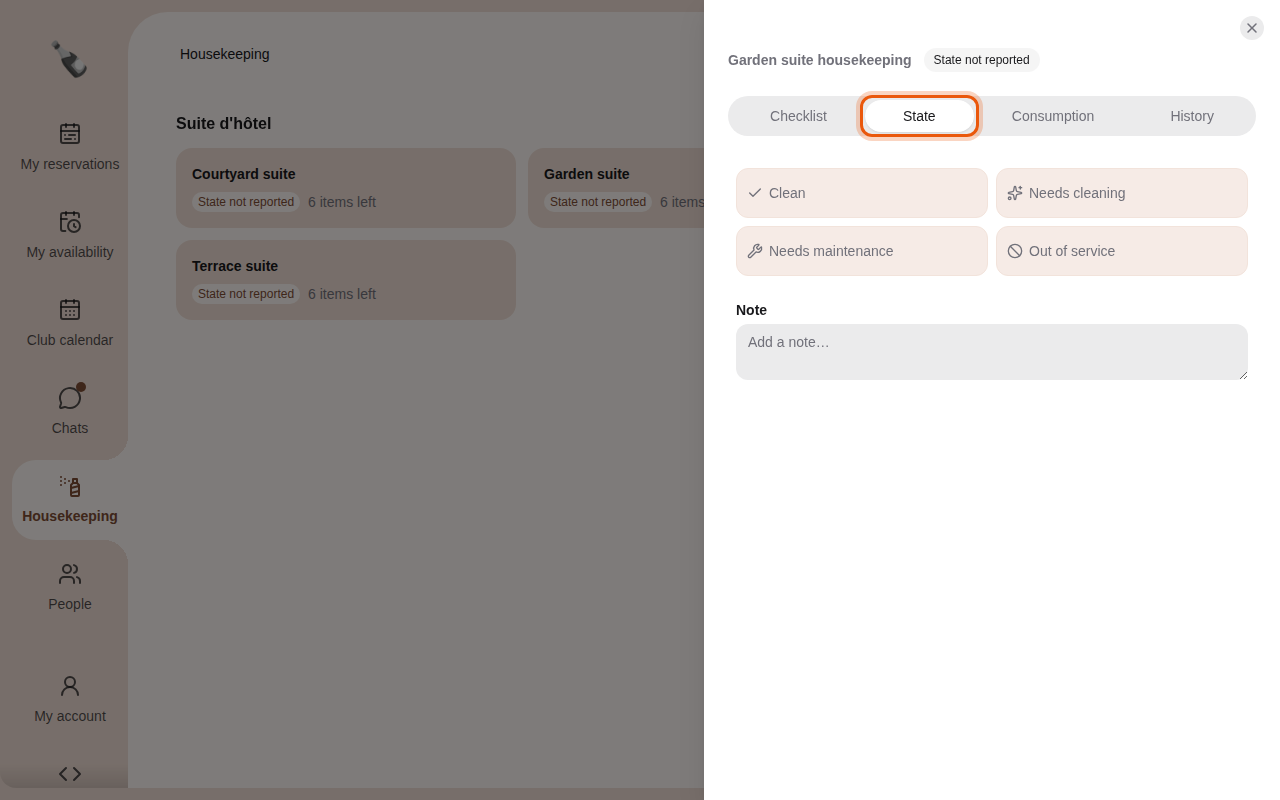
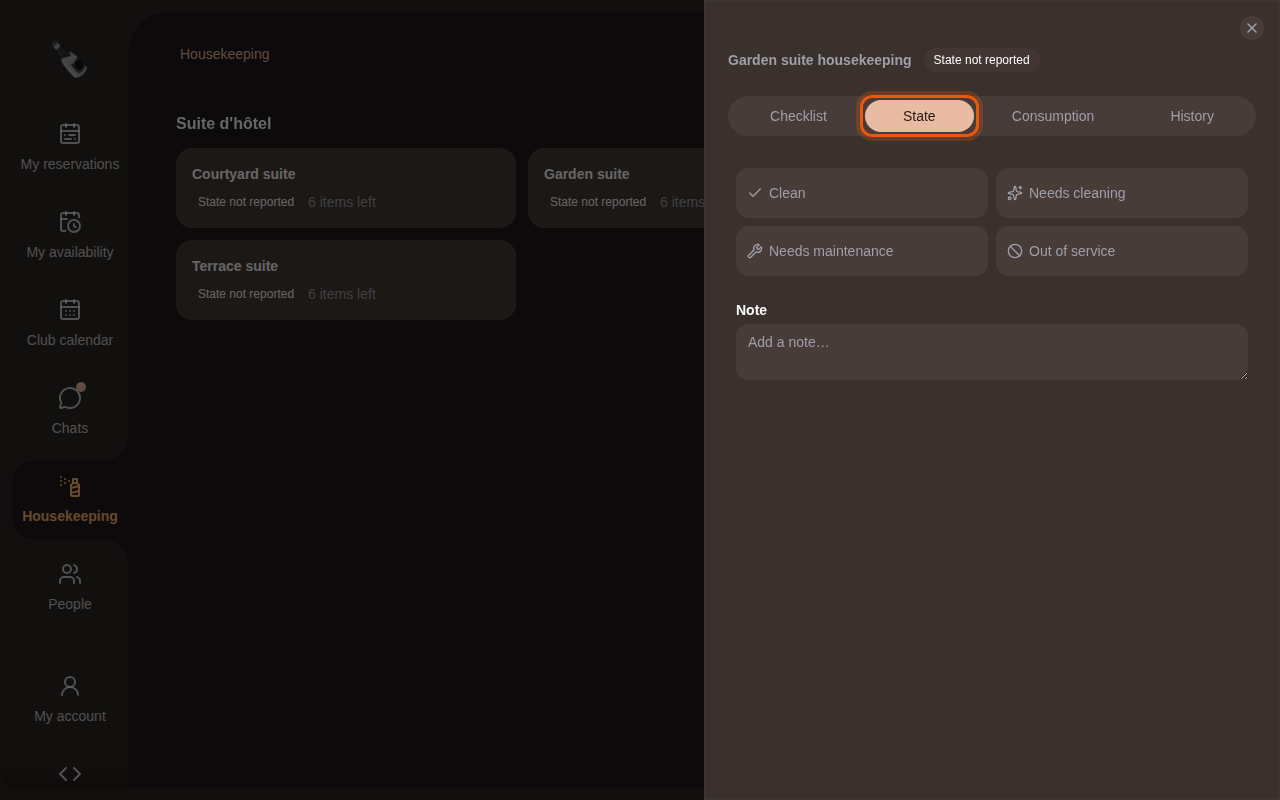
Add details in Note, for example a broken lamp. The note is saved with the selected state when you click outside the field. On a room whose state was never reported, no state is selected yet: the note is saved when you select one.
4. Charge consumption and check the history
Consumption charges the products a guest used, such as minibar drinks, to their stay.
- In Reservation to charge, pick the guest's stay.
- Enter the quantity of each product consumed since the last report.
- Check the amount in credits shown above the button, then select Report and charge consumption.
Only confirmed or completed stays of a member, already started and not paid by card, can be charged. The amount is taken from the member's credits, so a balance too low refuses the charge. Without one, the tab shows No eligible stay to charge.
History lists every state, note and consumption logged for the room.
5. Set up the checklist
The checklist of each room is edited in the Reservations section, if your role lets you configure reservation resources.
- Open Reservations and select the category, such as Suite d'hôtel.
- Select the room's name at the start of its row in the calendar. You can also open it from Category settings, in the resources list. The room's panel opens with the same tabs as in Housekeeping, plus Resource and Products.
- Open the Checklist tab and select Edit checklist.
- Change a task by editing its text. Select Add task under Every day or After each reservation to add one, and the cross next to a task to remove it. A window asks you to confirm with Remove item.
- Select Save checklist. Empty tasks are left out, and the new list appears in Housekeeping for everyone.
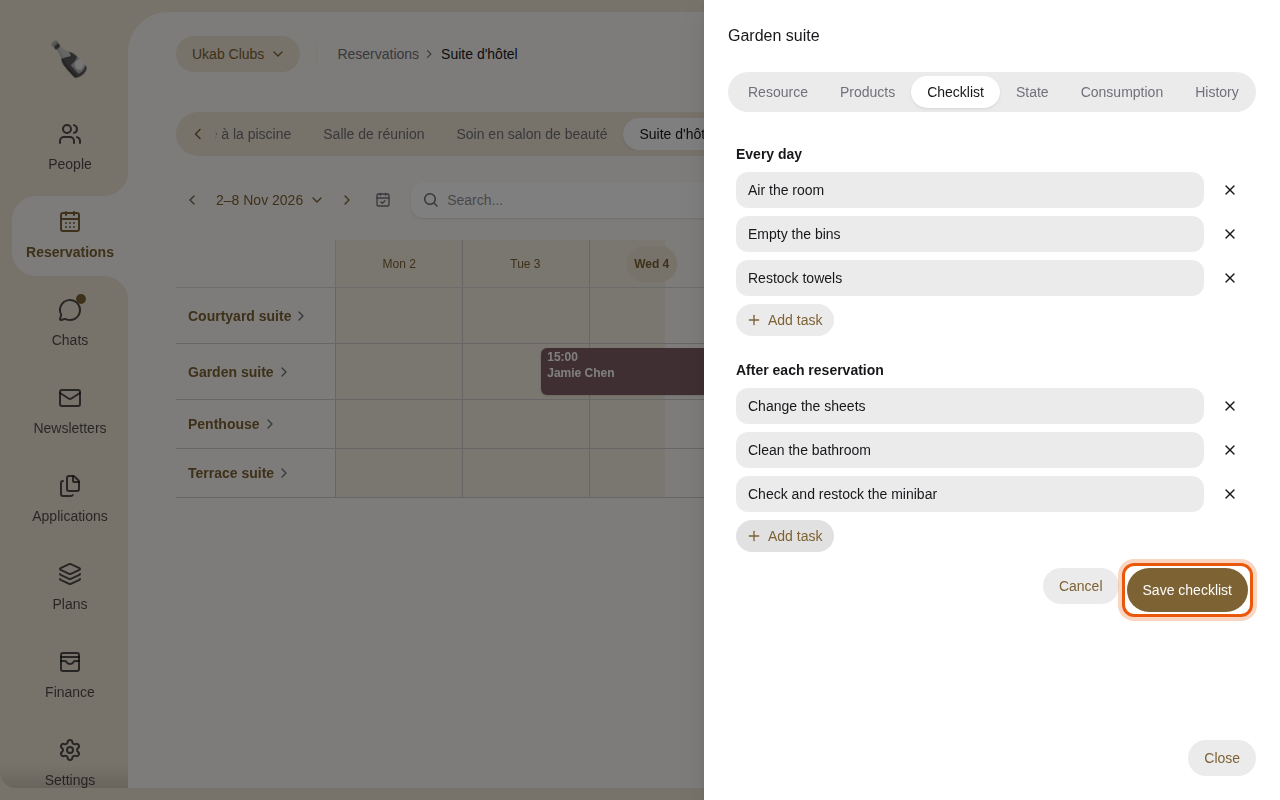
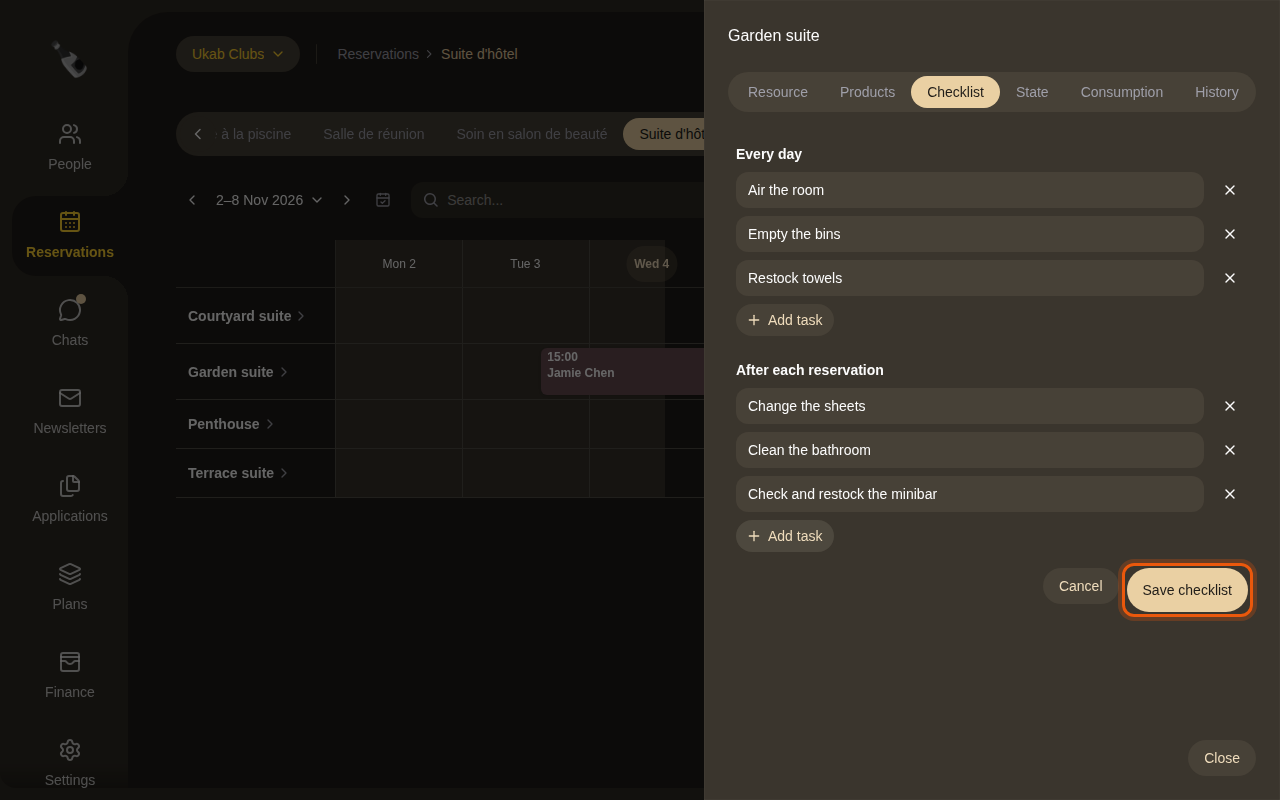
Cancel leaves the checklist as it was. Removed tasks disappear only when you save.