Finance
Find an invoice, check what was paid and issue a credit note.
The Finance section lists the invoices of your club: memberships, subscriptions and one-off charges. This page shows how to find an invoice, read it and issue a credit note when a member should pay less. The section appears when your role includes the Manage invoices and credit notes permission.
1. Find an invoice
In the left menu, select Finance. The list shows the most recent invoices first, with their Invoice number, Client, Issued date, Due date, Total and Status.
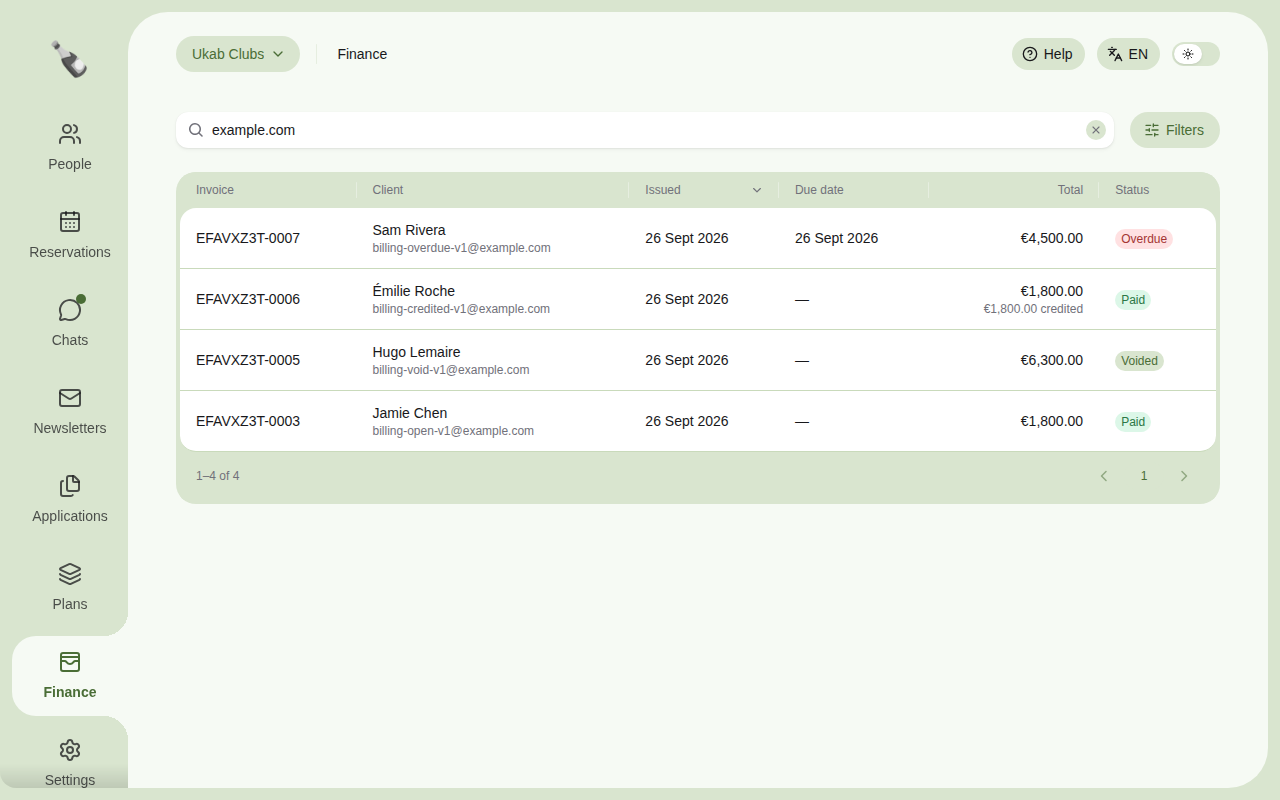
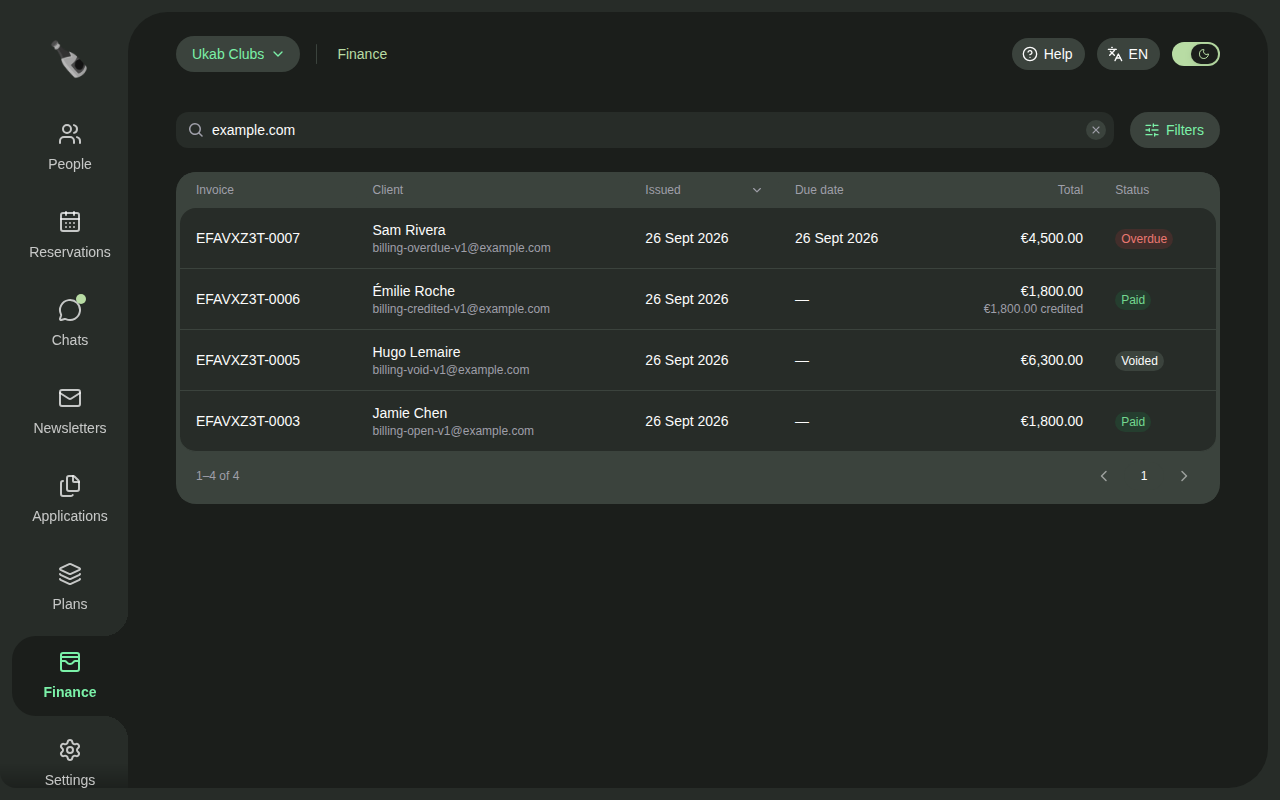
- Type in the search box to find an invoice by number, client or email.
- Select Filters to show one Status only, or the invoices issued between a From and a To date. Select Apply filters to update the list, and Clear filters to see everything again.
- Select a column title to sort the list by that column.
| Status | What it means |
|---|---|
| To pay | The invoice is waiting for payment. |
| Paid | The invoice is fully paid. |
| Overdue | The due date has passed and the invoice is still due. |
| Draft | The invoice is being prepared and has no number yet. |
| Voided | The invoice was cancelled and no longer has to be paid. |
| Uncollectible | The club no longer expects this invoice to be paid. |
When part of an invoice was credited, the amount followed by credited appears under its total, for example €1,800.00 credited.
When the list is empty
| Message | What it means |
|---|---|
| Billing is not connected yet | Your club has no billing account yet. If you can open Settings, select Connect billing. Otherwise, ask a club administrator. |
| No invoices found | Nothing matches your search or filters: select Clear search and filters. Without search or filters, no subscription has been billed yet. |
| No local invoices to show yet | Champagne is still copying the invoices from your billing account. More appear as it goes. |
Champagne keeps a copy of your billing account's invoices. While it updates this copy, the list says Invoice synchronization in progress. If it says Invoice synchronization failed, the list may be out of date. Tell your Champagne provider if the message stays.
See Payments to connect a billing account.
2. Read an invoice
Select an invoice to open it.
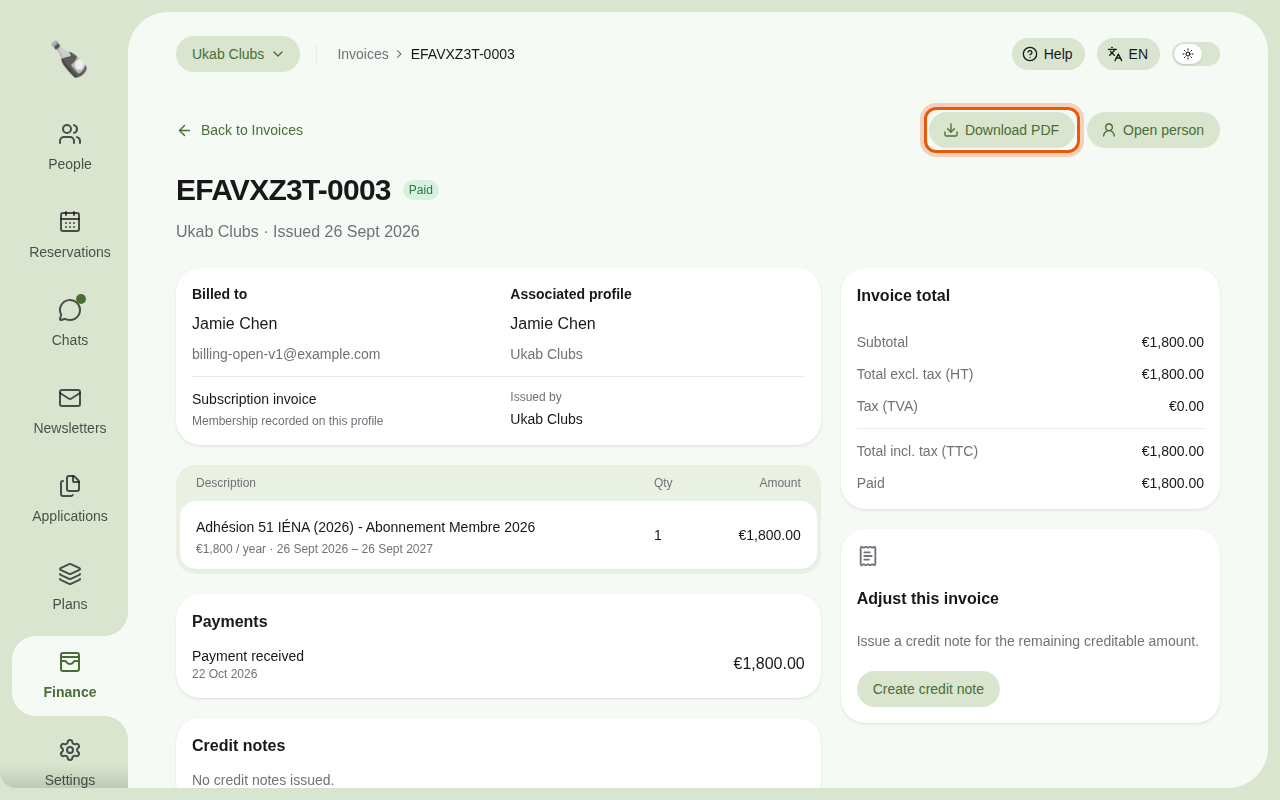
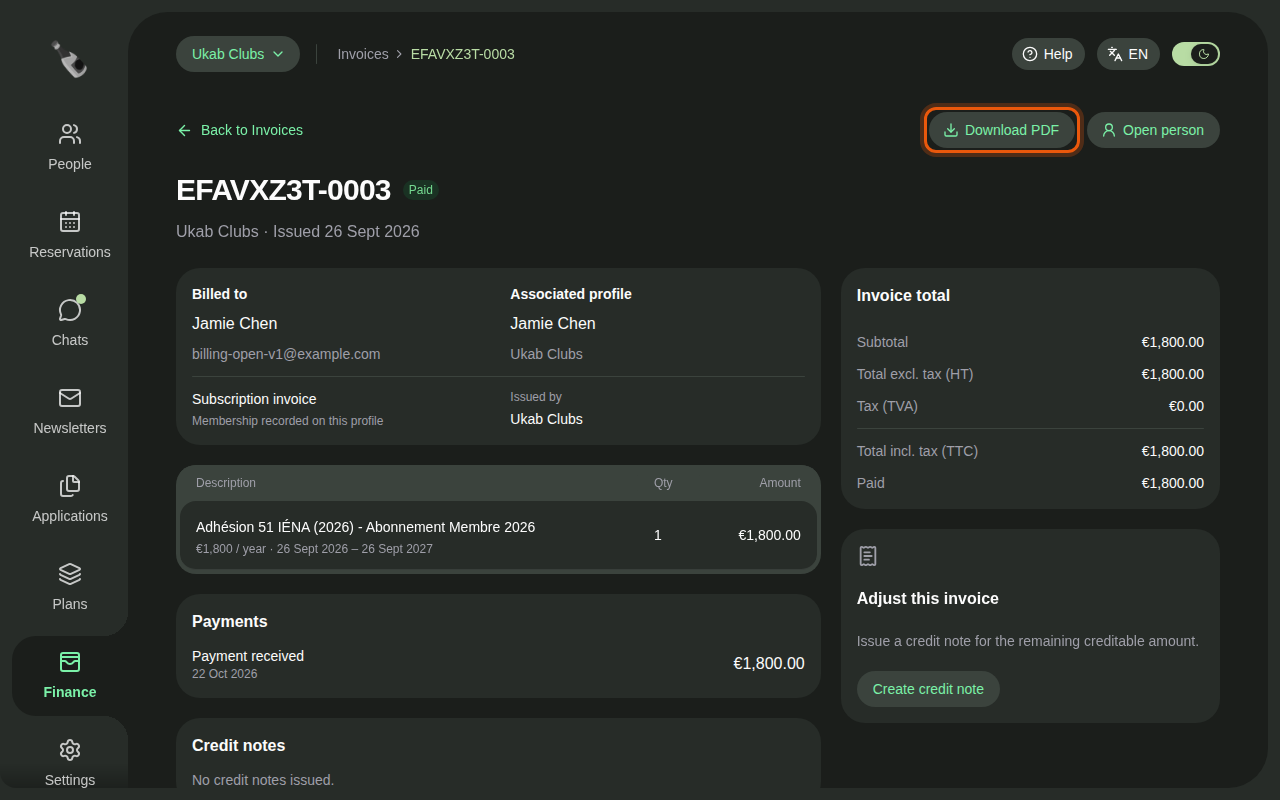
A paid example membership invoice for Jamie Chen. The control to use is outlined in orange.
- Billed to shows the client and their email. Associated profile shows the member it belongs to; select Open person at the top to open their page in People.
- Below them, the invoice says whether it is a Subscription invoice or a One-off invoice, whether a membership is recorded on the member's profile, and the name of the issuer under Issued by.
- The invoice lines list each item with its quantity and amount. A membership line also shows its price and period. A Prorated adjustment for … line corrects the price when a plan changed during a billing period.
- Payments lists each payment with its state: Payment received with its date and amount, or Payment pending and Payment cancelled with the amount asked, in gray.
- Credit notes lists the credit notes already issued for this invoice.
- Invoice total shows the Subtotal, the Total excl. tax (HT), the tax (TVA), the Total incl. tax (TTC), what was Paid and Credited, and, while the invoice is due, the Remaining amount and its Due date.
Select Download PDF to save a copy of the invoice. When the invoice still has to be paid, the Payment link button opens its online payment page in a new tab.
3. Issue a credit note
A credit note is a document that cancels all or part of an invoice. Use it to correct a mistake or to make a commercial gesture.
- Open the invoice and select Create credit note in the Adjust this invoice card.
- Check the amount in the question, for example Credit €1,800.00 against the invoice number.
- Enter a Reason, up to 500 characters. It is required and kept with the credit note.
- Select Confirm credit note.
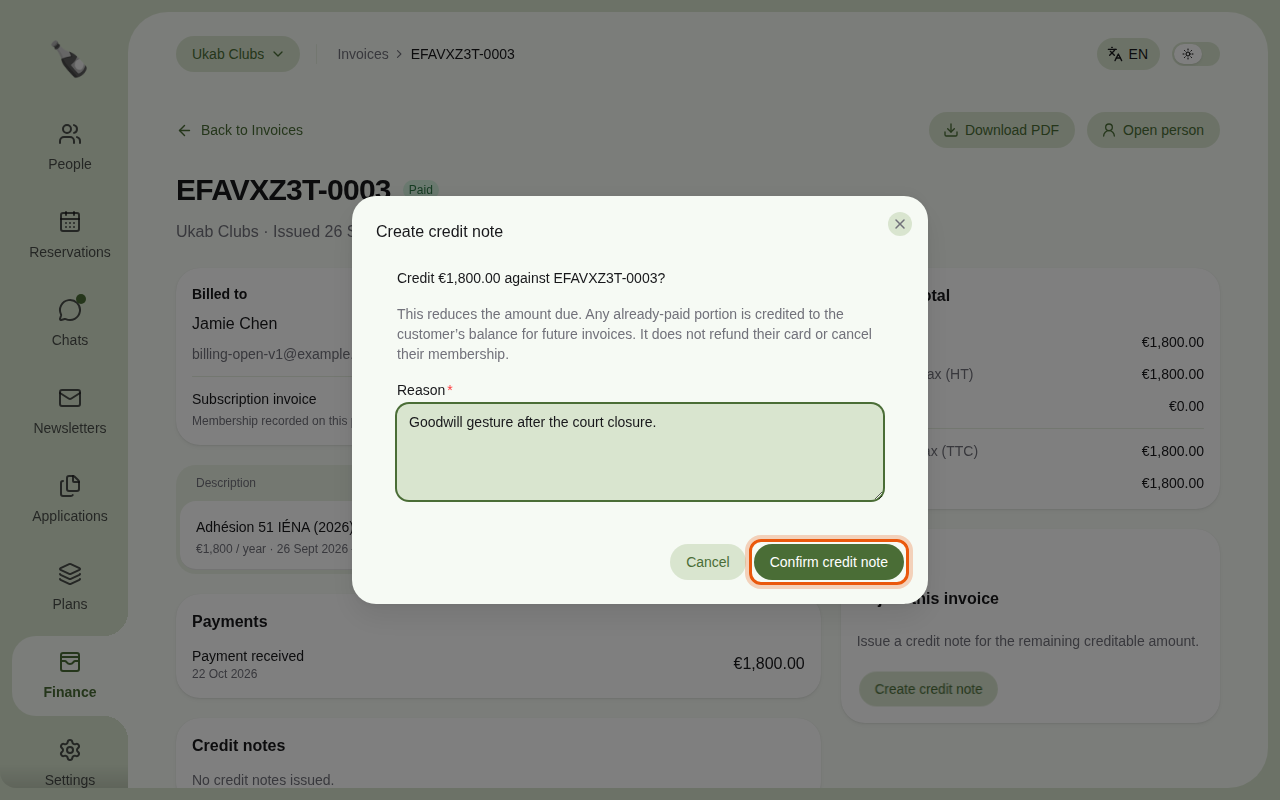
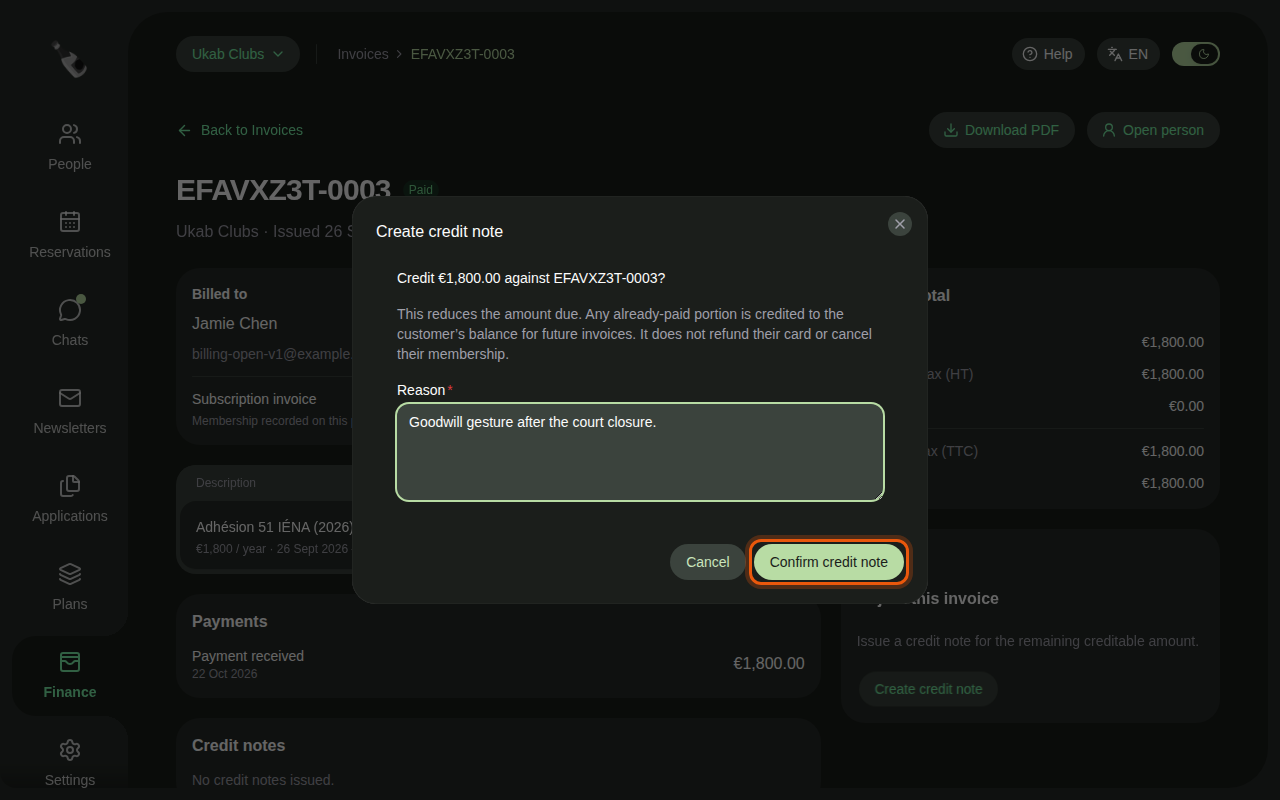
The credit note covers the whole amount that can still be credited. It reduces what the client owes. Any part they already paid goes to their balance and is used for their future invoices.
A credit note is not a refund
Issuing a credit note does not send money back to the client's card and does not cancel their membership.
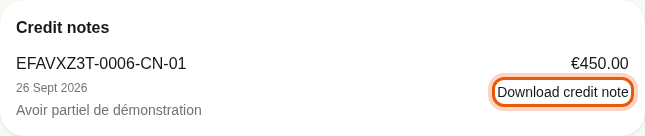
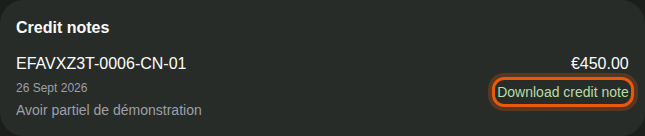
Once issued, the credit note appears in Credit notes with its number, date, reason and amount. Select Download credit note to save it as a PDF. A cancelled credit note shows · Voided after its number.
When the whole invoice is credited, the Adjust this invoice card no longer appears.