Manage your team
Find a colleague, change what they can do, follow their activity and remove their access.
Once a colleague has joined, everything about them is kept in their staff file in the Team section: the profile members see, their qualifications, their access, their hours, their reservations and a log of what they did in the back office. To add someone to your team, see Invite your team.
1. Find a colleague
In the left menu, select Team. Type part of a name or an email address in Search by name or email… to shorten the list.
To narrow the list further, select Filters, choose your filters and select Apply filters. Reset clears them.
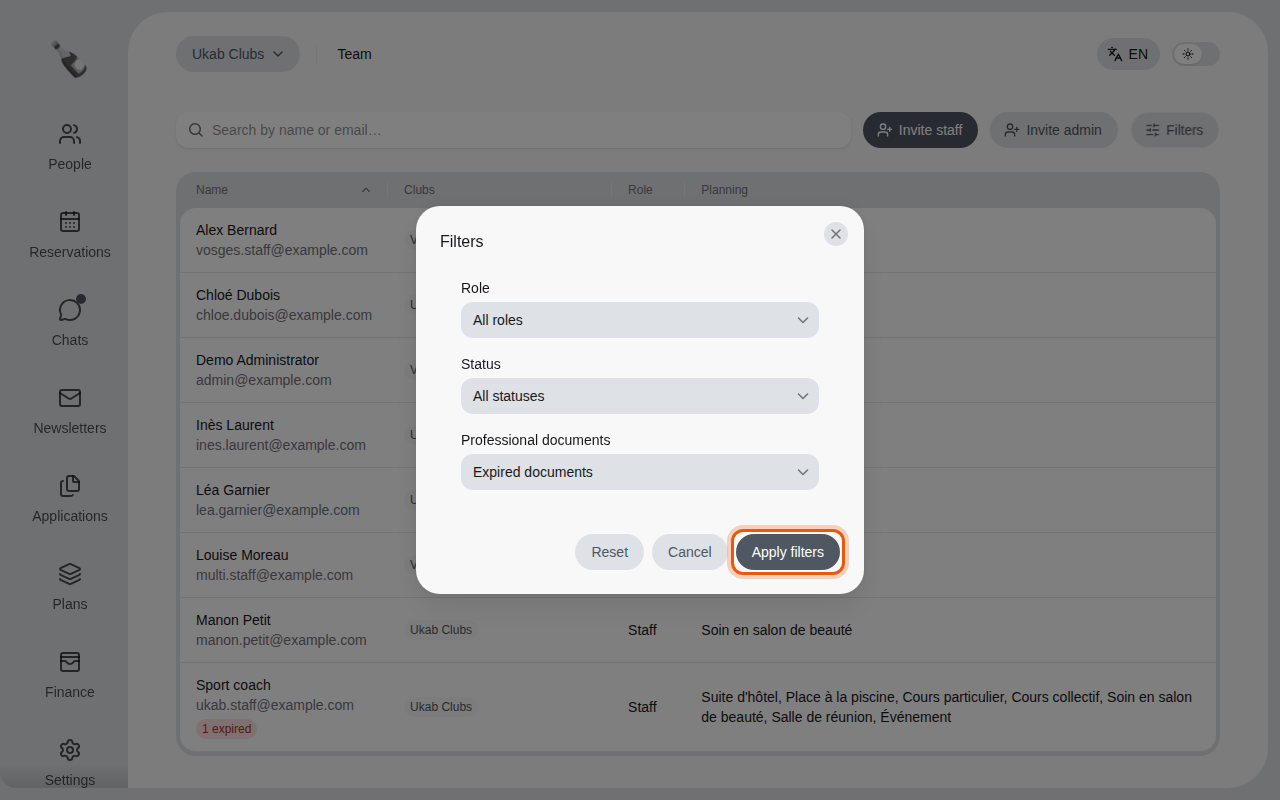
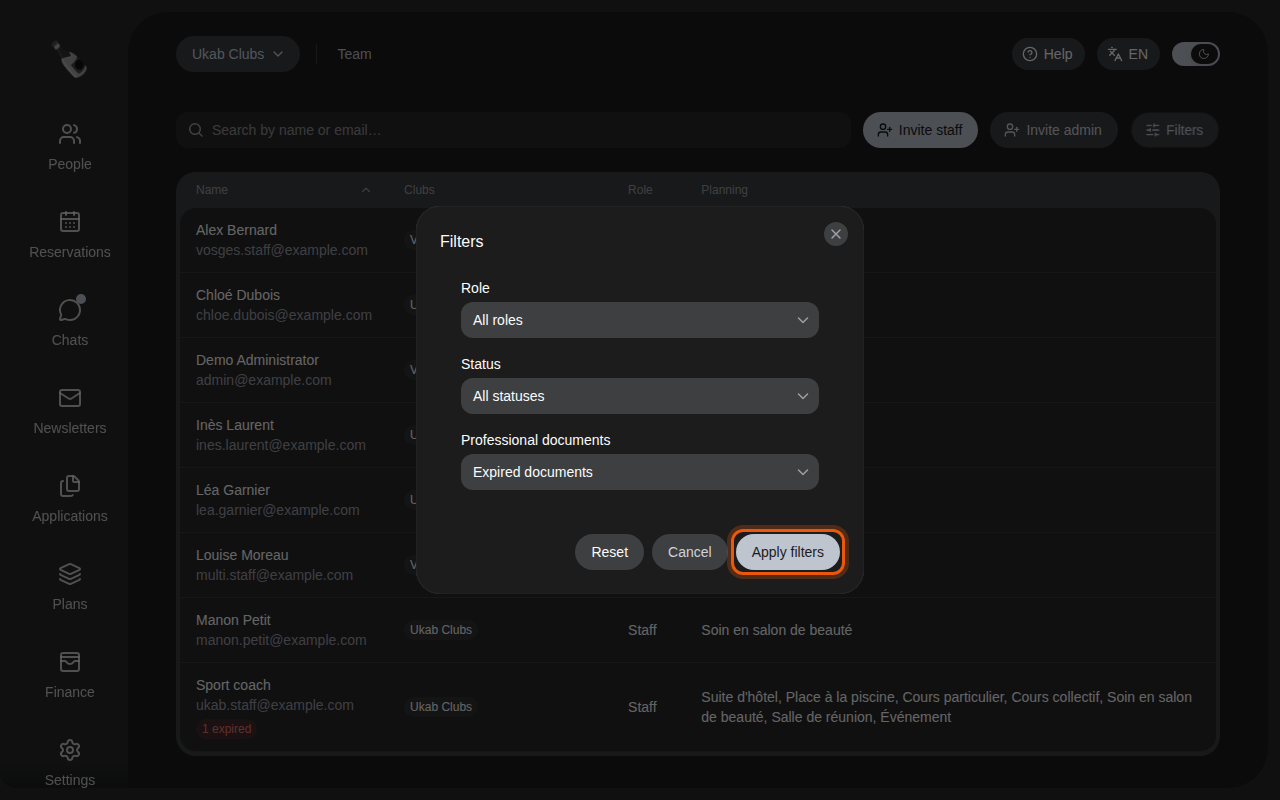
Looking for expired documents in the example team of Ukab Clubs. The control to use is outlined in orange.
| Filter | Choices |
|---|---|
| Role | All roles, Admins or Staff. |
| Status | All statuses, Joined, Invitation pending or Invitation expired. |
| Professional documents | All documents, Expired documents or Expires within 30 days. |
When a colleague has a document that has expired or expires within 30 days, their line shows it, for example 1 expired or Expires in 12 d. Expired documents show first.
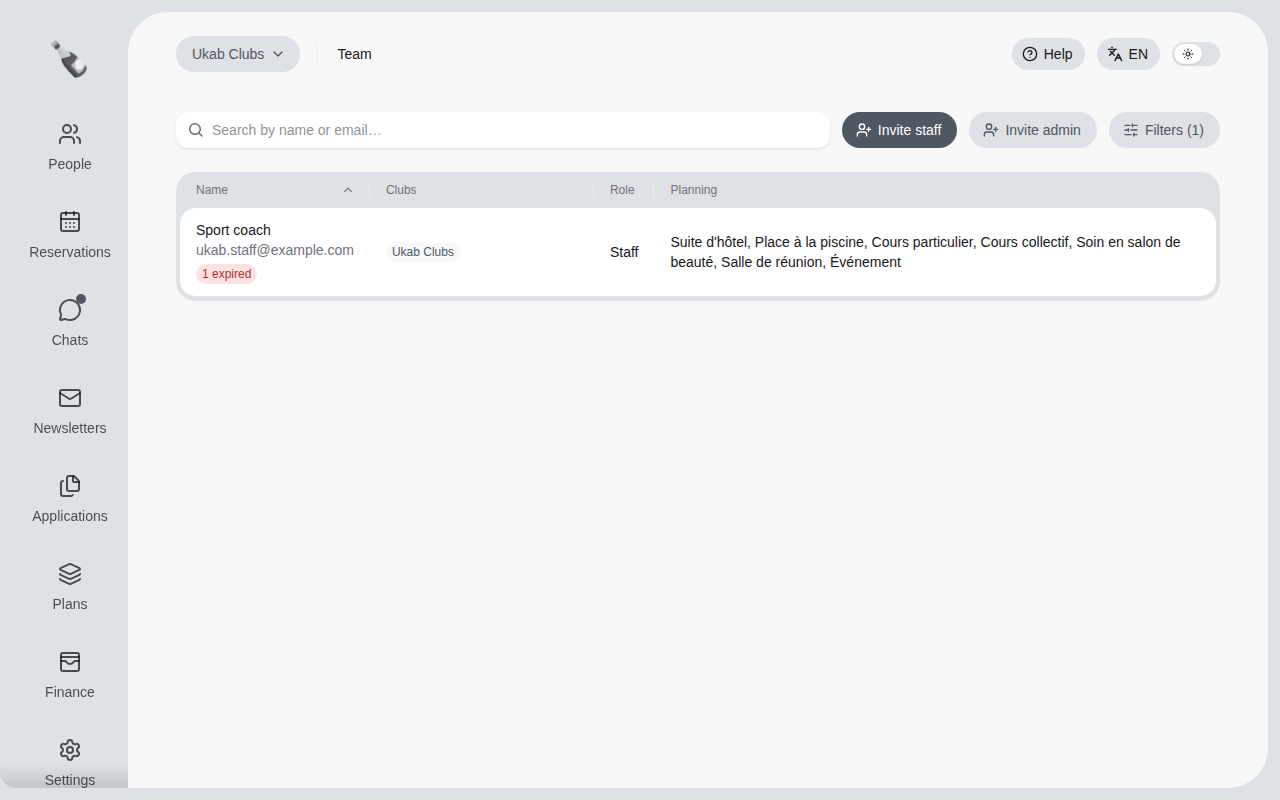
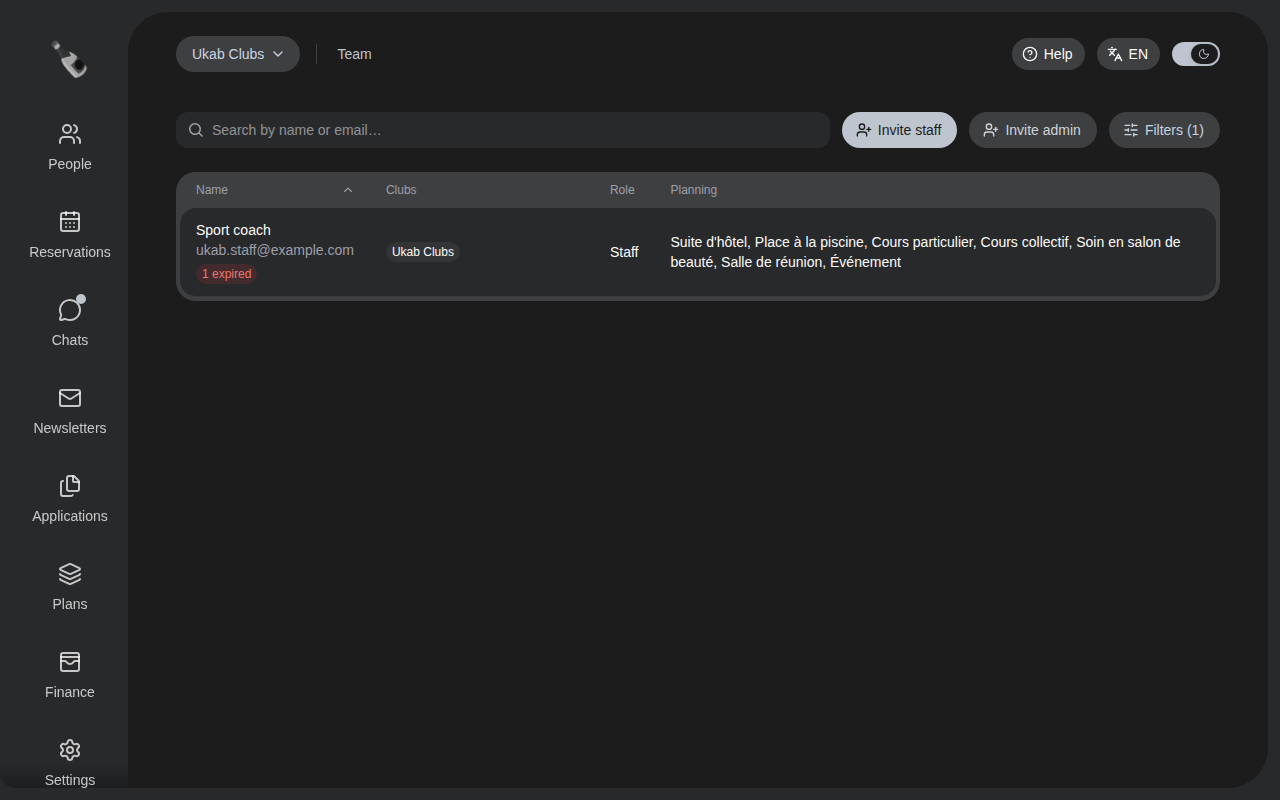
With the Expired documents filter, only the example coach Sport coach remains.
Select a colleague's line to open their file. It has five tabs: Profile, Access, Availability, Reservations and History.
To edit their profile and professional documents, see Your team's profiles and documents.
2. Change what they can do
Open the Access tab. It shows the same choices as the invitation: Club access, then, for each club, the permissions grouped by topic and the Accessible planning categories.
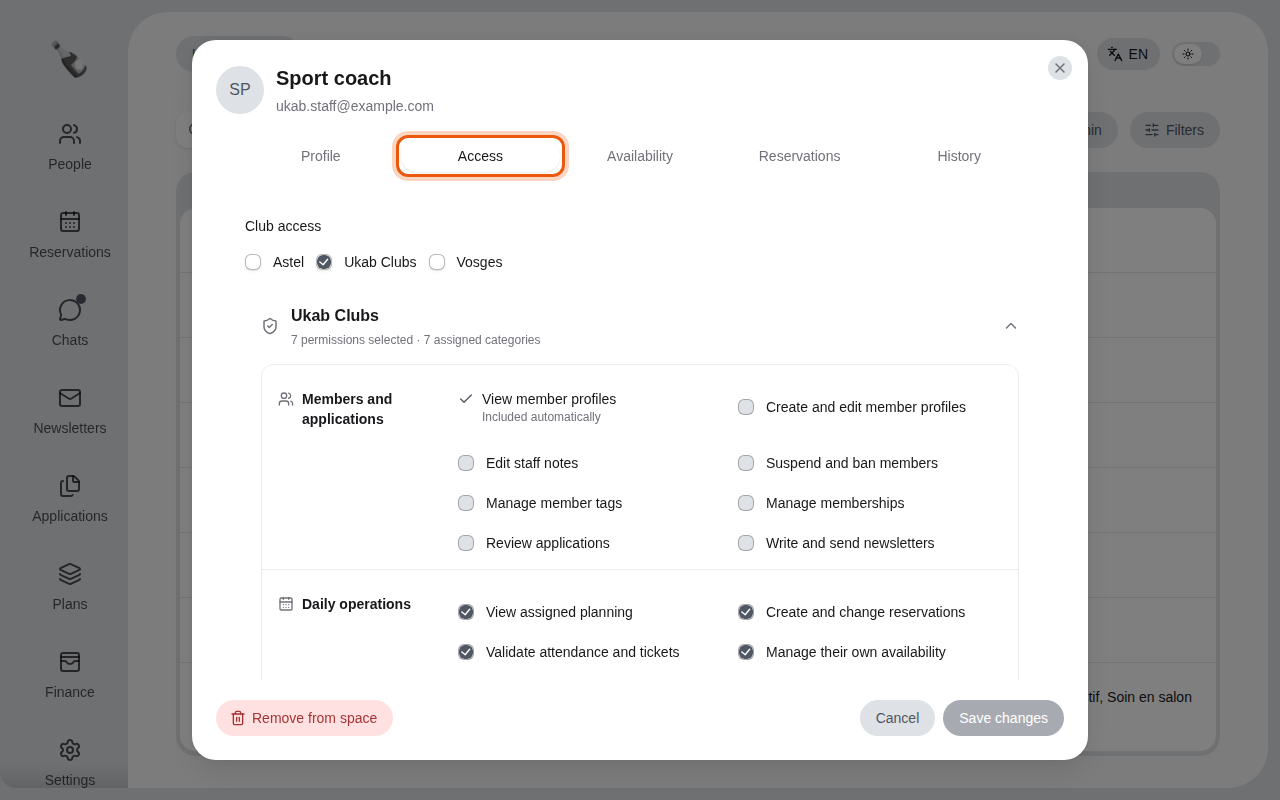
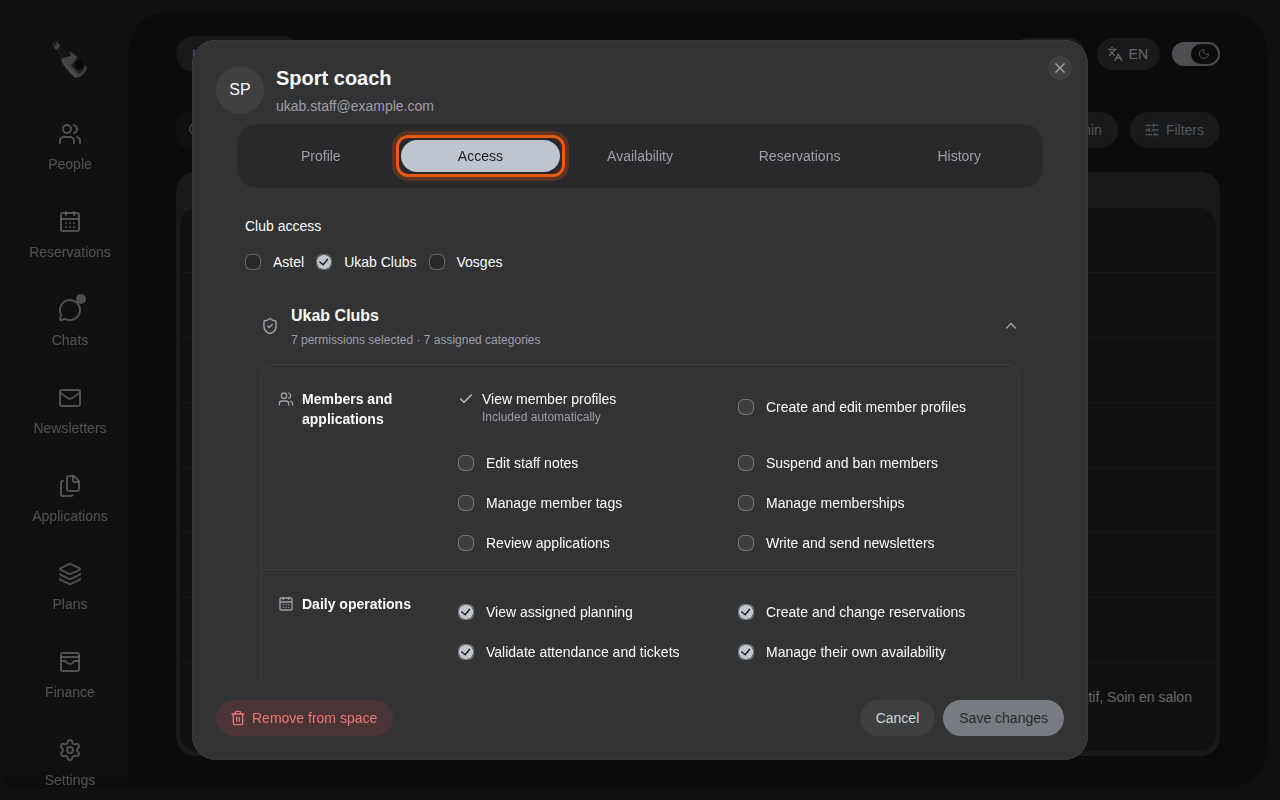
- Each club's title sums up its access, for example 7 permissions selected · 7 assigned categories. Modified appears next to a club you changed.
- Included automatically marks a permission that comes with another one you ticked. For example, Edit staff notes includes View member profiles.
- If the person can see the planning without any category, the club shows Planning has no assigned category: tick at least one category.
Select Save changes. Changes apply immediately.
The Access tab is not available for the owner of your clubs, who always has full access.
3. See their hours, reservations and history
- Availability shows their working hours week by week, as described in Your reservations and availability. Each colleague changes their own hours from My availability.
- Reservations lists the reservations made with them, for example their lessons.
- History shows the Activity history: what this colleague did in the back office, such as Created a reservation, Sent a newsletter or Changed a team member's access, with the person concerned, the date and the club. When a line has an arrow, select it to see the details of the change. A colleague who has done nothing yet shows No recorded actions.
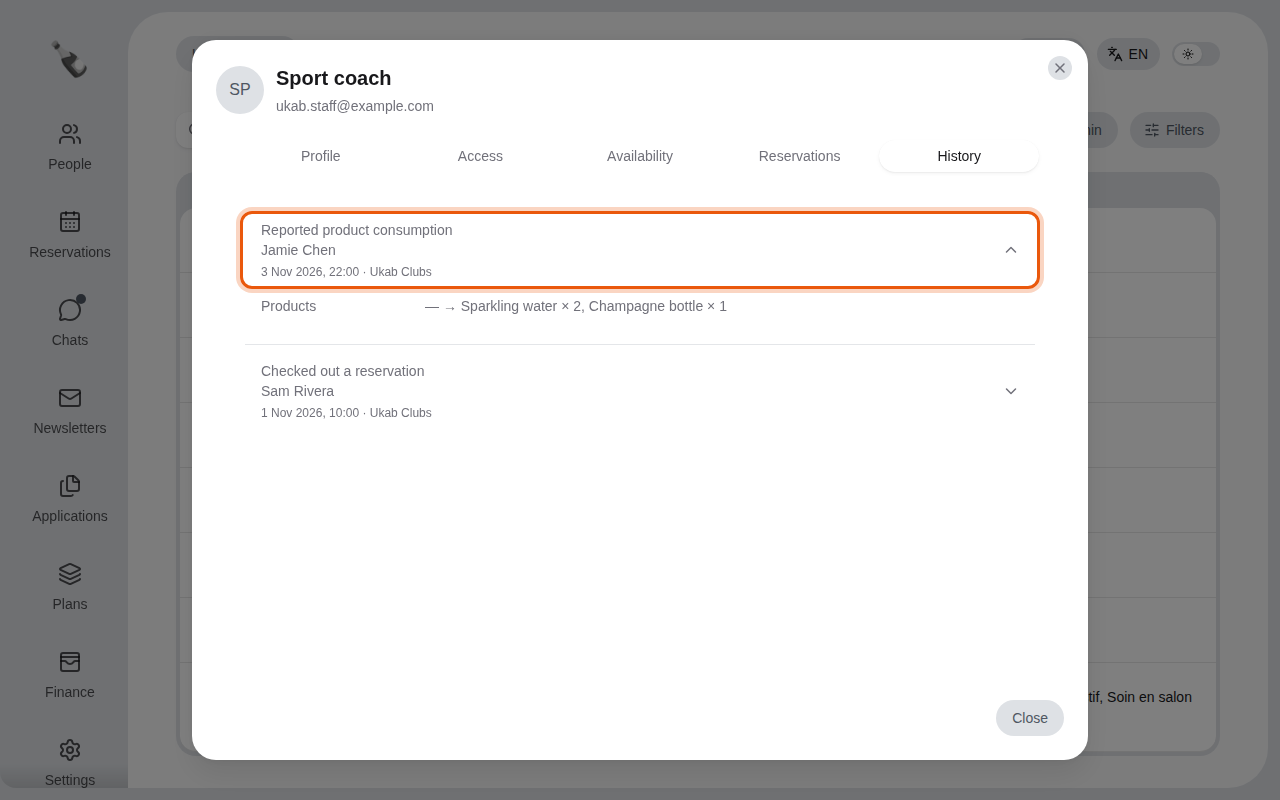
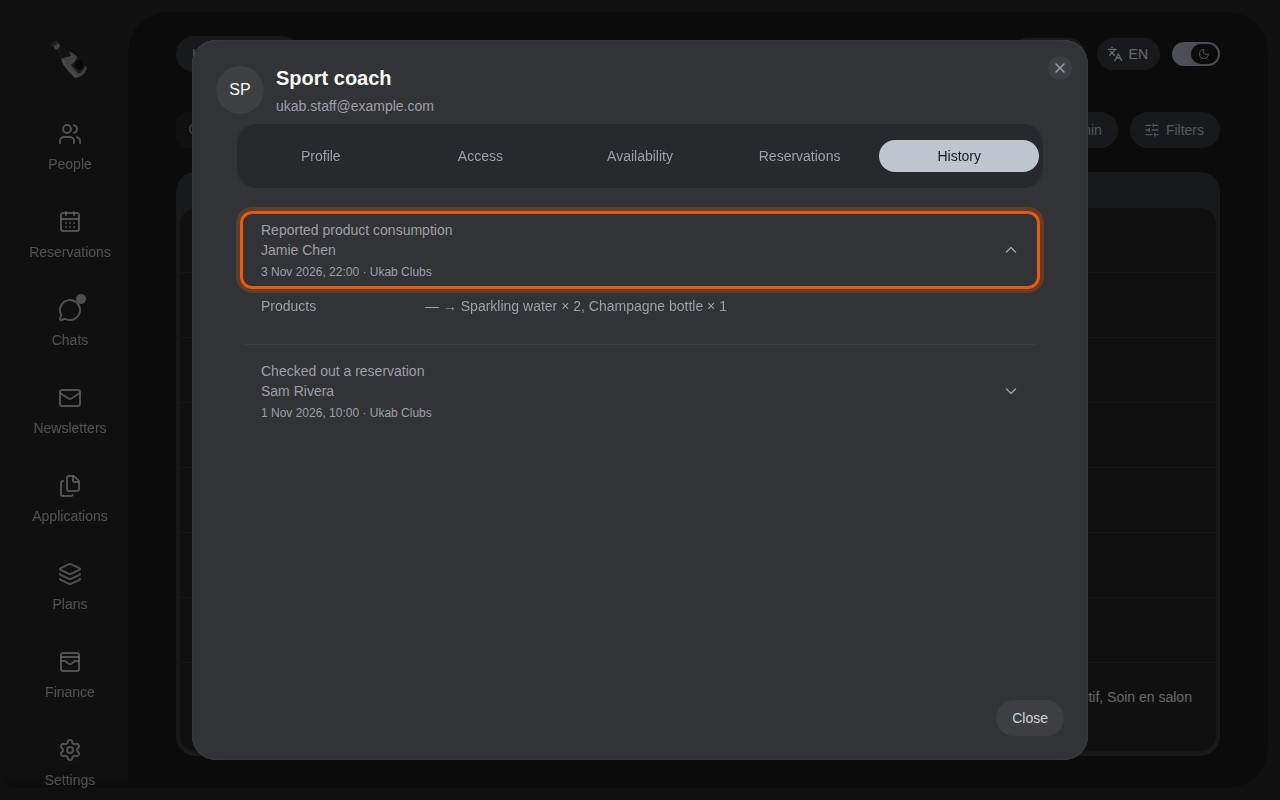
The history of the example coach, with the minibar products reported for Jamie Chen's stay.
When a colleague works for several clubs, choose the Club at the top of the Availability and Reservations tabs.
4. Remove a colleague
- Open their file, then the Access tab.
- Select Remove from space.
- Read the message, then select Remove access to confirm, or Keep access to go back.
They lose access to every club of your space immediately. To remove them from one club only, untick that club in Club access and select Save changes.