Work on a member's profile
Find your way around a member's profile and read their attendance, activity and history.
A member's profile gathers everything your club knows about them: details, plans, credits, status, tags, attendance, account activity and history. This page explains how the profile is organized and how to read the person's activity. To find a person first, see Manage members.
The tasks you carry out from the profile have their own pages:
- Change a member's status: suspend a member, block their bookings, ban or disable them, and give access back.
- Manage a member's plans and credits: grant or remove a plan and read the credit history.
- Tags, notes and notifications: label a member, keep an internal note and send a notification.
- Keep a customer sheet: record preferences and contraindications for categories such as beauty treatments.
1. Find your way around the profile
Select a person in People to open their profile. The top of the page shows their name, status, tags and email, with shortcuts to Open application, start a New chat and Send notification.
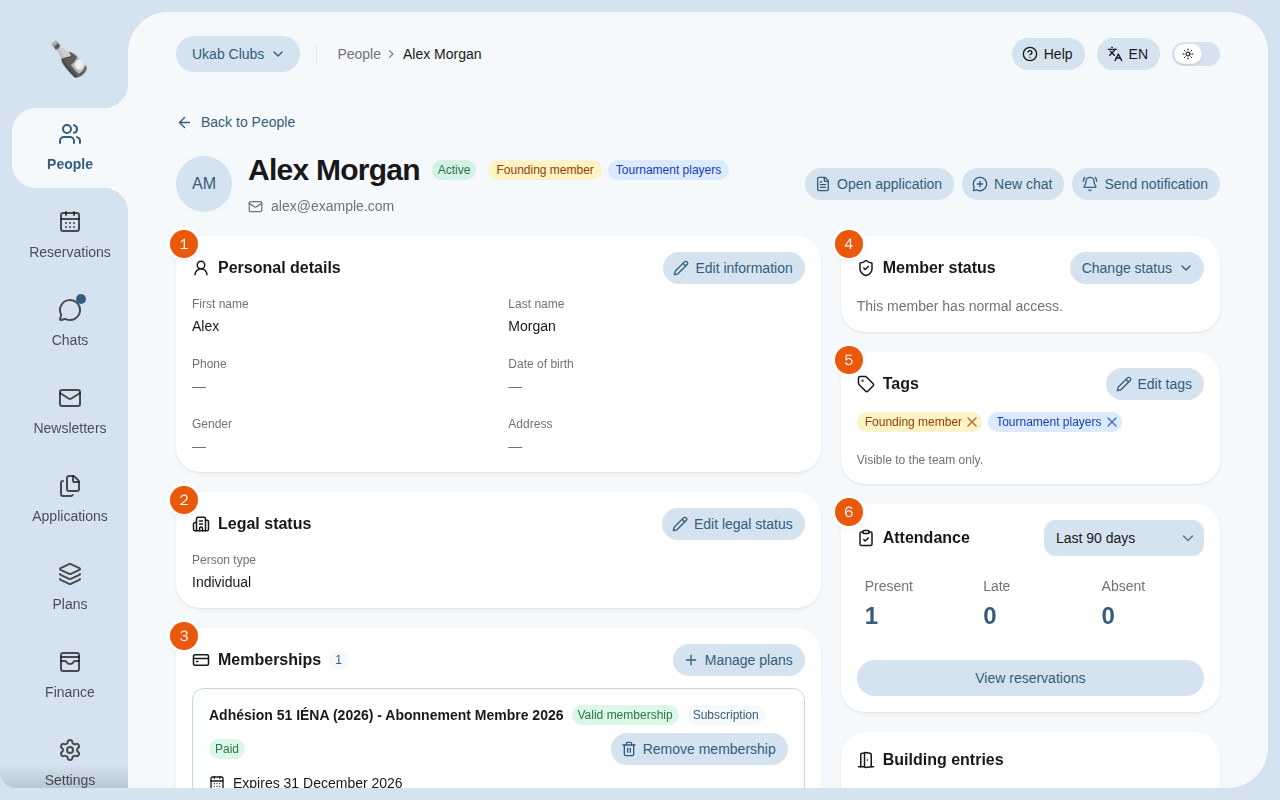
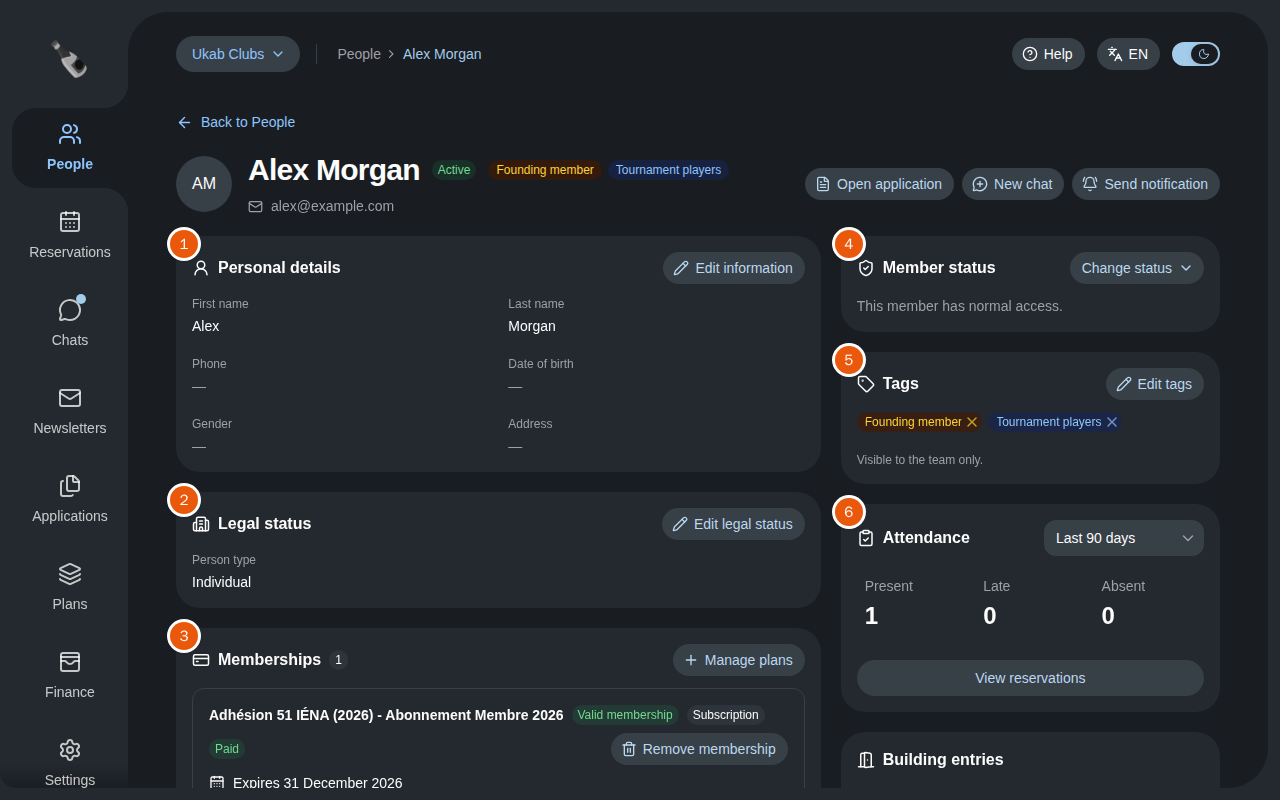
The profile of the example member Alex Morgan. The numbers match the tabs in the table below.
The profile is organized in four tabs, each holding cards:
| # | Tab | Card | What you can do |
|---|---|---|---|
| 1 | Profile | Personal details | See name, phone, date of birth, gender and address. Select Edit information to change them. |
| Legal status | Select Edit legal status to mark the person as an Individual or a Company. A company has a SIRET of exactly 14 digits and an optional TVA number. | ||
| Additional information | Answer your club's extra questions. Select Edit attributes. The card appears only when your club has extra questions. | ||
| Member status | Whether the person has normal access. See Change a member's status. | ||
| Tags | The labels your team put on the person. See Tags, notes and notifications. | ||
| Sponsorship | Who sponsored the person, and whom they sponsored. | ||
| Invited guests | The guests the member invited, when there are any. | ||
| Note | An internal note about the person. Select Edit note to change it. | ||
| 2 | Membership | Memberships | See the person's plans, grant a plan or remove one. See Manage a member's plans and credits. |
| Signed documents | The documents the person signed during their application. See step 4. | ||
| Credits | See the credit balance. Select View history for every top-up, reservation, deposit, refund and add-on. | ||
| 3 | Activity | Attendance | How often the person was present, late or absent. See step 2. |
| Customer sheet | Shown for categories that keep customer sheets. See Keep a customer sheet. | ||
| Building entries | The last times the person told the club they arrived. See step 3. | ||
| Account activity | The last sign-in and whether the account is activated. | ||
| 4 | History | Membership history, Status history and Profile history | Every plan, status and profile change. See step 4. |
Each tab has its own address, so a link you share opens the same tab.
Missing a card or a button?
The cards and buttons you see depend on your permissions. For example, Member status appears only if you may change a member's status, and Manage plans only if you may manage memberships. See Who sees what.
2. Check attendance
In the Activity tab, the Attendance card counts the person's reservations marked Present, Late and Absent over the Last 30 days, Last 90 days or Last 365 days. A link such as 2 unmarked counts the reservations nobody marked yet.
Select a number or View reservations to open the list. Use the menu at the top to show All reservations or one attendance state only.
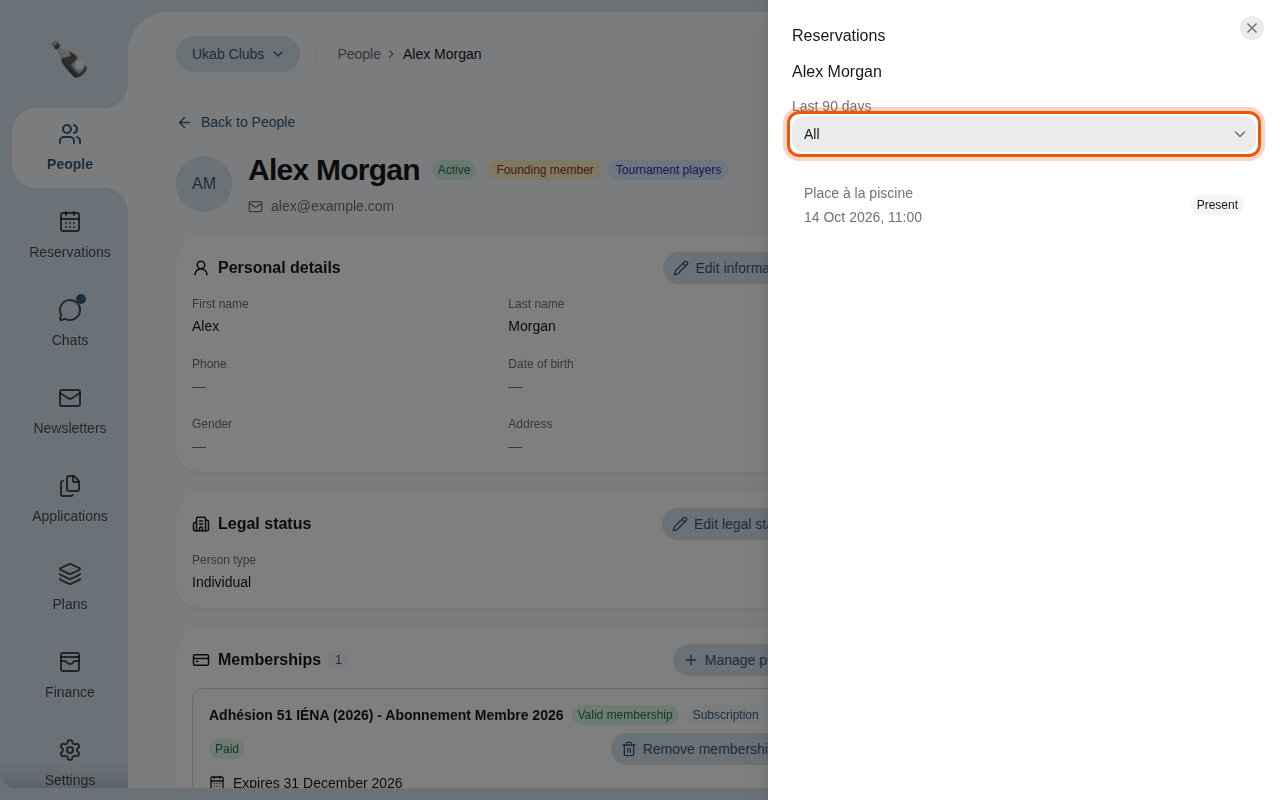
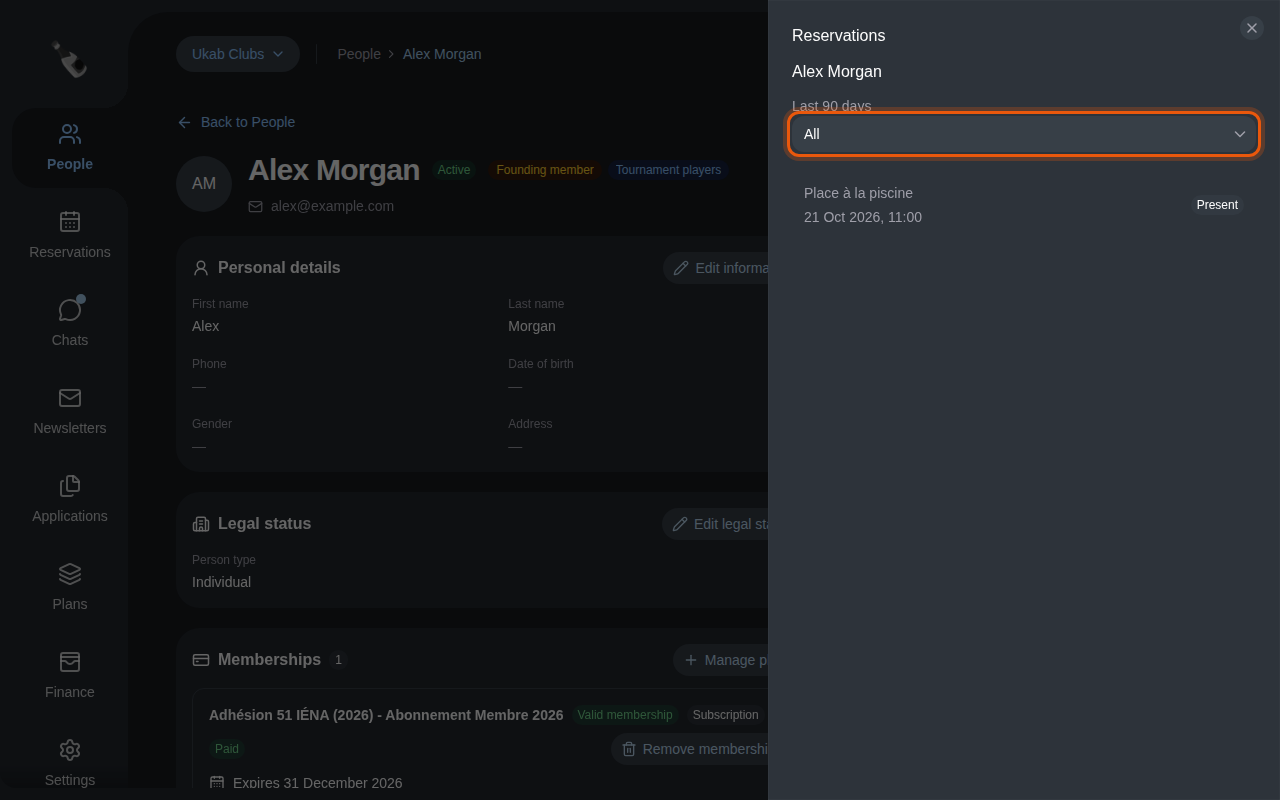
The past reservations of Alex Morgan over the last 90 days. The control to use is outlined in orange.
3. Follow the account activity
Building entries
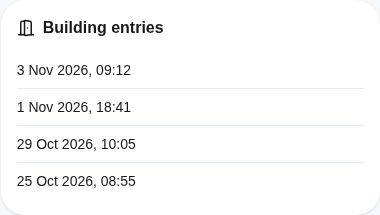
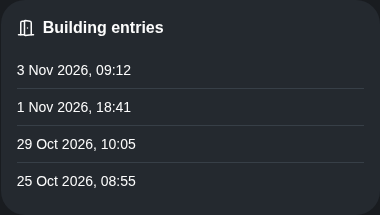
When a member arrives, they can select I'm in the building in their member area. In the Activity tab, the Building entries card lists the date and time of their 20 most recent entries, or No entries yet.
Account activity
In the Activity tab, the Account activity card shows whether the member can sign in:
- Pending activation: the member has not chosen a password yet. The card says whether an activation link is pending, expired or valid until a given date. Select Send activation email or Resend activation email to send them a new link.
- Once activated, the card shows the Last sign in and Active session or Signed out. Select Sign out member and confirm to sign them out of every device, for example after a lost phone. They can sign in again at any time.
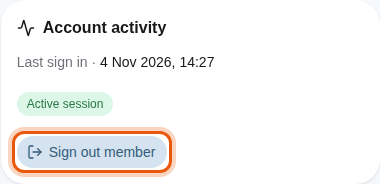
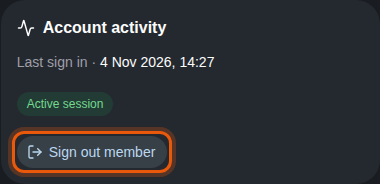
The account activity of the example member Alex Morgan, who is signed in. The control to use is outlined in orange.
Sponsorship and invited guests
In the Profile tab, the Sponsorship card lists the person's Sponsors and the Sponsored members they brought in. A sponsor is recorded when your team accepts an application that used their sponsor code. Select a name to open that profile.
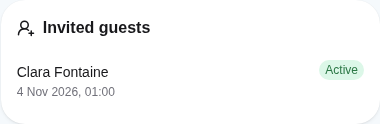
When the member invited guests, an Invited guests card lists each guest with the start of their access and Active, Ended or Revoked.
4. Read the history and signed documents
Select the History tab. It shows:
- Membership history: each plan Added, Updated, Renewed or Removed, with who did it, when, the plan before and after, and the reason.
- Status history: each status change with its dates and reason.
- Profile history: each edit of the person's details, additional information, photo, tags or note, with who did it and when.
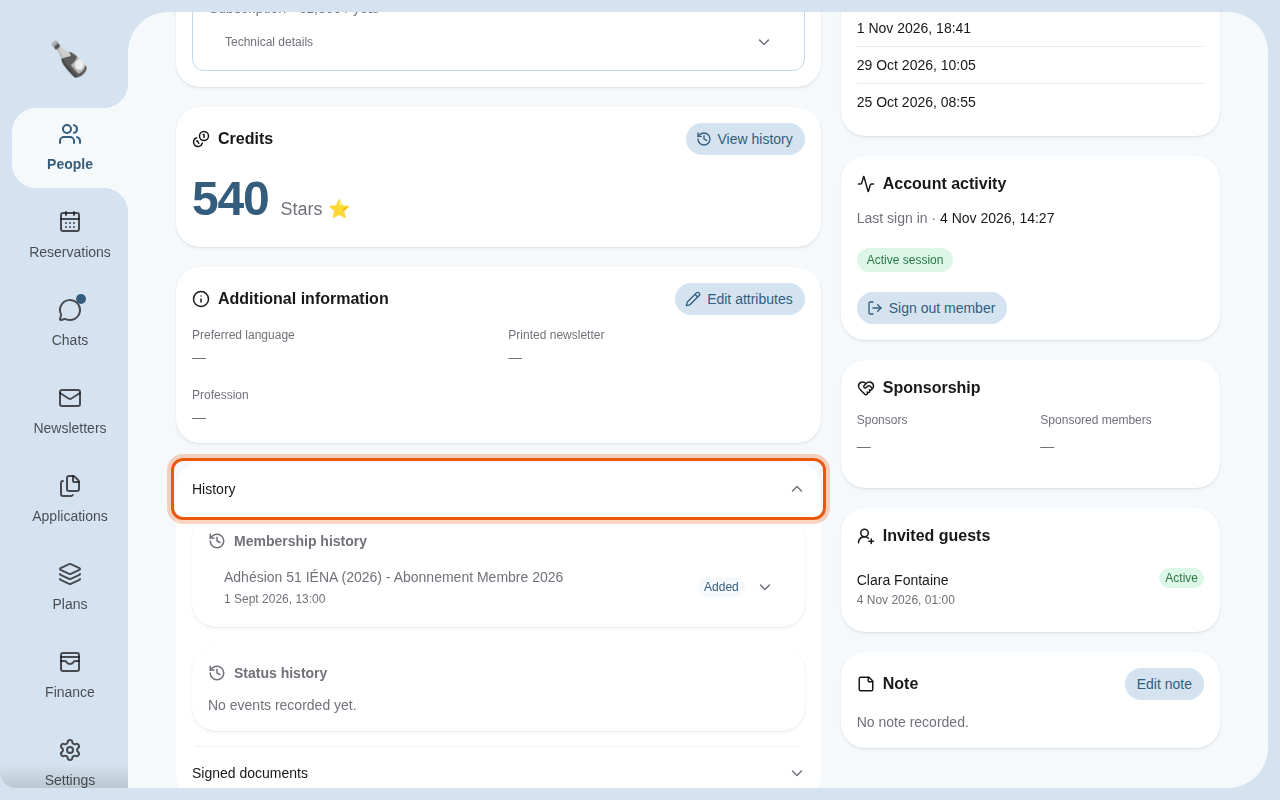
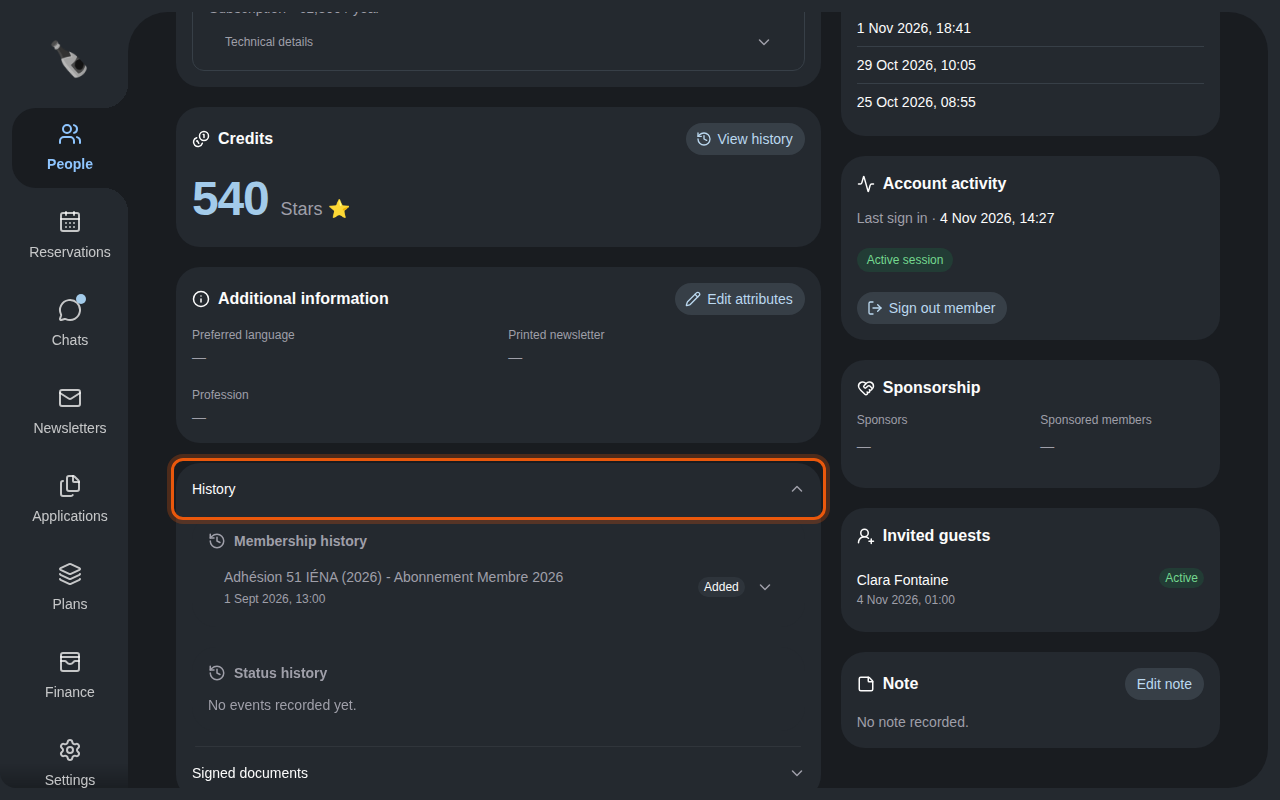
Select an entry to see its details. In Profile history, an entry lists each field that changed with its value before and after.
In the Membership tab, the Signed documents card lists the documents the person signed during their application, with their signing date. Select PDF to download one. If the card says Downloads are unavailable until Yousign is configured., ask your Champagne provider to set up electronic signature.
5. Guests and external customers
Some profiles belong to people who are not members:
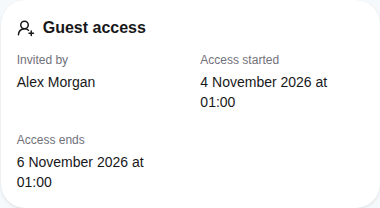
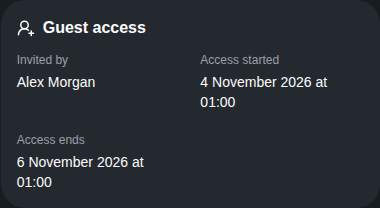
- A guest was invited for a limited time, by your team or by a member. Their profile has a Guest access card with Invited by, Access started and Access ends. In the People list, they show Guest account, then Former guest once their access has ended.
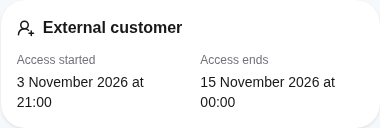
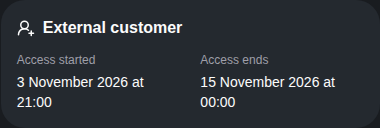
- An external customer booked online without a membership. Their profile has an External customer card with the start and end of their access, and the list shows External customer.
Guest profiles have no Sponsorship card. To invite a guest, see Manage members.