After the club's decision
Read the club's answer, pay and sign what is left after approval, and open your member area.
Once you send your application, the club reviews it and emails you when it has decided. Open your application to see the result. To fill in and send your application, see Complete and sign your application.
1. If the club rejects your application
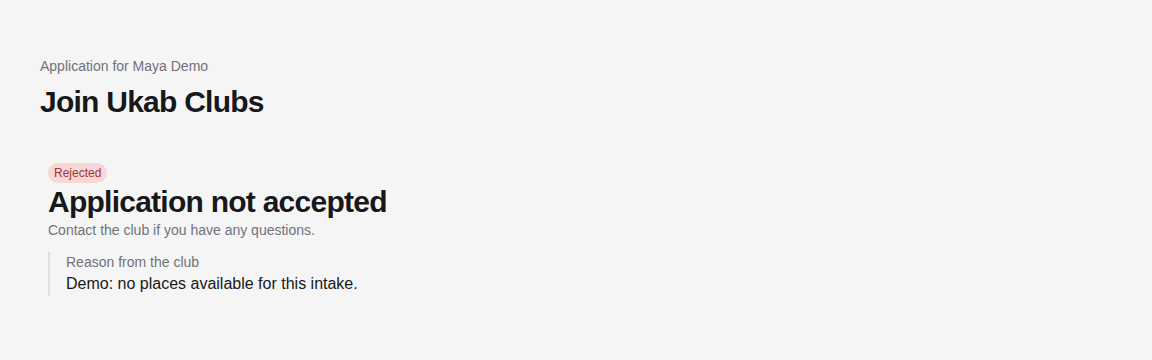
If the club rejects your application, it shows Application not accepted, with the club's message under Reason from the club when it left one. Contact the club if you have questions.

2. Finish the steps after approval
If the club accepts your application, the page shows Your application is accepted and the steps left to do after approval, each marked Completed, To do or Upcoming. The Next action · Step … card on the right opens the current step:
- A payment step shows your plan and its price. Select the Pay … with Stripe button, which shows the amount. Stripe, the secure payment service, opens to take your payment, then brings you back to your application.
- A signature step works as described in Sign a document.
- An address step asks for your postal address, and a phone step for your mobile number and the code texted to it. Both are saved to your profile.
- An identity step asks for your ID card, passport or driving licence, and often a selfie. Select Verify my identity: Stripe, the club's verification service, opens to photograph them, then brings you back. While Stripe checks them, the step shows Stripe is checking your document; the page updates by itself.
- A visit step lets you book a first visit with the club. Choose a Date, select a time, then Book this time. Full times are crossed out. Until you select Continue, you can Change the time or Cancel the booking. The booked time also shows under the step in the list, and you receive the usual confirmation email and reminder.
If something goes wrong
| Message | What to do |
|---|---|
| Signature failed, with Yousign could not complete the signature. Please try again. | Select Continue to Yousign to sign again. |
| You declined the signature. You can start again when you are ready. | You refused to sign in Yousign. Select Continue to Yousign when you are ready. |
| Your signature is not confirmed yet. Finish signing in Yousign, then check again. | Finish signing in the Yousign tab, then select Check signature. |
| Checkout cancelled, No payment was confirmed. You can try again. | You left the Stripe page without paying. Select the Pay … with Stripe button again. |
| Checkout expired. Start a new payment. | The payment page was open too long. Select Start a new payment. |
| Payment is currently unavailable. Please contact the club to complete this step. | The club cannot take the payment online yet. Contact it. |
| We couldn’t identify your payment. Please contact the club before trying again. | Do not pay twice: ask the club whether your payment arrived. |
| Your identity could not be verified, with a reason from Stripe | Follow the reason, for example use a valid document, then select Try again. |
| You do not meet the minimum age | Your document shows you are under the club's minimum age. Contact the club if this is a mistake. |
| Confirm your email to open this application. | The link opened in a browser that does not know you. Select Find my application to get a code. |
Coming back from Stripe or from a link in an email, your application can open in a tab that has no access to it. If it says Your payment has been received. Find your application with your email to continue., select Find my application and confirm your email to carry on.
3. Open your member area
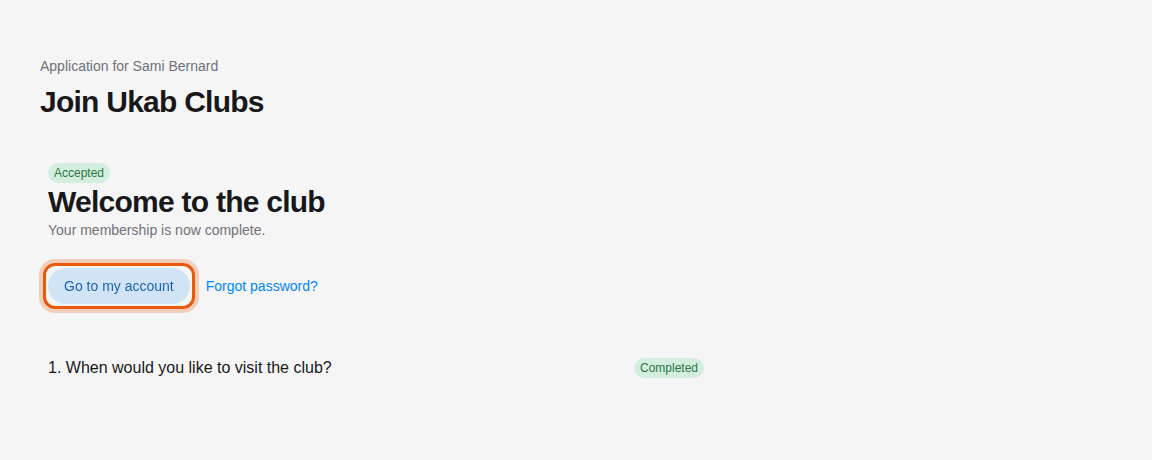
When all steps are done and you have no account yet, choose your password in Choose your password and select Save password and open my account, or Save password and sign in on the club's own application website. See Activate your account and reset your password. Your member area then opens, or its sign-in page when you applied on the club's website. When you reopen your application later, it shows Welcome to the club: select Go to my account to open your member area.