Find a club and apply
Choose a club, read its offers and start an application.
You join a club by sending it an application from the member app. You do not need an account to apply: the club creates it for you once it accepts your application.
1. Pick a club
Open the member app on the Clubs tab. In Club, type the name of the club or open the list and select it. The club's profile appears with its address and description.
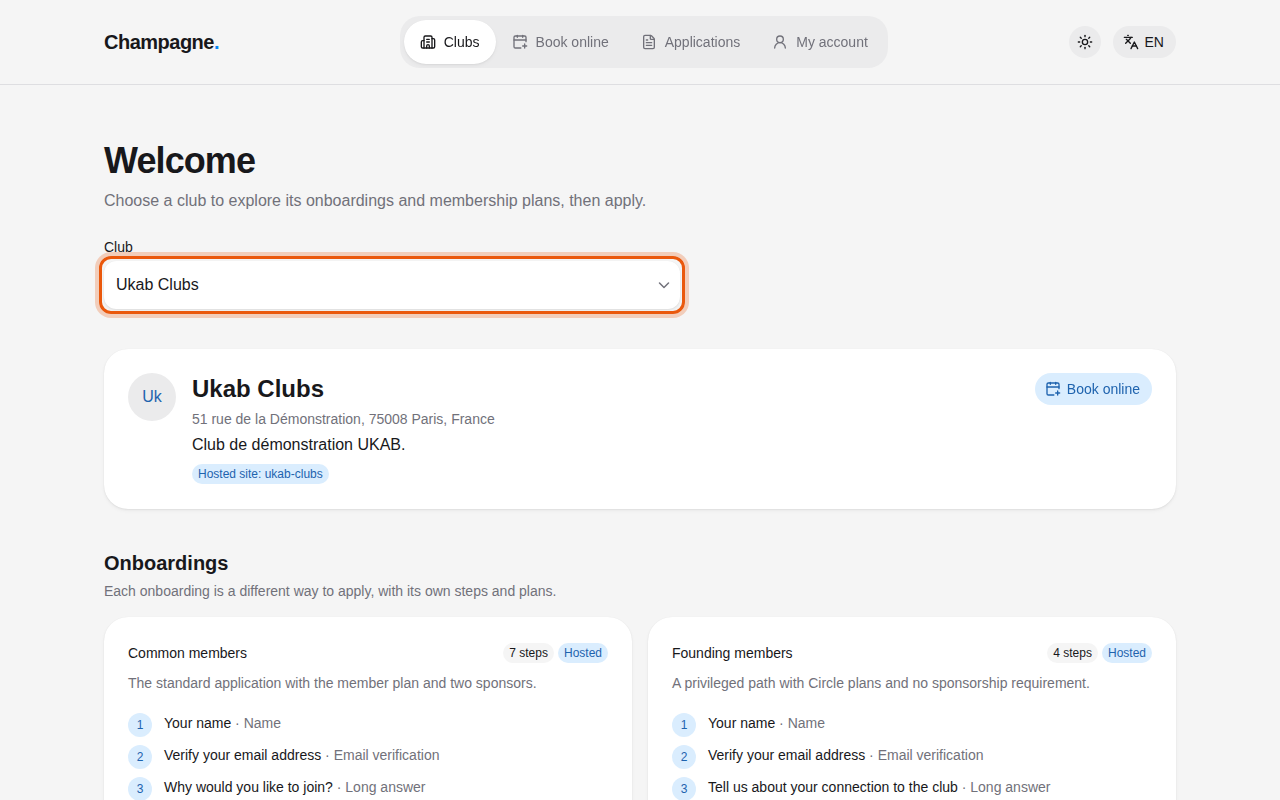
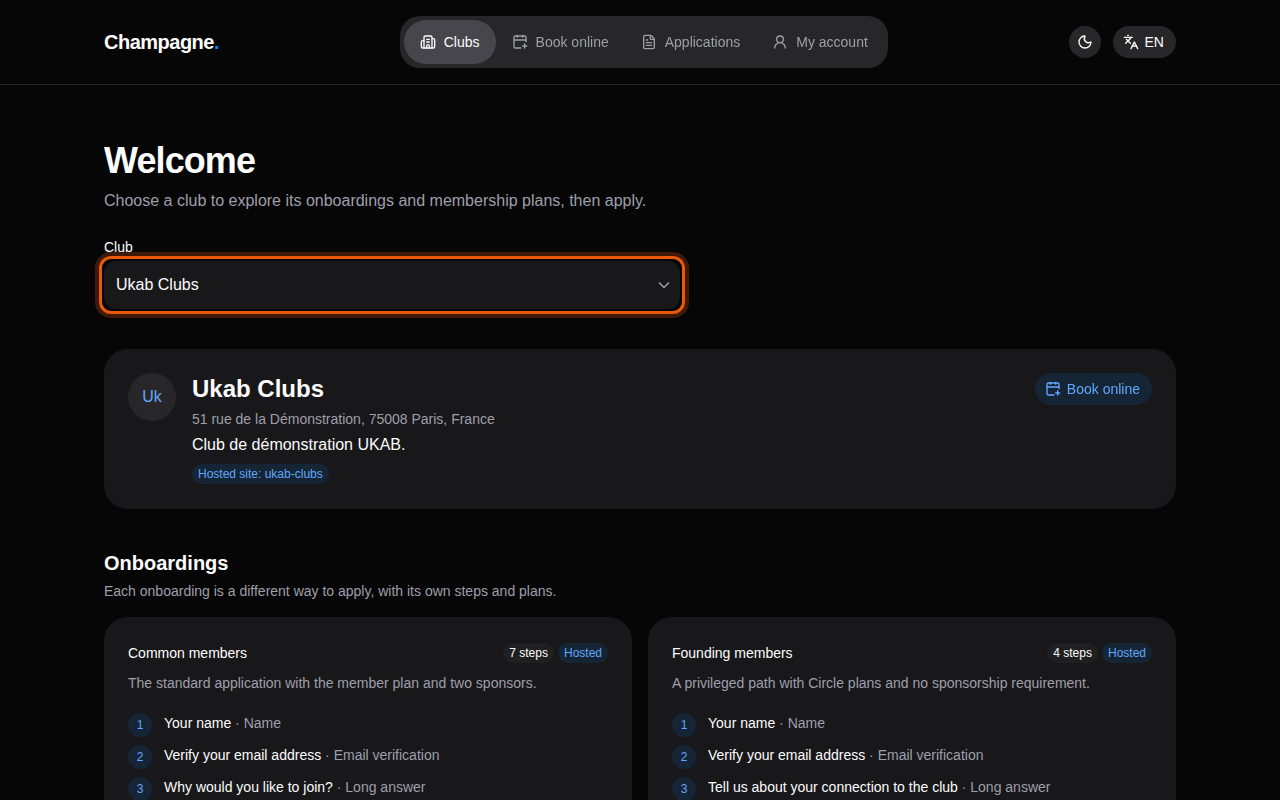
The profile of the example club Ukab Clubs. The control to use is outlined in orange.
If the club takes bookings from visitors, its profile shows Book online. You can use it to book without being a member.
2. Compare the onboardings
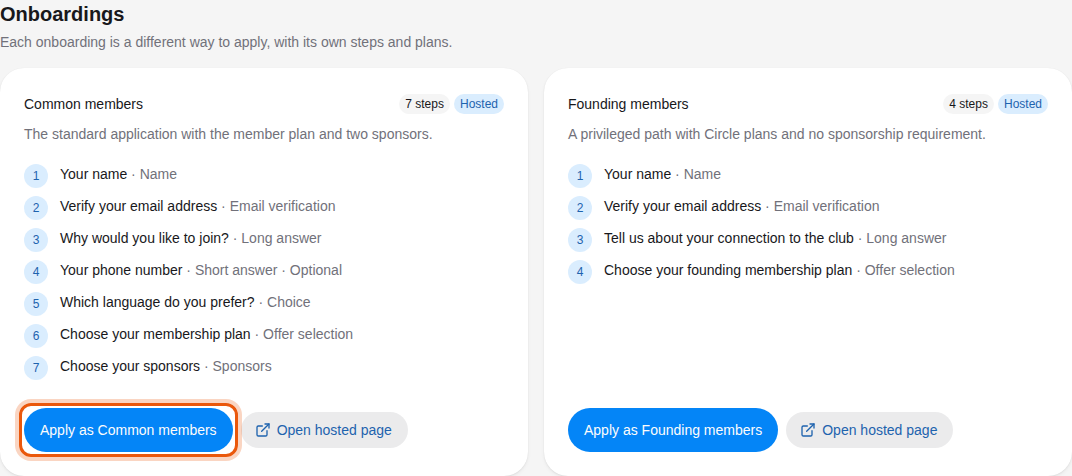
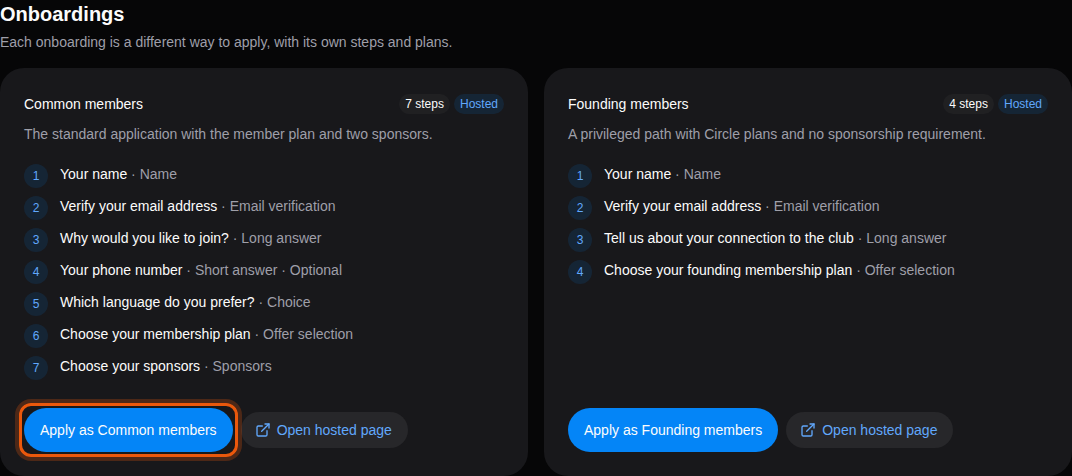
An onboarding is one way to join the club, with its own form and its own plans. A club may offer several, for example one for regular members and one for founding members. Under Onboardings, each card shows the number of steps and lists them in order, with the kind of answer each step expects and whether it is Optional.
| Step kind | What you do |
|---|---|
| Name | Type your first and last name. |
| Email verification | Type your email address and the code the club sends you. |
| Short answer, Long answer, Choice | Answer the club's question. |
| Offer selection | Pick the membership plan you want. |
| Sponsors | Type the sponsor codes members of the club gave you. |
| Address | Type your postal address. |
| Phone verification | Type your mobile number and the code texted to it. |
| Identity verification | Have your ID document checked by Stripe. |
| Visit booking | Book a first visit with the club. |
| Signature | Sign a document online, such as the club rules. |
| Payment | Pay your plan online. |
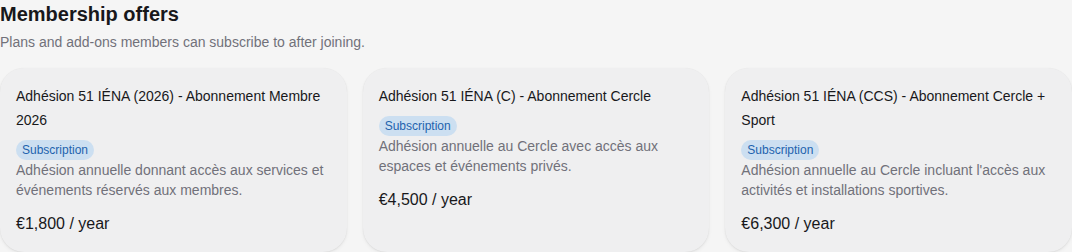
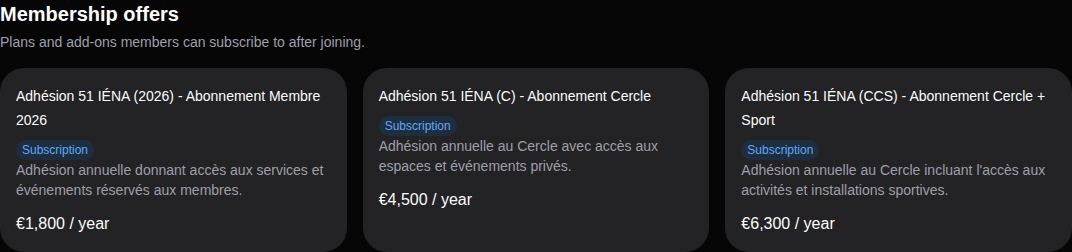
Below the onboardings, Membership offers lists the club's plans and add-ons with their price. You pick your plan during the application.
3. Start your application
Select Apply as followed by the name of the onboarding, for example Apply as Common members. Some onboardings first show a short presentation page: select Start application to continue. Your application opens on its first step. To fill it in, see Complete and sign your application.
The club's own website
A card marked Hosted can also be filled in on the club's branded application website. Select Open hosted page to go there. Clubs set this website up in Your club's website.
4. Find your application again
Your answers are saved at each step, so you can stop and come back later. To reopen an application, or to follow one you already sent:
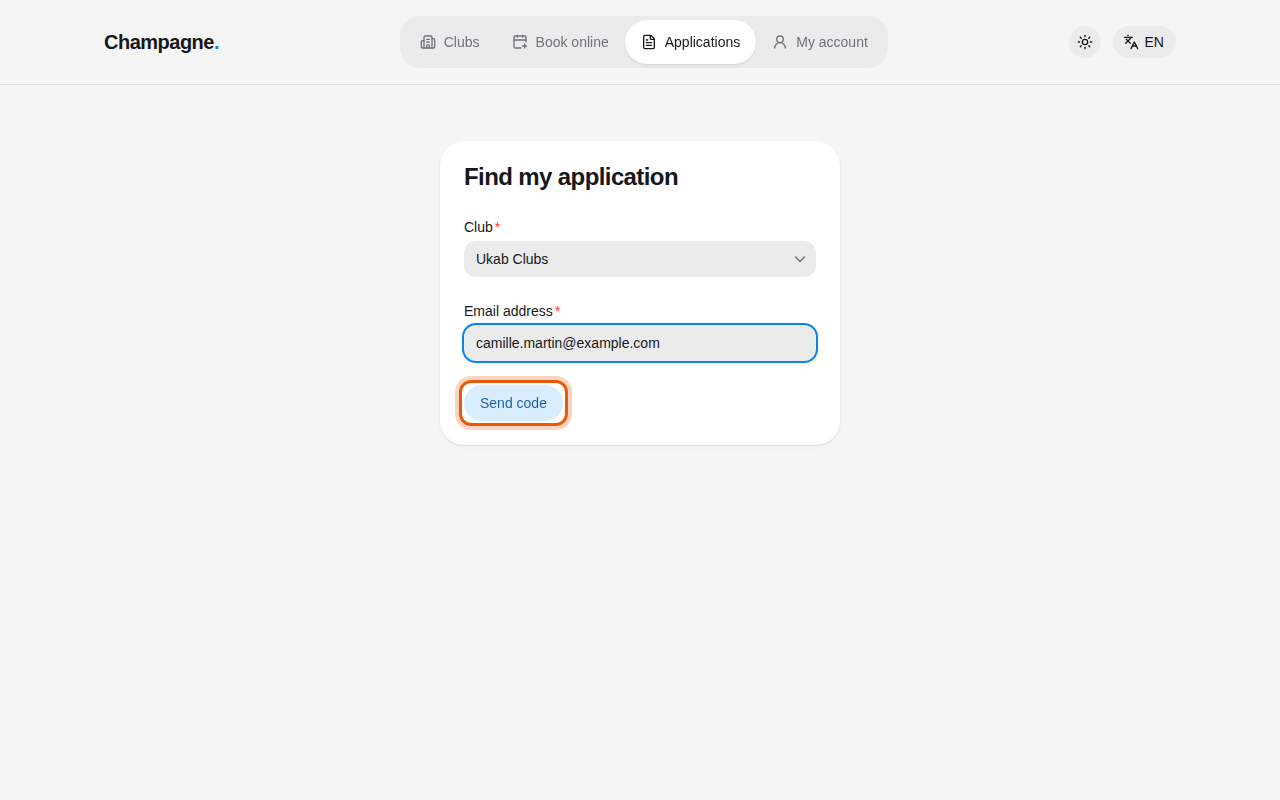
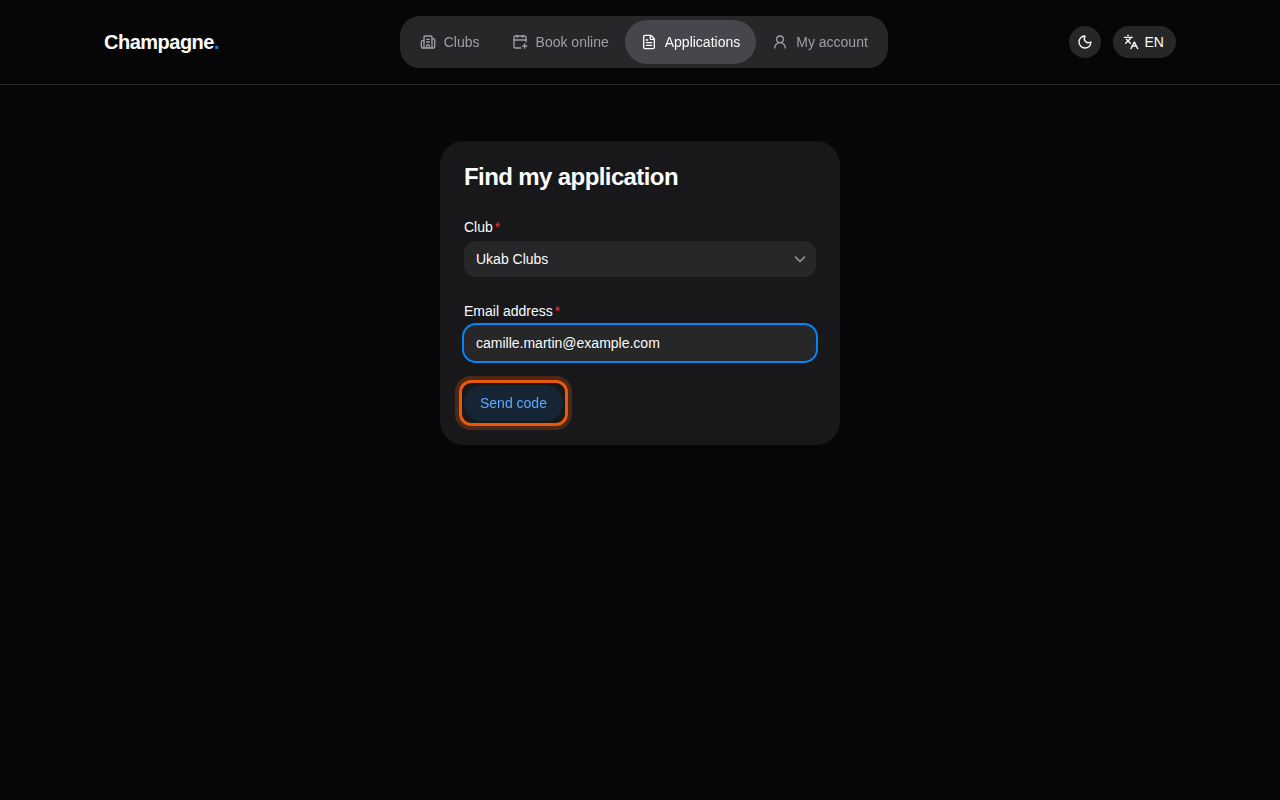
- Select the Applications tab, or Find my application at the bottom of the Clubs tab.
- Check the Club and type the Email address you used in your application.
- Select Send code. The club emails you a six-digit code, valid for 10 minutes.
- Type the code in Six-digit verification code and select Find applications.
- Select Open application next to the application you want.
If the email does not arrive, wait a minute and select Resend code, or select Change email to correct the address.