Book online as a visitor
Book a room or a place at a club without a membership and pay online.
Some clubs let visitors book online, for example a hotel suite for a few nights. You do not need a membership: you choose what to book, enter your details and pay by card. Champagne creates a temporary account for your stay so you can follow your booking.
1. Choose a club
Select Book online in the top navigation of the member app. The page lists the clubs open to online booking. Select the club you want.
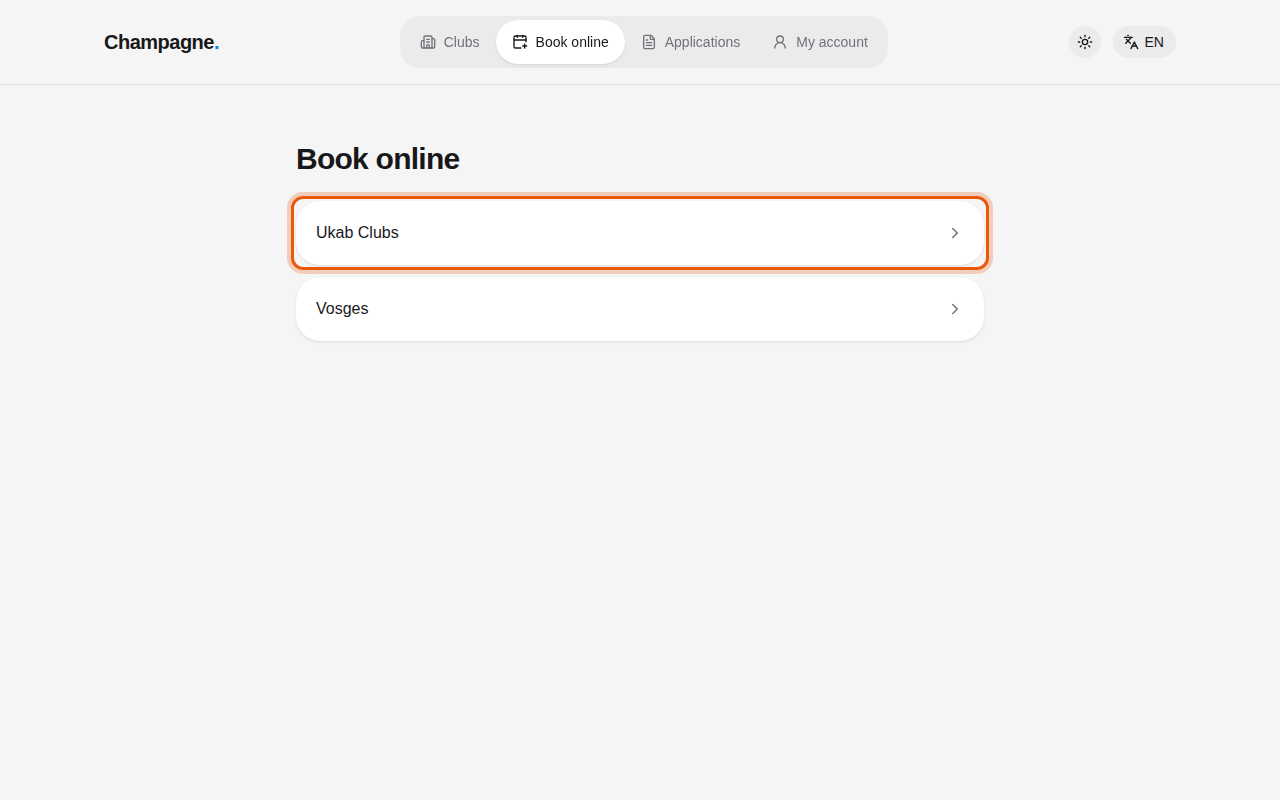
The demo clubs Astel, Ukab Clubs and Vosges, all open to online booking. The control to use is outlined in orange.
When only one club takes online bookings, its page opens straight away. If no club takes them yet, the page says No club offers online booking yet.
2. Choose what to book and when
The club's page shows what you can book. When the club offers several activities, select one of the tabs at the top.
- In Resource, pick a room or a place. Each line shows its price, how many people it holds and, when the club asks for one, its security deposit. A resource already taken for your dates shows Unavailable for this period.
- Set the Number of people when the resource holds more than one person.
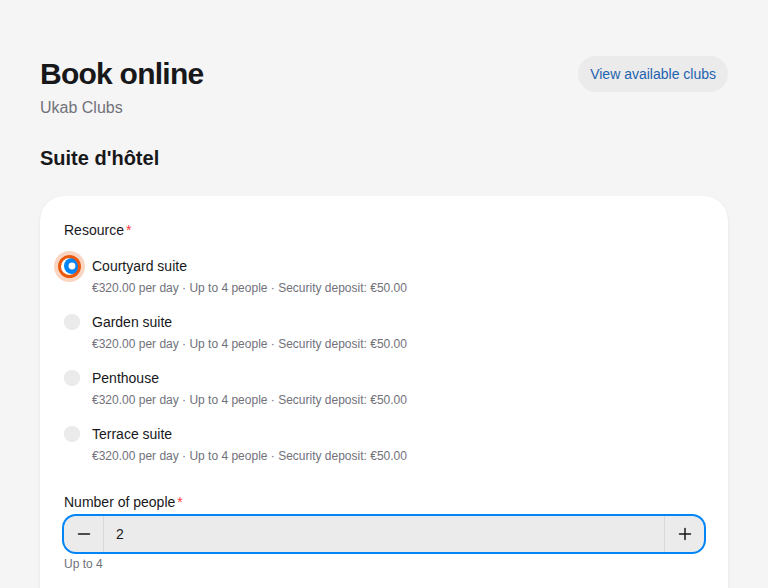
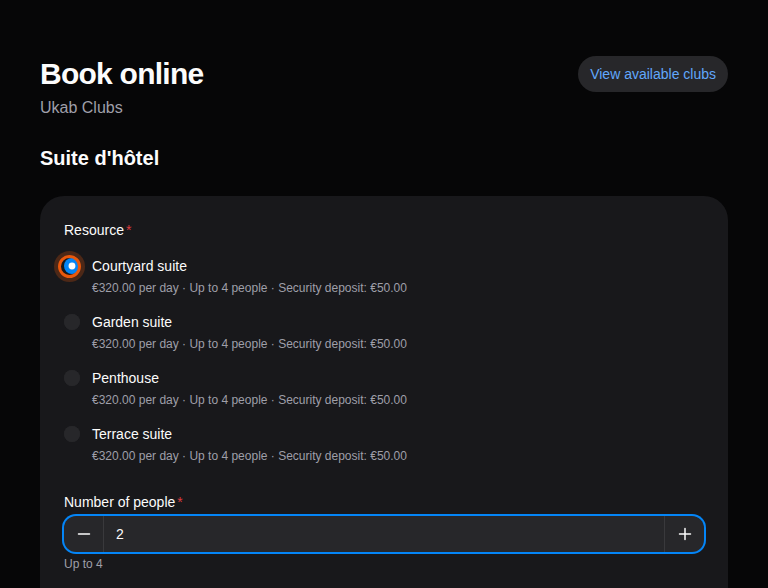
Choosing the example Courtyard suite for two people. The control to use is outlined in orange.
- Set the Start date and Start time, and the End date and End time. Some activities have a fixed length: you then only choose the start.
- Check the Total and select Continue.
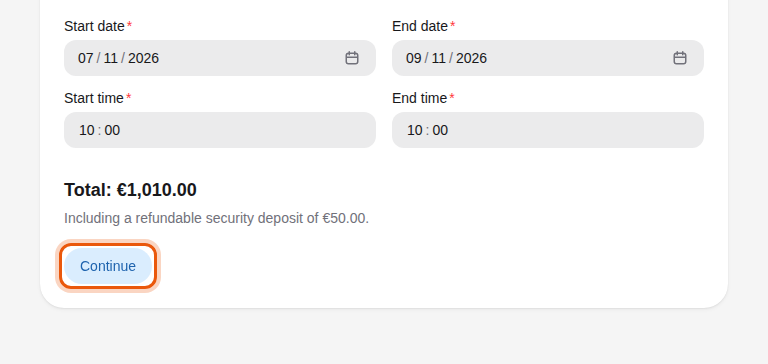
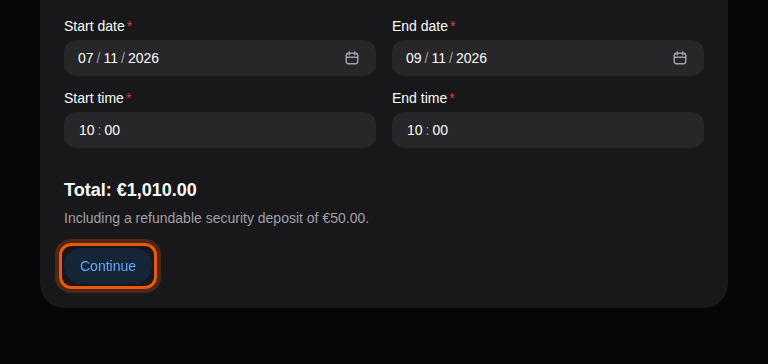
The example Courtyard suite at Ukab Clubs, booked for two people over three days: €960.00 for the stay plus the €50.00 deposit.
Continue becomes available once the resource is free and the dates are valid. Under the dates, the form tells you when the end is before the start, when the start is in the past, or when the stay is longer than 62 days. Without an account, a stay lasts at most 31 days: a longer one is refused at the last step. When the resource has a security deposit, the Total includes it and the line Including a refundable security deposit of … under it gives the refundable amount.
To change your choice after Continue, select Change.
3. Enter your details
Under Your details, two tabs let you choose how to continue:
- Book without membership creates a temporary account for this booking.
- Sign in is for members of this club.
Book without membership
- Enter your First name, Last name, Email and Phone.
- Choose a Password: at least 12 characters, with a lowercase letter, an uppercase letter, a digit and a symbol. You use it to sign in again during your stay. Select the eye icon to show or hide it.
- Select Continue to payment.
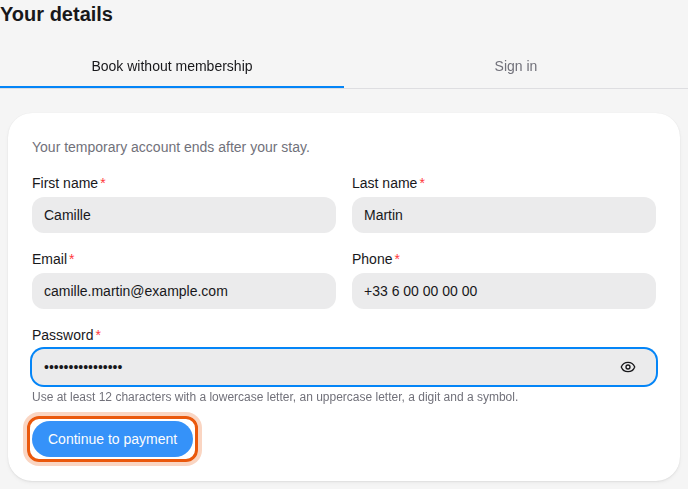
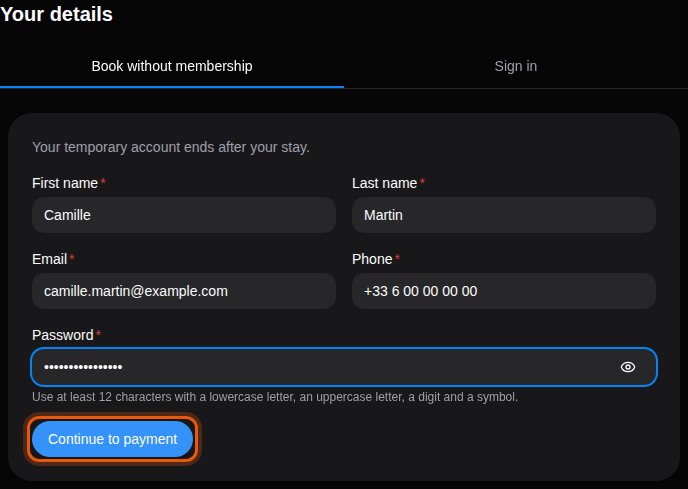
The temporary account form filled in for the example visitor Camille Martin.
Champagne books the resource, signs you in with your temporary account and opens the payment page. If the email already has an account at this club, a message asks you to sign in instead: use the Sign in tab.
Sign in as a member
Select Sign in, enter your Email and Password, then select Sign in. The page then shows the member booking form for the same activity, with your choice kept. You book as in Book a reservation. If your membership does not allow you to book, the page says that a valid membership is required.
4. Pay and follow your booking
After Continue to payment, you pay by card on the secure payment page. When you come back, your booking opens in your temporary account:
| Message | What it means |
|---|---|
| Payment received — your reservation is confirmed. | Your payment went through and the booking is confirmed. |
| Confirming your payment… | The payment is being checked. The page updates on its own. |
| Payment canceled. Your reservation stays booked until it is paid. | You left the payment page. Pay from the booking page when ready. |
If the payment page cannot open, a message says that your booking is saved: pay it from your account. When the booking costs nothing, it opens directly without a payment step.
Your temporary account shows a Temporary account notice with the date it ends: at the end of the last day of your stay. It is then deleted, and a booking still waiting for payment is canceled. Until then, sign in with your email and password from My account to see your booking and pay it. If you open Book online again while signed in with it, the page says You are signed in with a temporary account. and offers My reservations.
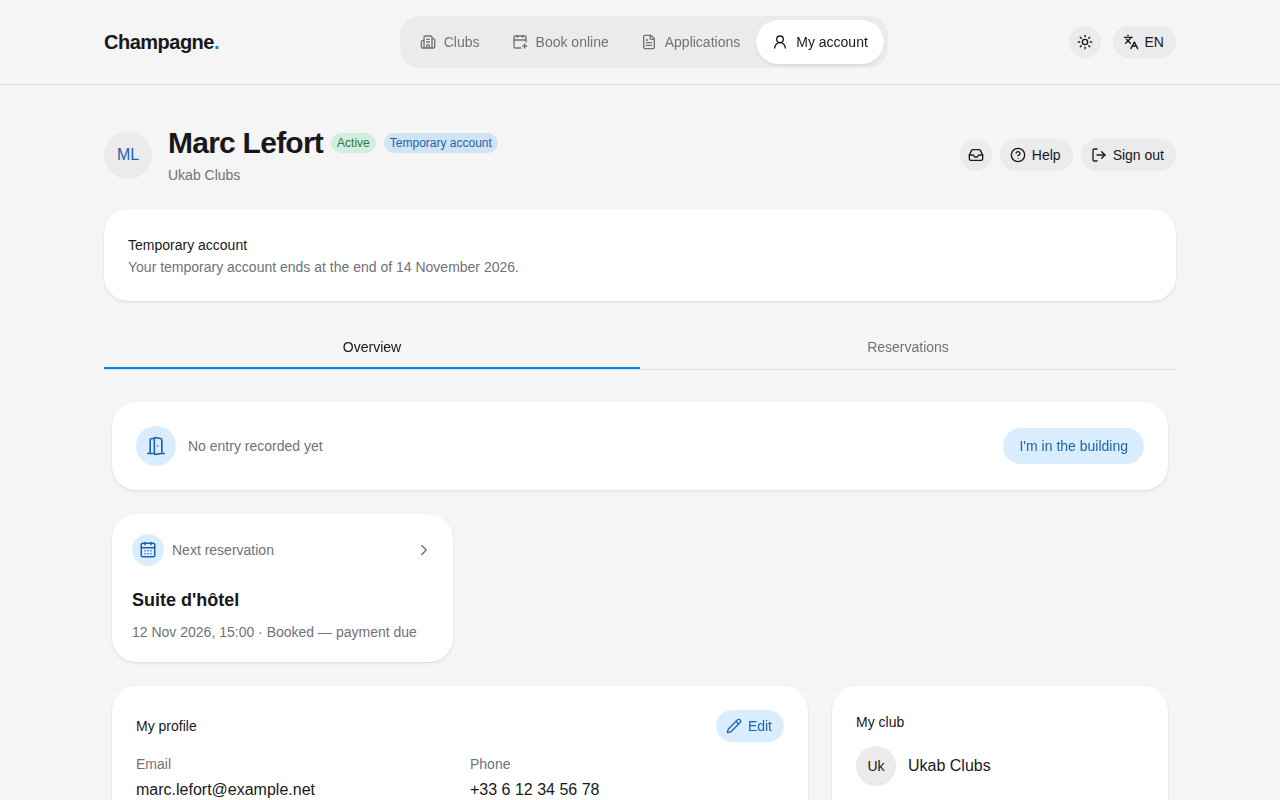
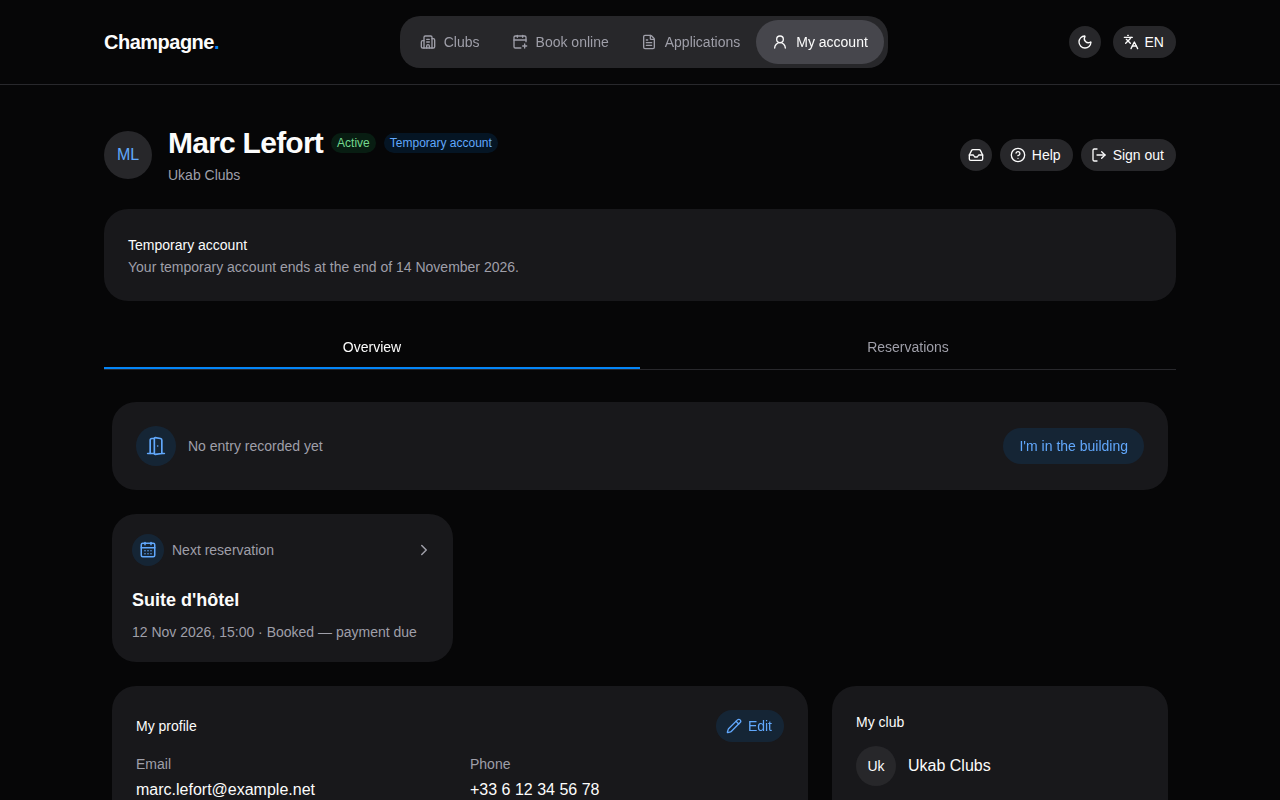
The temporary account of the visitor Marc Lefort, who booked the Penthouse for two nights.
The temporary account has two tabs: Overview and Reservations. Open your booking to see its price, the security deposit and the date until which you can cancel for free, then select Pay … by card. See Your reservations.
When online booking is closed
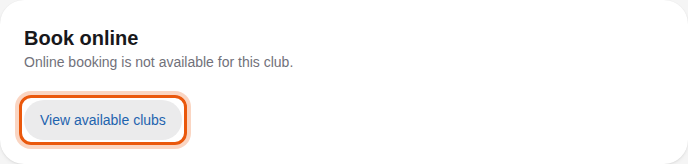
If the club does not take online bookings, its page says Online booking is not available for this club. Select View available clubs to go back to the list. If the page says Online booking is unavailable. Please try again., reload it a little later.