Manage members
Find a member, open their profile and update their details.
The People section lists every member and customer of your club. From there you can find someone, add a new person, invite a guest for a few hours and open a profile.
1. Find a person
In the left menu, select People. The list shows each person's Name, Email and Status. Select a column title to sort the list by that column.
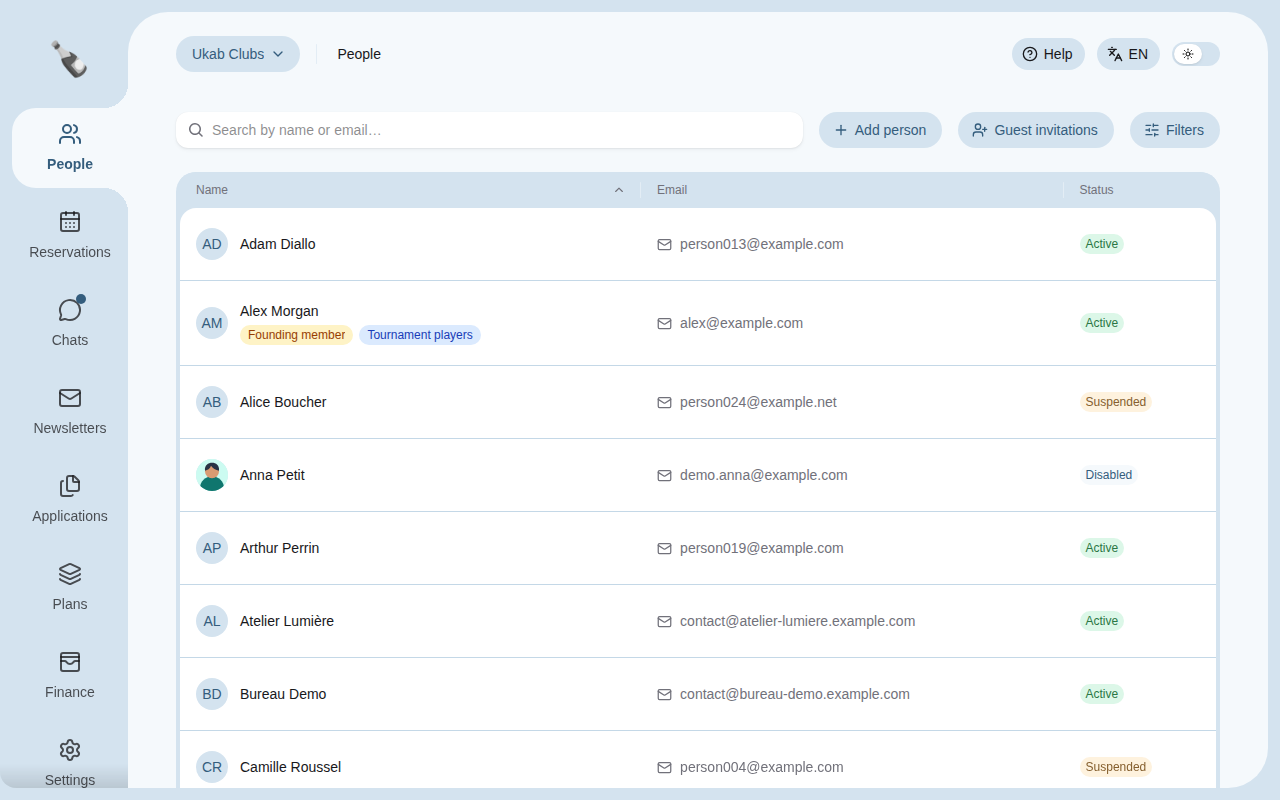
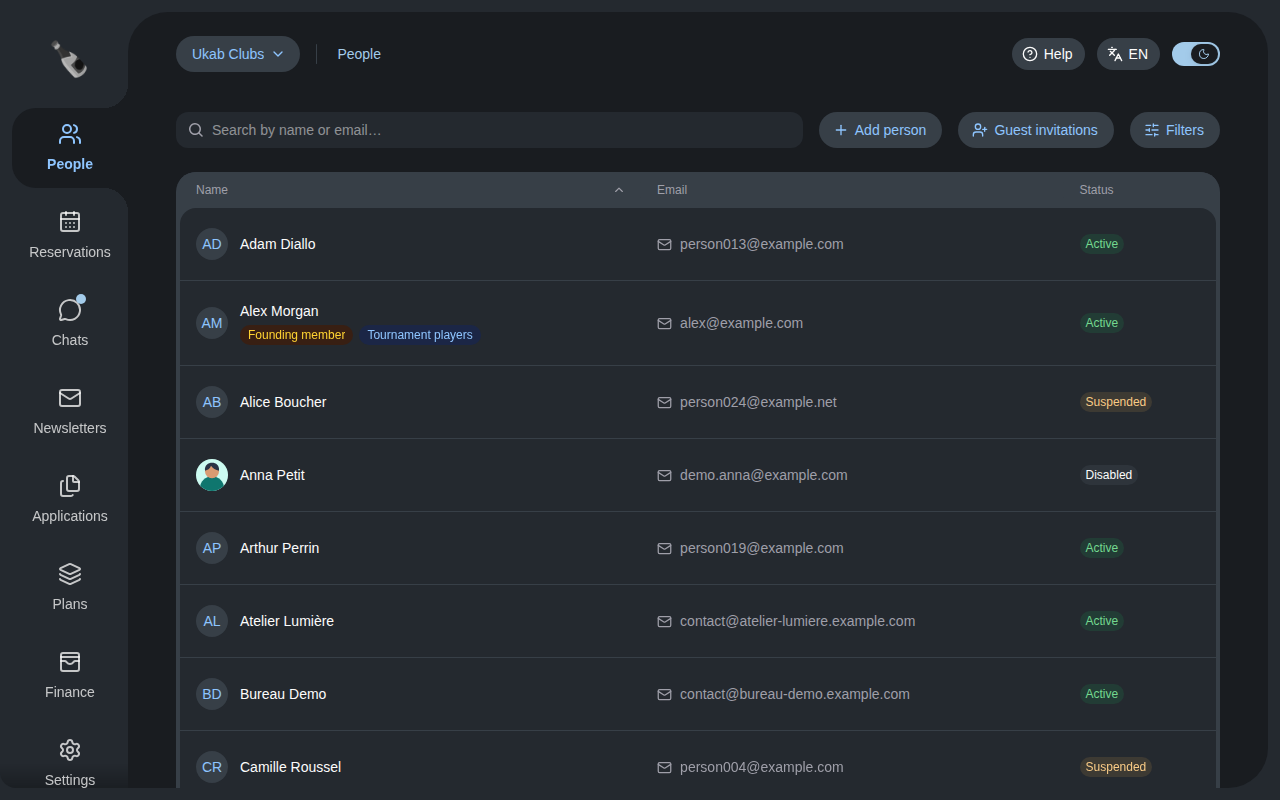
An active member who has not chosen a password yet shows Pending activation. Some people also show a second label next to their status:
| Label | Who it is |
|---|---|
| Guest account | A guest invited for a few hours, whose access is still running. |
| Former guest | A guest whose access has ended. |
| External customer | Someone who booked online without a membership. |
Type part of a name or email address in Search by name or email…. The list updates as you type. When nobody matches, select Clear search and filters to see everyone again.
To narrow the list further, select Filters, choose your criteria and select Apply filters. You can filter by:
| Filter | What it keeps |
|---|---|
| Status | Active, Suspended, Bookings blocked, Banned or Disabled members. |
| Membership | People with a Valid membership, Expired memberships only, Any membership record or No membership records. |
| Type | An Individual or a Company. |
| Gender | The gender recorded on the profile. |
| Minimum age, Maximum age | People within an age range. |
| Tags | People with at least one of the chosen tags, or Only people without any tag. |
| Attributes | The extra questions your club records, such as a preferred language or a profession. |
Tags and Attributes appear only when your club has tags or extra questions.
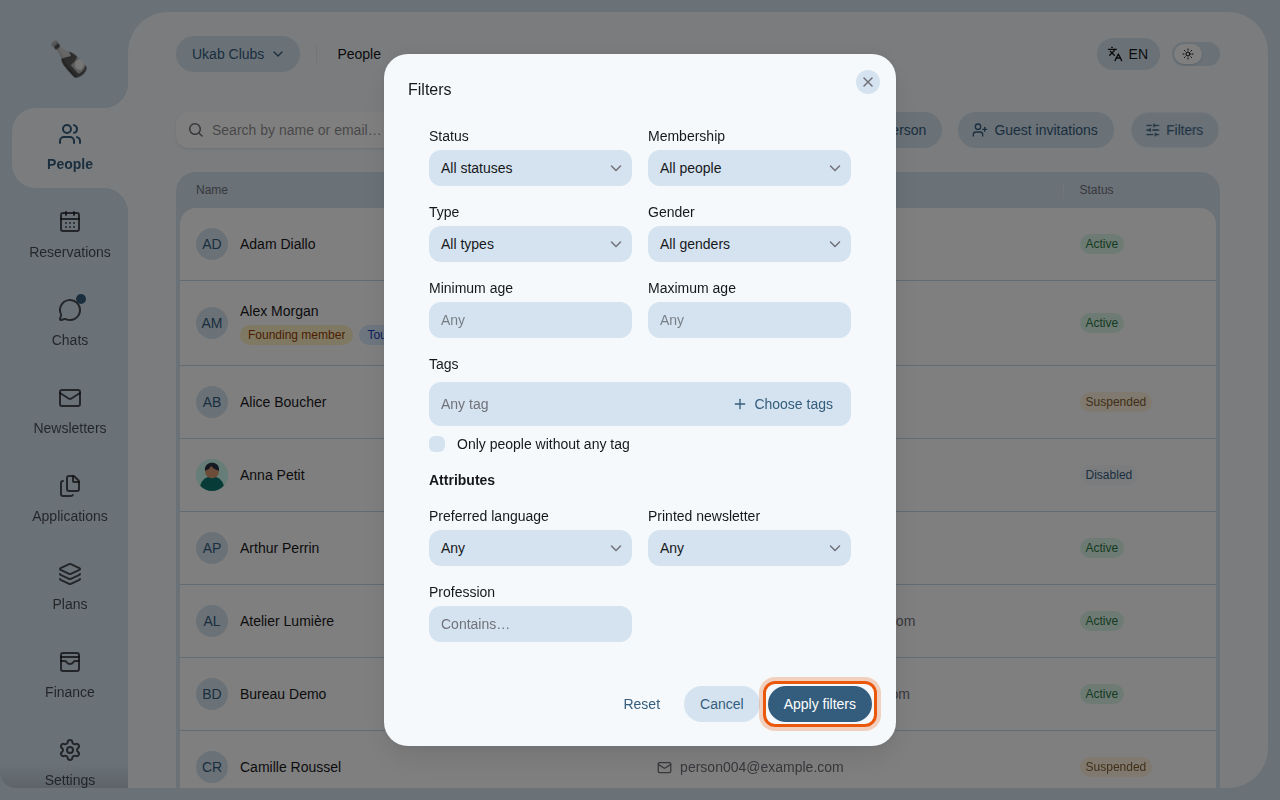
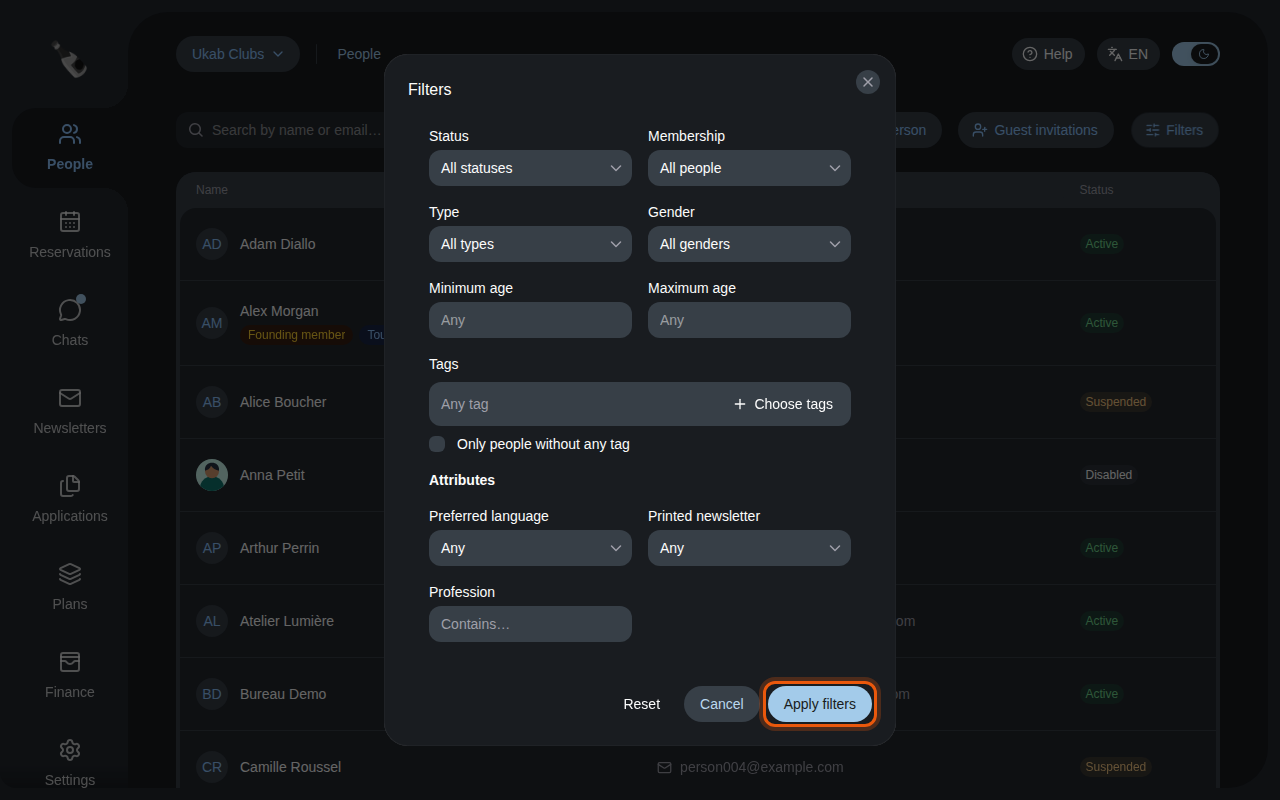
The filters of Ukab Clubs, including three example attributes. The control to use is outlined in orange.
The Filters button shows how many filters are active. Select Reset in the dialog, then Apply filters, to remove them all.
2. Add a person
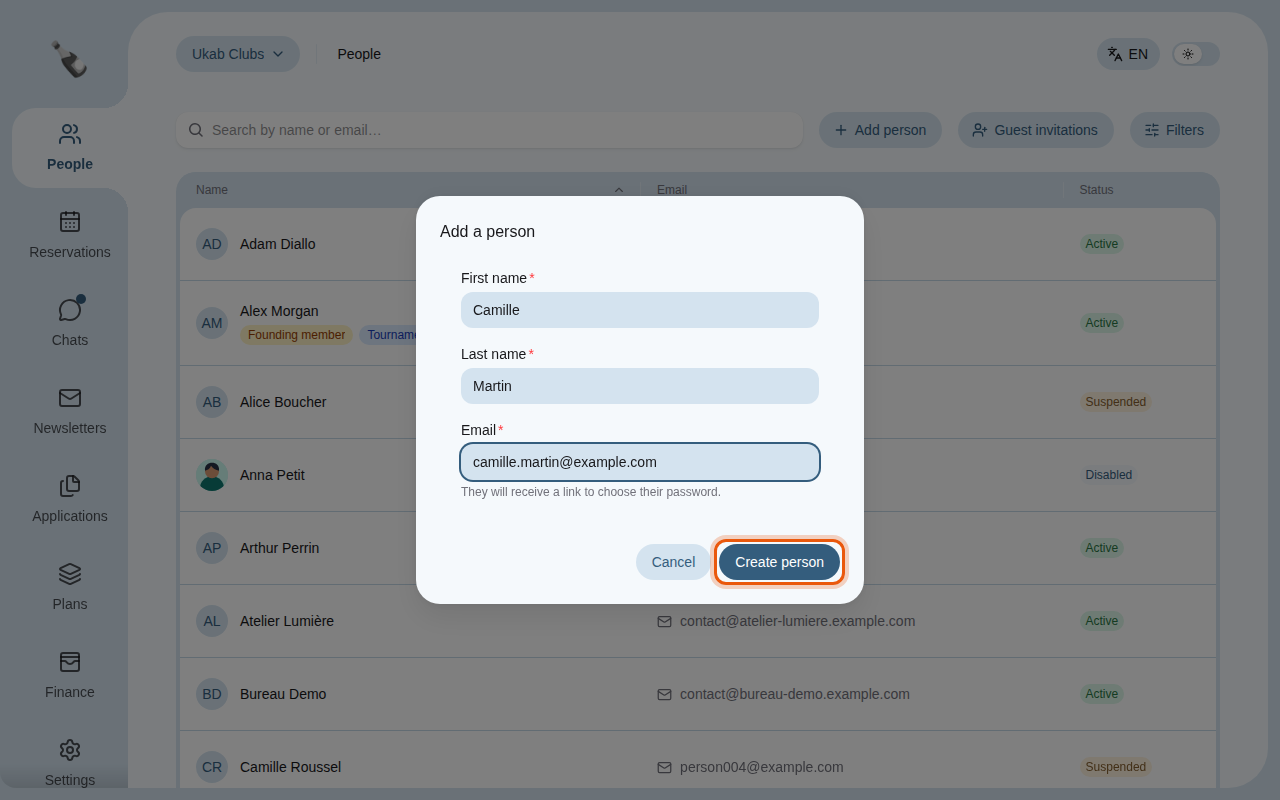
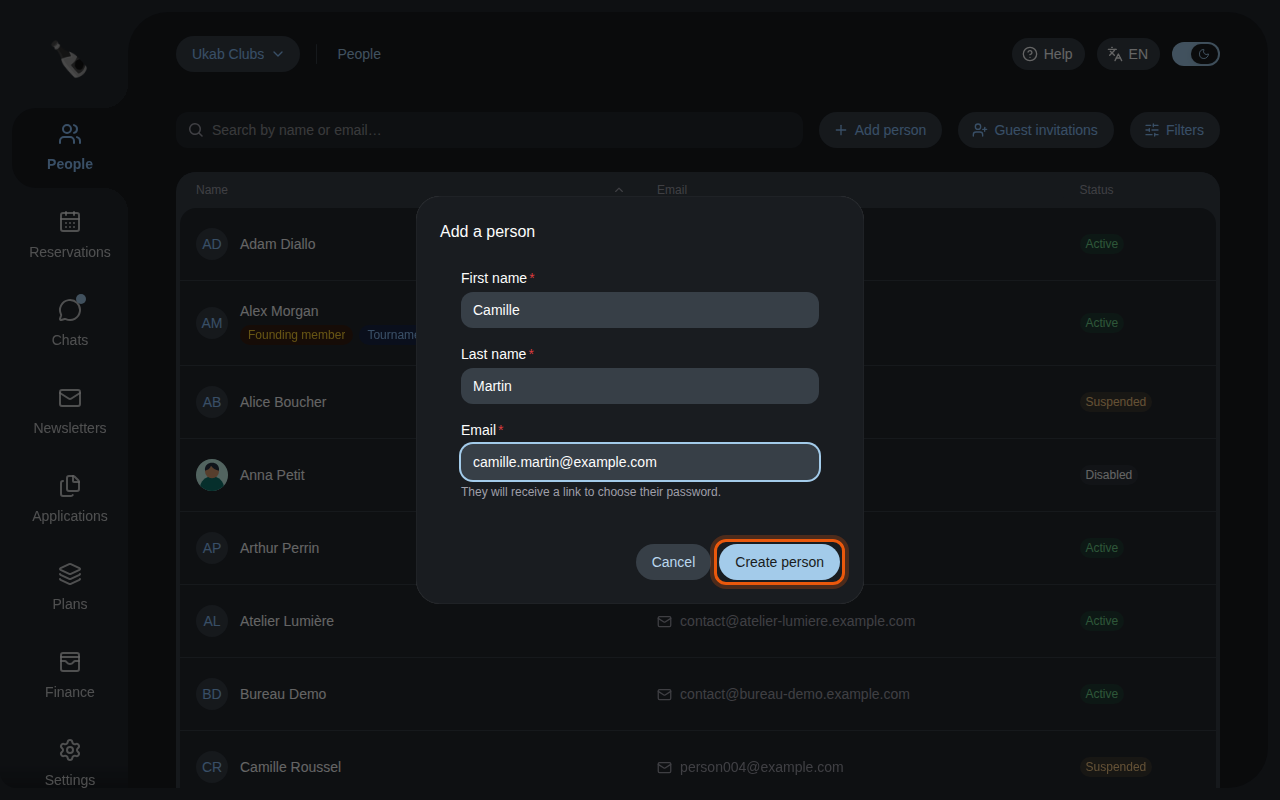
Select Add person, enter the First name, Last name and Email, then select Create person. The person receives an email with a link to choose their password.
3. Invite a guest
A guest is someone who gets a temporary account for a few hours, for example a visitor coming for an event. Select Guest invitations.
- Enter the Guest email.
- Choose the Access duration: 12 hours, 24 hours or 48 hours. The time starts when the guest accepts the invitation.
- Select Send invitation. The guest receives an email to accept it.
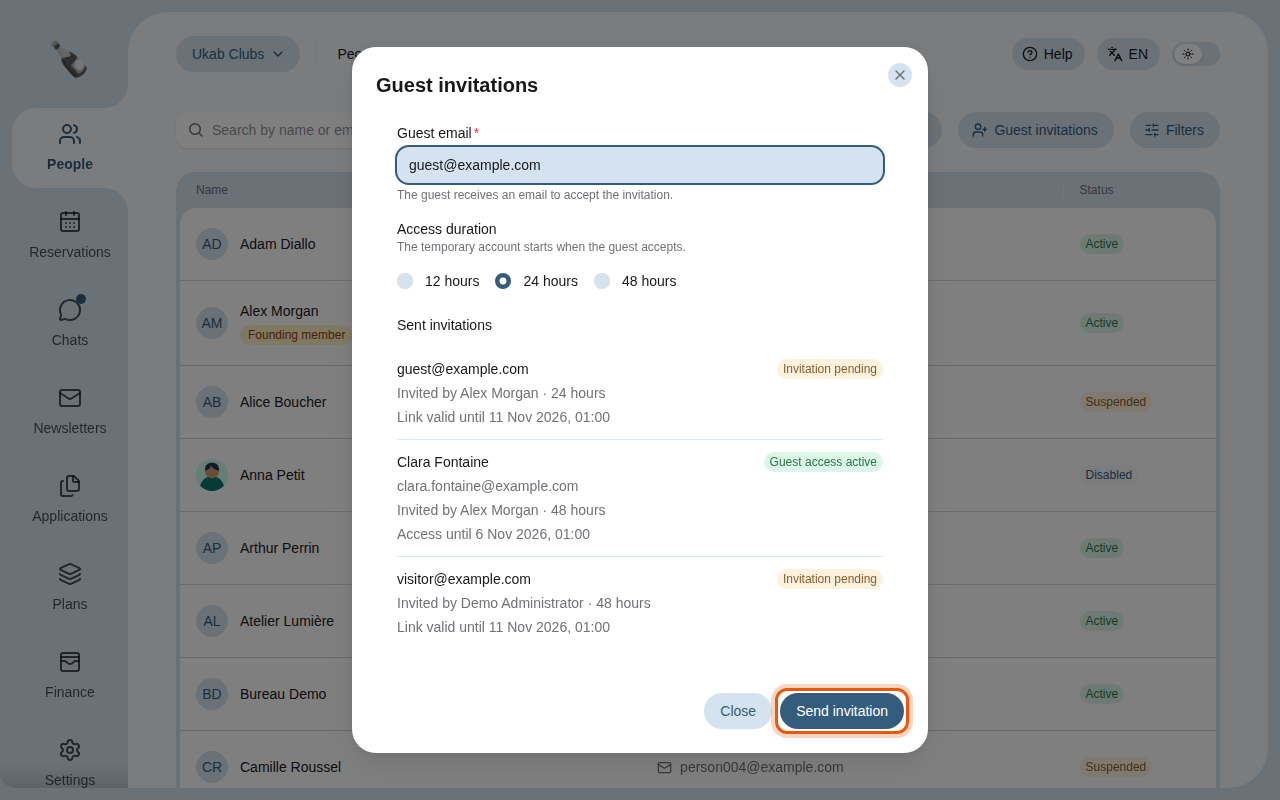
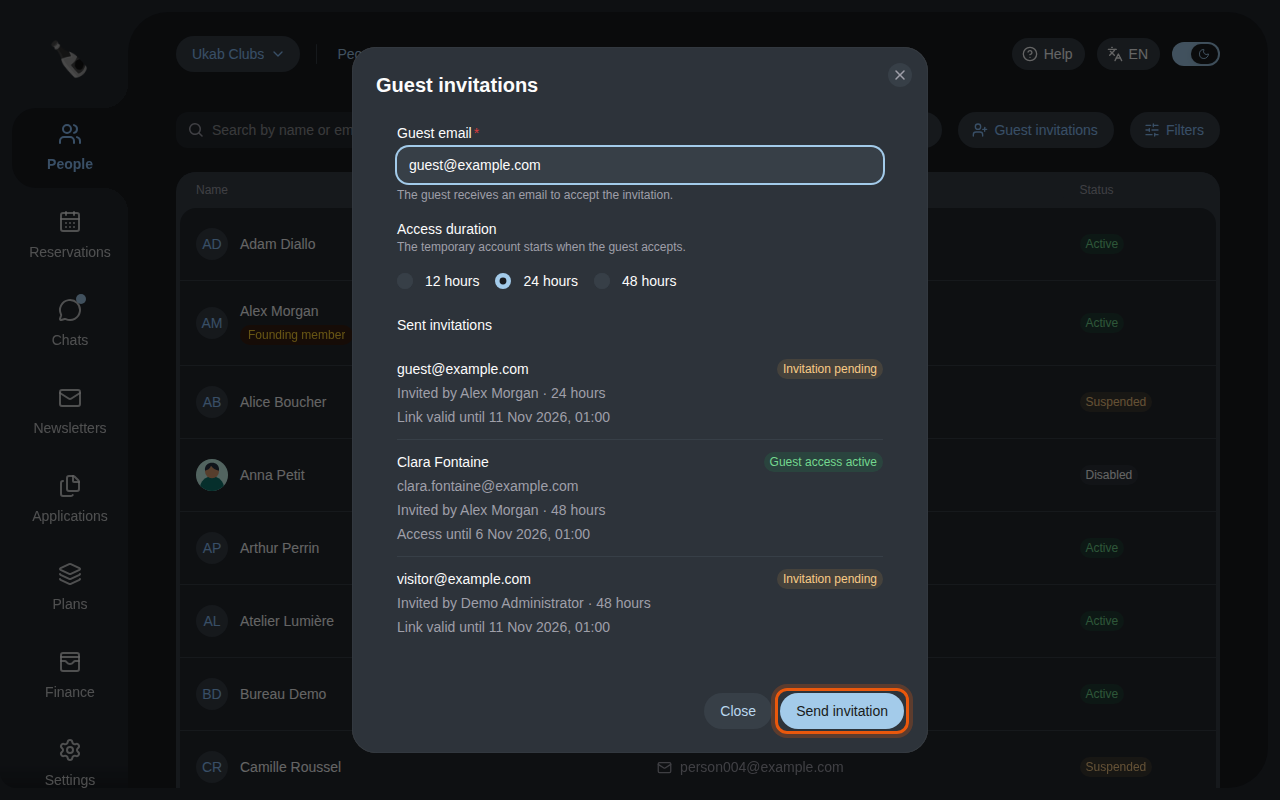
The Sent invitations list in the same dialog shows each invitation with its state: Invitation pending, Invitation expired, Guest access active or Guest access ended.
Missing buttons?
Add person and Guest invitations appear only if your role includes the Create and edit member profiles permission. Ask your administrator if you need them, and see Who sees what for the other permissions.
4. Open a member's profile
Select a person in the list to open their profile. There you update their details, plans, status and tags, send them a notification and follow their activity. See Work on a member's profile.
Tip
Select Back to People to return to the list with your search and filters unchanged.