AI tools for your floor plan
Create objects, adjust their shape and bring an existing plan into Champagne.
Use Champagne's AI tools to draw objects for your space and turn a plan image into an editable layout. You review the results, make adjustments and choose when to save.
Open your floor plan
Open Reservations, choose your club and reservation category, then open its floor-plan view. Choose Edit floor plan to work on the layout. Your account needs permission to edit the category, and Floor plan needs to be enabled in its settings.
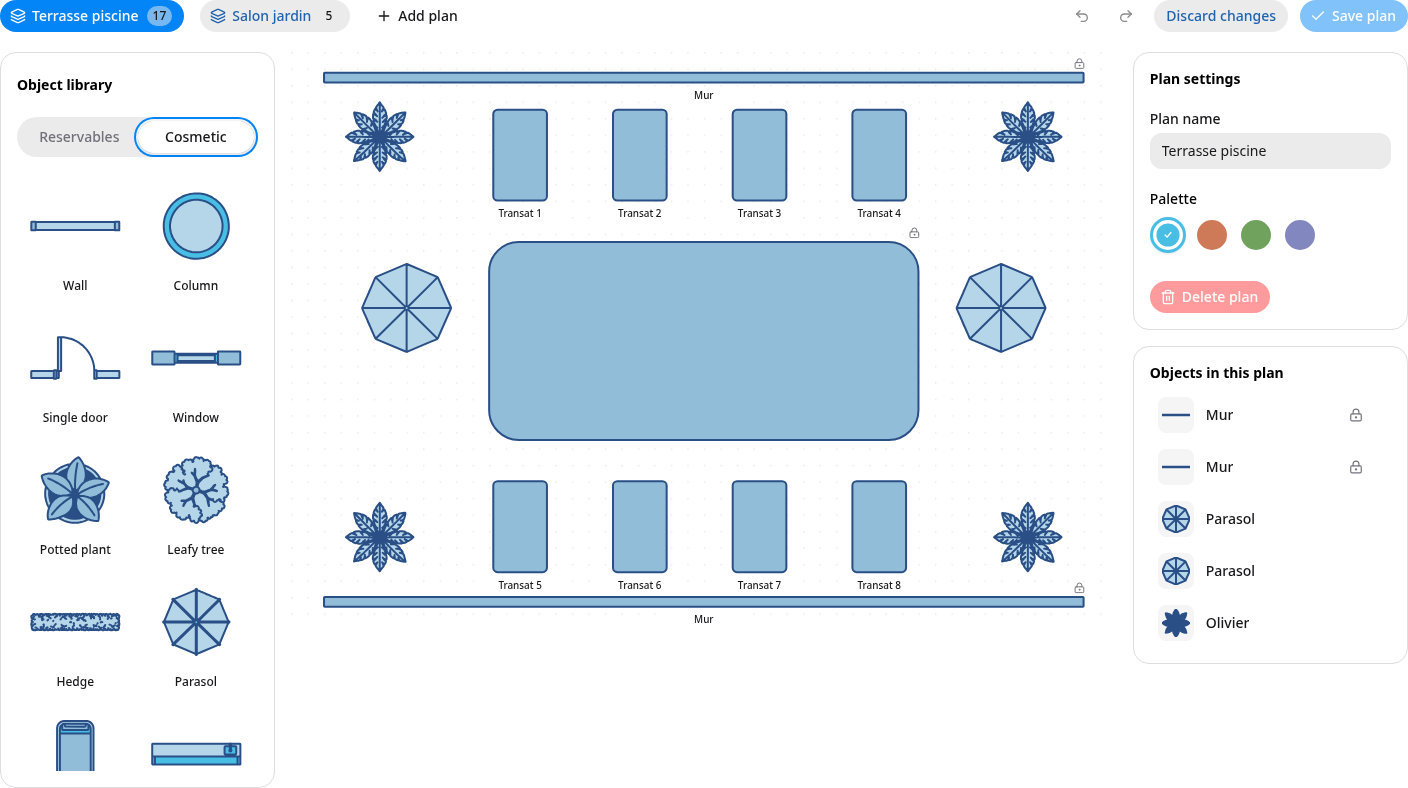
The editor with an example pool layout. Choose objects from the library, arrange them on the plan and select Save plan.
Choose what you want to do
- Create an object: enter a name such as "Lounger" or "Round table", then review the drawing.
- Adjust a drawing: draw a red guide over the preview to remove a feature, move an edge or reshape an object.
- Import a plan: upload an image and review the layout as Champagne rebuilds it with individual objects.
Loading diagram...
Diagram source
flowchart TD
  accTitle: Choose an AI floor-plan tool
  accDescr: Create an object from a name or import a plan from an image. Review the result, arrange the layout and save the plan.
  Start[Open your floor plan] --> Choice{What would you like to add?}
  Choice -->|One object| Name[Enter an object name]
  Name --> Preview[Review the drawing]
  Preview --> Brush[Adjust with Magic brush]
  Brush --> Preview
  Preview --> Create[Create the library object]
  Choice -->|An existing layout| Upload[Upload a plan image]
  Upload --> Review[Review the imported draft]
  Review --> Use[Choose Use draft]
  Create --> Arrange[Arrange your plan]
  Use --> Arrange
  Arrange --> Save[Choose Save plan]
Review and save
Create adds an accepted drawing to the object library. Select it from the library and place it on the canvas. Use draft brings an imported layout into the editor. Save plan saves your layout changes.
Check the position, size and appearance of each object. For bookable items, also check the assigned reservation resource. Decorative objects help describe your space.
Understand the drawing
Champagne converts generated artwork into shapes that stay crisp as you zoom and resize. Read How vectorizing works for a visual walkthrough of that conversion, including the Auto-lines setting.
For a look behind the controls, read How the AI works. It explains the prompts, agent tools and preview checks with a small tool-call example.
For optional controls and common problems, see Settings and help.
The screenshots in this guide show the actual interface with example data and sample artwork. Your drawings and processing times will vary.