Settings and help
Choose optional drawing settings and recover from common generation, editing and import problems.
The default settings are a starting point for creating objects. Open Expert mode in the Create object dialog when you want to change how the artwork is generated or how brush guides are interpreted.
Drawing settings
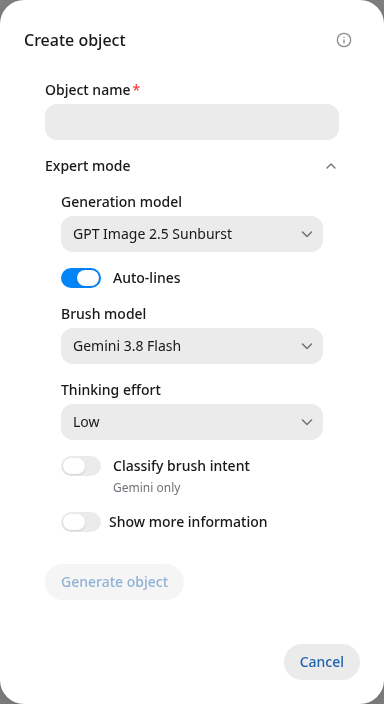
Open Expert mode before generating to choose settings and enable additional progress information.
| Setting | What it does |
|---|---|
| Generation model | Chooses the service that draws the initial object: GPT Image 2.5 Sunburst or Flare |
| Auto-lines | Controls how the drawing's dark outlines are converted into shapes |
| Brush model | Chooses the assistant that interprets your guide and adjusts the drawing |
| Thinking effort | Sets how much reasoning the brush assistant can use; higher settings may take longer |
| Classify brush intent | Adds a separate gesture-reading step before the brush assistant edits the drawing |
| Show more information | Shows extra progress and timing information for the request |
The initial UI settings use Sunburst, Auto-lines enabled, Gemini 3.8 Flash, Low thinking effort and Classify brush intent disabled. With classification disabled, the brush assistant reads the guide and edits in one workflow. Enabling classification adds a first assistant that chooses the type of change.
See How vectorizing works for the effect of Auto-lines on the finished drawing.
What happens to your instructions?
Your object name tells Champagne what to draw. The app adds instructions for the top-down view, colors, outlines and empty background. For Magic brush, your red guide tells it where and how to change the current object.
During an import, Champagne repeatedly looks at the image, places shapes, checks the result and corrects the draft. You see these activities through the progress labels and the updating preview.
Names, artwork and plan images are sent to the configured AI services for processing. Use images that your organization is comfortable sharing with those services.
While a request is running
Generation and editing can take several minutes. Keep the preview open while the request runs. Cancel generation, Cancel editing and Cancel import stop their respective requests.
If you want more detail, enable Show more information before starting the request. Progress may include drawing, vectorizing, editing and inspecting the result.
Common problems
The drawing looks different from what I expected
Use a more specific object name, then select Regenerate object. Describe the main shape and any essential feature. Use Magic brush when you want to keep the current drawing and change one part.
The brush changed the wrong part
Choose Undo edit. Draw a smaller, clearer guide and apply one change at a time. Use a compact back-and-forth scribble for removal and a smooth line for a new edge.
The lines or small details look rough
Try another generation with Auto-lines enabled. A simpler subject with fewer tiny details may give a clearer result. Review the object at its expected size on the plan as well as in the enlarged preview.
A request failed or timed out
Use the error notification's Retry action when offered. For a generation, you can also choose Generate object or Regenerate object again. If the message mentions a spending limit or an unavailable service, ask your administrator to check the AI service configuration.
An imported draft needs corrections
Read the review notes and compare walls, openings, furniture and spacing with the source image. Choose Use draft and make the adjustments in the editor. For a fresh attempt, upload a clearer or more tightly cropped image.
I want to leave without saving the layout
Use Discard changes in the floor-plan editor. A library object you already accepted with Create remains available in the library. Save the layout with Save plan when you are ready to keep the placements.