How vectorizing works
How Champagne turns a generated picture into clean shapes and outlines for your plan.
Vectorizing turns a picture into shapes described by lines and curves. Those shapes stay crisp when you zoom in, resize an object or place it on a large plan. They also give Magic brush individual parts to adjust.
Imagine tracing a tabletop onto transparent paper: follow its edge, fill the surface and draw its detail lines. Champagne performs a similar process automatically.
From picture to shapes
Loading diagram...
Diagram source
flowchart TD
  accTitle: How vectorizing works
  accDescr: Start with a generated picture, remove the background, separate surfaces and dark outlines, trace their shapes, then compare the result and display the preview.
  Picture[Generated picture] --> Clear[Remove the temporary background]
  Clear --> Crop[Trim empty margins and preserve gaps]
  Crop --> Separate[Separate colored surfaces and dark outlines]
  Separate --> Surfaces[Trace the edges of each surface]
  Separate --> Lines[Follow the outlines and detail lines]
  Surfaces --> Combine[Combine shapes into the drawing]
  Lines --> Combine
  Combine --> Check[Compare the traced drawing with the source]
  Check --> Preview[Show the finished preview]
1. Clear the background
The drawing service starts with a picture on a temporary green background. Champagne removes that background, leaving transparent space around the object and through genuine openings. It also trims empty margins.
This lets the object sit naturally on the floor-plan canvas. Solid surfaces, such as a tabletop or seat cushion, remain filled.
2. Find surfaces and outlines
Champagne separates the drawing into colored areas and dark lines. Nearby shades are grouped into a small set of plan colors. Small stray color patches are cleaned up, and the system repairs tiny transparent defects inside solid surfaces.
For a lounger, the seat and backrest become filled areas. The outer edge, arms and dividing lines provide the structure of the drawing.
3. Trace smooth shapes
The edges of each filled area are followed and converted into straight segments and curves. Shared boundaries help adjacent areas meet cleanly. The outline pass follows the middle of the original dark lines and fits a cleaner line through them.
This step aims to preserve the footprint and recognizable details while smoothing small pixel-level irregularities. You may notice that very small details become simpler in the preview.
4. Check the result
Champagne renders the traced drawing and compares it with the source. It checks whether important filled areas, outlines and details have survived the conversion. If the first tracing loses too much detail, it tries a more precise pass.
Your preview shows the accepted drawing. Check its appearance at the size you plan to use, especially narrow gaps, small features and joined edges.
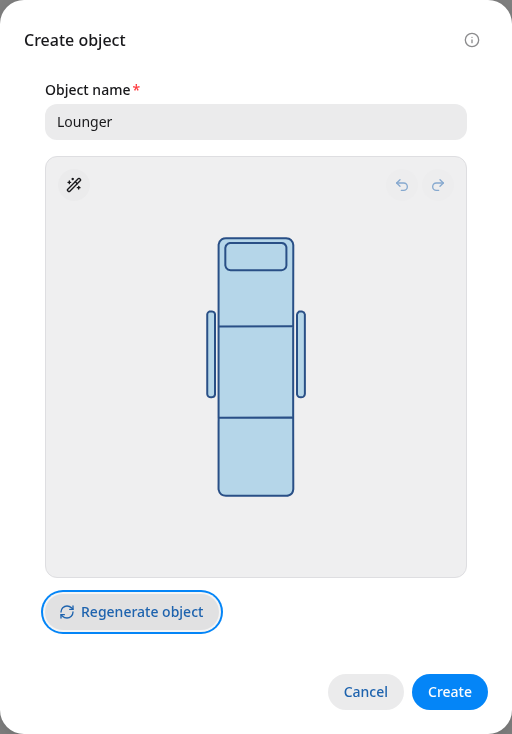
The example lounger combines filled surfaces with outlines and internal detail lines.
What Auto-lines changes
Open Expert mode in Create object to find Auto-lines. It starts enabled.
- Enabled: Champagne follows the center of dark marks and rebuilds them as consistent-width lines with rounded joins. This gives furniture and fixtures a cleaner floor-plan appearance.
- Disabled: Champagne traces the dark marks as filled shapes, preserving more of their original thickness and variation.
Choose the setting before generating. Changing it while a preview is open applies to the next generation. Generate another version to compare the appearance.
Results you may see
A cleaner, simpler drawing. Small color variations and rough edges can merge into smoother surfaces and lines. Clear silhouettes and larger details usually convert more reliably.
A generation that needs another attempt. If conversion cannot preserve enough detail within the drawing limits, the request can fail. Try a simpler object name or change Auto-lines and generate again.
A custom imported object with image detail. Some complex reference crops are kept as an image inside the object when conversion reaches its detail or size limit. You can position, rotate and resize that object. Fine details can look softer as you zoom, and detailed brush editing may require a freshly generated vector version.
For a whole imported plan, Champagne builds most of the layout from its built-in shapes. Vectorizing is used when it creates custom artwork for an unusual detail.