# Your reservations and availability
Check the reservations made with you and set the hours you can work.
Source: https://docs.champagne.dev-ukab.fr/en/guide/staff/schedule-and-availability
Coaches and other staff who take bookings in their own name have two personal
sections. **My reservations** lists the reservations made with you. **My availability**
holds the hours you can work, so members can only book you during those hours.
## 1. Check your reservations [#1-check-your-reservations]
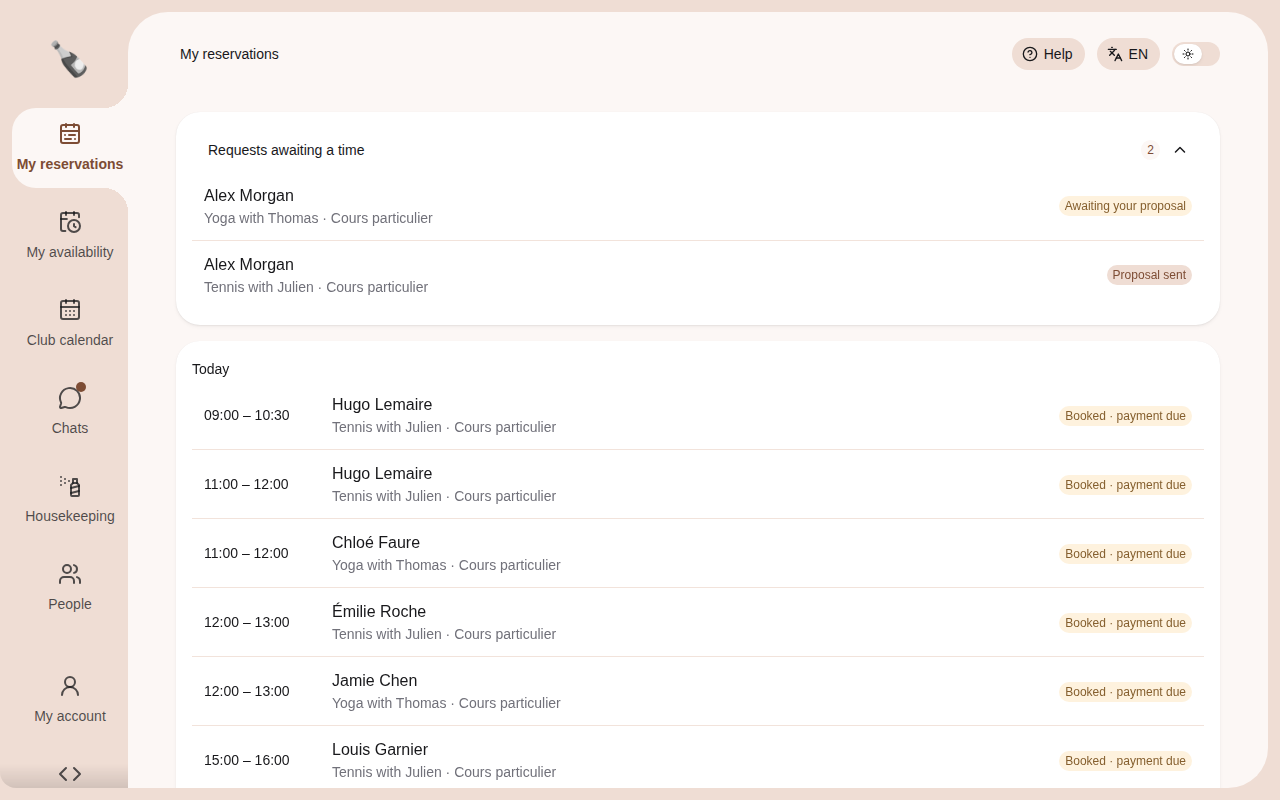
Open **My reservations** in the left menu. Your upcoming reservations are grouped by day,
starting with **Today** and **Tomorrow**. Each line shows the time, the customer's name,
what they booked and the status of the booking.
The reservations of the example coach account Sport coach at Ukab Clubs.
| Status | What it means |
| ------------------------ | ---------------------------------------------------- |
| **Pending** | The booking waits for the club's decision. |
| **Booked · payment due** | The place is held and the customer still has to pay. |
| **Confirmed** | The booking is confirmed. |
| **Completed** | The booking is over. |
| **Canceled** | The booking was canceled. |
Select a line to open the reservation. Select **Load more** at the bottom to see
bookings further ahead.
> When a member asks for a session without choosing a time, the request appears at the top under
> **Requests awaiting a time**. **Awaiting your proposal** means you need to suggest a time: open
> the request and select **Propose a time**. **Proposal sent** means the member has your proposal
> and has not answered yet. See [Propose a time for a request](/en/guide/staff/reservation-requests).
## 2. See your hours for the week [#2-see-your-hours-for-the-week]
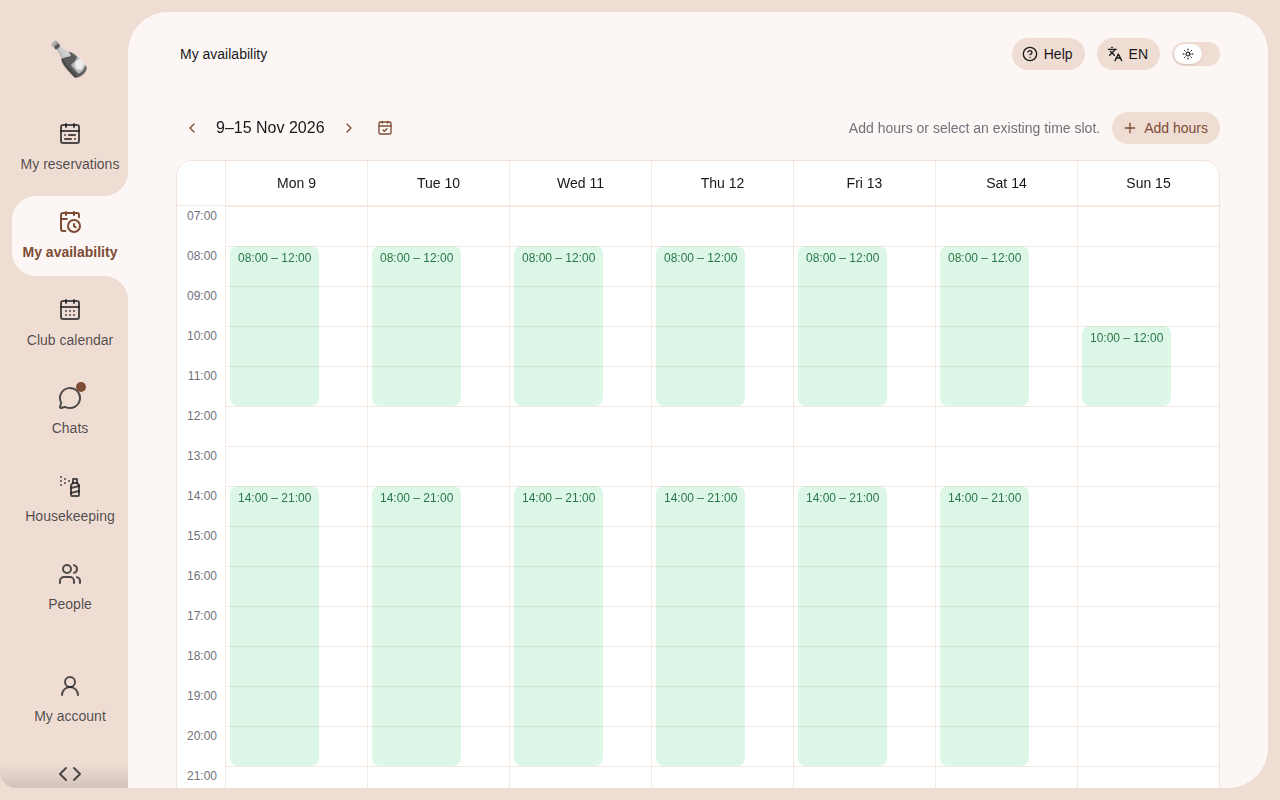
Open **My availability**. The grid shows one week, with your working hours in green.
A block marked **Off** is time off for that date. Use the arrows next to the dates to
change week, and the calendar icon to come back to the current week.
A week of working hours of the example coach account Sport coach.
## 3. Add or remove hours [#3-add-or-remove-hours]
To add hours, select **Add hours**, or drag down an empty part of a day in the grid.
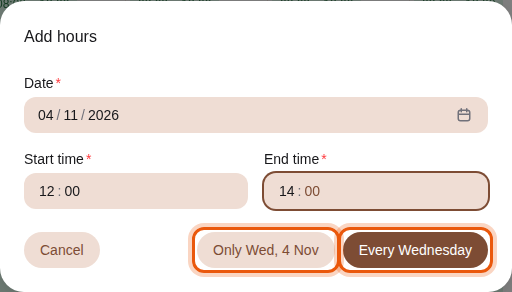
Enter the **Date**, **Start time** and **End time**, then choose how far the change goes:
* **Only** followed by the date changes that single day.
* **Every** followed by the weekday changes that day in every week.
Adding the example hours 12:00 to 14:00 on the current day. The controls to use are outlined in
orange.
To remove hours, select a green block. The **Remove hours** window opens with its
times filled in. Shorten the times to remove only part of the block, then choose
**Only** that date or, for weekly hours, **Every** that weekday. Removing hours for a single date adds
time off for that day.
To cancel time off, select the **Off** block and confirm **Remove time off?**. Your
usual hours apply again on that date.
> The club refuses a booking with you outside your available hours, and shows that you are not
> available at this time.