# Manage members
Find a member, open their profile and update their details.
Source: https://docs.champagne.dev-ukab.fr/en/guide/staff/people
The **People** section lists every member and customer of your club. From there you can
find someone, add a new person, invite a guest for a few hours and open a profile.
## 1. Find a person [#1-find-a-person]
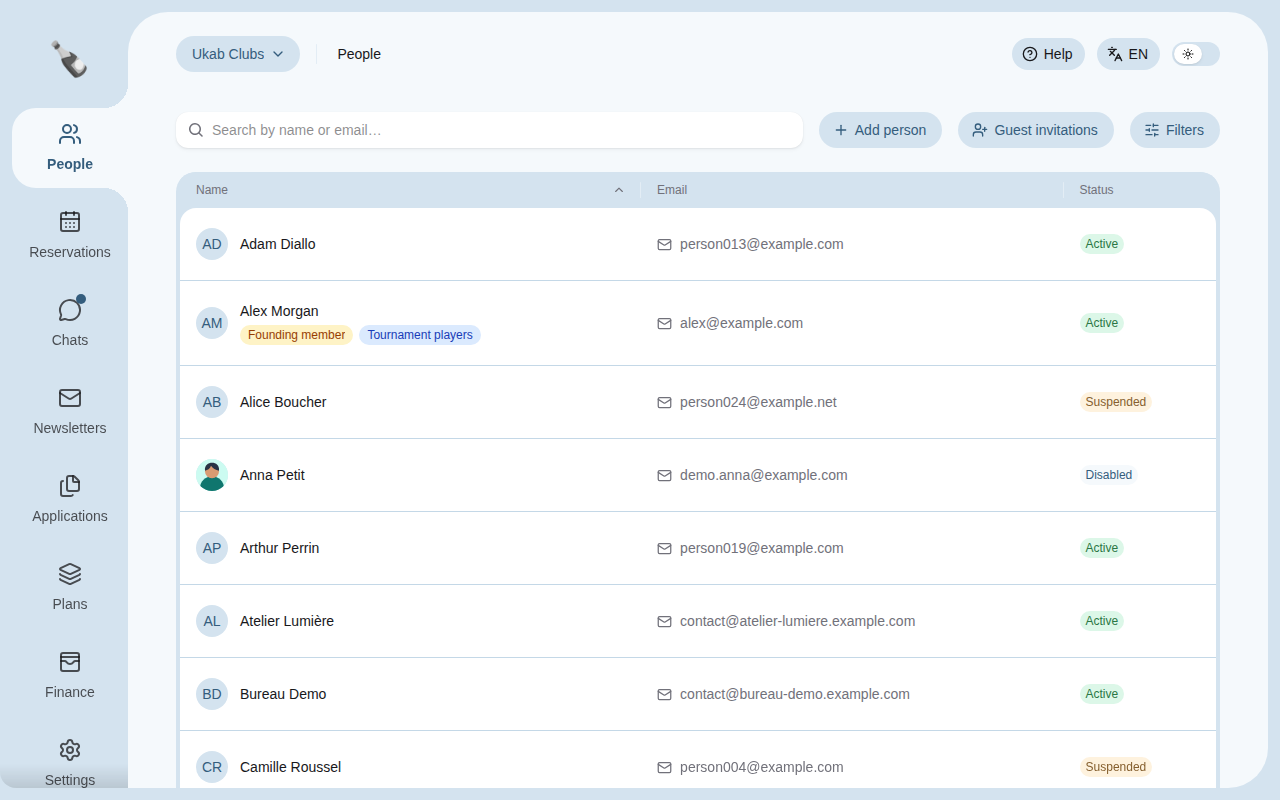
In the left menu, select **People**. The list shows each person's **Name**, **Email** and
**Status**. Select a column title to sort the list by that column.
The members of the example club Ukab Clubs, sorted by name.
An active member who has not chosen a password yet shows **Pending activation**. Some people
also show a second label next to their status:
| Label | Who it is |
| --------------------- | --------------------------------------------------------------- |
| **Guest account** | A guest invited for a few hours, whose access is still running. |
| **Former guest** | A guest whose access has ended. |
| **External customer** | Someone who booked online without a membership. |
Type part of a name or email address in **Search by name or email…**. The list updates
as you type. When nobody matches, select **Clear search and filters** to see everyone again.
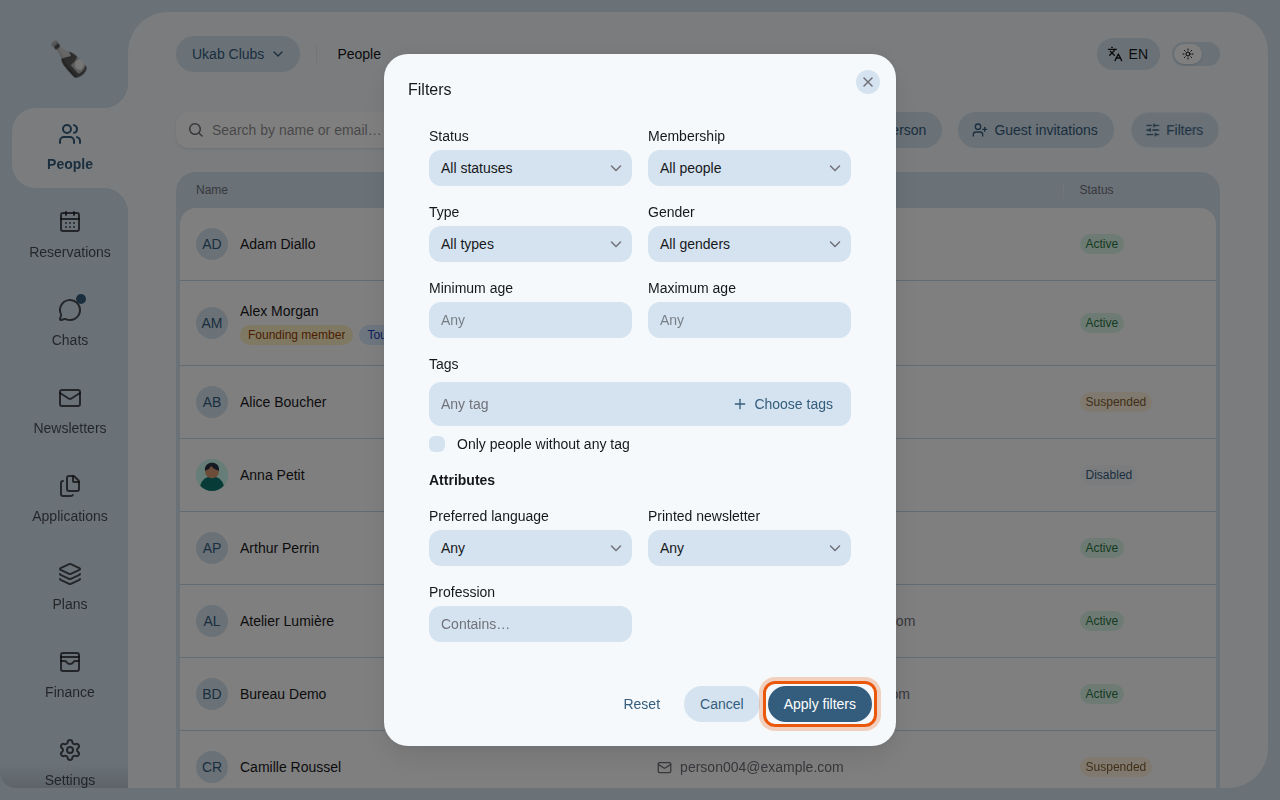
To narrow the list further, select **Filters**, choose your criteria and select **Apply
filters**. You can filter by:
| Filter | What it keeps |
| -------------------------------- | ------------------------------------------------------------------------------------------------------------------------- |
| **Status** | **Active**, **Suspended**, **Bookings blocked**, **Banned** or **Disabled** members. |
| **Membership** | People with a **Valid membership**, **Expired memberships only**, **Any membership record** or **No membership records**. |
| **Type** | An **Individual** or a **Company**. |
| **Gender** | The gender recorded on the profile. |
| **Minimum age**, **Maximum age** | People within an age range. |
| **Tags** | People with at least one of the chosen tags, or **Only people without any tag**. |
| **Attributes** | The extra questions your club records, such as a preferred language or a profession. |
**Tags** and **Attributes** appear only when your club has tags or extra questions.
The filters of Ukab Clubs, including three example attributes. The control to use is outlined in
orange.
The **Filters** button shows how many filters are active. Select **Reset** in the dialog, then
**Apply filters**, to remove them all.
## 2. Add a person [#2-add-a-person]
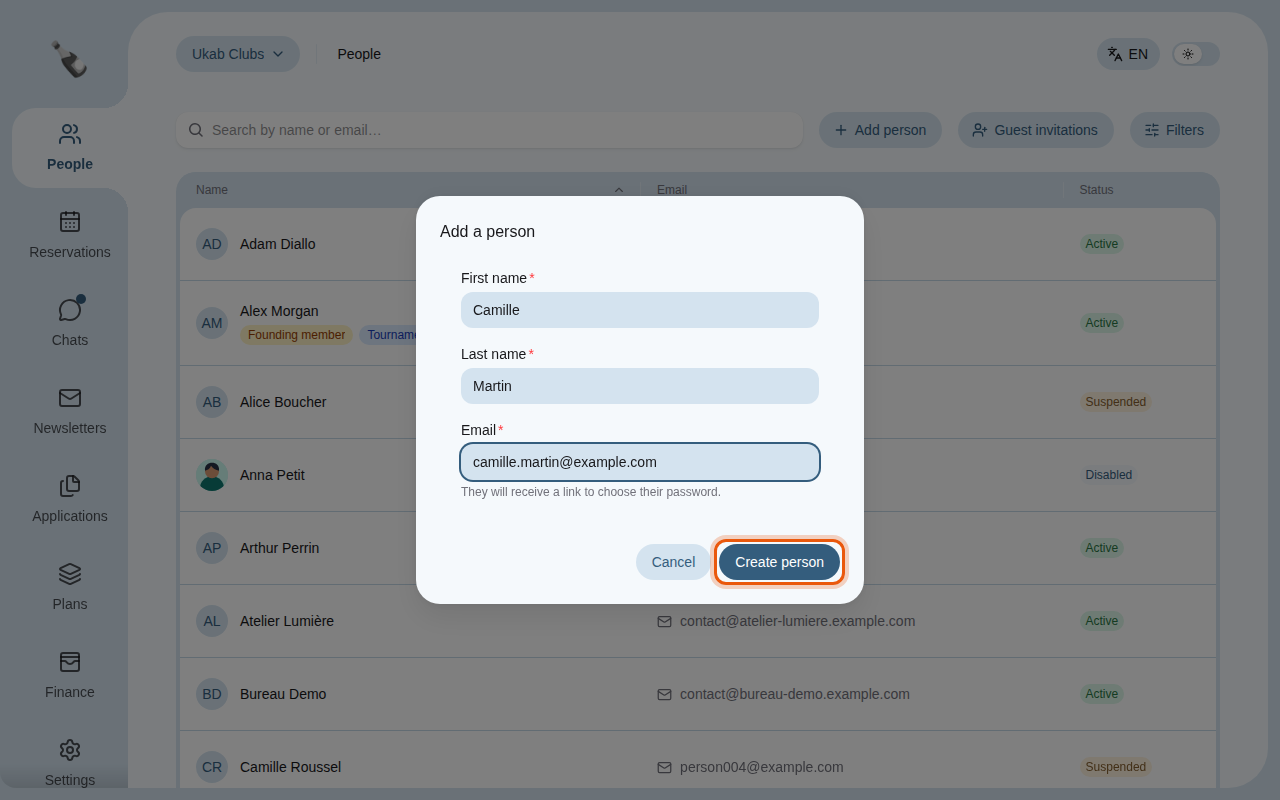
Select **Add person**, enter the **First name**, **Last name** and **Email**, then select
**Create person**. The person receives an email with a link to choose their password.
Adding an example member, Camille Martin.
## 3. Invite a guest [#3-invite-a-guest]
A guest is someone who gets a temporary account for a few hours, for example a visitor
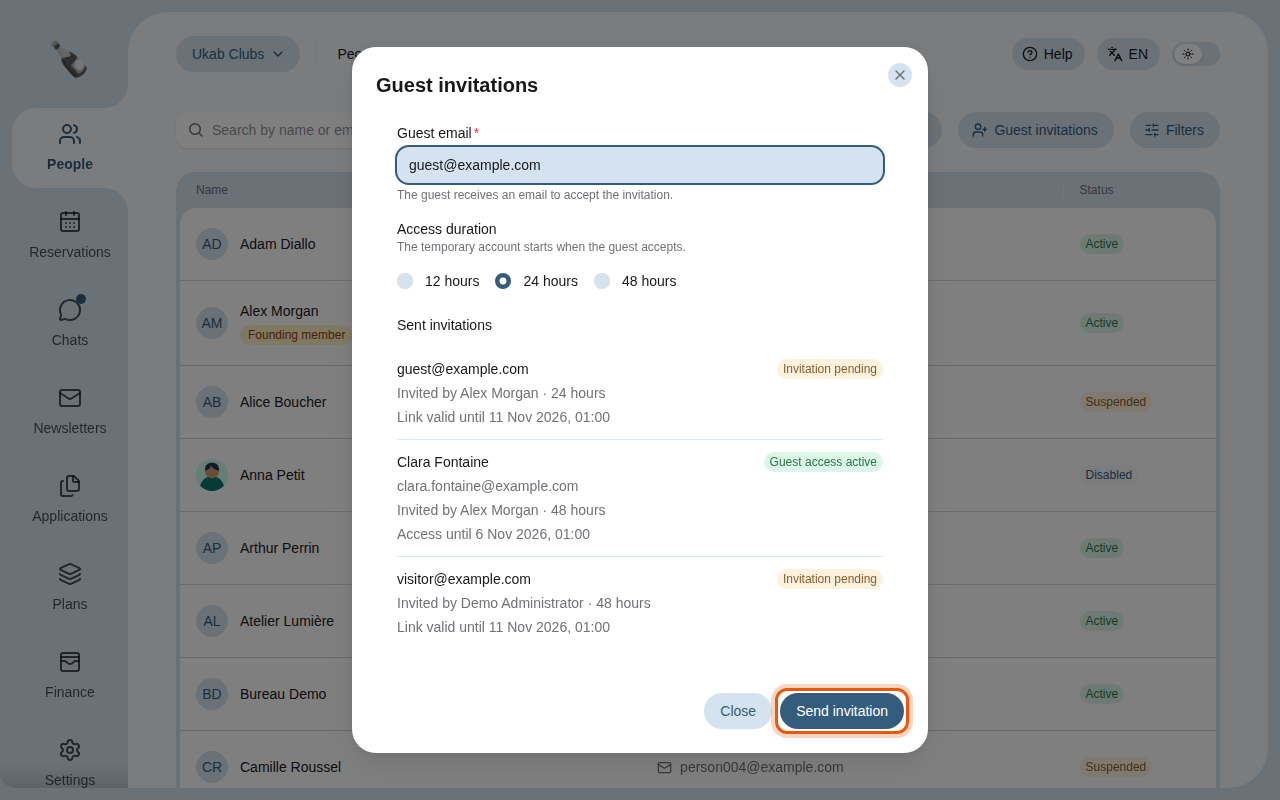
coming for an event. Select **Guest invitations**.
1. Enter the **Guest email**.
2. Choose the **Access duration**: **12 hours**, **24 hours** or **48 hours**. The time
starts when the guest accepts the invitation.
3. Select **Send invitation**. The guest receives an email to accept it.
Inviting an example guest for 24 hours.
The **Sent invitations** list in the same dialog shows each invitation with its state:
**Invitation pending**, **Invitation expired**, **Guest access active** or **Guest access
ended**.
> **Add person** and **Guest invitations** appear only if your [role](/en/guide#role) includes the
> **Create and edit member profiles** permission. Ask your administrator if you need them, and see
> [Who sees what](/en/guide/admins/who-sees-what) for the other permissions.
## 4. Open a member's profile [#4-open-a-members-profile]
Select a person in the list to open their profile. There you update their details, [plans](/en/guide#plan),
status and tags, send them a notification and follow their activity. See
[Work on a member's profile](/en/guide/staff/member-profile).
> Select a tag in the People list to show only the people who have it.
Select **Back to People** to return to the list with your search and filters unchanged.