# Tags, notes and notifications
Label a member with tags, keep an internal note about them and send them a notification.
Source: https://docs.champagne.dev-ukab.fr/en/guide/staff/member-tags-and-notifications
From a member's profile you can label them with tags, write a note for your team and send them a
short notification. This page shows each of these tasks. To open a profile, see [Work on a
member's profile](/en/guide/staff/member-profile).
## 1. Label a member with tags [#1-label-a-member-with-tags]
Tags are labels only your team sees, such as "Juniors" or "Tournament players". Use them to find
people in the list and to choose the recipients of a
[newsletter](/en/guide/staff/newsletters).
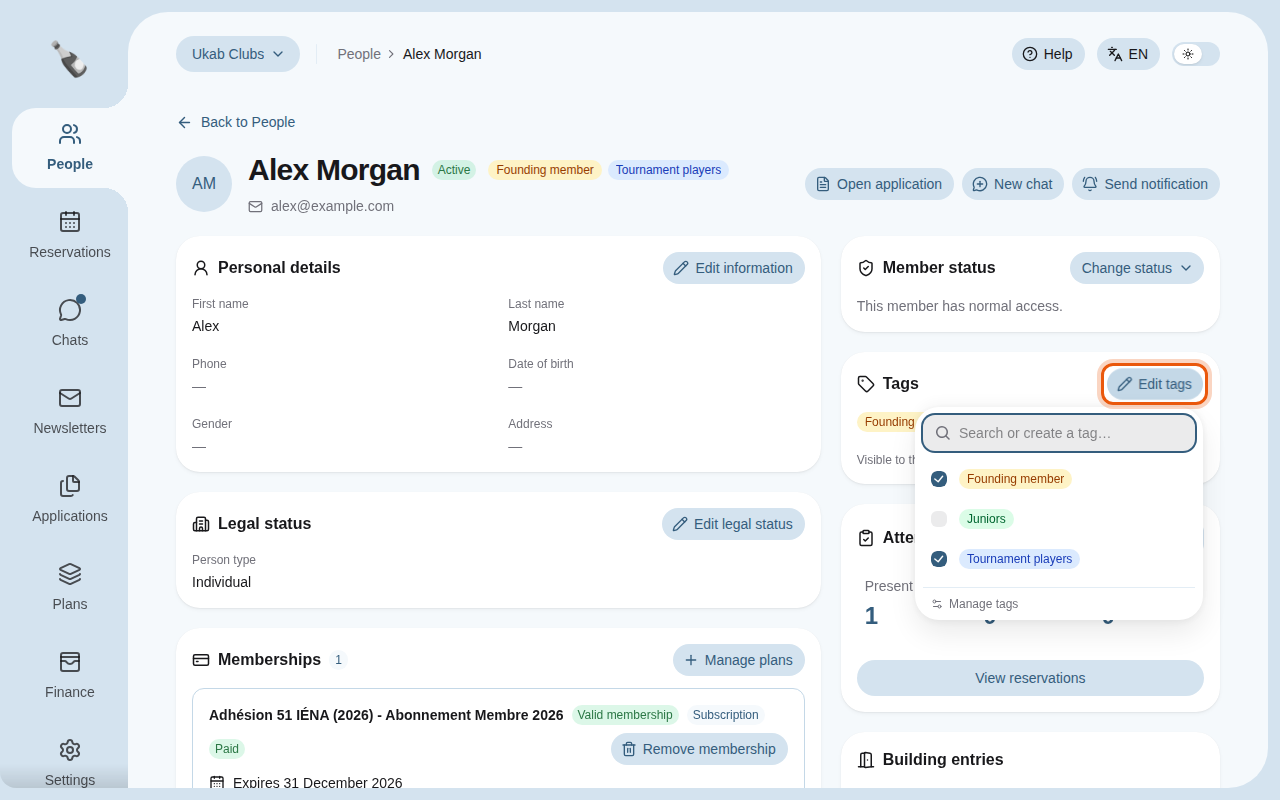
Select **Edit tags** in the **Tags** card. Tick a tag to add it, untick it to remove it. Each
change is saved at once. You can also select the cross on a tag in the card to remove it.
The three example tags of Ukab Clubs, two of them on Alex Morgan. The control to use is outlined
in orange.
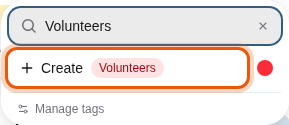
To create a tag, type its name in **Search or create a tag…**. When no tag has this name, select
**Create**. The dot next to it sets the **Tag color**; choose it before you create the tag. The
new tag is added to the person straight away.
Creating an example tag, Volunteers.
To delete a tag from the whole club, point at it in the menu and select the bin icon, then
**Delete**. The tag is removed from every person carrying it.
**Manage tags** at the bottom of the menu opens the member settings, where an administrator
renames and recolors tags. **Back to** followed by the person's name returns to their profile.
It appears only if you can open **Settings**. See
[Club settings](/en/guide/admins/club-settings).
## 2. Keep a note [#2-keep-a-note]
The **Note** card holds an internal note about the person, for example a habit worth knowing at
reception. Members do not see it.
1. Select **Edit note** in the **Note** card.
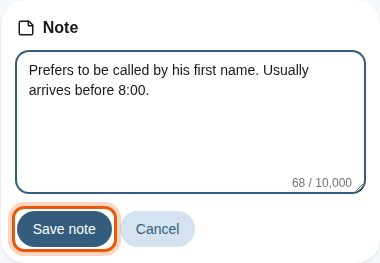
2. Type the note, up to 10,000 characters. The counter under the field shows how many you used.
3. Select **Save note**, or **Cancel** to leave the note as it was.
Writing an example note on Alex Morgan's profile.
**Edit note** appears only when your [role](/en/guide#role) has the **Edit staff notes** permission.
## 3. Send a notification [#3-send-a-notification]
Use a notification for short practical news, for example a package waiting at reception.
1. Select **Send notification** at the top of the profile.
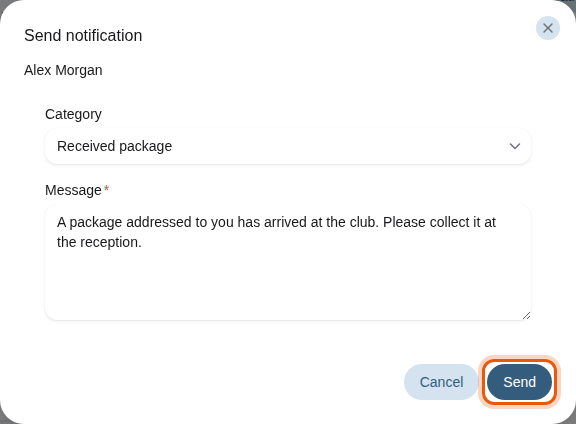
2. Choose a **Category**: **Received package**, **Lost object** or **Other**. The first two fill
in a ready-made **Message** that you can change. **Other** starts empty.
3. Select **Send**.
A Received package notification for Alex Morgan, with its ready-made message.
The member receives it in the app and by email, according to their **Club messages**
notification settings. See [Notifications](/en/guide/members/notifications).