# Change a member's status
Suspend a member, block their bookings, ban or disable them, and give access back.
Source: https://docs.champagne.dev-ukab.fr/en/guide/staff/member-status
A member's status decides whether they can come to the club and book. This page shows how to
change it from the **Member status** card of the profile, how to plan a change for later and how
to give access back. A status can also change on its own after no-shows, when your club set
[no-show sanctions](/en/guide/admins/club-settings#3-set-the-reservation-rules). To open a profile, see [Work on a member's
profile](/en/guide/staff/member-profile).
| Status | What the member can do |
| -------------------- | ----------------------------------------------------------------------- |
| **Active** | Everything: normal access. |
| **Suspended** | Nothing during the chosen period. Access comes back after the end date. |
| **Bookings blocked** | Come to the club, without making reservations during the chosen period. |
| **Banned** | Nothing, until your team lifts the ban. |
| **Disabled** | Nothing, until your team re-enables the account. |
## 1. Change the status of an active member [#1-change-the-status-of-an-active-member]
1. In the **Member status** card, select **Change status**.
2. Choose **Suspend**, **Block bookings**, **Disable** or **Ban**.
3. Fill in the window:
* **Suspend** and **Block bookings** ask for a start date and an end date. The start date
is today or later. You may add a **Reason (optional)**.
* **Ban** needs a **Reason**. The ban starts immediately.
* **Disable** only asks you to confirm.
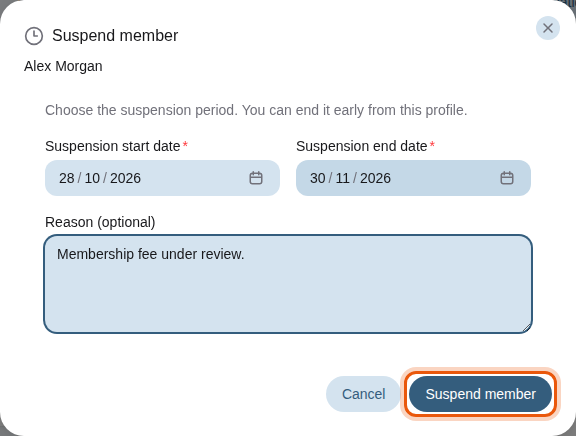
4. Select the button at the bottom of the window, for example **Suspend member**.
Suspending the example member Alex Morgan until the end of November. The control to use is
outlined in orange.
## 2. Plan a suspension or a booking block [#2-plan-a-suspension-or-a-booking-block]
When the start date is in the future, the card says **Suspension scheduled from** or **Booking
block scheduled from** with the dates. The member keeps normal access until then. Select **Cancel
scheduled suspension** or **Cancel scheduled booking block** to call it off.
## 3. Give access back [#3-give-access-back]
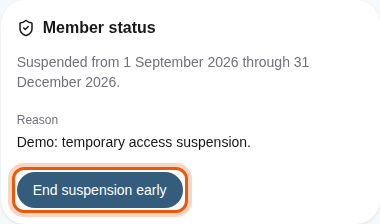
While a status is in force, the card shows its dates or its reason, and one button to end it at
once:
| Status | Button |
| -------------------- | --------------------------- |
| **Suspended** | **End suspension early** |
| **Bookings blocked** | **End booking block early** |
| **Banned** | **Lift ban** |
| **Disabled** | **Re-enable member** |
Selecting the button makes the member **Active** again straight away, without a confirmation
window.
The status of the example member Camille Roussel, suspended until the end of the year.
Every status change is kept in the **Status history** of the profile. See [Read the history and
signed documents](/en/guide/staff/member-profile#4-read-the-history-and-signed-documents).