# Sign in and find your way
Open the back office, switch between clubs and reach each section from the left menu.
Source: https://docs.champagne.dev-ukab.fr/en/guide/staff/getting-started
The [back office](/en/guide#back-office) is the website your club team uses every day. This page shows how to
sign in, how the screen is organized and how to change club, language or display.
## 1. Sign in [#1-sign-in]
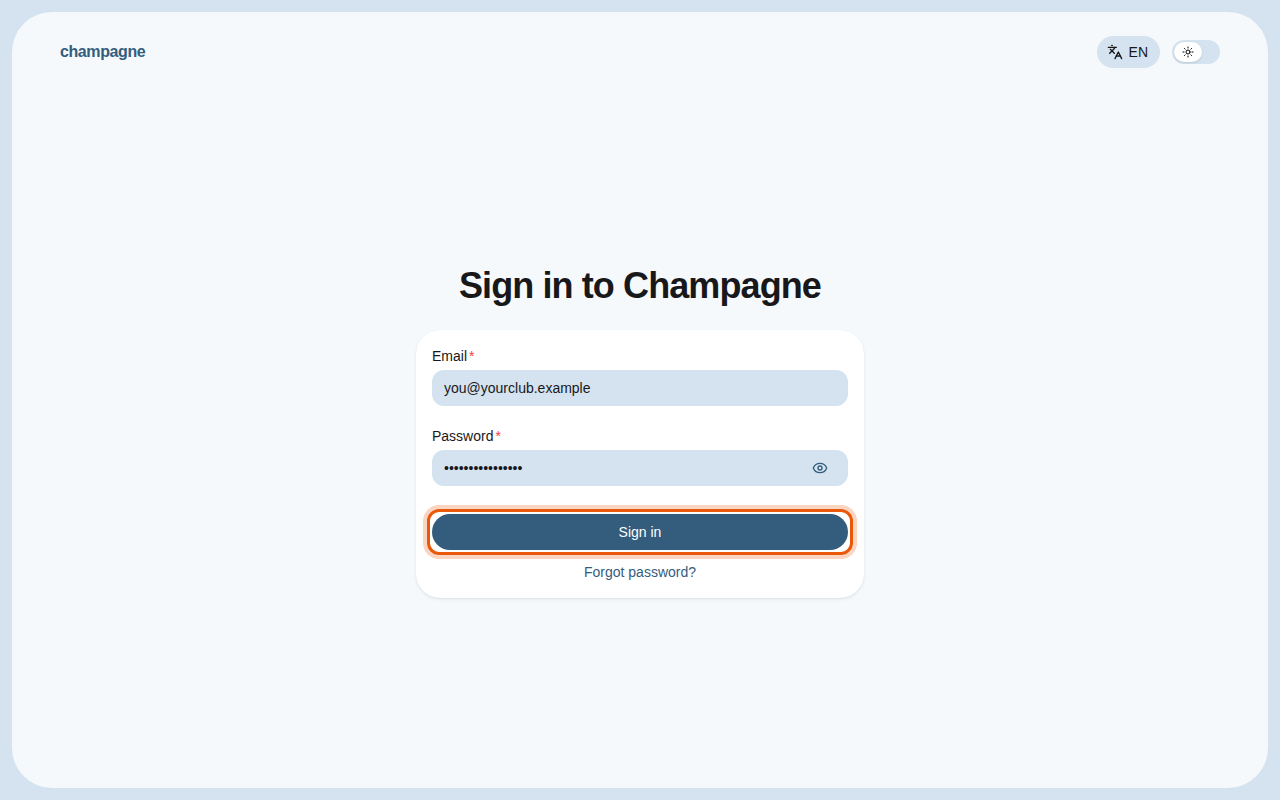
Open the back-office address your club gave you. Enter the **Email** and **Password**
of your staff account, then select **Sign in**.
The sign-in page, filled with an example address. The control to use is outlined in orange.
> Your administrator sends you an invitation email. Open the link in that email to choose your name
> and password. See [Invite your team](/en/guide/admins/invite-your-team).
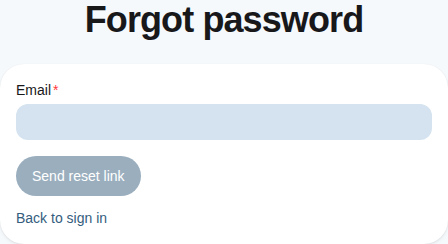
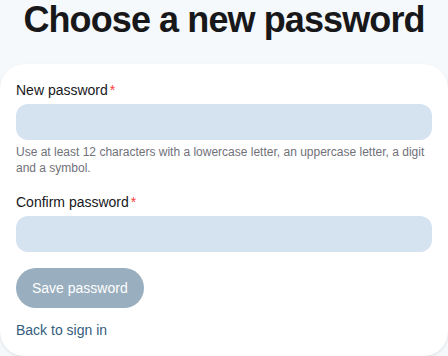
Forgot your password? Select **Forgot password?**, enter your email and follow the link
you receive to choose a new one.
The page that sends you a reset link.
The page the link in the email opens.
## 2. Get to know the screen [#2-get-to-know-the-screen]
After signing in, Champagne opens the first section you are allowed to use.
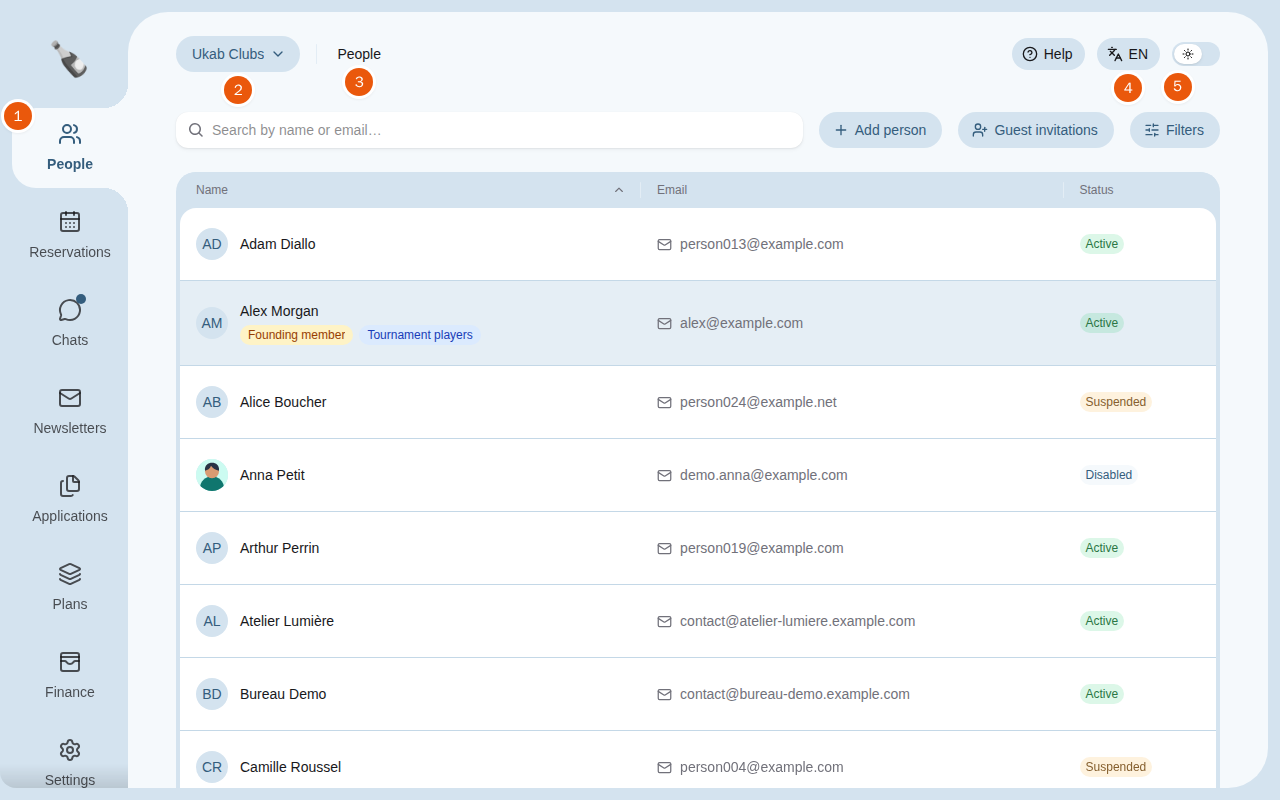
The People section of the example club Ukab Clubs. The numbers match the list below.
1. The left menu lists the sections you can open, such as **People**, **Reservations**,
**Chats** or **Finance**. **My account** sits at the bottom, under **Team** for
administrators.
2. The club name at the top left shows which club you are working on, when your account
works for several clubs.
3. The section name next to it reminds you where you are.
4. **EN** or **FR** at the top right shows the language of the interface. Select it to
switch to the other language.
5. The switch next to it turns dark mode on or off.
**Help**, before the language, opens the page of this guide that explains the screen you are on.
On a phone, it sits at the bottom of the menu.
You only see the sections your [role](/en/guide#role) allows. A coach may see **Club calendar**, **My
reservations** and **My availability**, while a manager also sees **People** or **Finance**. Ask your
administrator if a section you need is missing: [Who sees what](/en/guide/admins/who-sees-what)
lists what each permission shows.
## 3. Switch club [#3-switch-club]
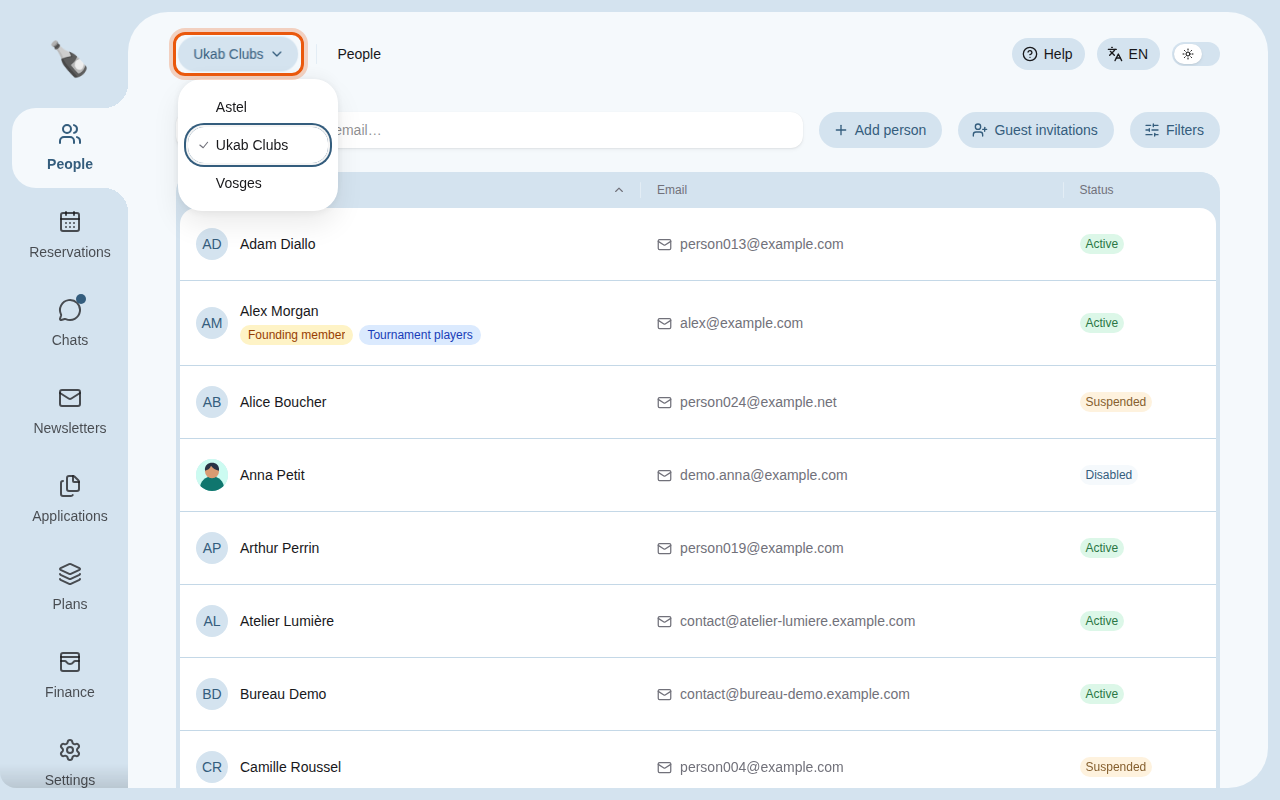
If you work for several clubs, select the club name at the top left and pick another
club in the list. A check mark shows the club you are working on. Every section then shows
that club's members, reservations and settings.
The club menu of an account that works for three example clubs.
## Next steps [#next-steps]
[Manage members](https://docs.champagne.dev-ukab.fr/en/guide/staff/people)
[Handle reservations](https://docs.champagne.dev-ukab.fr/en/guide/staff/reservations)
[Answer messages](https://docs.champagne.dev-ukab.fr/en/guide/staff/chats)