# Check guests in and out
Validate tickets at the door, record departures and refund security deposits.
Source: https://docs.champagne.dev-ukab.fr/en/guide/staff/check-in-and-deposits
This page covers the moments when a guest arrives and leaves. You can check a member's
ticket at the door and mark them present, follow a stay while it is in progress, record
the departure with **Check out** and give back the security deposit. A security deposit
is an amount the guest pays on top of the price and gets back after the stay, for example
for a hotel suite.
## 1. Check a ticket at the door [#1-check-a-ticket-at-the-door]
When a [reservation category](/en/guide#reservation-category) gives members a QR code ticket, members download it from
their reservation. The ticket shows a QR code and a six-digit code. Your administrator
turns this on with the **QR code ticket** option of the category.
In **Reservations** or **Club calendar**, select the category, then select **Tickets** above
the calendar. The button appears for categories with tickets, if your [role](/en/guide#role) includes the
**Validate attendance and tickets** permission.
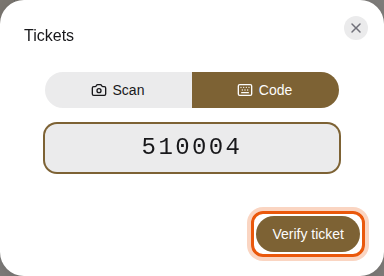
Typing the example ticket code 510004 by hand. The control to use is outlined in orange.
1. With **Scan**, hold the ticket's QR code in front of your device's camera. The ticket
is read as soon as the code is in view.
2. With **Code**, type the six digits printed under the QR code, then select **Verify
ticket**. Use it when the camera cannot read the code.
3. Read the result.
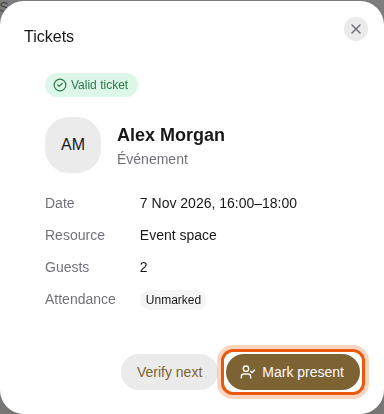
* **Valid ticket** shows the guest's name and photo, the category, the **Date**, the
**Resource**, the number of **Guests** and the attendance already recorded. People the
guest invited are listed under **Invited guests**, marked **Accepted** or **Invited**.
* **Invalid ticket** means the code is unknown, or the booking is canceled, not confirmed
yet, or already over. Tickets of a category without tickets are refused too.
The ticket of the example member Alex Morgan for a concert matinee.
4. Select **Mark present** to record the guest's arrival. The button then reads
**Present**.
5. Select **Scan next** or **Verify next** for the following guest.
> The browser must be allowed to use the camera. If it is not, a message says the camera is
> unavailable and offers to try again. Switch to **Code** and type the code instead. After many
> attempts in a short time, the check pauses for one minute.
You can also mark attendance by hand on the reservation page or in a session's panel. See
[Handle reservations](/en/guide/staff/reservations) and [Use the club
calendar](/en/guide/staff/planning).
## 2. Follow a stay and check a guest out [#2-follow-a-stay-and-check-a-guest-out]
A confirmed reservation shows where the stay stands in a label next to the guest's name.
The times come from the reservation, and from the check-in and check-out times of the
resource when your administrator sets them.
| Label | What it means |
| --------------- | --------------------------------------------------------------------------------- |
| **Check-in** | The guest can arrive: the check-in time has passed. |
| **Ongoing** | The reservation has started and is not over yet. |
| **Check-out** | The reservation has ended and the guest can still leave until the check-out time. |
| **Checked out** | Someone recorded the guest's departure. |
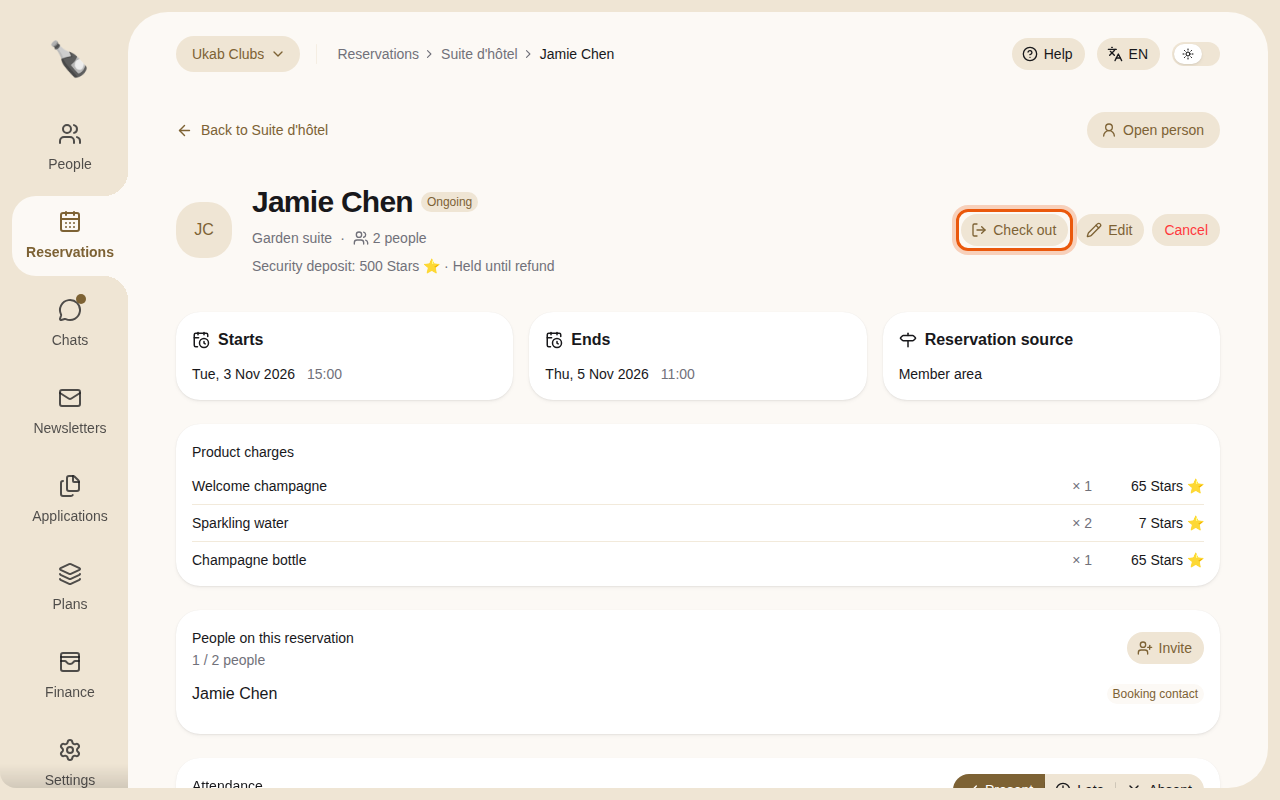
The example member Jamie Chen during a stay in the Garden suite.
While the stay is in progress, select **Check out** at the top of the reservation page
when the guest leaves. **Check out** and **Undo check-out** need the **Validate attendance
and tickets** permission. The departure time appears in a **Checked out** card next to the
dates.
* Without a deposit to give back, the reservation becomes **Completed**.
* With a paid deposit, it stays **Confirmed** until the deposit is refunded.
If you checked out the wrong guest, select **Undo check-out**. The reservation goes back
to **Confirmed**. Once the deposit is refunded, the check-out can no longer be undone.
## 3. Refund the security deposit [#3-refund-the-security-deposit]
The line under the guest's name shows the deposit and where it stands.
| Deposit state | What it means |
| -------------------------------- | ---------------------------------------------------- |
| **Due with reservation payment** | The guest has not paid the reservation yet. |
| **Held until refund** | The club holds the deposit. |
| **Refunded** | The whole deposit went back to the guest. |
| An amount refunded and kept | Part of the deposit went back and the rest was kept. |
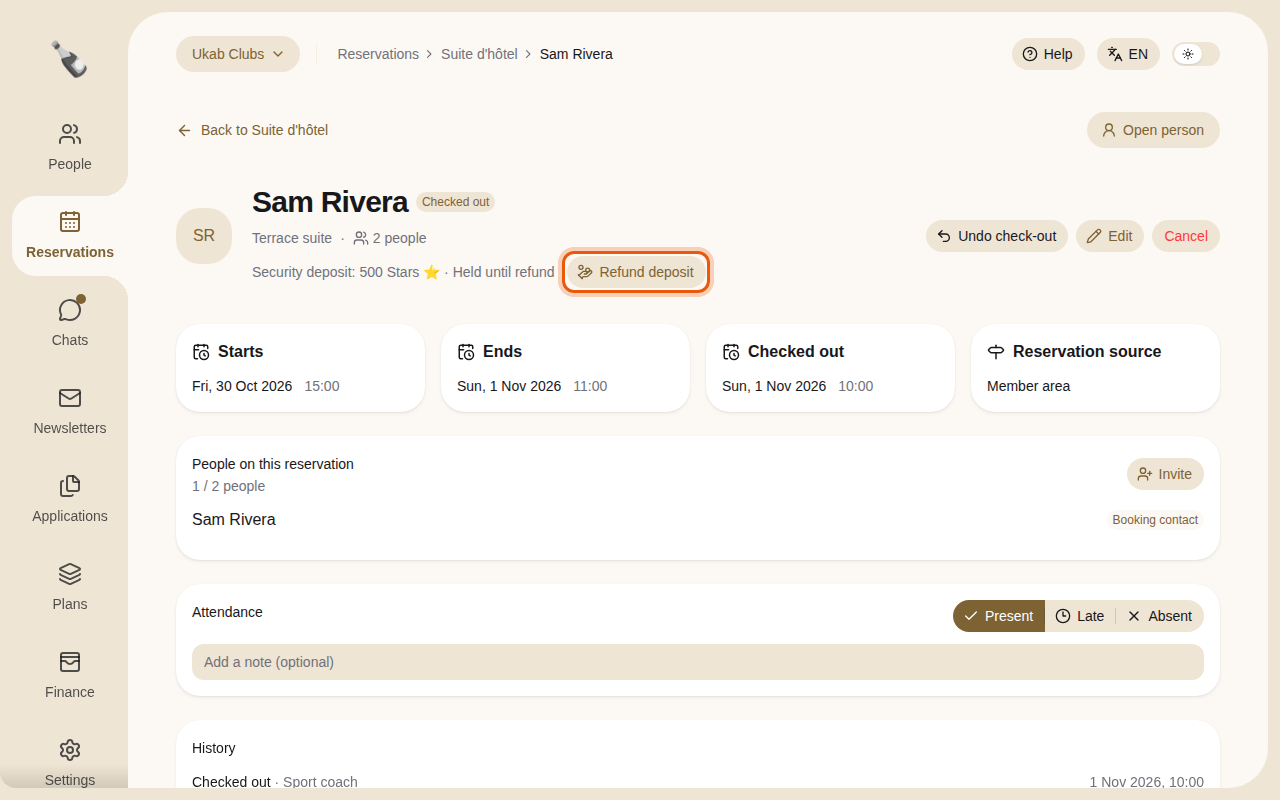
**Refund deposit** appears once the guest has left, either after **Check out** or once
the reservation's check-out time has passed, if your role includes the **Create and change
reservations** permission.
The example member Sam Rivera after leaving the Terrace suite.
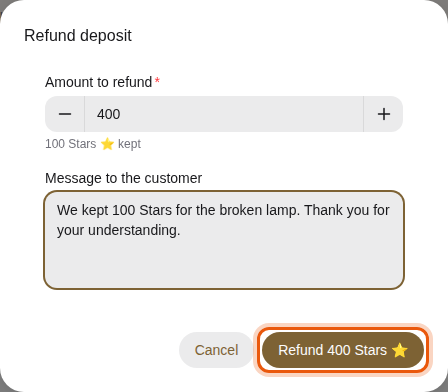
1. Select **Refund deposit**.
2. In **Amount to refund**, keep the full amount or lower it. The amount kept appears
under the field.
3. When you keep part of the deposit, explain why in **Message to the customer**.
4. Select **Refund in full**, or **Refund** followed by the amount.
Refunding 400 of the example 500 Stars deposit and keeping 100.
The money goes back the way the guest paid: to their card, or to their credit balance.
The reservation becomes **Completed** and the guest is notified. Your message appears
under the deposit line, and on the member's reservation under **Message from the club**.
> Deposits that nobody refunds are returned in full after a delay set by your administrator in
> **Settings**, under **Security deposits**.