# Answer messages
Read and answer member messages from the Chats inbox, and start a new conversation.
Source: https://docs.champagne.dev-ukab.fr/en/guide/staff/chats
The **Chats** section is your club's inbox. Members write to the club from their member
account, and your team answers here. This page shows how to spot new messages, reply,
start a conversation and tidy the inbox.
## 1. Open the inbox [#1-open-the-inbox]
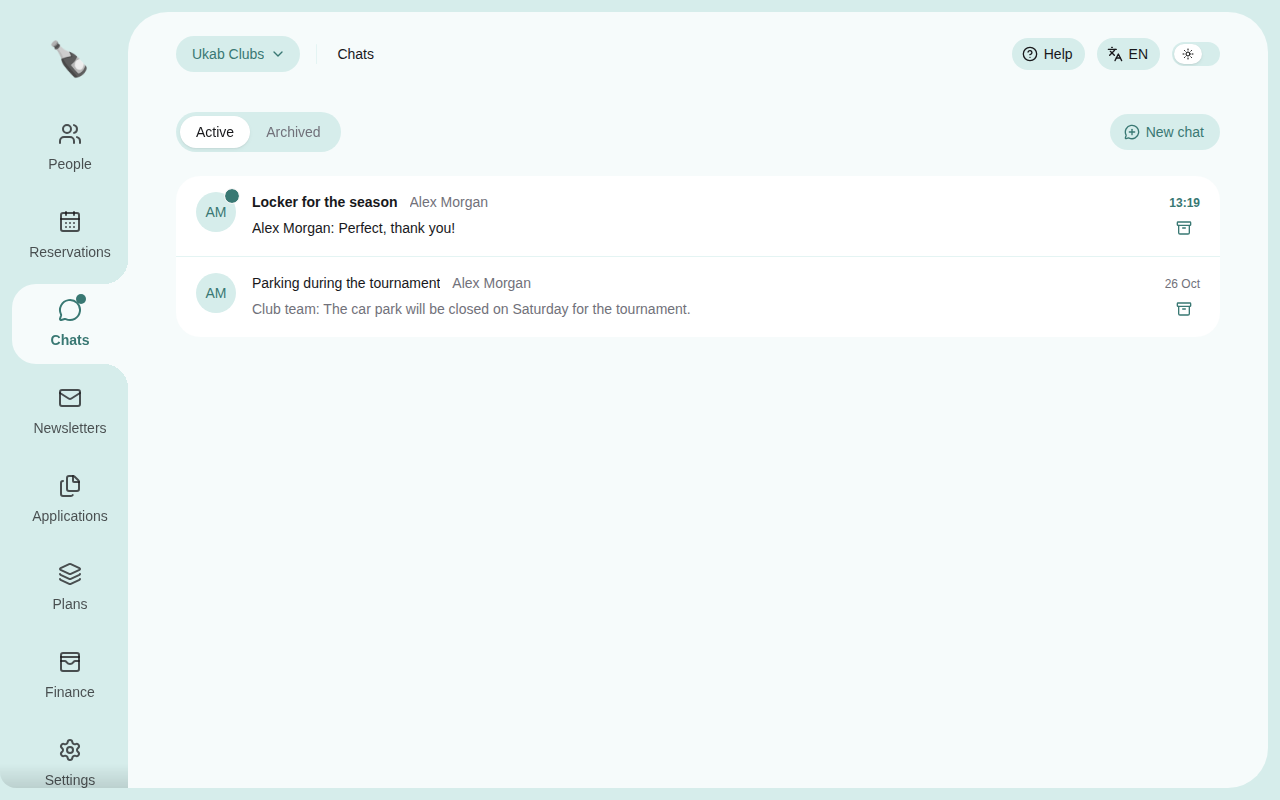
In the left menu, select **Chats**. Each line is a conversation with one member: its
subject, the member's name, the last message and when it arrived. Messages from today
show the time, older ones show the date.
The inbox of the example club Ukab Clubs, with one unread conversation from Alex Morgan.
A conversation with a new message from the member stands out:
* a dot on the member's initials,
* the subject in bold and the last message in darker text,
* the time in color.
A dot on **Chats** in the left menu tells you that at least one conversation is unread,
wherever you are in the [back office](/en/guide#back-office).
## 2. Reply to a member [#2-reply-to-a-member]
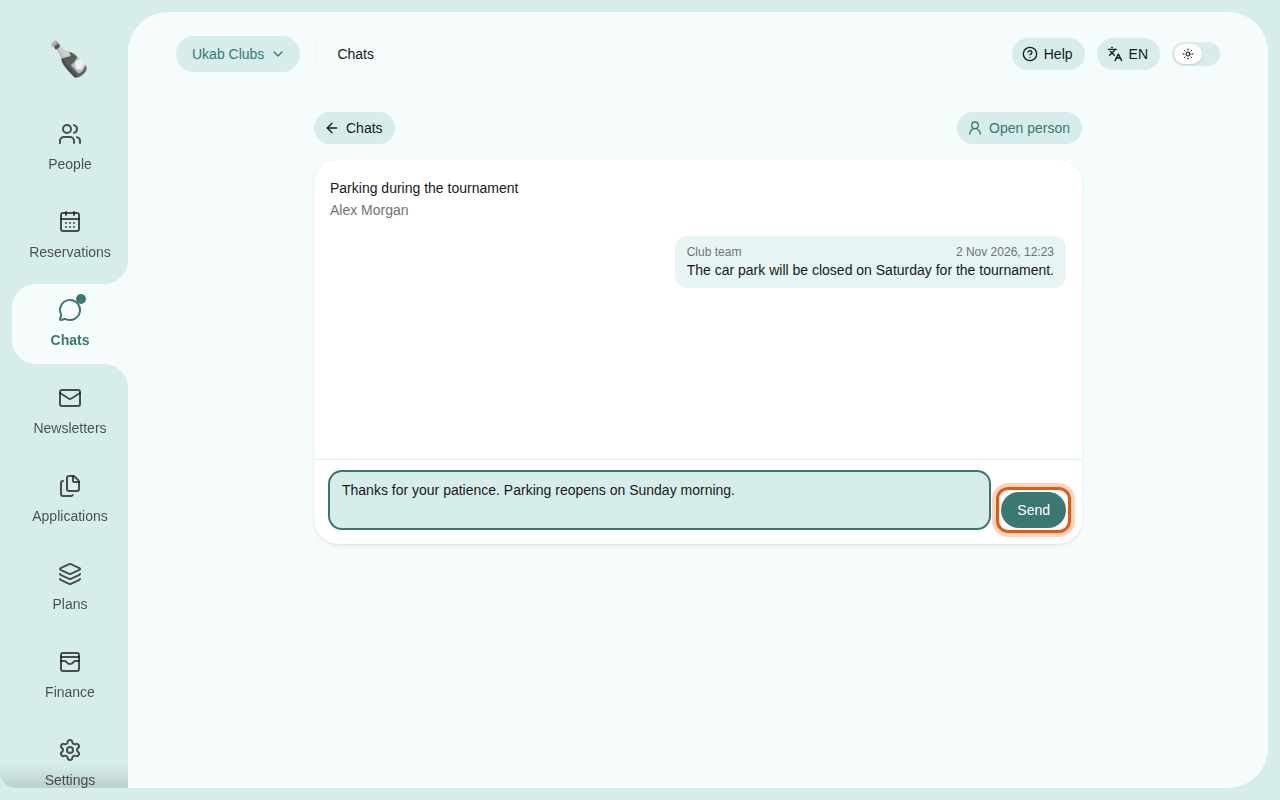
Select a conversation to open it. The member's messages sit on the left, your team's
replies on the right, each with the sender's name and the date. Opening the conversation
marks it as read.
1. Type your answer in the **Write a message…** box at the bottom.
2. Select **Send**, or press Enter. Press Shift + Enter to start a new line
without sending.
A reply being written in the example conversation Parking during the tournament. The control to
use is outlined in orange.
Your replies are signed with the name of your staff account. Messages sent by an account
without a name are signed **Club team**. Select **Open person**, shown if you can view
member profiles, to open the member's page in **People**, and **Chats** to go back to the
inbox.
## 3. Start a new conversation [#3-start-a-new-conversation]
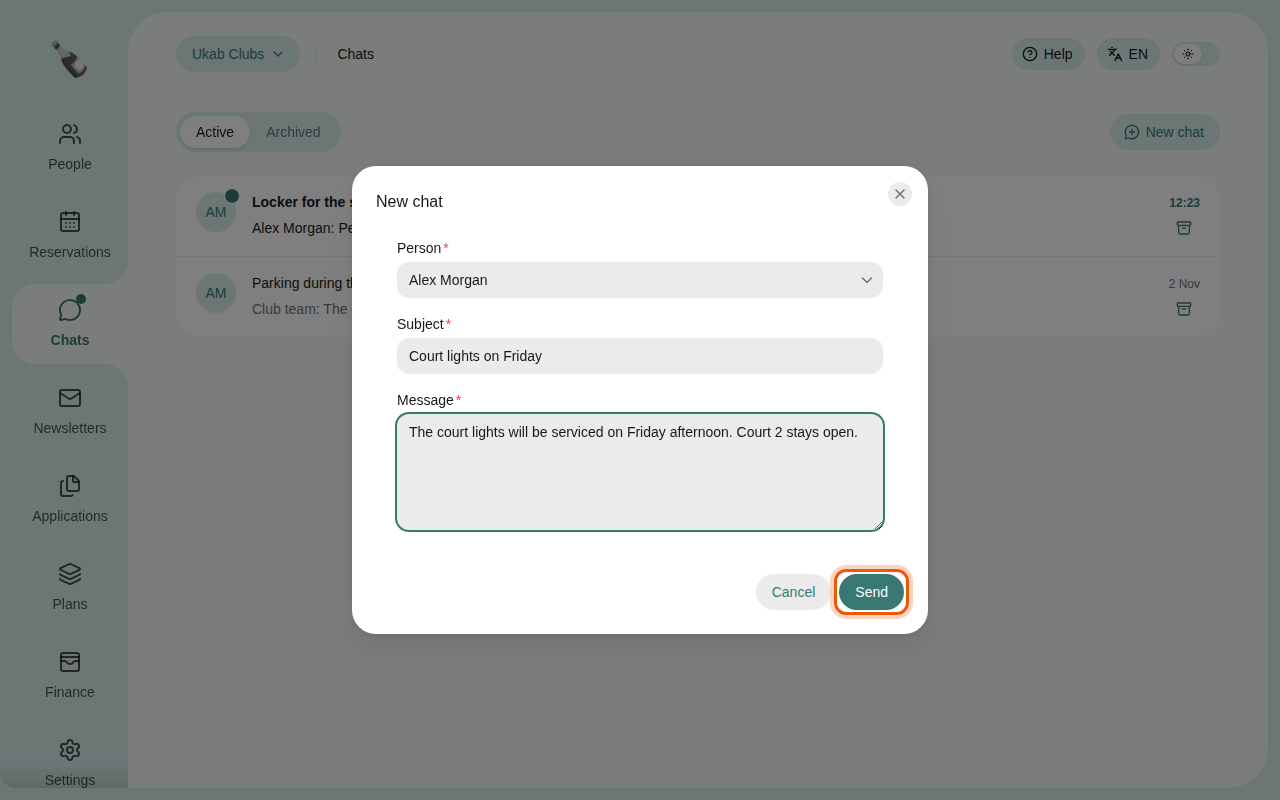
To write to someone first, select **New chat** in the inbox.
1. In **Person**, type a few letters of their name in **Search a person** and pick them in the
list, which holds the same people as the **People** section.
2. Enter a **Subject**, such as the topic of your message.
3. Write your **Message**.
4. Select **Send**. The new conversation opens and appears in the inbox.
A new example conversation for Alex Morgan, ready to send.
## 4. Archive finished conversations [#4-archive-finished-conversations]
Select the box icon at the end of a line to **Archive** a conversation you no longer need
in the inbox. Switch between **Active** and **Archived** at the top of the list to see
each group, and select the same icon in **Archived** to **Restore** a conversation.
An empty inbox says **No active conversations yet.** or **No archived conversations.** If it says
**Conversations unavailable**, the inbox could not load: reload the page, and tell your
administrator if the message stays.
## 5. Messages about a reservation [#5-messages-about-a-reservation]
Team members with the **Staff** [role](/en/guide#role), such as coaches, can also receive messages about
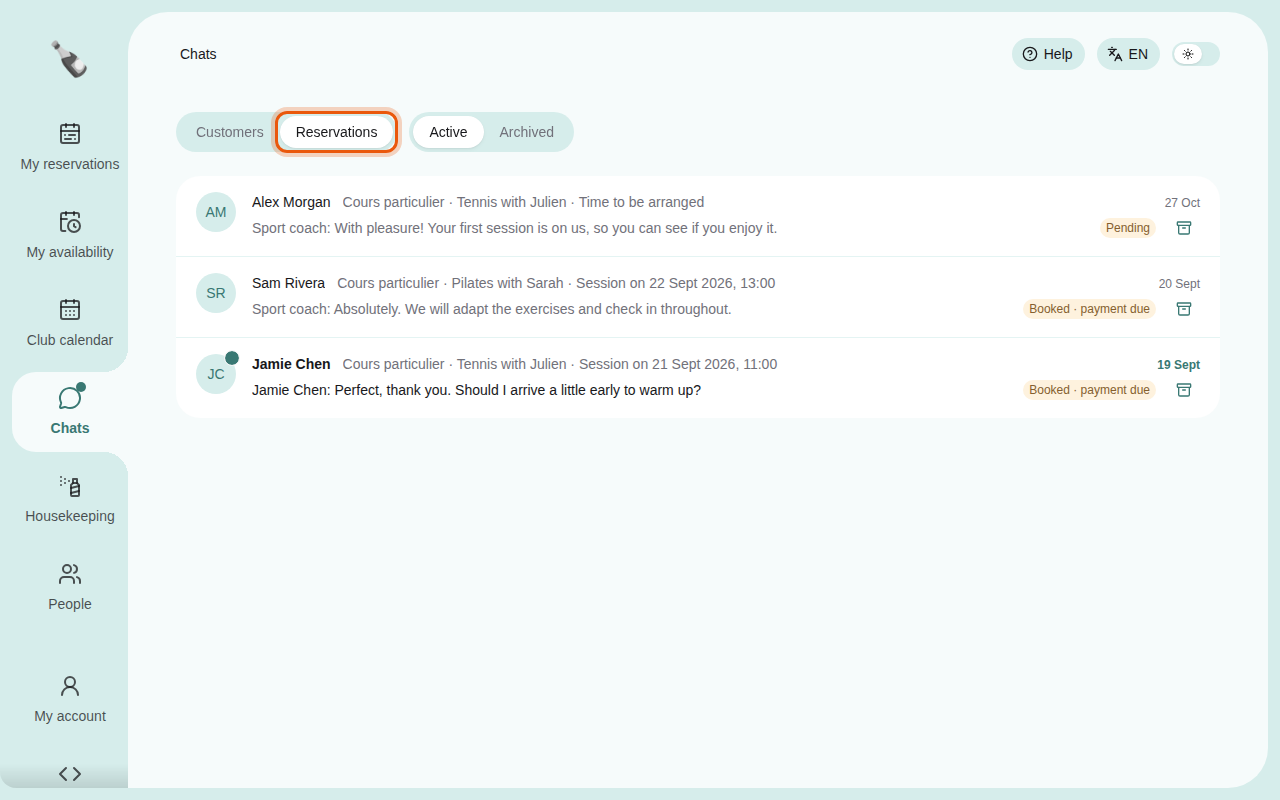
bookings. For them, the inbox has two tabs: **Customers** for the conversations above and
**Reservations** for messages linked to a booking. Each reservation line shows the
customer's name, the activity, the resource, the session date, or **Time to be arranged**
when no time is set yet, and the booking status:
| Status | What it means |
| ------------------------ | -------------------------------------------------- |
| **Pending** | The booking waits for the club's answer. |
| **Booked · payment due** | The time is set and the customer still has to pay. |
| **Confirmed** | The booking is confirmed. |
| **Completed** | The booking is marked as completed. |
| **Canceled** | The booking was canceled. |
The reservation conversations of the example coach account Sport coach.
Selecting a reservation conversation opens the booking in **Club calendar**, where you read
and answer the messages next to the session details.
> The tabs you see depend on your permissions. **Customers** needs the **Chat with customers**
> permission, and **Reservations** needs **Manage reservation messages**. Ask your administrator if
> you should answer member conversations or reservation messages and cannot see them.