# Your account
Change your name, photo, biography and password, check your qualifications, or sign out.
Source: https://docs.champagne.dev-ukab.fr/en/guide/staff/account
The **My account** page shows the staff profile you use in the [back office](/en/guide#back-office). From there
you can change your name, photo and biography, change your password and sign out.
## 1. Open your account [#1-open-your-account]
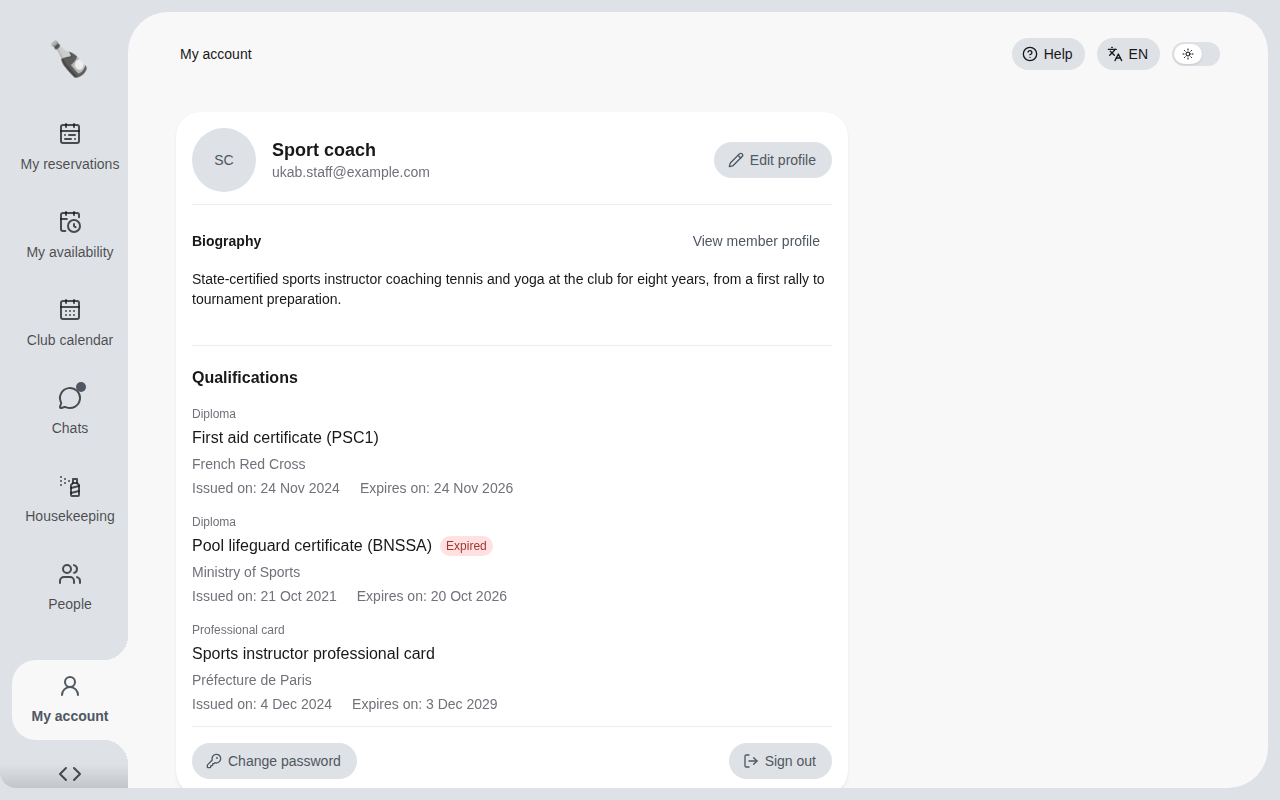
In the left menu, select **My account**. The page shows your name, your email address,
your **Biography** and your **Qualifications** when you have some.
The account of the example coach Sport coach, with two diplomas and a professional card.
## 2. Edit your profile [#2-edit-your-profile]
Members see your name, photo and biography when you chat with them. Select **Edit
profile** to change them.
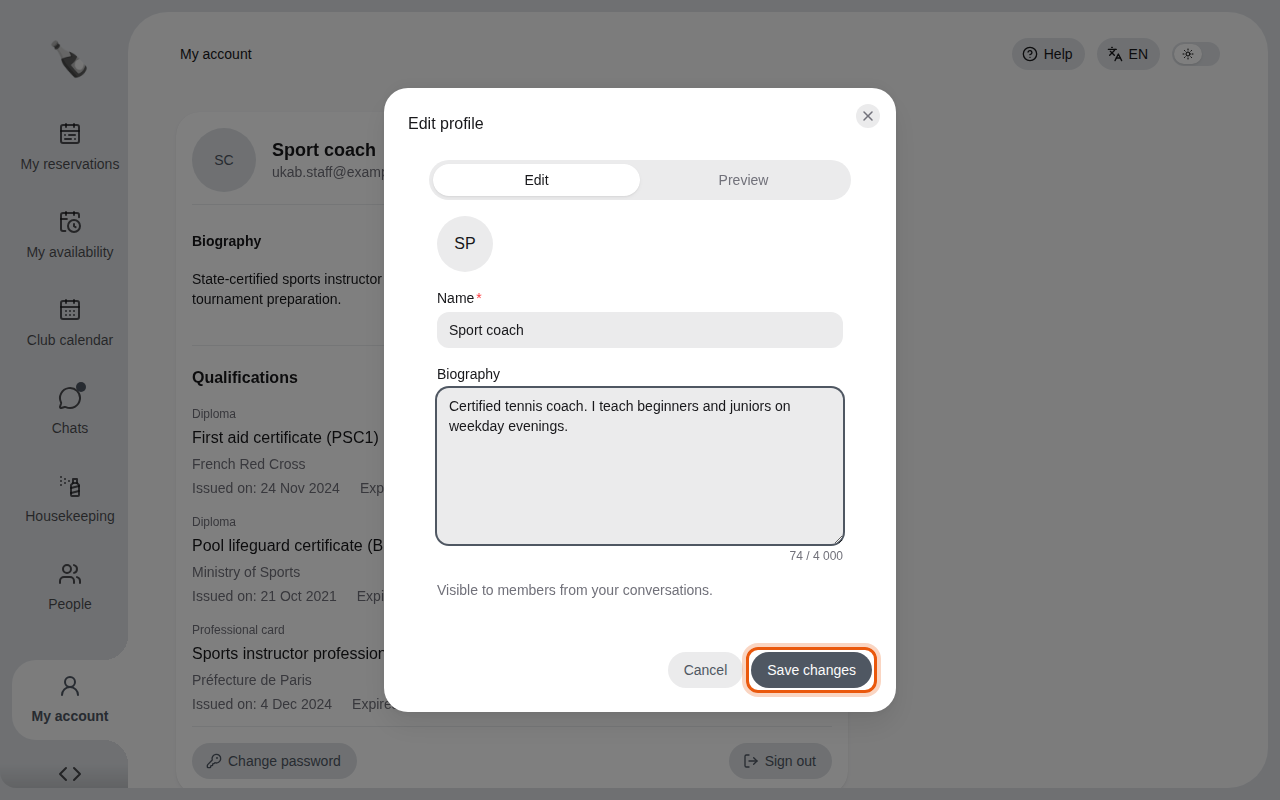
1. Select the photo circle to add a photo, or to replace or remove the current one. You
can then adjust the framing and select **Apply crop**.
2. Change your **Name** if needed.
3. Write a few words about yourself in **Biography**.
4. Open the **Preview** tab to see your profile as members see it.
5. Select **Save changes**.
Adding an example biography to the Sport coach profile. The control to use is outlined in
orange.
To check your profile later without editing it, select **View member profile**.
### Qualifications [#qualifications]
When your administrator records a diploma or a professional card in **Team**, it appears
under **Qualifications** on your account and in the profile members see. Each one shows its type
(**Diploma** or **Professional card**), its title, the issuing organization, and the **Issued
on** and **Expires on** dates when known. An expired one shows **Expired**. Members do not see the
document number or the file, and other kinds of documents do not appear.
To add or update a qualification, ask your administrator. See
[Manage your team](/en/guide/admins/manage-your-team).
## 3. Change your password [#3-change-your-password]
Select **Change password**, enter your **Current password**, then your **New password**
and repeat it in **Confirm password**. A password needs at least 12 characters with a lowercase letter, an uppercase letter, a digit and a symbol.
Select **Save changes**.
> After you change your password, Champagne signs you out. Sign in again with your new password.
If you forgot your current password, sign out and select **Forgot password?** on the
sign-in page.
## 4. Change language or sign out [#4-change-language-or-sign-out]
The language and dark mode switches sit at the top right of every page. See
[Sign in and find your way](/en/guide/staff/getting-started).
To leave the back office, select **Sign out** at the bottom of your account card.