# Tickets, stays and people on your booking
Add a booking to your calendar, download its ticket, follow your stay and invite the people coming with you.
Source: https://docs.champagne.dev-ukab.fr/en/guide/members/tickets-stays-and-people
A confirmed booking's page gives you what you need on the day: a calendar file, a ticket when
your club issues them, and where you are in your stay. It is also where you invite the people
coming with you, and where you answer the bookings other members invite you to. To open a
booking, see [Open a reservation](/en/guide/members/reservations-and-coaching#1-open-a-reservation).
## 1. Add a confirmed booking to your calendar [#1-add-a-confirmed-booking-to-your-calendar]
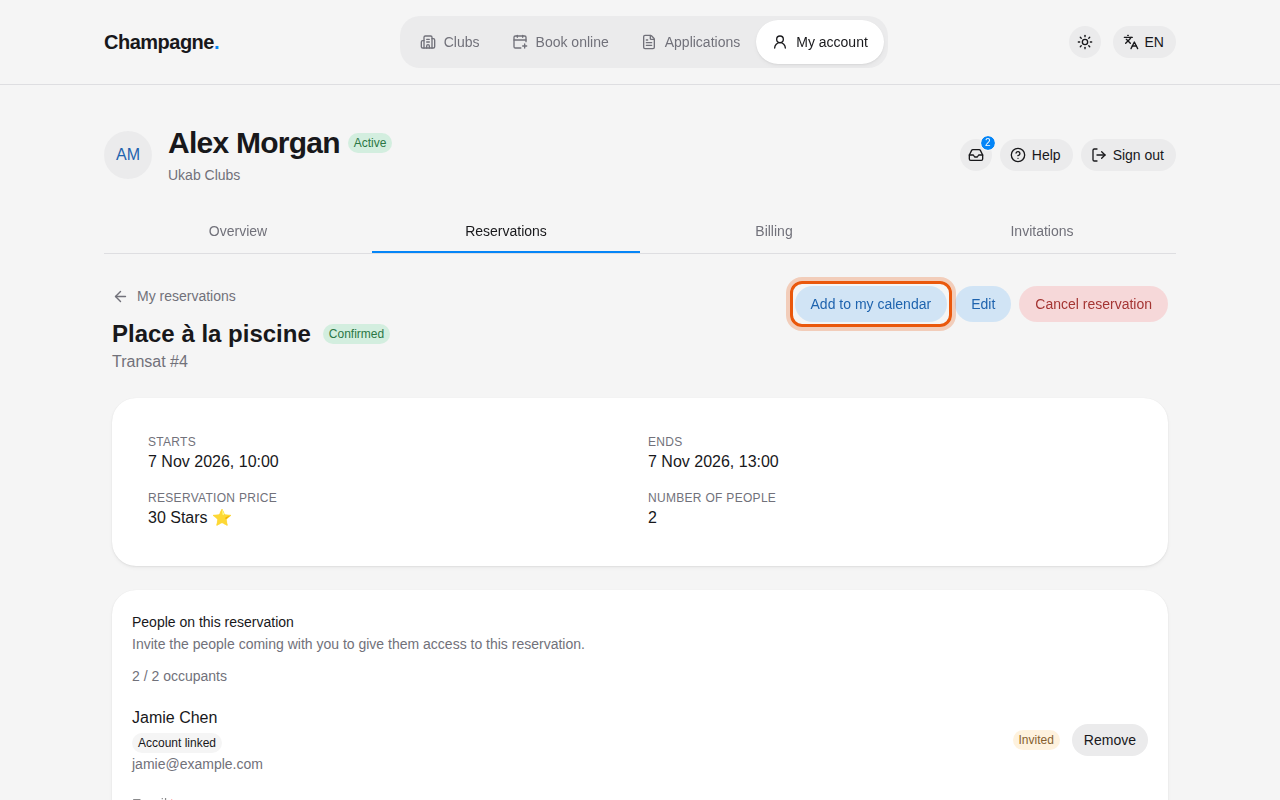
When a booking is **Confirmed**, select **Add to my calendar** at the top of its page. A
calendar file downloads: open it to add the booking to your phone or computer calendar. The
page confirms **Calendar file downloaded**.
Alex Morgan's paid pool booking for two, in three days. The control to use is outlined in
orange.
## 2. Download your ticket [#2-download-your-ticket]
If your club issues tickets, the page also has a **Reservation ticket** card. Select **Download
PDF ticket** to get it. The QR code stays the same when the booking changes: download the PDF
again for the latest dates. Tickets are only available for confirmed bookings.
The ticket card of Alex Morgan's confirmed Concert — matinée booking for two.
## 3. Follow your stay [#3-follow-your-stay]
From check-in time to check-out time, a confirmed booking shows where you are in your stay
instead of its status: **Check-in**, **Ongoing**, **Check-out**, then **Checked out** once the
club has recorded your departure.
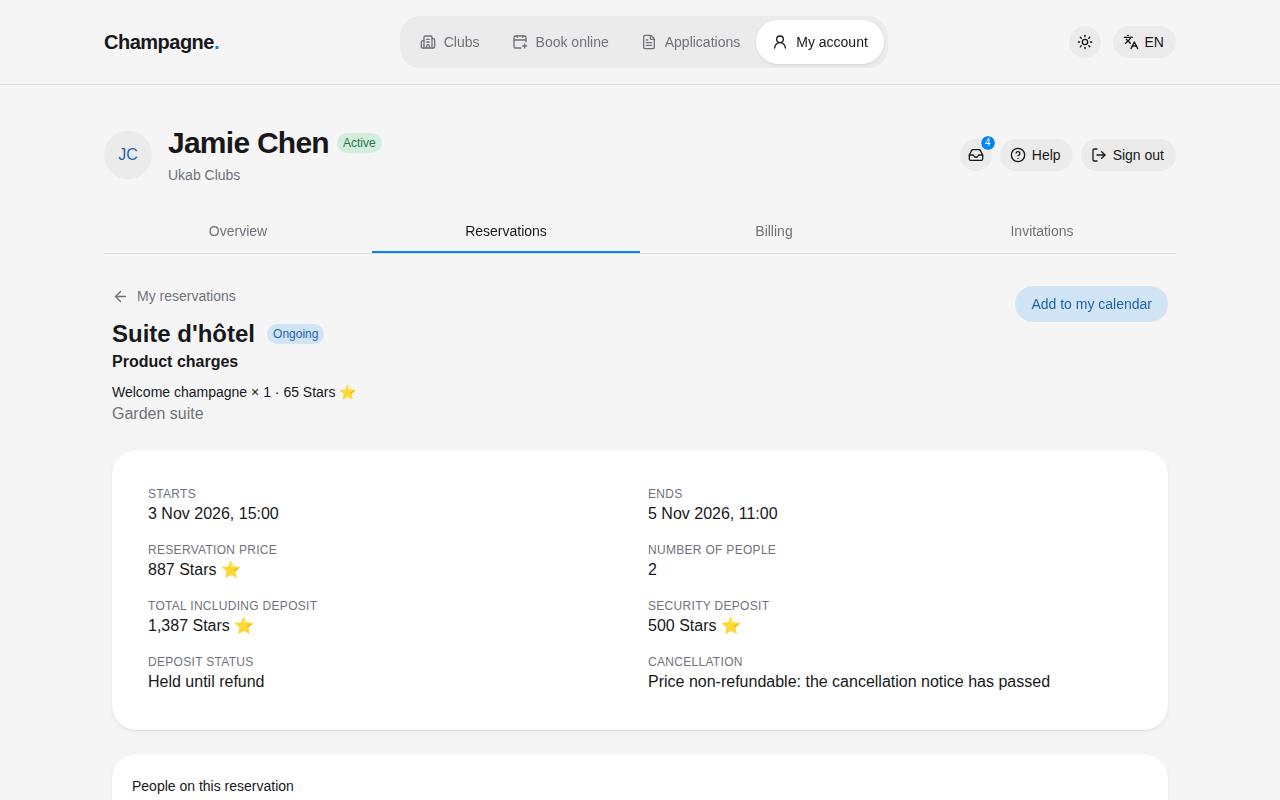
The extras you chose, such as drinks, are listed under **Product charges** at the top of the
page. When the club holds a security deposit, the details card shows its amount and its
**Deposit status**. The other money lines are explained in
[Read the money details](/en/guide/members/reservations-and-coaching#2-read-the-money-details).
Jamie Chen's stay in the Garden suite, in progress since yesterday, with its deposit paid.
## 4. Invite the people coming with you [#4-invite-the-people-coming-with-you]
When a booking is for more than one person, its page has a **People on this reservation**
card. It counts the places taken, for example **2 / 2 occupants**, and lists the people you
invited with their answer: **Invited**, **Accepted** or **Declined**. **Account linked** means
the person already has an account at the club.
1. Enter the **Email** of the person coming with you.
2. If your club asks guests to have an account, choose the **Access duration** of their
temporary account: **12 hours**, **24 hours** or **48 hours**.
3. Select **Send invitation**. The person receives an email to accept or decline.
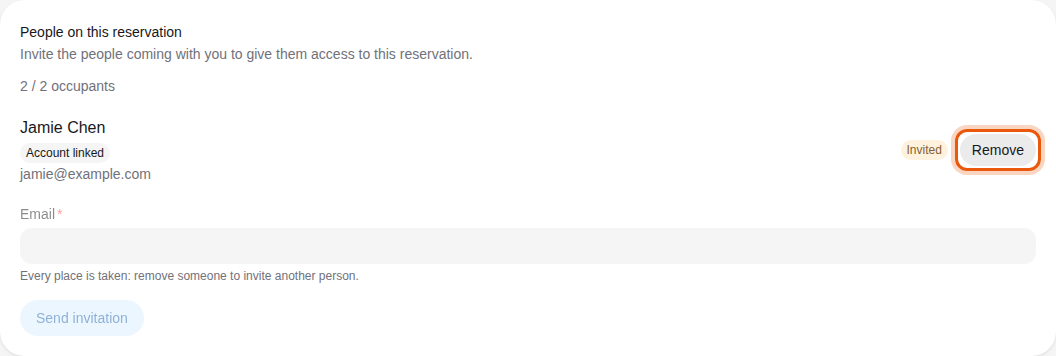
Select **Remove** to take someone off the booking. When every place is taken, the form says so:
remove someone to invite another person. An invitation that expired without an answer still
holds its place until you remove it.
Jamie Chen, invited to the example pool booking and not answered yet. Every place is taken, so
another invitation needs a place freed first.
## 5. Bookings you are invited to [#5-bookings-you-are-invited-to]
Another member can invite you to join their booking. Their invitations appear in **Invited
reservations** at the bottom of the **Reservations** tab, with the place, the booking status,
**Invited by** and the host's name, the date and your answer.
Jamie Chen's invitation to Alex Morgan's pool booking.
Select **Accept invitation** or **Decline**. Your answer then shows **Accepted** or
**Declined**, and **Invitation unavailable** means the invitation has expired. Once you have
accepted a confirmed booking that comes with a ticket, select **Download ticket** to get it.
To answer from the invitation email instead, see
[Accept an invitation you received by email](/en/guide/members/invitations-from-email).