# Notifications
Read your club's alerts and choose which ones you receive in the app or by email.
Source: https://docs.champagne.dev-ukab.fr/en/guide/members/notifications
Your club sends you notifications about your bookings, your membership and your messages,
for example a reminder the day before a reservation. You read them in your member area and
choose, for each kind of alert, whether it also reaches you by email.
## 1. Open your notifications [#1-open-your-notifications]
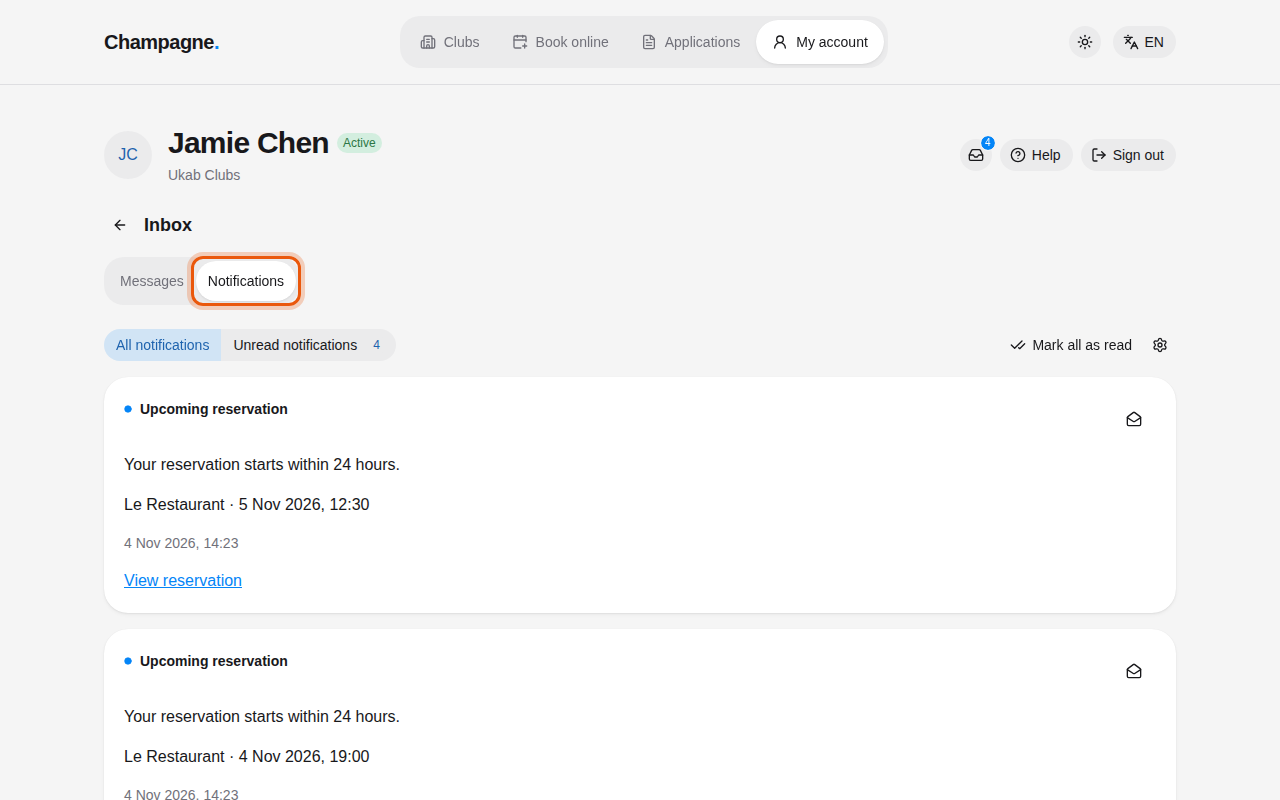
In your member area, select the **Inbox** icon next to **Sign out**, then select the
**Notifications** tab. The number on the **Inbox** icon counts your unread notifications
and conversations together.
Each notification shows a title, a short text, the booking or item it concerns, and when it
arrived. A link takes you to the right page, such as **View reservation**. Unread
notifications have a dot and a bold title.
Reservation reminders of the example member Jamie Chen at Ukab Clubs. The control to use is
outlined in orange.
## 2. Sort and mark notifications as read [#2-sort-and-mark-notifications-as-read]
* Select **Unread notifications** to see only the new ones, and **All notifications** to see
everything again.
* Select the envelope icon on a notification to **Mark as read**, or to **Mark as unread**
if you want to come back to it.
* Select **Mark all as read** to clear every unread notification at once. A message lets you
**Undo** it for a few seconds.
Use **Previous** and **Next** at the bottom of the list when you have many notifications.
Opening a conversation in [Messages](/en/guide/members/messages) also marks its message alerts
as read.
## 3. Choose what you receive [#3-choose-what-you-receive]
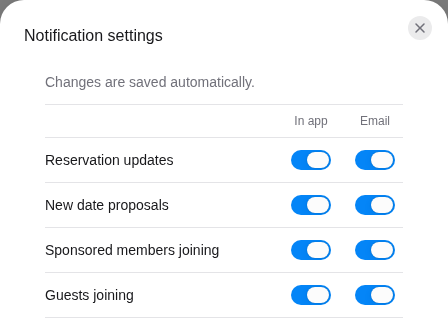
Select the gear icon next to **Mark all as read** to open **Notification settings**. Each
line is a kind of alert with two switches:
* **In app** shows the alert in your notifications,
* **Email** sends it to your email address.
Turn a switch on or off. As the dialog says, **Changes are saved automatically.** It shows
**Preferences saved** once done. Close the dialog with the cross.
The top of the notification settings of the example member Jamie Chen, all turned on. The table
below lists every alert.
| Alert | When it arrives |
| ----------------------------- | ---------------------------------------------------------------------------------- |
| **Reservation updates** | A booking changes status, such as confirmed or canceled, or a deposit is refunded. |
| **New date proposals** | The club proposes a time for a lesson or a booking. |
| **Sponsored members joining** | Someone you sponsored joins the club. |
| **Guests joining** | A guest you invited joins or accepts your invitation. |
| **Reservation reminders** | 24 hours before your reservation. |
| **Waitlist updates** | A waiting list place becomes a reservation for you. |
| **Membership renewal** | 7 days before your membership period ends. |
| **Session cancellations** | The club cancels a session you registered for. |
| **Reservation messages** | A new message arrives in a booking's conversation. |
| **Chat messages** | The club replies in [Messages](/en/guide/members/messages). |
| **Club messages** | The club writes to you, for example about a package at reception. |
| **Low credit balance** | Your credit balance runs low. |
The last line, **Club newsletter**, only has an **Email** switch. Turn it off to stop
receiving your club's newsletter.
## 4. Unsubscribe from the newsletter [#4-unsubscribe-from-the-newsletter]
You stop the club newsletter in either of two ways:
* From your member area: turn off the **Email** switch of **Club newsletter** in
**Notification settings**.
* From a newsletter email: select **Se désabonner / Unsubscribe** at the bottom of the
email, then **Unsubscribe** on the page that opens. The page confirms **You are
unsubscribed**. Some email apps also show their own unsubscribe button, which works the same
way.
Both ways change the same setting: after you unsubscribe from an email, the **Club newsletter**
switch is off in your notification settings. Turn it back on to receive the newsletter again.
For the unsubscribe page and its messages, see
[Accept an invitation you received by email](/en/guide/members/invitations-from-email).