# Book a reservation
Pick an activity in your club's schedule, choose a time and confirm your booking.
Source: https://docs.champagne.dev-ukab.fr/en/guide/members/book-a-reservation
Members book rooms, places and sessions from their member area. You need an active
membership at your club to book. Without an account, use **Book online** to book as a
visitor: see [Book online as a visitor](/en/guide/members/book-online).
## 1. Open your reservations [#1-open-your-reservations]
Sign in to the [member app](/en/guide#member-app), open **My account** and select the **Reservations** tab.
The top of the page lists **My upcoming reservations**. Select a booking to see its
details, pay it or message your club.
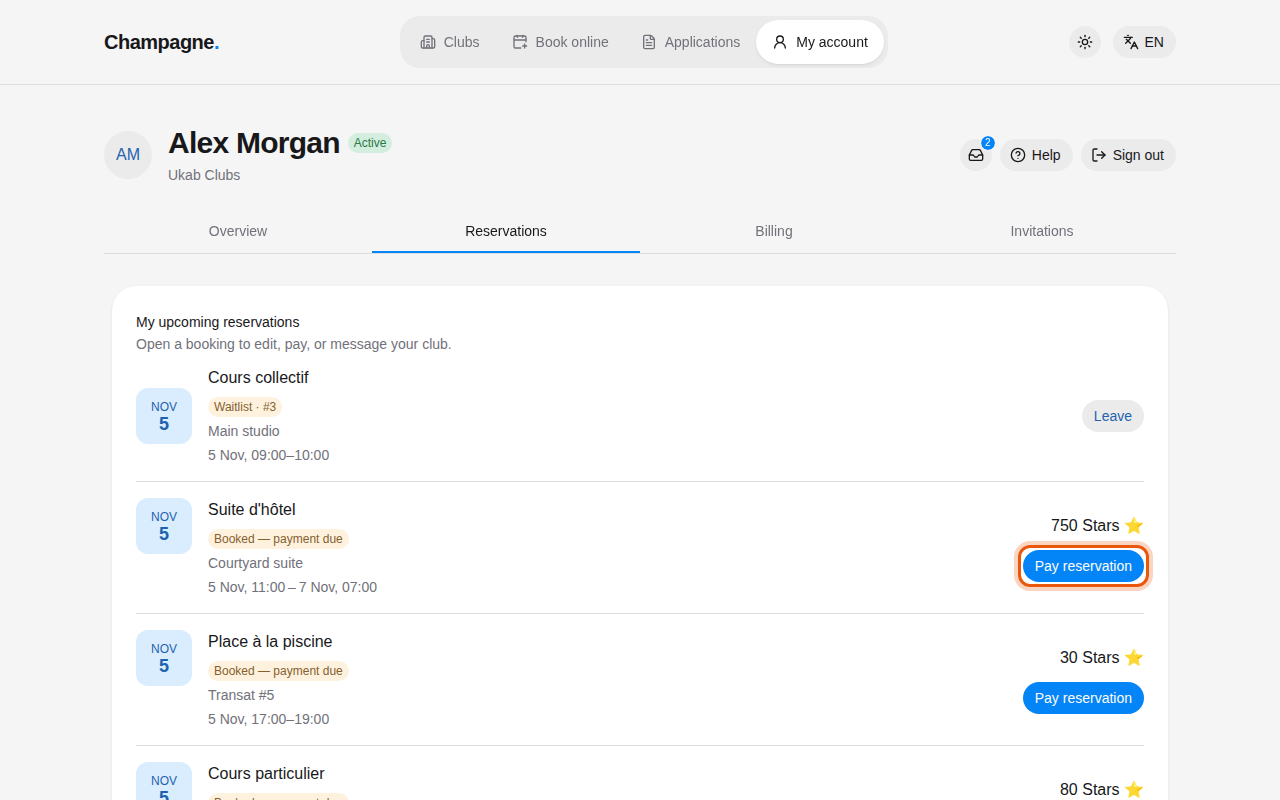
Upcoming reservations of the example member Alex Morgan at Ukab Clubs. The control to use is
outlined in orange.
Each booking shows a status and its price, with the **Security deposit** when the club asks
for one. **Booked — payment due** means the place is held for you and still needs to be paid:
select **Pay reservation** to settle it. A lesson whose time the club proposed shows **Review
proposal** instead.
Without a valid membership, the page shows **A valid membership is required to book** in place
of the club schedule. See
[When your account is limited](/en/guide/members/account-status).
## 2. Find a free time in the club schedule [#2-find-a-free-time-in-the-club-schedule]
Scroll down to **Club schedule**.
1. In **Activity**, pick what you want to book, for example a meeting room.
2. Use the arrows or **This week** to move between weeks.
3. If the activity has several rooms or places, pick one in **Resource**.
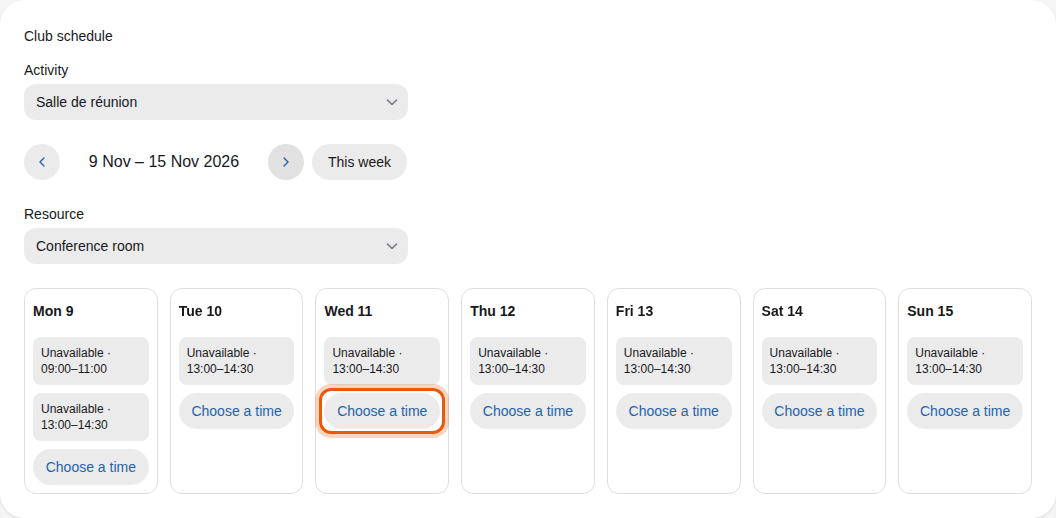
Each day shows the times already taken as **Unavailable**. Select **Choose a time** on
the day you want.
A week of the example meeting room, Salle de réunion.
Some activities work differently. Group classes list their sessions directly, so you
register for a session. Places on a floor plan, such as pool loungers, show **Choose a
place** so you can pick your spot on the map.
## 3. Confirm your booking [#3-confirm-your-booking]
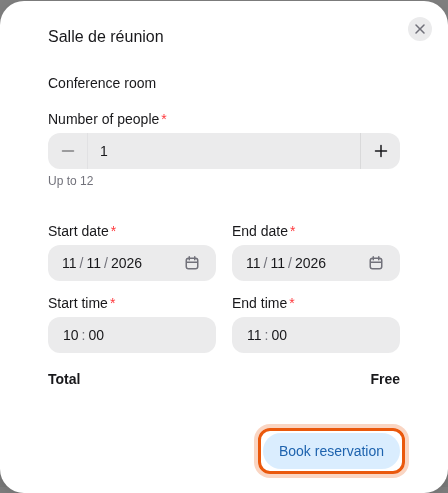
A form opens with the activity and resource you chose. Set the **Number of people**, the
**Start date** and **Start time**, and the **End date** and **End time**. The **Total**
shows the price before you confirm.
The booking form for the example Conference room, free for members.
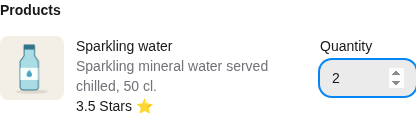
Some activities offer extras, such as drinks brought to your pool lounger. They are listed
under **Products** with their price: set a **Quantity** for each one you want. Their cost is
added to the total.
Two sparkling waters added to an example pool booking.
Below the dates, a summary sums up what you will pay:
| Line | What it means |
| -------------------------------------------------------------------- | -------------------------------------------------------------------------------- |
| **Reservation** and **Refundable deposit** | The price and the security deposit, shown separately when the club asks for one. |
| **Total** or **Total including deposit** | What the booking costs in all. |
| **Available balance** | Your credits, when the booking is paid in credits. |
| **Payment required to confirm.** | The booking is held until you pay it. |
| **Subject to club approval.** | The club confirms the booking before it is final. |
| **Free cancellation until …** | Cancel before this date to get the price back. |
| **The price is non-refundable: the cancellation notice has passed.** | Cancelling now does not give the price back. |
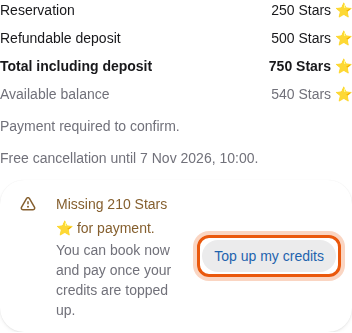
| **Missing … for payment.** | Your balance is too low to pay the booking right away. |
The summary of the example pool booking: 30 Stars for the place and 7 Stars of water.
When your balance is too low, the summary shows **Missing … for payment.** with the amount you
lack. If the booking does not need the club's approval, it adds **You can book now and pay once
your credits are topped up.**: you can still select **Book reservation** and pay later. Select
**Top up my credits** to open your [credits](/en/guide#credits) page and buy a pack. See
[Your credits](/en/guide/members/credits#1-top-up-your-credits).
A one-night suite booking costs Alex Morgan 750 Stars with its deposit, 210 more than his
balance.
Select **Book reservation**. The booking appears in **My upcoming reservations**. If it
has a price, pay it from there with **Pay reservation**. See
[Your reservations](/en/guide/members/reservations-and-coaching#3-pay-a-reservation).
> Some clubs price bookings in Stars, the club's credits. You buy Stars in packs from your account.
> See [Your credits](/en/guide/members/credits).