# Your team's profiles and documents
Keep the profile members see and the professional documents of each colleague up to date.
Source: https://docs.champagne.dev-ukab.fr/en/guide/admins/team-documents
Each colleague's staff file in **Team** holds the profile members see and their professional
documents, such as a coach's professional card or diplomas. Select a colleague in **Team** to
open their file: the **Profile** tab opens first. To find a colleague, see [Manage your
team](/en/guide/admins/manage-your-team).
## 1. Edit the profile members see [#1-edit-the-profile-members-see]
* **Biography** shows the name, photo and text members see when they talk to this
colleague, for example a coach. Select **Edit** to change them, or **View member
profile** to see the profile as members do.
* **Qualifications and documents** holds their professional card, diplomas and other
supporting documents.
## 2. Add a document [#2-add-a-document]
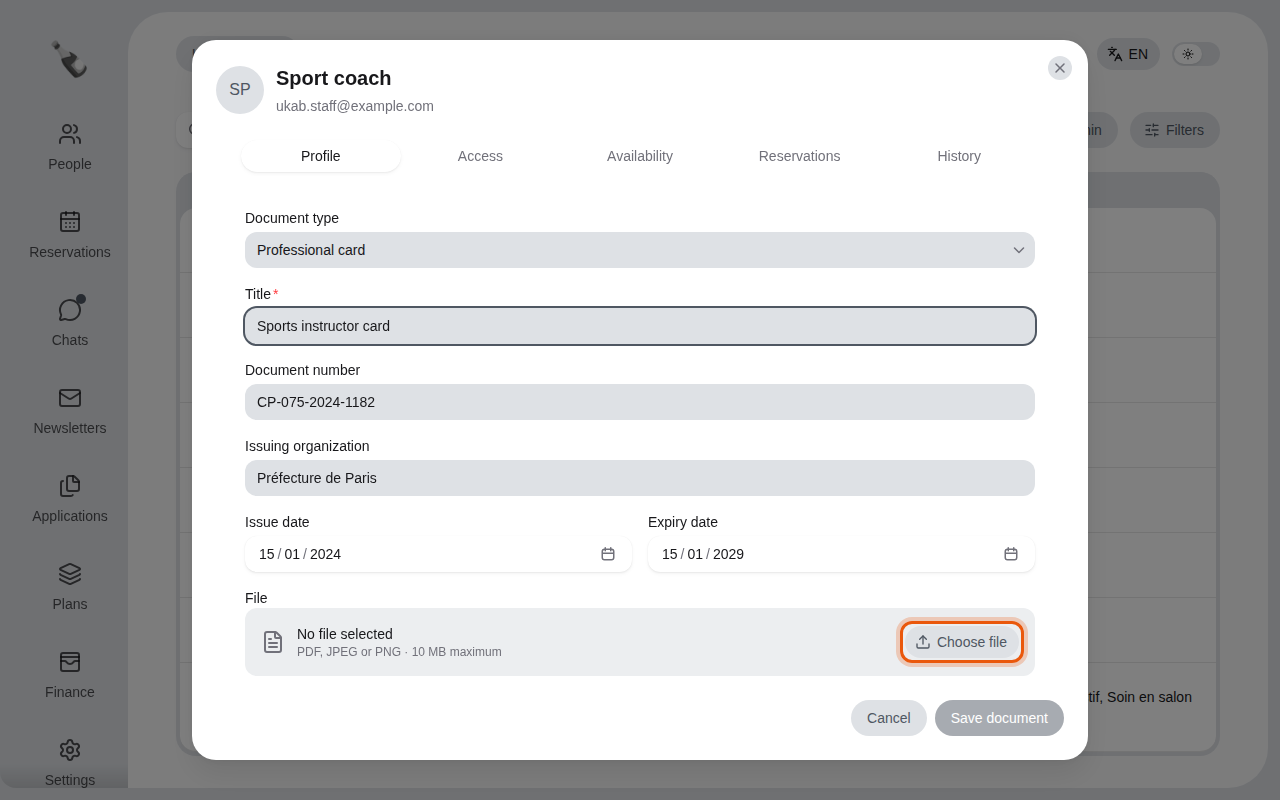
To add a document:
1. Select **Add document**.
2. Choose the **Document type**: **Professional card**, **Diploma** or **Other document**.
3. Type a **Title**, and if you have them, the **Document number** and the **Issuing
organization**.
4. Enter the **Issue date** and the **Expiry date**. The expiry date must be on or after
the issue date.
5. Select **Choose file** and pick the scan: a PDF, JPEG or PNG file of 10 MB at most.
6. Select **Save document**.
Adding an example professional card to the file of Sport coach.
## 3. Follow expiry dates [#3-follow-expiry-dates]
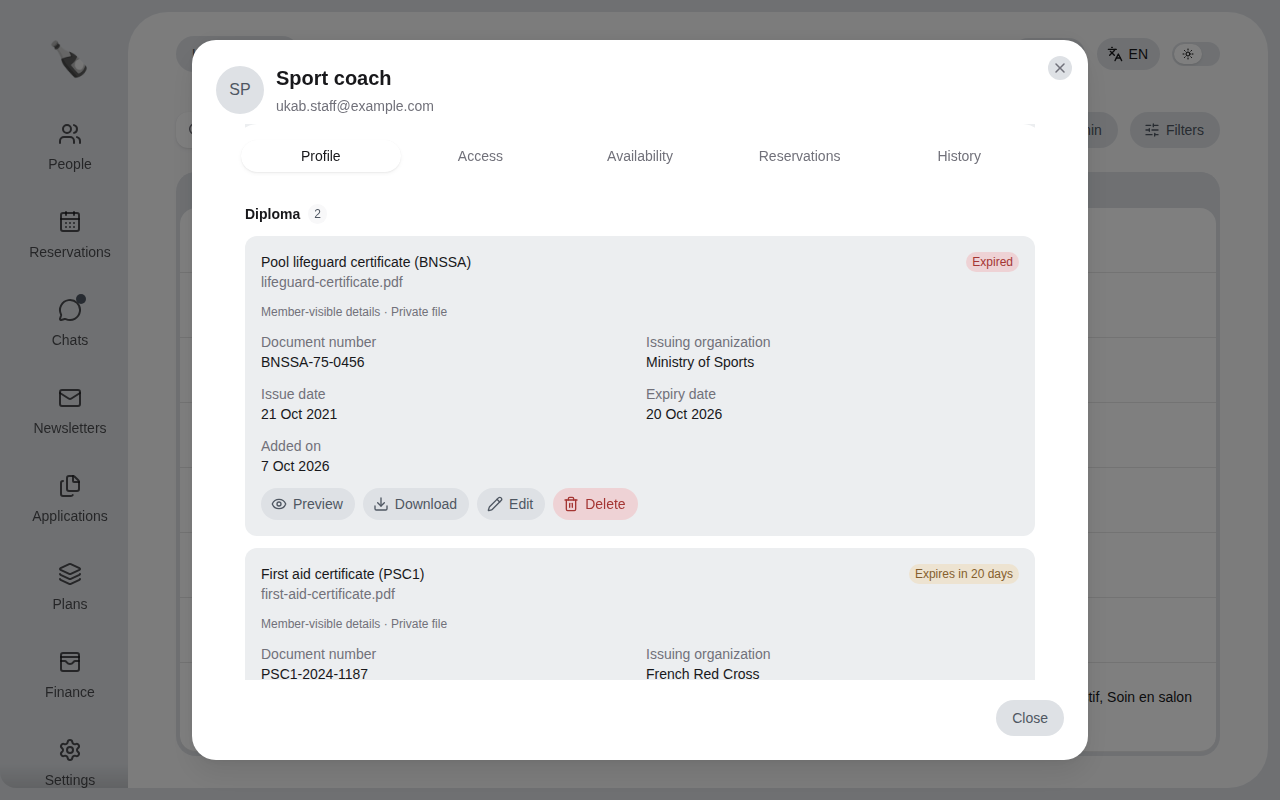
Each document shows how long it stays valid: **Not expired**, then from 30 days before its
expiry date a countdown such as **Expires in 20 days**, **Expires tomorrow** or **Expires
today**, and finally **Expired**. Documents are grouped
by type, with the number of documents next to each type.
The example coach's diplomas: one expired certificate and one that expires in 20 days.
| Document type | Who sees it |
| ---------------------------------- | ------------------------------------------------------------------------------------------------------------------------------------------------------------------------------------ |
| **Professional card**, **Diploma** | **Member-visible details · Private file**: members see the type, title, issuing organization and dates under **Qualifications** on this colleague's profile. The file stays private. |
| **Other document** | **Internal document**: only your team sees it. |
On a document, select **Preview** or **Download** to open the file, **Edit** to change its
details or **Replace file**, and **Delete** to remove it. Deleting asks you to confirm with
**Delete document**.
> Use the **Expires within 30 days** filter regularly to renew professional cards before they
> expire.