# Payments
Connect your club to Stripe so members can pay online, and set up your club's credits.
Source: https://docs.champagne.dev-ukab.fr/en/guide/admins/payments
Members pay your club online by card through Stripe, an online payment service. The money
goes to your club's Stripe account, called a merchant in Champagne. Once your club is
connected to a merchant, members can pay their membership, top up their [credits](/en/guide#credits) and pay
their invoices from their account.
You set this up in **Settings**, on the **Payments** tab.
## 1. Check your club's merchant [#1-check-your-clubs-merchant]
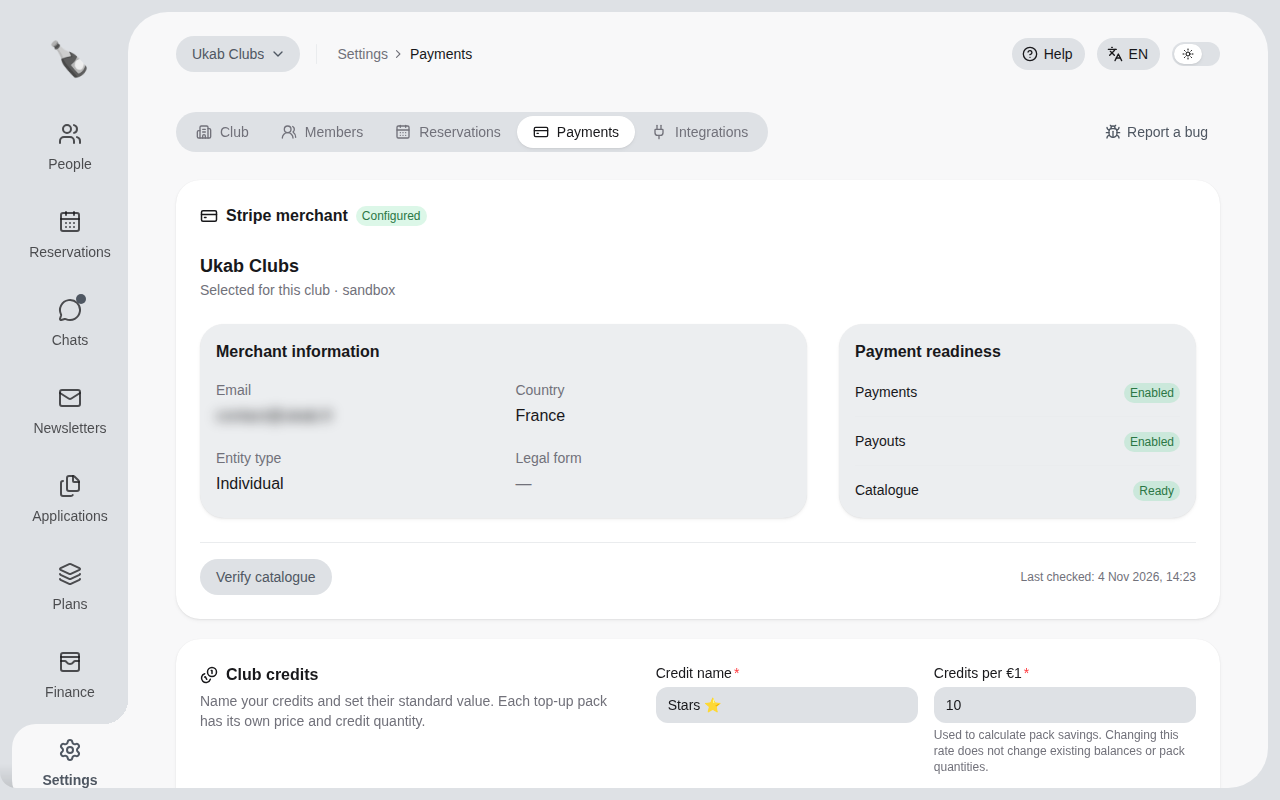
In the left menu, select **Settings**, then the **Payments** tab. The **Stripe merchant**
card shows **Configured** when your club is connected, and **Not configured** otherwise.
The example merchant of Ukab Clubs, ready to take payments. Its email is blurred.
**Payment readiness** tells you what works today:
| Line | Ready when it shows | Meaning |
| ------------- | ------------------- | ------------------------------------------------------------- |
| **Payments** | **Enabled** | Stripe accepts card payments for your club. |
| **Payouts** | **Enabled** | Stripe can transfer the money collected to your bank account. |
| **Catalogue** | **Ready** | Your plans are prepared on Stripe, so members can buy them. |
When a line is not ready, it shows **Not enabled** for **Payments** and **Payouts**, or
**To prepare** for **Catalogue**. Section 2 explains what to do.
The status updates on its own while the page is open. **Last checked** shows when it was
last refreshed. Other messages can appear on the card:
| Message | Meaning |
| --------------------------------- | ----------------------------------------------------------------------------------------------------------- |
| **Checking for updates…** | Champagne is asking Stripe for the latest status. |
| **Automatic updates interrupted** | Champagne could not get the latest status. The card shows the last known one. Reload the page to try again. |
| **Not checked yet** | Shown after **Last checked** when Champagne has not received a status from Stripe yet. |
| **Updating merchant…** | A change you asked for, such as **Prepare catalogue**, is in progress. Wait for it to finish. |
## 2. Connect a club to Stripe [#2-connect-a-club-to-stripe]
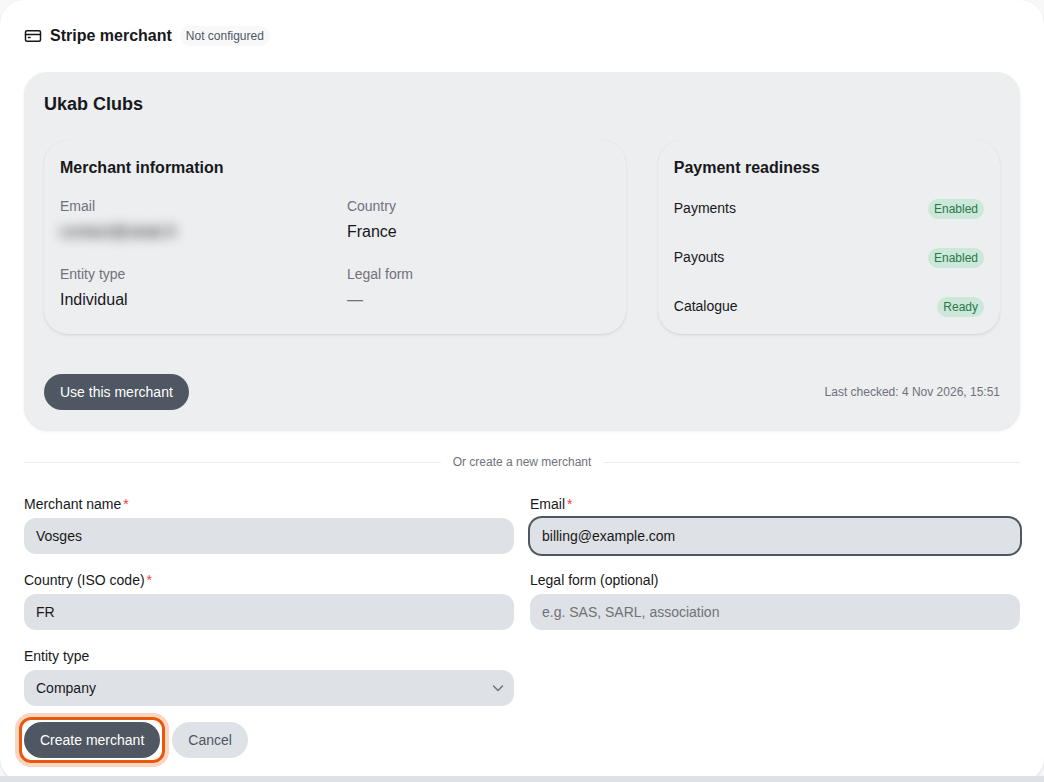
If the card shows **Not configured**, you have two options.
* Use an existing merchant. Merchants you already created for your other clubs are
listed with their details. Select **Use this merchant** on the right one: both clubs
then collect payments on the same Stripe account.
* Create a new merchant. Select **Create a merchant** and fill in the form.
Connecting the example club Vosges: reuse the Ukab Clubs merchant or create a new one. The
control to use is outlined in orange.
To create a merchant:
1. Enter the **Merchant name**, usually your club or company name, and a contact **Email**.
2. Enter the **Country (ISO code)**, the two-letter code of your country, such as **FR**
for France.
3. Optionally enter the **Legal form**, such as SAS, SARL or association.
4. Choose the **Entity type**: **Company**, **Individual**, **Non Profit** or
**Government Entity**.
5. Select **Create merchant**.
The new merchant then shows **Configuration to complete**. Select **Complete Stripe
activation**: Stripe opens in a new tab and asks for your company details and bank account.
Once you finish there, come back to Champagne. The card updates by itself.
> If Stripe does not open, allow pop-ups for Champagne in your browser and select **Complete Stripe
> activation** again.
When **Catalogue** shows **To prepare**, select **Prepare catalogue** to publish your [plans](/en/guide#plan)
on Stripe. Later, **Verify catalogue** checks that they are still in place.
## 3. Name your club's credits [#3-name-your-clubs-credits]
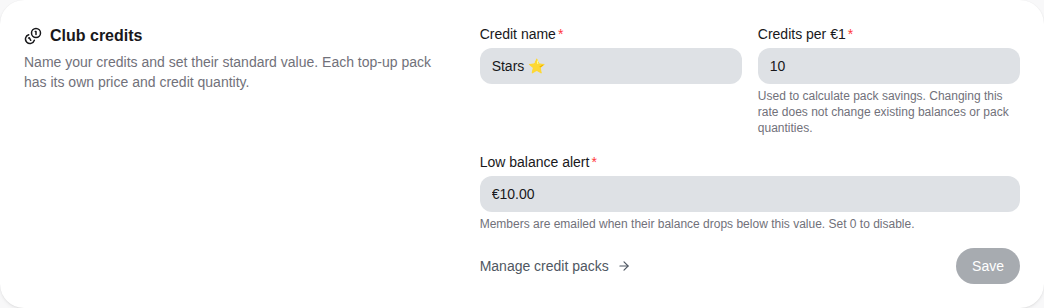
Credits are a currency of your own that members buy in packs and spend on bookings. The
**Club credits** card on the same tab sets them up.
The example credits of Ukab Clubs, called Stars.
1. Enter the **Credit name** members will see, for example "Stars".
2. In **Credits per €1**, set the standard value of a credit. It is used to show how much
members save with each pack. Changing it does not change existing balances or packs.
3. In **Low balance alert**, enter the amount under which members are emailed. Enter 0 to
turn the alert off.
4. Select **Save**.
To create the packs members buy, select **Manage credit packs**. See [Plans and
pricing](/en/guide/admins/plans-and-pricing).
## 4. What members pay online [#4-what-members-pay-online]
Once your merchant is ready, members pay by card on a secure Stripe page:
| What | Where members pay it |
| ------------------- | ---------------------------------------------------------------------------------------------------------------- |
| Membership | When they choose a plan, and then at each renewal. See [Your membership](/en/guide/members/membership-and-credits). |
| Credit packs | With **Top up for …** in their credits. |
| Invoices | With **Pay on Stripe** in their invoices. See [Billing](/en/guide/members/billing). |
| Non-member bookings | By card, for categories open to non-members. |
Members pay their bookings with credits when a resource has a price in credits. Prices and
deposits of each resource are set in its own settings: see [Resources, prices and
products](/en/guide/admins/resources-and-prices#2-set-a-resources-rules). To follow
what was paid, see [Sales and
invoices](/en/guide/staff/sales-and-invoices).