# Your club's website
Publish a sign-up site in your club's colors, at your club's own web address.
Source: https://docs.champagne.dev-ukab.fr/en/guide/admins/hosted-site
Your club can have its own [application](/en/guide#application) website. Visitors open it from a link you share,
for example on your website or social media, and apply to join your club. The site shows
your club's name, your color and your font, with a small **Powered by Champagne** mention.
Setting it up takes two steps: choose the site's address once, then publish each
application form you want to offer there.
## 1. Choose your club's address [#1-choose-your-clubs-address]
In the left menu, select **Settings**. On the **Club** tab, find the **Hosted club
address** card.
The example address of Ukab Clubs. On your screen, the end of the address shows your Champagne
domain. The field to use is outlined in orange.
1. In **Subdomain**, type a short name for your club, such as `ukab-clubs`. Capitals become
lowercase, accents are removed, and spaces and other signs become hyphens.
2. Select **Save**.
Your club's site then lives at this subdomain, followed by the Champagne address shown
next to the field. The same address is used for conversations about reservations.
> If you change the subdomain, links you already shared with the old address stop leading to your
> site. Update them wherever you published them.
## 2. Publish an application form on the site [#2-publish-an-application-form-on-the-site]
Each application form, called an onboarding, is published separately. In the left menu,
select **Applications**, then **Manage onboardings**, and select **Edit onboarding** on
the form to publish. Building the form itself is explained in [Application
forms](/en/guide/admins/onboarding-forms).
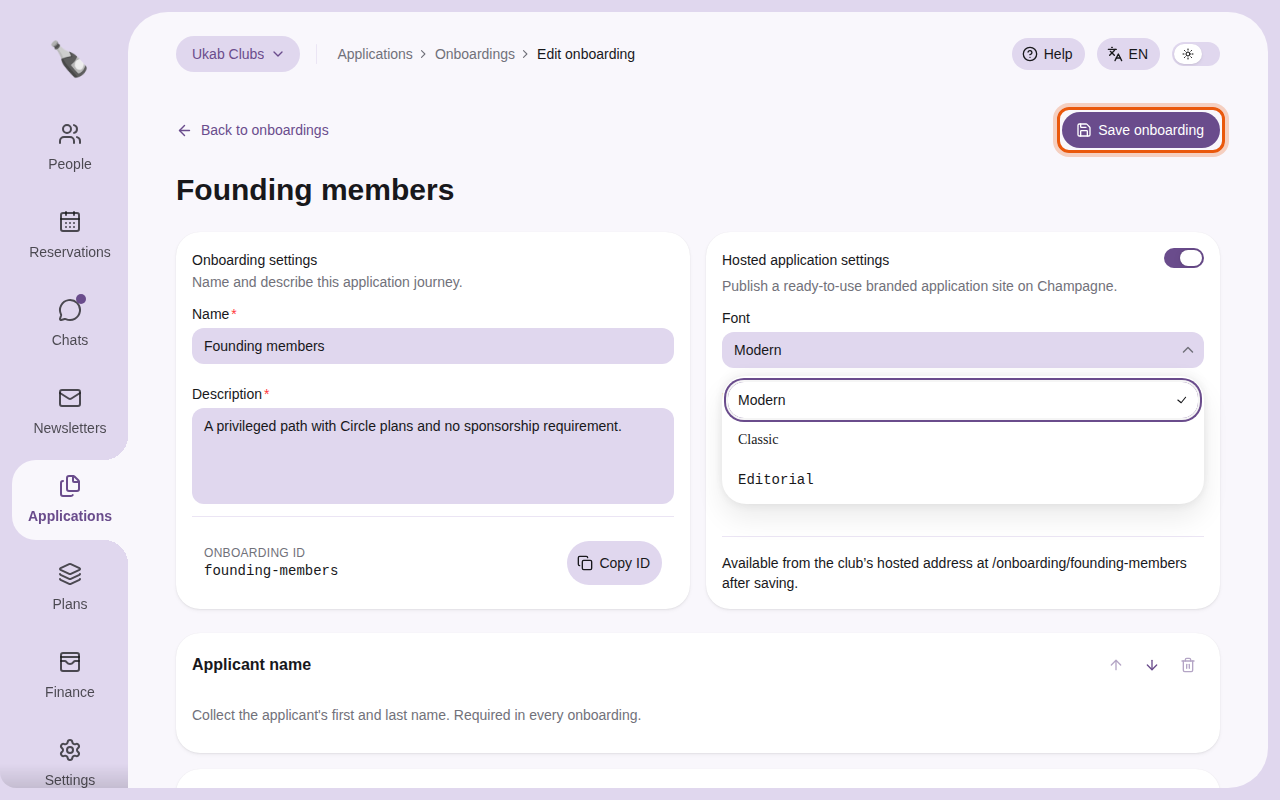
The hosted settings of the example onboarding Founding members, with the font list open.
In the **Hosted application settings** card:
1. Turn on the switch at the top right of the card to publish the form.
2. Choose a **Font**: **Modern**, **Classic** or **Editorial**. Each option is shown in its
own style.
3. Set the **Primary color** of the site. Type a color code such as `#2563EB`, or select
the pipette button to pick a color.
4. Select **Save onboarding**.
The bottom of the card shows the path of the form, such as `/onboarding/founding-members`.
Add it after your club's address to get the link to share.
To take a form off the site, turn the switch off and select **Save onboarding**.
## 3. What visitors see [#3-what-visitors-see]
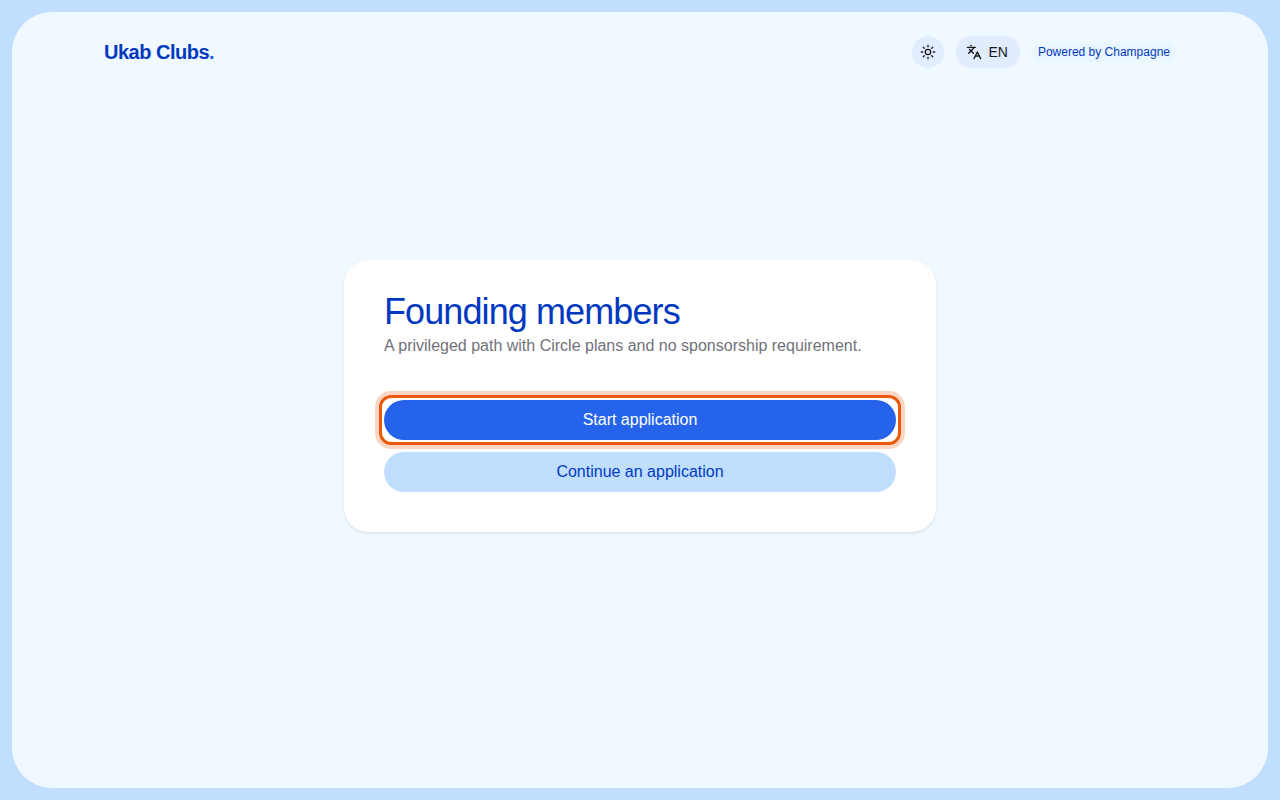
The link opens a welcome page with the form's name and description, in your color and font.
The example Founding members form, as visitors see it on the Ukab Clubs site.
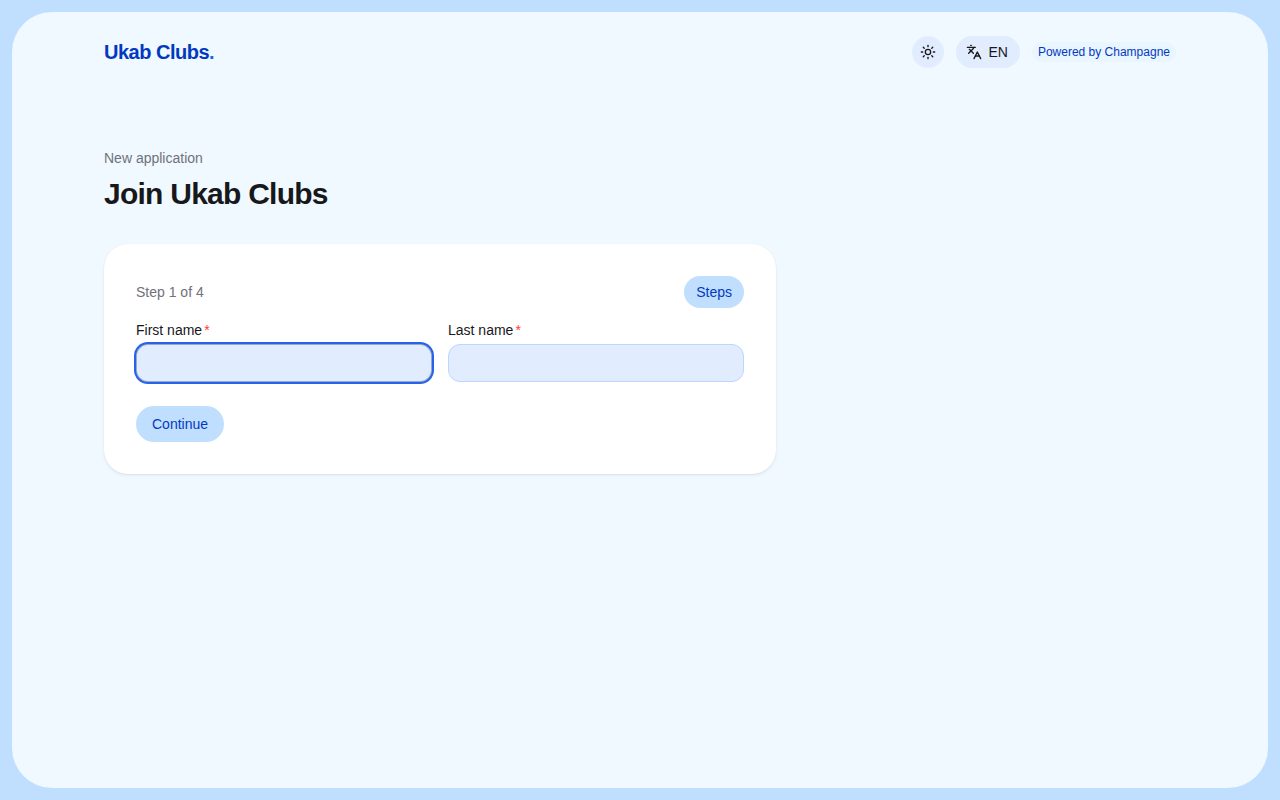
* **Start application** opens the form, step by step.
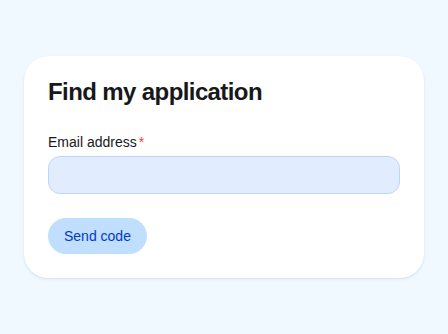
* **Continue an application** lets someone who already started come back to it. They
enter their email address and receive a code.
The first step of the example application on the Ukab Clubs site.
The page behind Continue an application.
Emails about the application, payment and signature pages bring applicants back to your
club's site. Once they have completed every step after approval, members sign in to their
account on the Champagne [member app](/en/guide#member-app): the site shows them a **Sign in to my account** link.
### When the site shows "Application site unavailable" [#when-the-site-shows-application-site-unavailable]
Visitors see this page when the link does not lead to a published form of your club.
The page shown for an example link to a form that does not exist.
Check three things:
* the link uses your club's current subdomain, as set in **Hosted club address**;
* the path after `/onboarding/` matches the one shown at the bottom of the form's
**Hosted application settings** card;
* the form's publish switch is on, and the form was saved.
New applications arrive in **Applications**, like any other. See
[Applications](/en/guide/staff/applications).